
How To Check CPU Performance In Windows 10
The article covers CPU performance, its meaning, importance, and the ways to monitor it on a Windows computer

All computers contain one processor at least and a CPU is one of those. It is also termed as the Central Processing Unit. These computers consume a small and generous amount of CPU when you regularly use it for your basic work. But when someone uses these computers for gaming, and runs large applications, the CPU consumption raises. But this consumption can be lower down by closing such heavy applications. While you are looking for lesser CPU consumption, it is recommended to use apps and programs that do not take more than 50% of the CPU consumption.
While you use your computer system regularly, it might get hogged up with heavy applications and programs, using which you might lend you in high CPU consumption trouble. You can, therefore, first learn how to check CPU performance on Windows and then learn the best utilities to monitor CPU usage.
How To Check CPU Performance On Windows 10
Before you learn how to check CPU performance on Windows 10, it is important to know what CPU you have and then check how CPU performance is.
Here’s how to look for what CPU is in your PC:
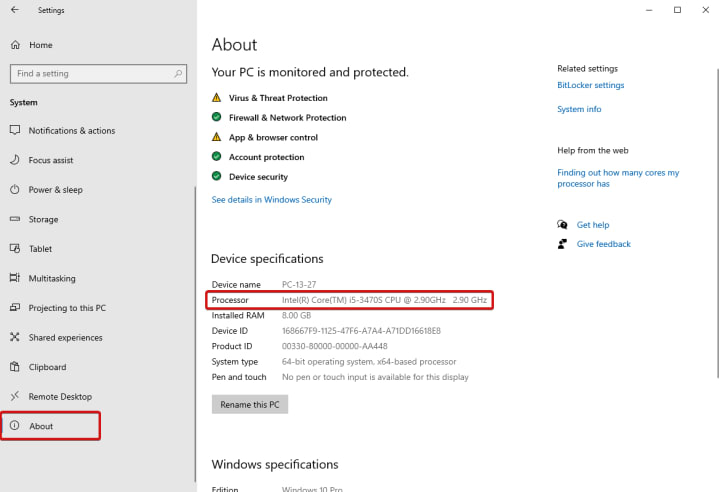
- Head to Windows Settings and then navigate to System.
- Scroll down until you find About.
- On the right side of the screen, you’ll see Device Specifications.
- Here, you’ll see the Processor and this indicates the processor model and speed. The speed of the CPU is measured in gigahertz (GHz).
Alternatively, you can use Windows Task Manager to check the CPU consumption separately for the apps and programs running on your device. For this, follow the instructions below:
- Head to Start Menu, right click and choose Task Manager or you can directly press Ctrl + Shift + Esc keys together. The Task Manager window looks like this.
- Head to the Performance tab and you’ll see the CPU tab at the top.
- Just like CPU, you can click on other tabs as well to get the detailed information about the consumption.
This is the only way where you can manually look for CPU performance on your Windows. Other than this, you can always seek help from the best CPU temperature monitoring software. Here’s a list of top 3 CPU temperature monitoring software for Windows 10
Top 3 CPU Temperature Monitoring Software Windows 10
If you’re looking for a way out to check and monitor CPU performance, this list is of much help. You can check for the reasons that might be making your computer hot and slow it down with time. Having the best CPU load & temperature monitors to help you stay on top of failing hardware on your network. Let’s check them out:
1. Speccy
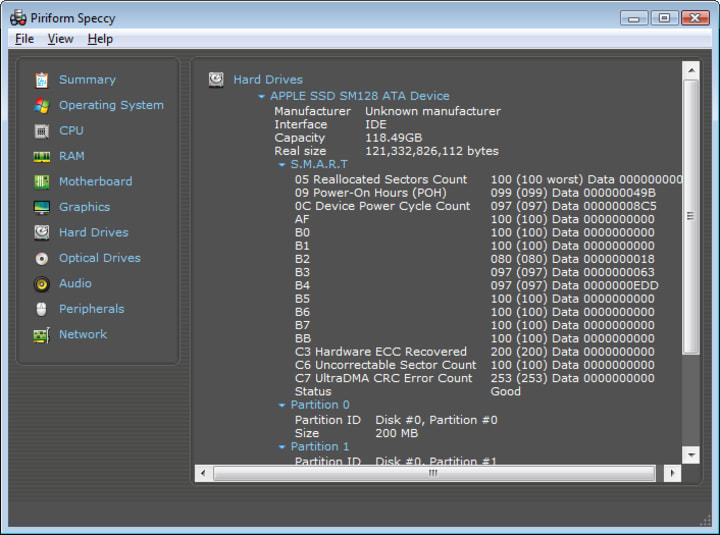
Speccy is a software from the CCleaner group for your Windows computer. The software is designed specifically keeping in mind both the hardware and software. With its real-time monitoring, you can detect the temperature of the components running on your PC. furthermore, you can keep the screenshots of the system scan saved for future reference. Read its Complete Review on top10pcsoftware
Highlights:
- Save time with its detailed reporting trawling through your PCs for stats like CPU, motherboard etc.
- Watch real-time temperature so that you get to know the critical problems much before they occur.
- Save scan results as a screenshot to ensure your system has right specs.
2. SIW
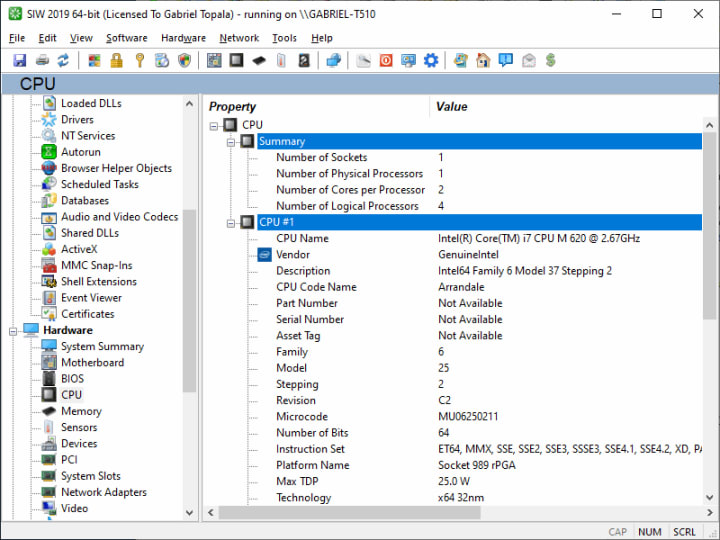
Another amazing utility option to monitor CPU performance is SIW. It is a detailed program that guides you through the health of your system alongside the CPU temperature. Before you use this utility, it is important that you know the specifications of your chip. Furthermore, you can determine the CPU temperature as well.
Highlights:
- CPU clock multiplier and FSB clock.
- Expected (not-overclocked) processors frequency.
- Socket (slot) and package (Platform ID).
3. Game Assistant 2
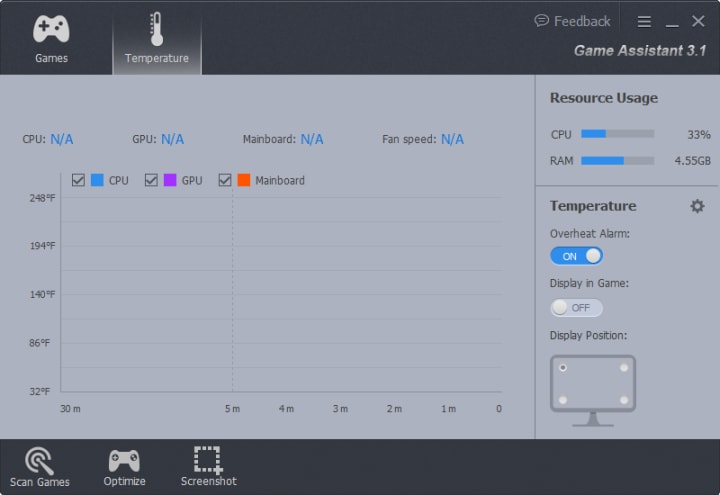
In the list of top three CPU monitors, Game Assistant 2 is a free, light-weight and easy to use system tool for Windows users. You can detect hardware status and optimize gaming experience. Game Assistant’s Temperature Monitor ensures showing you detailed information of the CPU, mainboard, GPU, and fan speed in real-time.
Highlights:
- Take screenshots of the results smoothly for future considerations.
- Does not consume much of your system RAM.
- A utility meant for both experts and beginners.
Final Words
So, this is all about checking CPU performance on your Windows using both manual and automated ways. Check out this guide and let us know which methods suit you the best. Also, tell us which CPU performance monitor you find right for you. A good and reliable CPU temperature monitor software helps you get the best output from the hardware. The performance monitors listed above are not the only ones, there are a lot more. You can check on these or look for more online. We find Speccy the best one and it is important to keep a check on your PC’s CPU performance.
About the Creator
Keep reading
More stories from arinamichel and writers in 01 and other communities.
How To Boost Ram Speed Windows 10
RAM is very necessary for completing the task on a computer. If the RAM is low then the computer will not be able to complete any task. You will feel the need to boost the RAM if your computer becomes slow and will not be able to complete the tasks given to them. There are different ways in which you can boost the RAM in the computer.
By arinamichel4 years ago in 01
How to Plan a Flawless SharePoint to SharePoint Migration?
SharePoint migrations might be complex, especially if you're not an IT expert or a professional user. Whether migrating from SharePoint to SharePoint Online or simply restructuring site collections between tenants, the process involves detailed planning and precision.
By Xanthe Clay4 days ago in 01
The Role of Architectural Rendering in Modern Real Estate
From Blueprints to Buy-In: How Hyper-Realistic Visualization is Rewriting the Rules of Real Estate In the high-stakes arena of real estate development, stakeholders are often tasked with selling the invisible. They are asking investors and homebuyers to commit millions of dollars to an asset that, at the moment of sale, exists only as a dataset of geometry and metadata. For decades, the industry relied on abstract 2D floor plans and watercolor sketches to bridge this gap. Today, however, that approach is not just outdated—it is a liability.
By Tesla CAD Solutionsa day ago in 01
Affection and Healing for Yourself
During the night of the last quarter moon, I gathered my ritual supplies. I carefully handled the chunk of black tourmaline that would protect me from your overall negative and narcissistic energy. I carefully walked the house with my stick of selenite in hand, asking the universe to cleanse our working space.
By Alisha Wilkins ✒️🦋🖋️3 days ago in Fiction


Comments
There are no comments for this story
Be the first to respond and start the conversation.