
How to buy the best monitor
Buying Guide for Students & Teachers


As a student or teacher, your PC (or Mac) is probably one of the most important tools for learning as well as teaching. We’re at a stage when the power and capabilities of both laptops and some smartphones are very close. Even the power and portability aspect of laptops have been redefined with the next-gen SoC devices like Apple’s M1 powered MacBook Air and MacBook Pro.
There is one thing that still hasn’t seen the light of day. More display real estate in a small form factor. Well, some foldable laptops have been showcased recently and very few of them are up for pre-order or retail as of writing this.
As a result, it is challenging to work on small displays with applications and workflows that require large display real estate like editing pictures, videos, coding, gaming on your “legally” acquired PlayStation 5 etc.
The solution to the above-mentioned challenge is very simple. Buy an external monitor. Well, yes it is very simple until you search the term “External Monitor” on Amazon.
With over 1,000+ results and hundreds and hundreds of different kinds of monitors, it gets a bit confusing if you have a thing for technical stuff. If you don’t then well, it’s going to be a hit and run trial for your money.
Don’t you worry, this is exactly the kind of article or might I say resource, that will help you find the best monitor for your academic or research needs without investing too much time.
Before I list the best monitors for students, teachers and lecturers, there are a few key factors that you need to consider before adding that display real estate to the cart.
Display Size
Display size is probably the most important factor when buying a monitor for educational purposes. The stakes get doubled if you're living in a college dorm or a shared apartment, where the desk space is limited.
You see, external monitors come in various sizes ranging from mere 15 inches to a monstrous 49 inches of super ultrawide sweetness. Therefore, you need to take out that measuring tape and start taking measurements of the available space on your desk. You also need to consider whether you’ll be using your laptop’s display alongside your external monitor or will be just keeping it docked with the lid closed. If it’s the former then you need to factor in the extra space for the laptop and avoid a super ultrawide like a 34” or 40” ultrawide monitor. If you’re planning to keep it docked with a closed lid then you can even go above 34 inches or even a multi-monitor setup.
If you have plenty of space and are too confused to try out new ultrawide monitors to bump your productivity then a 27” monitor will be the optimal size for you.
If you already have a 27” or a similar sized monitor, we recommend going with an ultrawide like this budget-friendly 30” monitor.
Usage
You need to clearly state your usage before you jump into the market for shopping monitors. Whether you’re buying to research and write papers, do monitor trading charts, edit photos & videos, watch Netflix or play games on Xbox or PC. With so many great options meant for specific purposes, you just cannot go and buy a monitor these days without proper research.
Here’s a quick rundown of features you need to look out for before purchasing an external monitor for college or academic purposes:
Colour Accuracy (For Photo & Video Editing)
If you’re a college student or professor doing or teaching photo or video editing, then you certainly need a monitor with very high colour accuracy. Colour accuracy is also referred to as colour gamut coverage. Colour gamuts are basically the range of color space that can be reproduced by a display. The display panels of said monitors can cover a certain percentage of those said colour gamuts. You’ll find this on most monitor listings on Amazon, “99% sRGB coverage” on most monitors, “99% DCI-P3” on premium monitors and “99% AdobeRGB” coverage on expensive monitors. These numbers denote how many colours these monitors can show out of the total colours available in a colour space. For most users, monitors that offer 99% of sRGB coverage are more than enough for most casual users.
Gaming (May our frame rates be high and our temps low)
If you’re a gamer then we recommend checking the 3 following things before investing in a monitor for college. You need to check the Refresh Rate, Response Time and G-Sync or Free-Sync support before selecting a monitor. As a gamer, those above-mentioned terms need no introduction. But keep in mind that the new gaming monitors have excellent response times with refresh rates that go up to 360Hz. With such specs, you might have to check on your GPUs whether they can handle the output resolution & frame rates or not. Also, make sure to get a top-class HDMI 2.1 cable or a DisplayPort cable that can deliver said frame rates & resolutions. They are the most common bottlenecks.
Brightness (Workstation Placement)
If you work in a pretty bright environment then you’ll need a monitor that can offer ample brightness. For workstations near a window 300 nits or 300 cd/m2 of brightness is good enough for most indoor workloads.
Ports (Workstation Connectivity)
You need to figure out how you will connect your laptop to your external monitor. Well, take a look at the ports on your machine. If you’ve got an HDMI port, well then you’re sorted. Almost all monitors come with a decent HDMI cable. If you do not have an HDMI port on your laptop, then welcome to Dongleland. You’ll either need a USB-C to HDMI adapter or hub or a docking station. Or *drumroll* You can go for a monitor with an in-built USB-C port.
USB-C or Thunderbolt port monitors offer impressive functionality. You just need to connect a USB-C cable to the monitor then there’s no need to plugin those keyboards or mouse or even your laptop charger to your laptop anymore. This is because USB-C external monitors have multiple USB-A, USB-C and power ports built right into them. USB-C has unified the entire consumer gadgets industry. You can use the same cable to charge your laptop, smartphones, drill machines, iPad, headphones & more. The list just goes on. If you already have USB-C devices, I’d recommend investing in an external monitor with USB-C functionality. Sure, they are slightly more expensive than their non-USB-C counterparts, but the ease of use and accessibility outrank every other connectivity method.
Other Factors
Speakers: Monitors have decent built-in speakers these days. If you need speakers for watching videos or casual listening then make sure to factor this in. They’re nowhere as good as a dedicated bookshelf speakers.
Mounting: Check whether you want to mount your monitor on a wall, on a dedicated movable stand or on your desk. Different monitors have different mounting solutions. Fortunately, most mid-range or above monitors offer VESA compatibility so you should be good to go in those cases.
Panel Type & Resolution
Both the type of panel and resolution will be affected by your purpose or usage.
The most common panels are TN, IPS and VA panels. I won’t dive into the nitty-gritty details of these panels. For that, you can read this excellent guide by Display Ninja. All-in-all, I’d say most users would be more than happy with an IPS panel on their monitor. They can get fairly bright, and offer excellent viewing angles and colour accuracy.
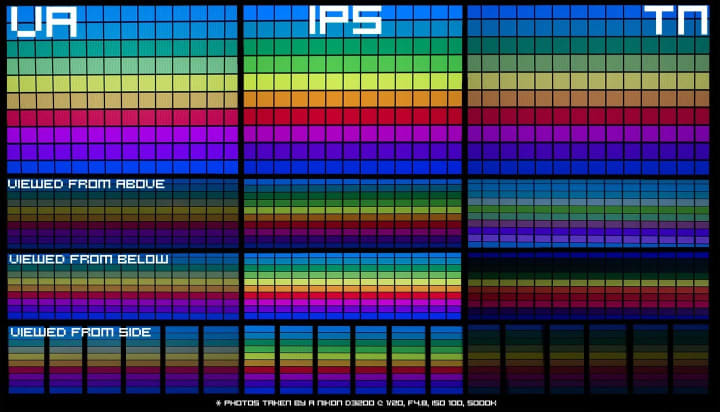
Sure, you can go with some high-end OLED or even next-gen QD-OLED panels, but they are relatively new and very expensive. I’d recommend keeping them aside for your next future upgrade.
Moving on let’s talk resolutions, if you look at Excel sheets or research papers all day then make sure to go with a high-resolution monitor. FullHD or 1080p monitors are old school. High resolution monitors offer crisp texts and visuals.
Here’s a quick rule of thumb, if you’re going to buy an external monitor with a size of 25 inches or above, make sure to go with the one with a screen resolution of 2K/QHD (2560x1440) or above.
You can also find 4K monitors in smaller sizes of 25 or even 24 inches but they are expensive and have scaling issues. If you just want a monitor for secondary use like watching movies from a considerable distance or monitoring dorm security cameras, then a FullHD monitor would best serve that purpose.
Pricing
This is probably the most important factor you need to consider before buying the best monitor for your college both as a student and professor. The list of features is long and you need to select the ones that you need. This is because the price tag keeps getting hefty when you stack those features.
Make sure to keep your budget and usability in mind. Also, double-check whether you can get a good refurbished deal on Amazon or BestBuy.
Here’s a list of some of the best external monitors you could buy as a college student or professor. Please note the below-mentioned monitors come in different sizes with the same and upgraded specifications. We recommend exploring different monitors variants of the following models to find the right fit for your workstation.
1. LG 34” inch Ultrawide (Best Overall, if you’ve got the space)
2. Philips 32” QHD Ultrawide Monitor (Best Value for Money)
3. Dell 27” 4K Monitor (Best for Productivity tasks)
4. AOC 27” QHD 144Hz Gaming Monitor (Best Value for Money Gaming)
5. Acer 22” FHD Monitor (Best for Security Camera Monitoring purposes)
6. BenQ 27” 4K Colour Accurate Photo & Video Editing Monitor
7. SAMSUNG 32” Odyssey G5 Gaming Monitor
These are just some of the best monitors you can buy for college students and professors. I'll be updating this as soon as the existing models get refreshed this year.
If you’re a macOS user, then I recommend reading the following buying guides and product recommendations. Apple’s M1 SoC have some hardware limitations due to which some monitors do not work well with them. The following roundups and buying guides contain monitors that have been tried and tested by thousands of Mac users across the globe.
Best monitors or external displays for
Hope you found this buying guide helpful. Cheers!
About the Creator
Neeraj Bhateja
Technology nerd with a zest for anything new in tech, cameras, vintage glass, and everything eCommerce.
Keep reading
More stories from Neeraj Bhateja and writers in 01 and other communities.
Top 3 Thunderbolt Docking Stations for M1 MacBook Pro & MacBook Air
Apple announced the M1 Mac line-up back in November 2020 consisting of the MacBook Air, MacBook Pro and Mac mini. The M1 chip annihilated every product in its budget segment in all categories. Be it content creation, machine learning, coding or a casual workflow, the M1 Mac just nailed every benchmark including the battery life.
By Neeraj Bhateja4 years ago in 01


Comments
There are no comments for this story
Be the first to respond and start the conversation.