
How to Burn a DVD: A Fully Tested Guide for 2025
Learn the most reliable methods to burn DVDs.

Burning DVDs may feel outdated, but after years of working with optical media, I can confirm it still serves a purpose. Whether archiving family videos, creating a physical copy, or ensuring compatibility with older players, knowing how to burn a DVD remains useful. Through countless tests and troubleshooting sessions, I've identified three reliable tools. In this guide, I'll share how to burn a DVD, my practical insights, tips, and mistakes to avoid.
Burn DVD with DVDFab DVD Creator
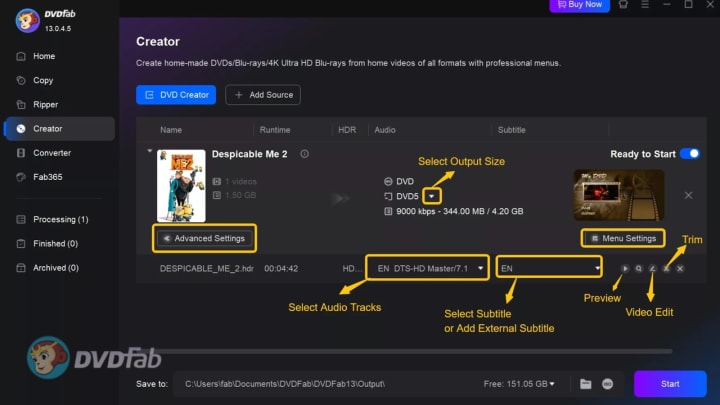
DVDFab DVD Creator is the most professional tool to burn DVDs. Known for its straightforward interface and reliable video conversion, it supports various video formats, including MP4, AVI, MKV, and MOV, and produces discs that work with nearly any standalone DVD player and playback software. The program allows users to customize DVD menus, arrange chapters, and add custom backgrounds and text. During my use of DVDFab, I found it consistently reliable, with no compatibility issues across several DVD players.
Core Features:
- Converts 200+ video formats to DVD-Video structure
- Burn videos to discs
- User-friendly interface with menu creation tools
- Custom templates, chapter selection, and background options
- Reliable burning engine with minimal errors
- Regular updates; compatible with Windows 7/8/10/11 and the latest macOS
How to burn a DVD using DVDFab DVD Creator:
- Open the DVDFab and select "DVD Creator" from the Creator module.
- Click "Add Source" to import your video files. Arrange them in your preferred order.
- Choose or customize a DVD menu template as desired; set background and chapter markers. On the main interface, it also has built-in "Video Edit" tools to let you customize your video footage.
- Insert a blank DVD-R or DVD+R disc into your drive.
- Select output type (DVD-5 or DVD-9) and confirm burning options (title, menu, encoding).
- Click "Start" and let DVDFab handle the conversion and burning. When finished, test your disc in a stand-alone DVD player.
Burn DVDs with ImgBurn
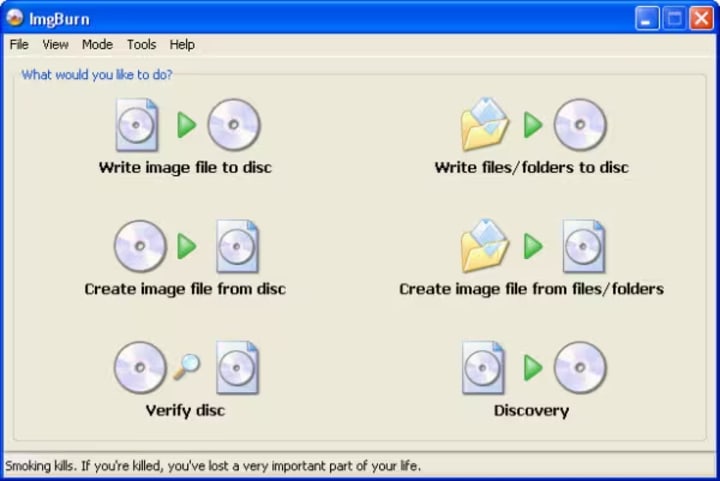
ImgBurn is a popular choice for those who need precise control to burn DVDs. This free software works well for burning pre-authored DVD-Video folders (VIDEO_TS) or ISO images to blank discs. While it doesn't convert video or create menus, it ensures data integrity and offers advanced options. In my tests, ImgBurn worked reliably on Windows 10 and 11, producing error-free discs that held up well during long-term storage.
Core Features:
- Freeware: no cost, no ads
- Supports burning ISO images or VIDEO_TS folders directly to DVD media
- Detailed logging, verification, and fine-tuned write speed control
- Lightweight and efficient; integrates well with Windows Explorer
- No video conversion or menu design—best if your files are already DVD-ready
How to burn a DVD using ImgBurn:
- Prepare your VIDEO_TS folder or ISO file. (For video discs, files should already be in DVD-Video format.)
- Launch ImgBurn and select "Write files/folders to disc" for VIDEO_TS, or "Write image file to disc" for ISOs.
- Add your source files/folders as needed.
- Insert a blank DVD-R or DVD+R disc in your drive.
- Choose your preferred write speed (4x or 8x is safest for most drives).
- Click the burn button and monitor progress. Allow ImgBurn to verify the written data once finished.
How to Burn a Disc with DVDStyler
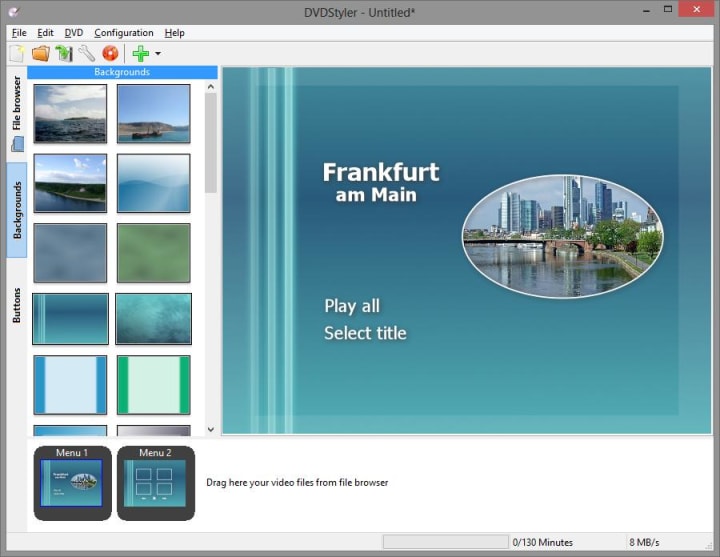
DVDStyler is a useful tool for burning a video to a DVD and creating basic DVD menus without the cost. This open-source software supports a variety of video formats and works on both Windows and macOS. Its simple drag-and-drop interface lets users design custom disc layouts, create interactive menus, and burn compliant DVD-Video discs. Based on my experience, DVDStyler performs well, though encoding can be slower with long or high-bitrate videos.
Core Features:
- Free and open-source; runs on Windows and macOS
- Supports a wide range of input video formats
- Menu creation with drag-and-drop, templates, and image browsing
- Automatic conversion to DVD-Video standard before burning
- Active development and good community support
How to burn a DVD using DVDStyler:
- Open the program and start a new DVD project (choose NTSC or PAL based on your location).
- Drag and drop your video files into the project. Rearrange as needed.
- Select a menu template or build your own from scratch; customize titles and navigation.
- Insert a blank DVD into your writer.
- Click the "Burn" button, choose your preferred burning options, and let DVDStyler encode and write the files to disc.
- After completion, play the finished DVD in a set-top player to check success.
FAQ about How to Burn DVD
1.How do I burn a DVD that will play in standard DVD players?
The key is ensuring you create a proper DVD-Video disc, which includes the VIDEO_TS and empty AUDIO_TS folders, proper file encoding (MPEG-2 video, standard audio codecs), and a correct menu structure. DVDFab DVD Creator and DVDStyler handle this well. I've often had "data DVDs" that wouldn't load in players; reburning them with the correct settings resolved the issue.
2.Can you burn DVDs on Windows 11 or macOS Sonoma?
I've used all three tools on Windows 10 and 11 without significant problems. Both DVDFab and DVDStyler also work with the latest macOS versions. I've seen many users on MacBook Airs and iMacs burn DVDs for personal projects. Be aware of potential OS updates that may affect burning drive support. It's a good idea to check the changelog before major system updates.
3.Is it legal to burn DVDs?
Burning personal content like family videos is legal in most places. However, duplicating commercial, copy-protected discs can be legally questionable. Copyright laws vary, so it's wise to check local regulations if you're unsure or plan to distribute the discs.
4.How much video fits on a DVD?
A single-layer DVD holds about 4.7GB, and a dual-layer DVD holds about 8.5GB. Typically, you can store up to 2 hours of standard-definition video at good quality on a single-layer disc. For longer videos, software compresses the files, but this may reduce quality. I prefer splitting long videos across multiple discs to avoid quality loss.
Conclusion
Looking back at years of trial, error, and late-night disc spins, I'm still surprised by how often burning DVDs comes up: digitizing old family footage, sharing milestone events with relatives, or simply making a dependable physical archive. DVDFab DVD Creator, ImgBurn, and DVDStyler have each become fixtures in my process for how to burn a DVD, how to burn a disc for playback, or just getting video off my drives and into someone's hands—literally. If you follow these tested steps and heed the real-world tips I've gathered, you'll skip the most common headaches and get right to the satisfaction of a finished, working DVD. Here's to fewer coasters and more perfect discs—no matter what projects come your way.
About the Creator
Wenny
Hi there, I'm Wenny, a technical writer sharing multimedia solutions accessible for everyone. Read my articles to turn "how?" into "let's do it!"
Understanding PCB Technology and Its Role in Modern Electronics
Printed Circuit Boards, commonly known as PCBs, are fundamental components in modern electronic devices. From smartphones and computers to medical equipment and industrial machinery, PCBs form the backbone of nearly all electronic systems. These boards provide the physical structure and electrical connections required for electronic components to function together efficiently.
By charliesamuel2 days ago in 01



Comments
There are no comments for this story
Be the first to respond and start the conversation.