
How to Backup Emails from Hostinger?
Secure and Easy way to backup Hostinger Emails to System.
Backing up emails is a crucial step in ensuring the safety and availability of your important communications and data. Hostinger, a popular web hosting provider, offers email services that many users rely on for their personal and business needs. This article will guide you through the reasons to backup Hostinger emails , the methods available (both manual and automated), and provide some tips and answers to frequently asked questions.
Email is an essential tool for communication and record-keeping in both personal and professional settings. Ensuring that your emails are backed up can save you from data loss due to accidental deletion, technical issues, or cyber threats. Hostinger users have multiple options for backing up their emails, ranging from manual methods to automated tools.
Why Need to Download Hostinger Emails to PC?
- Data Loss Prevention: Protect against accidental deletions, server crashes, or other unforeseen events.
- Easy Migration: Simplify the process of moving emails to a new service provider.
- Compliance and Security: Maintain compliance with data retention policies and ensure the security of sensitive information.
- Accessibility: Ensure that important emails are accessible even if the primary email service is down.
How to Backup Emails from Hostinger Manually?
You can manually backup your mailbox data using email client. Here we discuss teh backup process using Outlook and Thunderbird. If you are using other application, then you can use it and backup your mailbox data to your sysetm.
1. Microsoft Outlook:
- Open Outlook and go to File > Add Account.
- Enter your Hostinger email credentials and set up the account.
- Once the account is added, go to File > Open & Export > Import/Export.
- Choose Export to a file and select Outlook Data File (.pst).
- Select the email account you want to export and choose the destination for the backup file.
2. Mozilla Thunderbird:
- Open Thunderbird and set up your Hostinger email account.
- Install the ImportExportTools NG add-on from the Thunderbird add-ons page.
- Right-click on your email account, select ImportExportTools NG, then Export folder or Export all folders.
- Choose the desired format and destination for the backup.
How to Backup Hostinger Emails Automatically?
To back up Hostinger emails on a Windows system, you can consider several tools, each with its own features and advantages. One such tool is the Advik Email Backup Tool for Windows as well as for Mac OS. The software will effortlessly backup Hostinger emails in a few simple clicks. It will maintain the email folder and sub-folder hierarchy and structure while downloading Hostinger emails.
Steps to Backup Hostinger Emails in Windows -
1. Run the tool on your Windows.
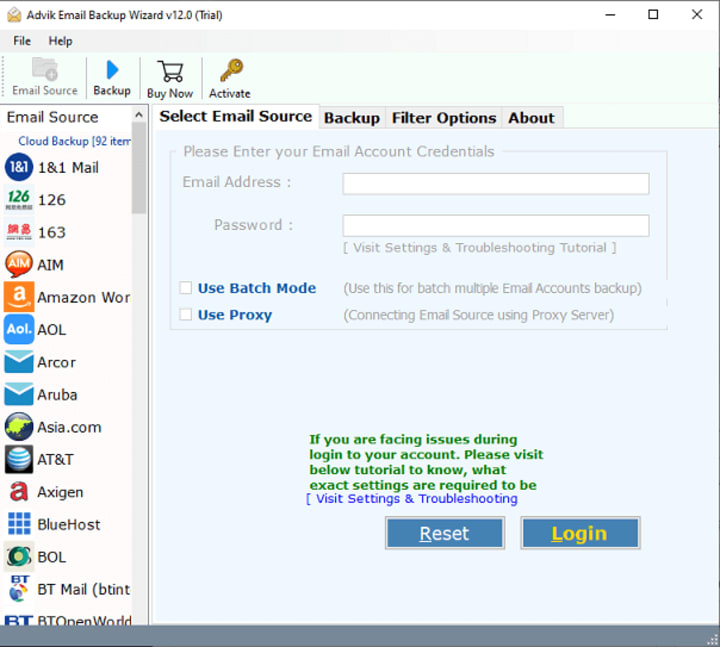
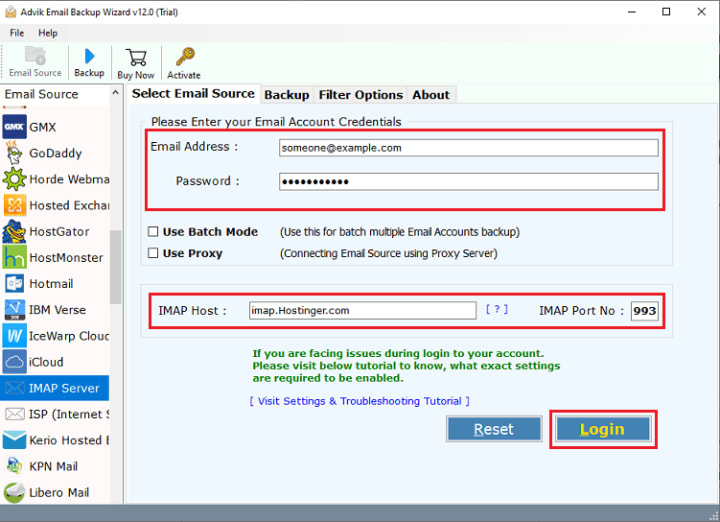
2. Search for IMAP and enter your login details.
3, Select the email folder you want to download.
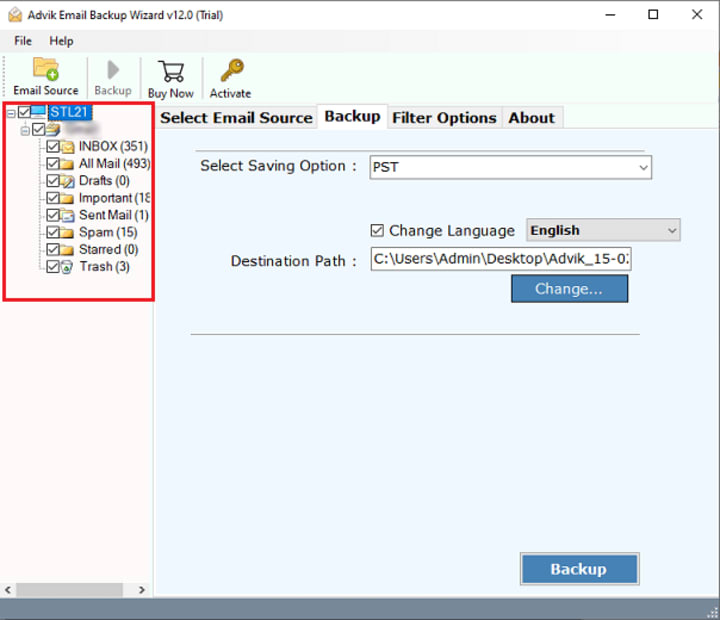
4. Choose any file format to save your data.
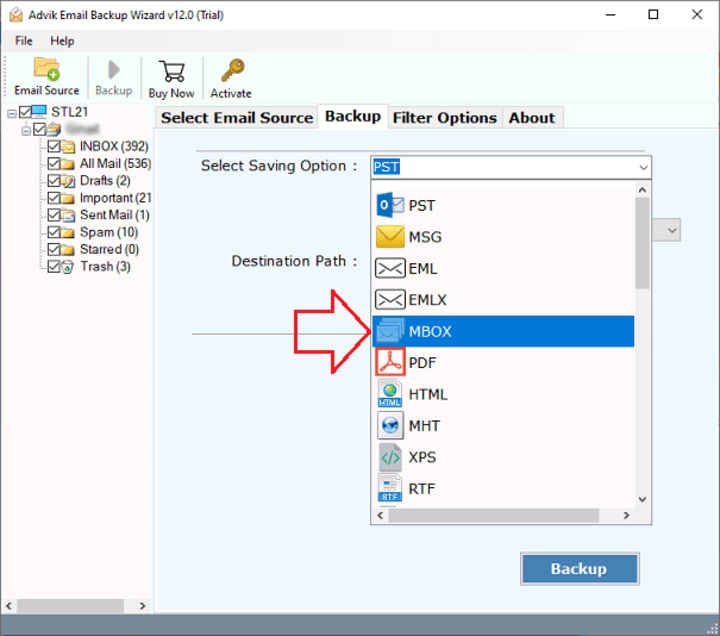
5. Browse the saving location and hit the Backup button.
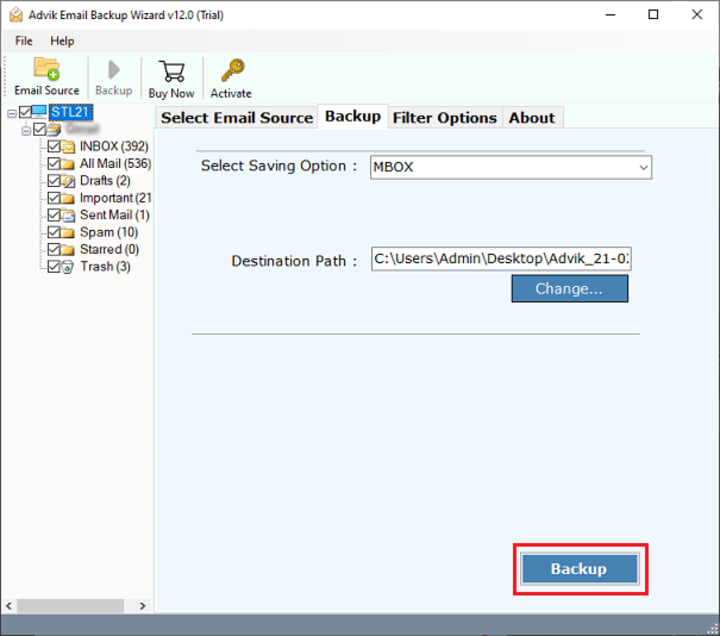
Done! Here is the complete process to backup Hostinger emails in simple 5 steps.
Conclusion
Backing up your Hostinger emails is a simple yet essential task that can save you from potential data loss and ensure that your important communications are always accessible. Whether you prefer the manual method using email clients or the automated approach with specialized tools, regular backups should be part of your routine email management.
Tips before Backup Hostinger Emails
- Schedule Regular Backups: Set up automated backups at regular intervals to ensure that your data is always up to date.
- Use Strong Passwords: Protect your email accounts and backup files with strong, unique passwords.
- Store Backups Securely: Keep your backup files in a secure location, such as an encrypted external drive or a secure cloud storage service.
- Verify Backups: Periodically check your backup files to ensure they are complete and accessible.
About the Creator
Trump, Starlink, and the Battle for Connectivity in Iran
In what has become one of the most volatile periods in recent Iranian history, the convergence of international politics and cutting-edge technology has taken center stage. As mass protests continue to shake cities across Iran and authorities enforce one of the most severe internet blackouts in decades, former U.S. President Donald Trump has publicly linked his response to the crisis with the role of satellite internet — specifically Elon Musk’s Starlink — as a potential lifeline for Iranian citizens.
By Muhammad Islam khan swati7 days ago in 01



Comments
There are no comments for this story
Be the first to respond and start the conversation.