
Explore Top 3 AVI to DVD Converters and Step-by-Step Guides
Looking to burn videos in AVI format to DVDs? Check this out!

Converting and burning common formats like AVI to DVD remains an essential method for many users to preserve and enjoy their videos. Whether it's home recordings, downloaded clips, or multimedia projects, professional and user-friendly tools burn AVI to DVD conversion process straightforward. This article will introduce several popular and feature-rich solutions, including the powerful DVDFab DVD Creator, the convenient online service Zamzar, and the practical Freemake Video Converter, helping you choose the best method to burn AVI files to DVD based on your specific needs and scenarios.
Method 1: How to Burn AVI to DVD with DVDFab DVD Creator
DVDFab DVD Creator is a versatile AVI to DVD converter to easily burn a wide range of videos into DVD format. Whether you have downloaded videos or self-captured footage, this tool allows you to transform them into professional-looking DVDs. One of the key features of DVDFab DVD Creator is its capability to add external subtitles to your videos, as well as the ability to remove unwanted audio tracks and subtitles according to your preferences. With this tool, converting AVI to DVD format, burning video DVDs to folders, ISO files, or directly to blank DVDs is simple and efficient.
WHAT WE LIKE
- Supports Windows and macOS.
- Batch conversion of multiple AVI and other video files.
- Burn dual-layer DVD-9 or single-layer DVD-5 discs.
- Allow for saving the created DVD as a Video DVD or ISO file.
- Ability to preserve all audio tracks and subtitles as well as delete unwanted ones.
- Adding external subtitles and editing subtitles.
- Built-in menu templates with options for editing.
WHAT WE DON'T LIKE
- The free version is time-limited.
Here is a step-by-step guide on how to burn AVI to DVD on Windows with DVDFab DVD Creator:
Step 1: Free download and install DVDFab DVD Creator on your computer.
Step 2: Launch the program and select the "Creator" tab on the left pane. And then click the blue button to select "DVD Creator" if it is not default to this one.
Step 3: Click "+Add Source" to add the AVI files you wish to convert and burn to DVD. Drag and drop the AVI and video files/folders to the main interface are also supported.
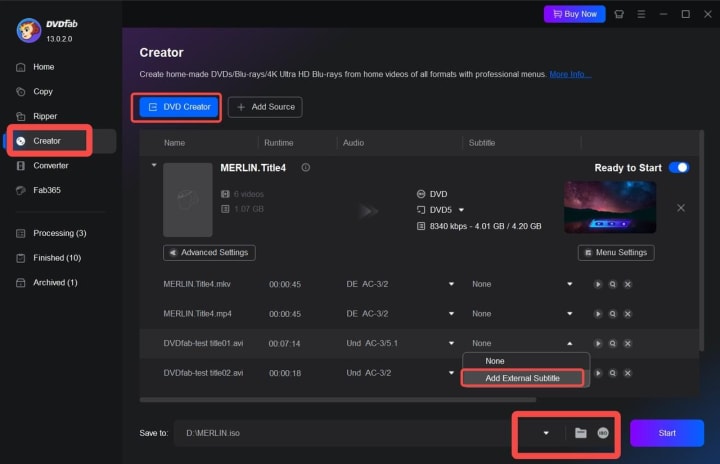
Step 4: Once the videos are loaded to DVD Creator, click on the Audio tab to remove the audio tracks you do not want for that title, or add external subtitles if needed. You can add subtitles in .srt, .smi, .ass, and .ssa format to the video.
Once a subtitle is imported, a new Edit window will pop up allowing you to add more subtitles and set subtitle font, transparency, position, and speed. All the changes can be viewed in real time.
Step 5: Click the "Menu Settings" button and then change the background image, add texts, and change play buttons. Besides, you can also click "Video Edit" button to customize your video footage.
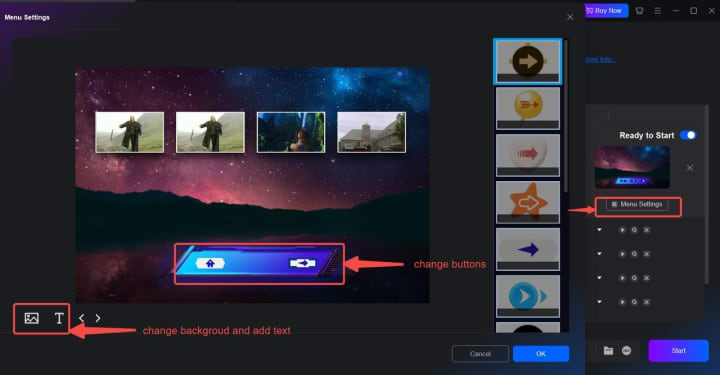
Step 6: At the lower area of the main interface, you can choose how to save the DVD. Click the folder icon or ISO icon to save the created DVD to the hard drive, or choose your burner from the list and then input a blank DVD to the selected drive if you want to burn it to the disc immediately.
Step 7: Click the "Start" button and wait till the process is completed.
Method 2: How to Convert AVI to DVD Online Using Zamzar
Zamzar provides an online file conversion service that allows users to upload their files from various locations, including local computers and online drives such as Google Drive and Dropbox. With just a few clicks, you go through all the ways from adding sources to choosing an output format from the list and starting the process. It's convenient for converting small files. However, it can work as an AVI to DVD authoring tool only. If you want to burn the created DVD to a blank disc, you will need to use an additional burning tool.
WHAT WE LIKE
- Easy to use.
- Unlimited operating system and relies on the web browser.
- Support a wide range of video/audio formats.
WHAT WE DON'T LIKE
- Files are only stored for 24 hours.
- Unable to burn AVI to DVD directly.
- While a file exceeds free limits, you can't convert it until creating a Zamzar account.
To convert an MP4 file to a DVD using Zamzar, follow these simple steps:
Step 1: Open the Zamzar official site on a web browser.
Step 2: Choose the source file, from either your computer or from the URL. You can use the "X" button to remove the files you don't want to continue with. Then choose the output format as DVD from the list.
You can enter your email address to receive the converted file. It's optional. Zamzar will send you a download link once the conversion is complete.
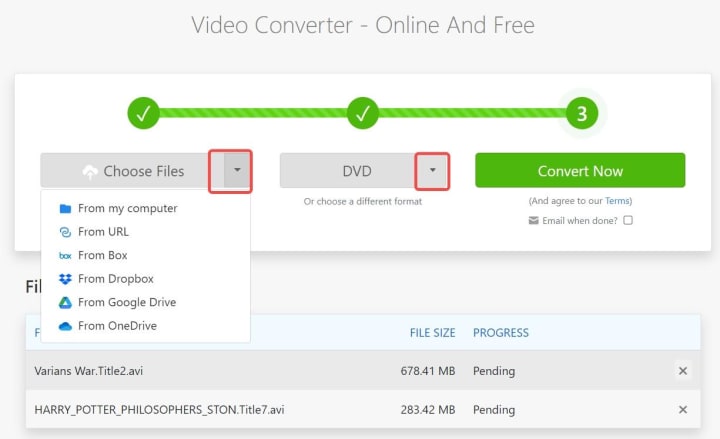
Step 3: Wait till the upload progress is completed. And then click the "Convert Now" button to move forward. If the file size exceeds the free limits, you will get a warning asking you to create an account.
Step 4: It will start to convert AVI to DVD, which will take some time. Wait till all is done, and then download the converted DVD file to your computer.
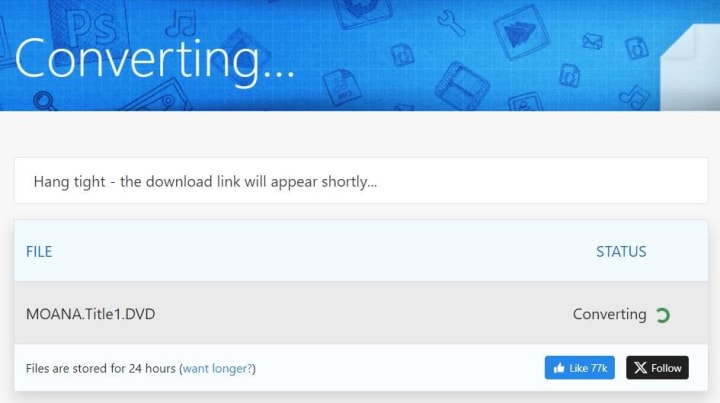
Step 5: Use a free burning tool like Imgburn to burn it onto a blank DVD.
Method 3: How to Burn AVI to DVD using Freemake Video Converter
Freemake is popular among users needing to convert AVI to DVD format for playing on most DVD players. It supports a wide range of file formats, making it a breeze to convert not just AVI, but also MKV, MP4, and more to a variety of other formats such as DVD, WMV, MPEG, MP3, FLV, and beyond. With its intuitive interface, you can easily navigate through the software and complete the conversions effortlessly.
Freemake Video Converter is advertised as a free tool; however, we could complete only one conversion before being prompted to purchase the full version during our testing. Thus, if you are searching for a truly free AVI to DVD converter, this may not be the best choice.
WHAT WE LIKE
- Support photos besides video and audio.
- Support adding external subtitles.
- Support converting multiple files onto one disc.
WHAT WE DON'T LIKE
- Limited video-editing features.
- A Freemake logo will be included in the video created with the trial version.
- Add Subtitle feature is only available for paid accounts.
Step-by-step guide on how to convert AVI to DVD with Freemake Video Converter:
Step 1: Download and install the Freemake Video Converter on your computer.
Step 2: Launch the software and click the "+Video" button at the top of the main window, add your AVI files as the source. You can also "drag and drop" the AVI files directly.
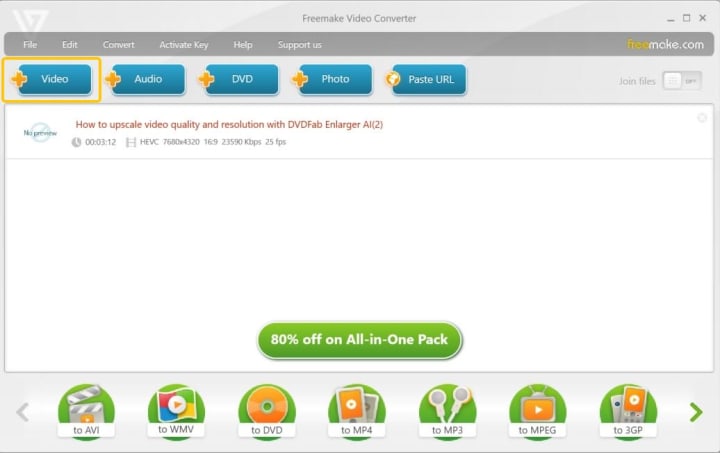
Step 3: Modify the video using the two buttons on the right of the title. If you don't want to include the title in the output, use the "X" button to remove it.
Step 4: Click the "to DVD" button at the bottom of the interface.
Step 5: Insert a blank disc into your PC's burner/drive. In a popup window, select your DVD drive as an output destination. If you want to burn AVI files to DVDs later, choose the output as ISO or Folder. Set the title name to your liking in the title box.
Choose a DVD menu type you like and then customize related options per your preference. After that, choose the video format (PAL or NTSC), change the aspect ratio (16:9 or 3:4), and set the audio codec.
Step 6: Click "Convert" to run the process. Alternatively, you can hit "Burn" to create a DVD video disc.
FAQ about AVI to DVD Converter
I am running a Mac, can I convert AVI to DVD on macOS?
If you are looking to convert AVI to DVD format, there are several reliable software options available for both Windows and Mac users. Some popular and user-friendly tools include DVDFab DVD Creator, Express Burn, and AnyMP4 DVD Creator.
Can I convert AVI to DVD format using Windows Media Player?
Windows Media Player can burn videos and audio to data DVD, but it is not a standard DVD format that is compatible with standalone DVD players. It'd be better to use those professional AVI to DVD converters for a more compatible DVD.
Conclusion
DVDFab DVD Creator offers a comprehensive solution for converting AVI to DVD format with a variety of customizable options. Express Burn is another easy-to-use tool that allows you to quickly and efficiently burn your AVI files to DVD. AnyMP4 DVD Creator is also a great choice for creating professional-looking DVDs from your AVI videos. Freemake Video Converter is for only Windows systems, while Zamzar is web-based, with no limit on operating systems. No matter which software you choose, you can be sure that these tools will help you convert AVI to DVD format easily and efficiently.
About the Creator
Wenny
Hi there, I'm Wenny, a technical writer sharing multimedia solutions accessible for everyone. Read my articles to turn "how?" into "let's do it!"
🔋 Hydrogen Fuel: Powering the Future of Clean Energy
As the world searches for cleaner, more sustainable energy sources, hydrogen fuel has emerged as one of the most exciting contenders ⚡. Often described as the fuel of the future, hydrogen promises zero emissions at the point of use, high energy efficiency, and versatility across multiple industries. But what exactly is hydrogen fuel, how does it work, and can it truly replace fossil fuels? Let’s explore 🚀.
By Toader Adelinabout 7 hours ago in 01
House Cleaning Scopes That Keep Results Consistent
A clean home feels simple until you try to keep it that way during a busy month. Work deadlines, school schedules, pets, and visitors stack up. Dust returns faster than expected. Bathrooms show water spots. Kitchen grease builds around the stove. Many homeowners hire cleaning help, then feel unsure about what to request and how to judge quality.
By Jared Benning3 days ago in 01


Comments
There are no comments for this story
Be the first to respond and start the conversation.