
Error: Outlook OST Data file Can't be Opened in Windows 10
Outlook OST Data file can't be Opened in Windows 10
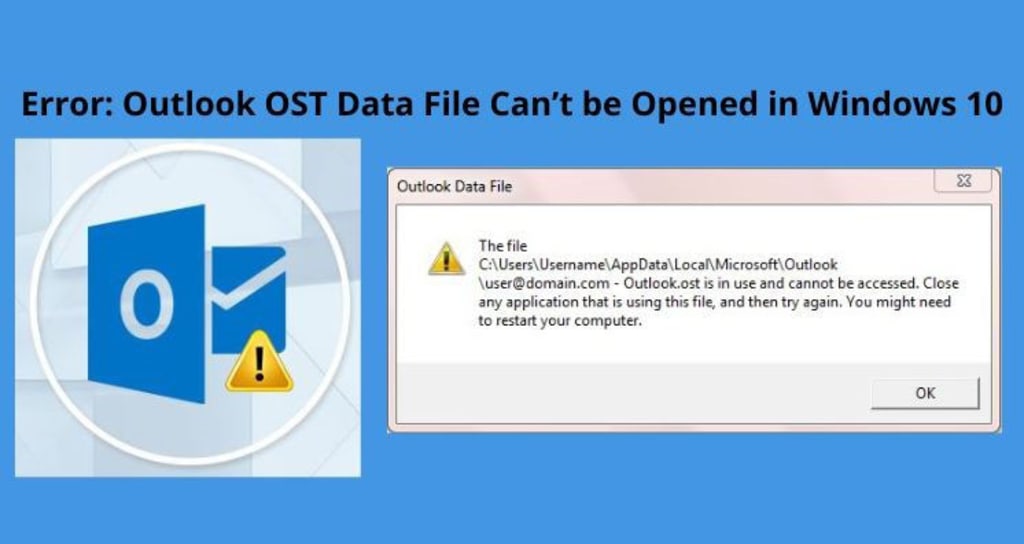
Are you encountering Outlook data files that can’t be opened for OST error on Windows 10? This may lead to loss of access to essential data in the Outlook mailbox.
Outlook OST files consequently synchronize replicas of all emails, contacts data, calendars, notes, tasks, etc., and are susceptible to corruption and other damages.
Why Outlook OST file can’t be opened?
Below are possible reasons why Outlook denies opening the OST files.
Synchronization Issue
If network connections on your system are not working appropriately, the OST file and Exchange Serer can’t be synchronized properly, this causes Outlook OST files to become inaccessible.
Forceful closing of Outlook
If you forcefully close MS Outlook, it will damage files and result in OST file inaccessibility.
Virus or Malware
Outlook OST files are prone to malware and virus attacks. This is one common cause that you can’t access OST files because of damage or corruption.
Orphaned OST files
Orphaned OST files can’t be opened by Outlook. Here, an orphaned OST file means when the Exchange profile is disconnected or inactive.
Power Failure
An unexpected power cut may harm the Outlook OST file and make it inaccessible.
Methods to Fix Outlook OST Files that can’t be opened
Generally, OST file corruption is considered the prime issue due to which Outlook can’t open it. To resolve the error that arises due to a corrupt OST file, you should repair it. To do so, try the scanpst.exe utility. Before you trust this program for 100% resolution of your issue we want to tell you that this utility only fixes minor corruption issues and can’t repair large-sized OST files.
Method 1. Repair Outlook OST File
With Outlook Inbox Repair Tool or Scanpst.exe utility
Scanpst.exe utility is located in Outlook’s installation directory. This utility will help to fix minor issues in the OST file. To use this utility, Outlook must be closed first.
- Once you close Outlook, delete the OST file from your system. If you are not aware of the location of the OST file, enter %Localappdata%\Microsoft\Outlook\ in Windows search. It will take you to the folder where you will get the OST file.
- Now, start MS Outlook. This will recreate the OST data file on your system.
- However, for some users recreating the OST file is not possible even if they wish to resolve the issue of the OST file. This can happen because:
- When the Exchange mailbox is inaccessible because of lost credentials or decommissioned server, then recreating OST is not feasible
- When the OST data file size is too large, downloading the whole file from the server is really hectic or impossible for users.
So, for fixing major corruptions of OST files, the only solution users have left is third-party software to repair OST data files.
Repair Outlook OST file Using Professional Tool
To safely repair the Outlook OST file so that it can’t be opened in Outlook, you should try out third-party tools such as Softaken OST to PST Converter. This program can repair and retrieve data from inaccessible OST files and save it into OST file format. With all data items like emails, notes, contacts, tasks, calendars, etc. all data is extracted from corrupt and inaccessible OST files. This utility is convenient to work with all MS Outlook and Windows versions. It guarantees 100% safe and trouble-free export of OST data items into Outlook PST files.
Use of the software:
To retrieve and convert data from Outlook OST file using the software, follow mentioned steps:
- Install the suggested software and open it successfully on any Windows system.
- After opening it, add the OST data file.
- With a proper scan, check the OST file content on the screen.
- Choose option PST to save the data.
- Mention desired path to save the converted data file.
- Go with the Convert button to export data into a PST file.
Method 2. End all Outlook Related Processes
By ending Outlook-related processes on your system, users can fix the Outlook OST file which causes an error and restrict the opening of the file.
- Open Task Manager by right-clicking on the toolbar and then clicking on Task Manager
- Go to the Processes tab in the Task Manager window
- Look for processes namely ‘communicator’, ‘Lync’, ‘ucmapi’, or ‘Outlook’. By finding them, hit the End task button.
Method 3. Make Outlook Cached Exchange Mode disable
By disabling cache Exchange mode on your system, you may resolve the OST file not opening an issue in Outlook.
- In Control Panel, go to Mail
- From the Mail setup box, tap to Email accounts at top
- In Account Settings, locate the email account linked to the inaccessible OST file. Press the Change button.
- This will open the change account window. Now, deselect the checkbox ‘Use Cached Exchange Mode’. Now, hit Next to go ahead.
Method 4. Disabling Outlook faulty add-ins
Sometimes, some add-ins conflict with the Outlook program and make Outlook OST file inaccessible.
- In the Run window, type outlook.exe/safe and press OK
- In Outlook, go to the File tab and then go to Options. Find required add-in
- In the add-in window, go to the Manage section and ensure that com add-ins must be there. Hit the Go button.
- Deselect faulty add-ins and press OK
Conclusion
In Outlook, sometimes the OST file denies to open then users need to look for the matter and its solution. Through this post, we have covered all possible reasons and solutions to fix the error ‘Outlook OST data file cannot be opened in Windows 10.’ You can try out manual approaches and if they don’t work perfectly, use an automated solution to extract OST file data into Outlook PST file format which is simply readable by MS Outlook all versions.
About the Creator
Keep reading
More stories from writers in 01 and other communities.
Mobile App Development Costs Seattle Companies Need to Know
It usually happens in a quiet conference room or at a kitchen table turned into an office. A Seattle business leader studies a proposal and feels conflicted. The number makes sense on paper. It fits the spreadsheet. Yet something about it feels incomplete.
By Mary L. Rodriquez5 days ago in 01
How Missing API Visibility Creates Security Gaps in FinTech
Introduction In the fast-paced world of financial technology, APIs power almost every transaction, integration, and customer interaction. They connect internal services, third-party partners, and external platforms to deliver seamless experiences. However, with this complexity comes a critical risk: missing API visibility. When organizations cannot see or fully understand all their API endpoints, undocumented APIs, or dynamic connections, hidden security gaps emerge that can be exploited by attackers.
By Sam Bishopa day ago in 01
The Blue Ridge Stalker
Tom had left the Ford down the way, its spark plugs finally exhausted and no mechanics for a dozen miles back through the foothills to Strossburg. No matter, he had worn his boots—almost as if he planned for this to happen. The puzzle he sought to solve emanated from the woods clinging to the slopes above; the valley behind held no mysteries.
By Stephen A. Roddewig3 days ago in Fiction



Comments (1)
Try This tool: https://alerrt.tghn.org/community/members/460888/