
Best Free DVD Copy Software Review: Backing Up Your DVD Collection
Choosing and Using Top DVD Copy Software

As a long-time DVD collector, I've faced the common challenges of scratched discs, aging hardware, and devices gradually losing support for physical media. This pushed me to seek out effective best dvd copy software that would help preserve my movies digitally, provide quick access, and protect my investment from damage. In this article, I want to share my experience with DVD copying tools, explain why such software is essential, and outline what features you should look for when choosing the right program.
What to Expect from Best DVD Copy Software
From my exploration, the most effective dvd copy software tools share common qualities:
Wide Compatibility: Support for various DVD types, including encrypted commercial discs and homemade titles.
Multiple Copy Modes: Flexibility to duplicate entire DVDs, extract main features, or customize content.
Output Flexibility: Options to save copies as digital files or burn them directly to blank discs.
Fast and Efficient Processing: Use of hardware acceleration for faster copying without lowering quality.
Top 3 DVD Copy Software Solutions Reviewed
DVDFab DVD Copy [GPU-Accelerated DVD Copying]
DVDFab DVD Copy is a top choice for users needing a powerful and versatile solution. It is ideal for creating perfect 1:1 backups or compressed DVD copies. And you are allowed to copy DVDs to ISO files, VIDEO_TS folders, or directly burns to blank DVD-9/DVD-5 discs.
The software handles both commercial DVDs (including encrypted ones) and personal home-made discs. And its standout feature is GPU-accelerated processing, which delivers remarkable DVD copying speed.
Key Features:
- Work on Windows 11/10/8.1/8/7 and macOS 10.10-15x
- Copy DVD to ISO or Folder saved on HDD or media server.
- Support batch DVD copying at top speed and with superior quality.
- Provide Advanced Settings to customize your DVDs.
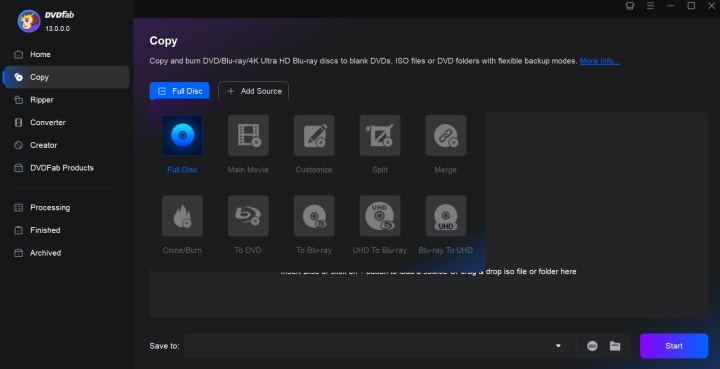
- Provide 6 copy modes: Full Disc, Main Movie, Customize, Split, Merge, and Clone/Burn.
How to Copy DVD to DVD using DVDFab DVD Copy
Step 1: Launch DVDFab software and Select a Copy Mode
Open DVDFab DVD Copy and click on the button labeled "Copy" found in the upper menu. The software will select a module by default but you can change it to anything you like by clicking the "Copy Mode" button.
Step 2: Load Your DVD Source and Customize It
Load the DVD you want to copy. The software will automatically decrypt it and display all meta information on the main interface. Then you can pick specific chapters, titles, audio tracks, and subtitles to include in your ISO copy.
Step 3: Adjust Other Advanced Settings
Next, click "Advanced Setting" to further customize your DVD. You can change the name of the volume label, and select between DVD-9 and DVD-5 for the output. You can also choose to copy DVD-Video, Non-DVD files, or rewind the disc when done playing.
Step 4: Select the Output Location and Start to Copy DVD
Finally, decide where to save your digital copy or whether you want to burn it onto a blank disc. Then hit start and monitor the fast, smooth copying process.
BurnAware [Free DVD Copy Software]
BurnAware is a user-friendly DVD burning and copying tool designed for users of all skill levels. Although it primarily focuses on disc burning, its premium versions include reliable DVD copy features, such as cloning DVDs to ISO or copying DVDs to blank discs. It supports a wide range of formats beyond DVDs, including CDs and Blu-rays, and offers customization options for bootable discs, multisession recording, and more. A free version is available, but disc-to-disc copy features require purchasing professional editions.
Key Features:
- Copies DVDs to ISO images or directly to blank discs
- Supports CD, DVD, and Blu-ray burning
- Offers disc spanning, boot settings, and multi-session support
- Compatible with Windows Vista through Windows 11
How to Copy DVDs Using BurnAware
Step 1: Download and install BurnAware Premium or Professional, as the free version does not support disc-to-disc copying. Open the program once installed.
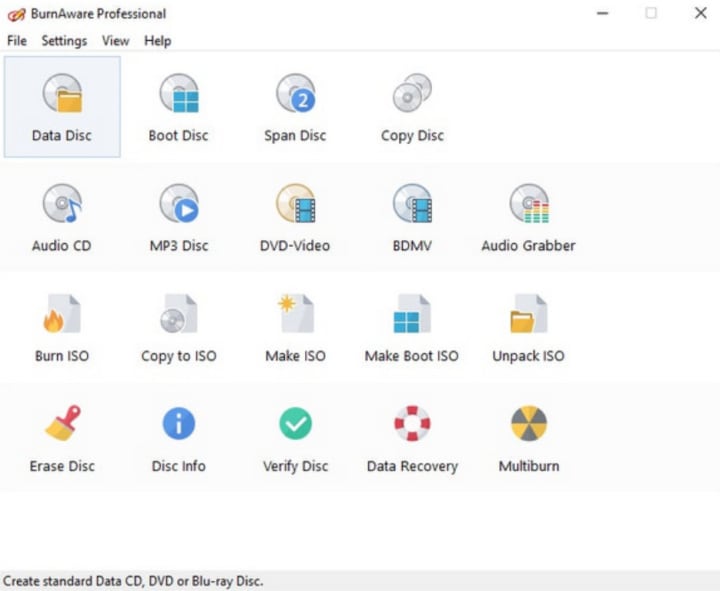
Step 2: From the main interface, choose "Copy to ISO" if you want to create a digital backup file, or select "Copy Disc" to duplicate directly between discs.
Step 3: Place the DVD you want to copy into your computer's DVD drive. In BurnAware, select this drive as the source. You can access advanced options such as verifying data post-copy, choosing session types, or adjusting file system parameters if necessary.
Step 4: If copying to an ISO file, select a destination folder on your hard drive and give the file a name. Then click "Copy" to begin.
PowerISO [Comprehensive ISO Copy]
PowerISO is a comprehensive disc image processing tool that supports creating, editing, and burning ISO images and other disc image files. While it is not exclusively a DVD copy software, its robust image manipulation capabilities enable users to copy DVDs by creating ISO backups and burning them to new discs. It supports virtual drive mounting, data compression, encryption, and conversion between different image formats.
Key Features:
- Create, edit, and convert ISO and other disc images
- Mount ISO files as virtual drives
- Burn DVDs from ISO or image files with detailed control
- Support for CD, DVD, BD images and various formats
- Provides password protection and volume label customization
How to Copy a DVD Using PowerISO
Step 1: download PowerISO from its official website and complete the installation process.
Step 2: Create an ISO Image from the DVD
In PowerISO's main interface, click the "Copy" button located on the toolbar, or navigate to Tools and select "Copy CD/DVD." A popup window will appear where you should set your DVD drive as the source and specify a location on your computer to save the disc image as an ISO file. Clicking "OK" or "Start" will initiate the copying process.
Step 3: Burn ISO Image to Blank DVD
After successfully creating the ISO image, place a blank writable DVD into your burner drive. In PowerISO, click the "Burn" button or choose Tools > "Burn Image File to Disc." Then, select the ISO file you just created as the source image and choose the appropriate target drive where the blank DVD is inserted. Finally, click "Burn" to start writing the ISO image onto the blank DVD.
Conclusion
When it comes to preserving your DVD collection, choosing DVD copying software largely depends on your specific needs.
If you're looking for an all-in-one solution with GPU acceleration and multiple copy modes, DVDFab DVD Copy is ideal. For those who prefer a clean interface focused primarily on burning and copying discs, BurnAware offers easy-to-navigate options. PowerISO, a disc image management tool, supports creating, editing, and burning ISO files in addition to basic DVD copying features.
Disclaimer: Please note that copying DVDs may involve legal implications depending on copyright laws in your region. This guide is intended for personal use with legally purchased or homemade DVDs.
About the Creator
Diana
I’m a passionate Blu-ray collector who loves preserving the magic of physical media. Every now and then, I enjoy burning precious family videos onto discs, keeping memories alive in a tangible way.
Why Replica Watches Fascinate People: A Reflection on Design, Identity, and Aspiration
Watches have always been more than timekeeping tools. They mark achievements, express identity, and carry stories about craftsmanship. While luxury models receive global admiration, another world quietly exists alongside them—one filled with replicas, reinterpretations, and recreations.
By charliesamuelabout 23 hours ago in 01
Grocery App Development Cost: Your 2026 Price Guide
Building a software product today feels like trying to hit a moving target while riding a unicycle. I reckon you have noticed how fast things change. Just a few years ago, we were happy with a simple list and a checkout button.
By Sherry Walker3 days ago in 01


Comments
There are no comments for this story
Be the first to respond and start the conversation.