
How to Burn an ISO to DVD: A Comprehensive Guide
Burning an ISO file to a DVD is essential for creating backups or making physical copies of your digital data.

1. Lead-In
Burning an ISO file to a DVD is a straightforward process, but it's essential to understand the steps involved for different operating systems. ISO files are disk image files that contain the complete contents of a DVD or CD, and burning them to a physical disk allows you to create a copy or backup of that data. Whether you're using a Mac or a Windows PC, there are various ways to burn ISO files, including built-in options and third-party software. This guide will walk you through the process for both Mac and Windows, and will also highlight some of the best third-party software available, with a special focus on DVDFab, a powerful tool for burning and managing ISO files.
2. How to Burn an ISO to DVD on Mac
Mac computers provide a simple and easy way to burn ISO to DVD using the built-in Disk Utility app. Here’s the step-by-step process:
1. Insert the Blank DVD:
Insert a blank DVD into your Mac’s optical drive.
2. Open Disk Utility:
- Open Finder and navigate to Applications > Utilities.
- Double-click on Disk Utility to open the app.
3. Mount the ISO File:
- In Disk Utility, click on File in the top menu.
- Select Open Disk Image and locate the ISO file you want to burn.
- After selecting it, the ISO will mount as a new drive in Disk Utility.
4. Burn the ISO to DVD:
- In Disk Utility, select the mounted ISO file on the left side.
- Click on the Burn button at the top of the window.
- A pop-up will appear asking you to choose the DVD burner and write speed.
- Select the blank DVD from the list, and adjust the burn speed if needed.
- Click Burn, and the process will start. The time it takes will depend on the size of the ISO file.
5. Complete the Burn:
After the burning process finishes, the DVD will eject automatically. You now have a DVD copy of your ISO file.
3. How to Burn an ISO to DVD on Windows
On Windows, the process of burning an ISO to a DVD is slightly different, but it’s equally simple. Here’s how to do it:
1. Insert the Blank DVD:
Insert a blank DVD into your computer’s optical drive.
2. Locate the ISO File:
Find the ISO file you want to burn on your computer.
3. Burn Using Windows Explorer:
- Right-click on the ISO file.
- From the context menu, select Burn disc image.
- A dialog box will open. Ensure your blank DVD is selected in the Disc burner drop-down menu.
- You can also select the Verify disc after burning option to check if the ISO was successfully written to the DVD.
4. Start the Burning Process:
- Click the Burn button, and Windows will start the process of burning the ISO to the DVD.
- Wait until the burning is complete.
5. Finalizing:
Once the process is finished, your DVD will be ready for use. It will eject automatically when the burning is done.
4. The Best Third-Party Software for Burning ISO to DVD
While both macOS and Windows have built-in utilities for burning ISO files, sometimes you may want more features or better performance. That’s where third-party software comes in. One of the most powerful and popular tools is DVDFab. Here’s why it stands out and how to use it:
DVDFab: The Ultimate ISO Burning Tool
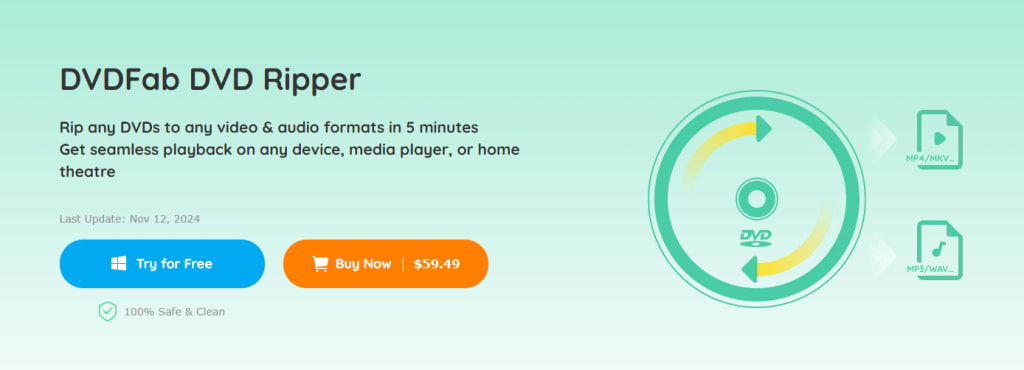
DVDFab is a versatile software that not only helps you burn ISO files to DVD but also provides additional features such as DVD ripping, Blu-ray burning, and disc copying. The process of burning an ISO file with DVDFab is user-friendly and packed with options.
Steps to Burn an ISO to DVD Using DVDFab:
1. Download and Install DVDFab:
- Go to the DVDFab website (https://www.dvdfab.cn) and download the software.
- Install it by following the on-screen instructions.
2. Launch DVDFab:
- Open DVDFab and select the Burn option from the main interface.
3. Load the ISO File:
- In the "Source" section, click the ISO file option and browse to select the ISO file you want to burn.
4. Insert the Blank DVD:
- Insert a blank DVD into your optical drive.
5. Configure the Output:
- In the "Target" section, select your DVD drive as the destination.
- You can choose additional options, such as burning speed or verifying the DVD after the burn.
6. Start the Burning Process:
- Click Start to begin the process. DVDFab will burn the ISO file to your DVD at the selected speed.
7. Finalize the Disc:
- Once the burning process is complete, DVDFab will notify you. The disc will be ejected automatically.
Conclusion
Burning an ISO file to a DVD is essential for creating backups or making physical copies of your digital data. Whether you are using a Mac or a Windows PC, both operating systems offer easy-to-use methods for burning ISO files. For users seeking more advanced features and reliability, third-party software like DVDFab provides additional capabilities and a smoother experience. With DVDFab, you can easily burn your ISO files with high-quality results and enjoy additional features for DVD and Blu-ray management.
About the Creator
Rita
I am a freelancer, specializing in DVD, Blu-ray, and multimedia technologies. With a strong background as a tech editor, I bring a deep passion for the tech industry to my writing, crafting insightful articles.
Who’s Leading Fintech in 2026? Top App Development Companies
When it comes to building secure, scalable, and innovative financial solutions — from digital banking platforms and payment systems to AI-driven risk tools — picking the right partner can make or break your success. In 2026, fintech is evolving faster than ever, powered by AI, cloud-native architectures, blockchain, and embedded finance. Below are the foremost companies shaping the future of fintech technology.
By Aarti Jangida day ago in 01
Musk wants up to $134B in OpenAI lawsuit, despite $700B fortune
Elon Musk wants a jaw-dropping $79 billion to $134 billion in damages from OpenAI and Microsoft, claiming the AI company defrauded him by jettisoning its nonprofit mission, Bloomberg first reported. The figure comes from expert witness C. Paul Wazzan, a financial economist whose bio says he has been deposed nearly 100 times and testified at trial more than a dozen times in complex commercial litigation cases.
By Dena Falken Esq3 days ago in 01
Smart phones, Humans and Aliens.
WARNING. I will be tapping into one of your favorite creative tensions: The absurdity of humans worshipping their glowing rectangles as if they were tiny oracles. There’s something deliciously poetic about that contradiction, and it lends itself beautifully to an instructive proviso.
By Novel Allen4 days ago in Poets


Comments (1)
Hi Rita, I hope you are doing well, I am a Guest Posting Service Provider, I have high quality Guest Posting Websites. If you need, then please send me the msg on this email adress: [email protected] I am sincerely awaiting for your reply. Best Regards,