
Best Data Recovery Software for Windows: Which One Should You Pick?
Hands-on tested reviews of the top 12 Windows recovery tools in 2025 — find the right software to restore your lost files with confidence.


If you’re looking for the best Windows data recovery software to get back lost files, you’ve probably noticed it’s not an easy choice. The market is full of tools, and each promises top results, but not all deliver.
To help you choose with confidence, we’ve reviewed and compared the most reliable options. This guide lists the best data recovery software for Windows in 2025, based on real testing. You will know exactly what to expect before you download.
How We Chose the Best Data Recovery Software for Windows
Data loss happens more often than most people think, and usually when you least expect it. One wrong click, a bad update, or a faulty hard drive can make your files disappear in seconds. The good news is that in many cases, those files aren’t truly gone yet. They can often be brought back, as long as you use the right tool before they get overwritten.
With so many tools that claim to be the “best,” we focused only on programs that proved their performance in real, hands-on testing. We took into consideration five main factors:
- Usability, or how easy it is to install and run a scan.
- Performance and recovery success rates for different file types and file systems (NTFS, FAT32, exFAT, and more).
- Bang for the buck, or does the price match the features and performance, and are there useful free or trial versions?
- Extras like RAID recovery, disk imaging, or file repair that provide more than standard recovery.
- Reputation, user feedback, update history, and company credibility.
These criteria helped us to identify the solutions that consistently perform well in real recovery situations and separate marketing promises from proven capabilities.
The 12 Best Data Recovery Software for Windows in 2025
To make your choice easier, we’ve rounded up the top 12 Windows data recovery tools for 2025. The Pandora Data Recovery Mentor team ran hands-on tests for every tool under identical conditions and produced detailed benchmarks.
1. Disk Drill

Disk Drill combines a high recovery rate with an interface that’s easy to use. During testing, it consistently recovered 95–97% of lost files across documents, photos, and videos. The free version lets you restore up to 500 MB, which is often enough to test its capabilities.
This tool is excellent for anyone who wants a reliable, all-around recovery tool with strong performance. Disk Drill is good for recovering files from common Windows file systems, and its extra features make it a solid long-term choice.
Pros:
- Recovers many file types.
- Advanced camera recovery.
- Works with NTFS, FAT32, exFAT, and even BitLocker-encrypted drives.
- Allows you to create Byte-to-Byte Backups of your drive.
- Includes extras like S.M.A.R.T. monitoring and Recovery Vault.
- One license works for both Windows and macOS.
Cons:
- No built-in bootable disk creation.
- Doesn’t repair damaged photos or videos.
2. R-Studio

R-Studio is a professional recovery tool built for complex cases like RAID reconstruction and multi-platform recovery. It supports nearly all major file systems and can recover data from damaged or reformatted drives.
While it’s less beginner-friendly, its precision and feature set make it one of the most capable Windows data recovery tools for demanding jobs.
Pros:
- Powerful RAID tools.
- Broad file system support.
- Excellent scan performance.
Cons:
- Steep learning curve.
- High cost for full licenses.
- The free version only allows recovery of files smaller than 256 KB.
3. EaseUS Data Recovery Wizard

EaseUS Data Recovery Wizard offers a clean interface and a simple three-step recovery process. The free version recovers up to 2 GB, which makes it easy to test before purchase.
It’s a solid choice for everyday data recovery software for Windows users who need quick results and a smooth experience.
Pros:
- User-friendly.
- Good NTFS recovery.
- Frequent discounts.
Cons:
- Pop-up ads in the free version.
- Limits free file previews.
4. DiskGenius

DiskGenius combines data recovery with powerful disk management tools. It’s a versatile but more technical option. The free version is very limited, only recovering files up to 64 KB.
Experienced users who also need partitioning, cloning, or disk troubleshooting alongside recovery can make great use of this tool.
Pros:
- Dual recovery/partition management.
- WinPE boot option.
- Fast scans.
Cons:
- Complex interface.
- Average recovery performance.
- Limited file system support outside Windows formats.
5. Wondershare Recoverit

Wondershare Recoverit is easy to use and stands out for its strong video repair feature, which can fix damaged clips during recovery. The free version restores up to 2 GB.
While its overall recovery rates are mixed, it’s a handy Windows data recovery tool for media-focused jobs.
Pros:
- Intuitive interface.
- Video repair.
- Bootable recovery disks.
Cons:
- Weak BitLocker support.
- Scans only individual partitions.
- Requires internet to install.
- Unlimited free recovery.
- No installation needed.
- Works on many platforms.
- Minimal interface.
- No extra features.
- Difficult for beginners.
6. PhotoRec
PhotoRec is a free, open-source recovery tool known for strong signature scanning that works even without a readable file system. However, it doesn’t recover original file names or folder structure.
Ideal for advanced users who want a no-cost Windows data recovery software solution for raw file recovery and don’t mind working with a basic interface.
Pros:
Cons:
7. Stellar Data Recovery

Stellar Data Recovery offers balanced performance with the added ability to repair damaged photos and videos. The free version recovers up to 1 GB.
Use it if you need both recovery and basic repair in one Windows data recovery tool, especially for photos and videos that won’t open properly.
Pros:
- Media repair tools.
- Fast scanning.
- Supports multiple file systems.
Cons:
- Limited previews.
- Occasional stability issues.
- A few extra features.
8. Minitool Power Data Recovery

MiniTool Power Data Recovery has a clean interface and decent scanning speed, but struggles with some advanced formats. The free version recovers up to 1 GB.
It’s a great option for casual Windows data recovery software users who want an easy tool for common file systems without complex features.
Pros:
- User-friendly.
- RAID and RAW partition support, bootable media creation.
Cons:
- Poor high-DPI display support.
- Average recovery outside NTFS/FAT32.
9. DMDE

DMDE is a budget-friendly tool with pro-level features like RAID reconstruction and byte-to-byte backups, but it’s not beginner-friendly.
Great if you want maximum control from the recovery tool at a low price.
Pros:
- Low cost.
- Fast scans and advanced recovery features.
Cons:
- Steep learning curve.
- Limited signature support.
10. Recuva
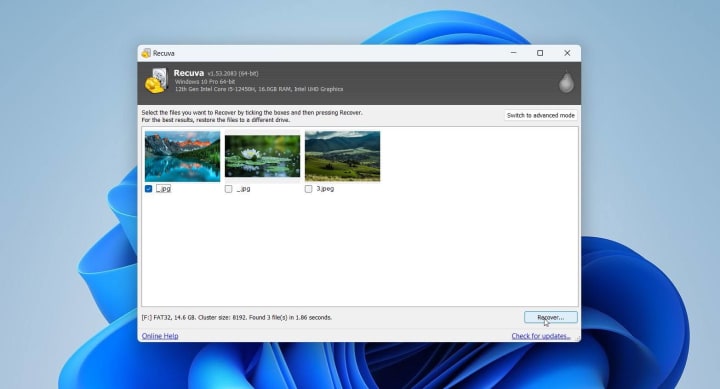
Recuva is a simple, free recovery tool ideal for quick jobs. It supports unlimited recovery but hasn’t seen major updates in quite some time.
Provides quick, basic recovery of recently deleted files on Windows.
Pros:
- Completely free.
- Easy to use.
- Previews files.
Cons:
- Outdated.
- Weak results on modern formats.
11. AnyRecover Data Recovery

AnyRecover focuses on simplicity, with a modern interface and iOS recovery support, but offers no free file restoration.
Good choice for casual users who want an easy data recovery software Windows option without technical setup.
Pros:
- Beginner-friendly.
- Multi-platform.
- Fast scans.
Cons:
- No free recovery.
- Inconsistent results.
12. Tenorshare 4DDiG

Tenorshare 4DDiG pairs a polished interface with video/photo repair and bootable disk creation, but struggles with some file systems.
For general-purpose recovery, where ease of use matters more than scan performance.
Pros:
- Sleek design.
- Media repair.
- Save/resume scans.
Cons:
- No free recovery.
- Limited advanced features.
- Think about what you lost. Some apps work better for photos and videos, others for documents or full partitions.
- Check file system support (NTFS, FAT32, exFAT, etc.) to avoid compatibility issues.
- If you’re not tech-savvy, choose software with a simple, guided interface.
- Consider your budget and whether you prefer a one-time license or subscription.
- Finally, always test the trial version first to make sure your files can be found and recovered.
How to Pick the Best Windows Data Recovery Tool for You
Here are a few simple steps to choose the right tool for you:
Conclusion
There’s no shortage of the best data recovery software for Windows in 2025, but not all tools deliver the same results. Free options are great for quick, simple recoveries, while advanced tools are better suited for complex cases.
Here, we tried to give you a quick overview of the best data recovery tools. If you’d like to see detailed performance scores, feature breakdowns, and in-depth evaluations of each of these 12 tools, check out 12 Best Data Recovery Software of 2024: A Ranking Validated by REAL Testing. And don’t forget to follow us on social media for more tech tips and expert insights.
Have you tried one of these tools? Share your recovery stories or recommendations in the comments to help others make informed choices.
About the Creator
Pandora Data Recovery Mentor
Pandora Data Recovery Mentor offers expert, trusted guidance for rescuing lost files. Specialist-reviewed rankings & tips help you choose the best software or DIY tools to solve your data loss emergency.
Keep reading
More stories from Pandora Data Recovery Mentor and writers in 01 and other communities.
How to Format an SD Card for a Dash Cam
Are you unsure which format your dash cam expects or why the card suddenly asks to be formatted again? These questions come up often, especially when drivers switch between devices or use the same card for long periods. A clean format restores the structure the dash cam needs, prevents recurring errors, and keeps new recordings from failing unexpectedly. We created this article to help you understand when formatting becomes necessary and which options provide the most reliable results across different systems.
By Pandora Data Recovery Mentor18 days ago in 01
Blockchain Tracing: A Key Tool in Crypto Asset Recovery
The cryptocurrency ecosystem has expanded rapidly, with billions of dollars in digital assets now in circulation across thousands of blockchains. However, this growth has been accompanied by significant risks, including hacks, scams, phishing attacks, and user errors such as lost private keys or forgotten seed phrases. In 2025, reported losses from crypto-related incidents exceeded several billion dollars, highlighting the persistent vulnerability of digital assets. Unlike traditional banking systems with reversible transactions and centralized oversight, blockchain's decentralized and immutable nature makes recovery difficult once funds are transferred. As a result, blockchain tracing has emerged as an essential method for identifying fund flows, attributing activity, and supporting recovery efforts in actionable cases.
By Garry Onealabout 2 hours ago in 01




Comments
There are no comments for this story
Be the first to respond and start the conversation.