
Avoid Compliance Errors: Securely Export Google Workspace Mail to Local System
Learn how to securely export Google Workspace emails to your local system using manual steps or a simplified backup solution. Prevent data loss and stay compliant with easy email backup methods.

Businesses use Google Workspace for email storage and communication in today's data-driven world. Even if this platform is dependable and effective, it's still crucial to have a local backup of your Google Workspace emails. Even if your account is compromised or destroyed, it lets you stay in compliance, avoid data loss, and keep access to important information.
We'll look at how to safely export Google Workspace mail to your local system in this blog. First, we'll demonstrate a manual way. Next, we'll present a straightforward backup method that makes use of the GainTools G Suite Backup Tool.
Try it Free Trial Edition Now
Why Export Google Workspace Emails to the Local System?
There are numerous justifications for locally saving your emails, regardless of your role as an IT manager, small business owner, or independent professional:
Adherence to industry or legal requirements
Recovery of data in the event of inadvertent deletion
Switching to different platforms or services
Access to crucial communications and attachments offline
Keeping records to ensure business continuity
You can guard against unforeseen problems by keeping copies of your emails on your computer or an external disc.
Manual Method to Export Google Workspace Emails
You can manually download your Google Workspace emails using Google Takeout. Google provides this feature for free. It enables users to download and export data from Gmail and other Google accounts.
Here's how to export emails using Google Takeout:
Step 1: Log in to Google Takeout.
Enter your Google Workspace login credentials and visit takeout.google.com.
Step 2: Choose Gmail.
All of Google's services are chosen by default. First, click "Deselect all". Next, click the box next to Mail by scrolling down.
Step 3: Select Export Preferences
Select "All Mail data included" if you wish to filter for particular labels. Don't change a thing if you want everything.
Step 4: Delivery and File Format
Select the file format you want, which is typically.zip. Choose the method of data delivery (email download links are the most popular).
Step 5: Produce an Export
"Create export" should appear. Google will begin getting your data ready. Depending on the size of the mailbox, this could take minutes or hours.
Step 6: Save and Download
A download link will be sent to you when it's ready. Save the archived file to your local computer or an external drive.
Remember that
- MBOX files are used to store emails.
- Big mailboxes are divided into several folders.
- The procedure can take a long time.
- Regular backups cannot be scheduled.
This approach works well for one-time downloads. However, it might not be the best option for exporting emails from several user accounts or for routine backups.
Quick and Reliable Solution to Export Google Workspace Mail to Local System
The GainTools G Suite Backup Tool is a strong choice for users seeking a more adaptable and effective solution. The entire backup procedure is intended to be made simpler, particularly for Google Workspace (G Suite) accounts.
This tool is a great choice for the following reasons:
Emails with attachments are exported
All of your emails, including attachments, may be backed up using the software. No information is lost.
A Variety of Output Formats
Emails can be saved in MBOX, MSG, EML, and PST formats. This facilitates their accessibility in email applications such as Outlook and Thunderbird.
Backup Selection
You don't have to download everything. To backup only the important data, you can select particular folders or periods.
Create multiple account backups
IT administrators can use their admin credentials to backup numerous Google Workspace accounts. Time and effort are saved in this way.
Backup offline anytime
Emails can be accessed without an internet connection once they have been downloaded. This is useful in the event of system breakdowns or outages.
Easy to Use
The user interface is simple to comprehend. Even non-technical users can manage the process on their own.
Simplified Steps
- Download the GainTools G Suite Backup Tool.
- Log in with your Google Workspace account credentials
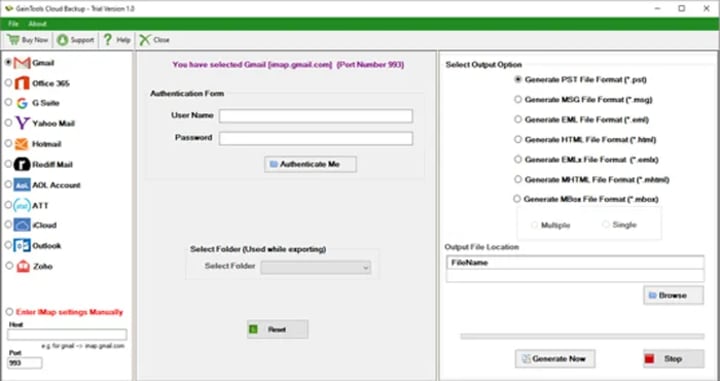
- Choose the folders or emails you want to back up
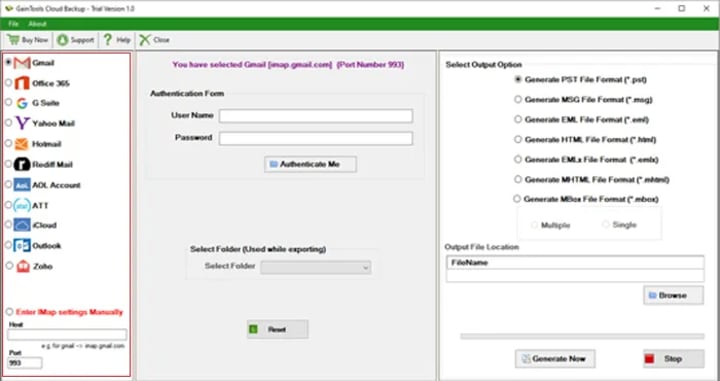
- Select the output format (PST, MBOX, etc)
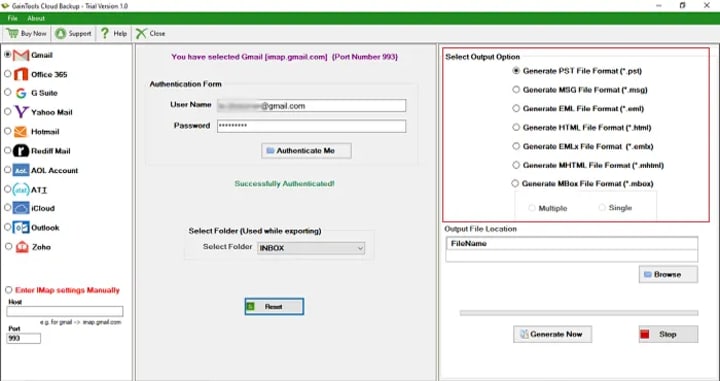
Hit “Start Backup Now” and save the data to your local drive.
Final Words
Data loss and compliance mistakes can harm your company. Control, flexibility, and peace of mind are all yours when you safely export Google Workspace mail to your own system.
Basic needs are well served by the manual technique. However, the G Suite Backup Tool provides a dependable and easy-to-use solution for frequent, hassle-free backups with additional choices and account control.
Take the first step to safeguarding your Google Workspace data now by selecting the approach that best suits your needs.
About the Creator
Alexis Matthew
Hi am content writer
Keep reading
More stories from Alexis Matthew and writers in 01 and other communities.
How to Download Microsoft 365 Emails with Attachments for Safe, Offline Access
Microsoft 365 now ranks as the top email tool for both individuals and businesses. It provides adaptability, cloud storage, and anywhere access. Still, depending just on the cloud runs some danger. Accidental deletion, hacking, system failure, any of which can cause email data loss—can all affect the download and safe offline storage of your emails is therefore vital.
By Alexis Matthew8 months ago in 01
Is X (Twitter) Down Right Now? X.com Not Working as Users Report Global Outage
If you are asking “Is X not working?”, “Is Twitter down?”, or searching for Twitter down detector right now, you are not alone. Thousands of users across the world frequently report issues with X (formerly Twitter), especially when the platform suddenly stops loading, tweets don’t refresh, or login fails. Whenever this happens, searches like “is x.com down”, “twitter status”, and “twitter not working” start trending on Google and X itself.
By Waqar Khan2 days ago in 01


Comments
There are no comments for this story
Be the first to respond and start the conversation.