
Attribute Selectors: Unlocking the Power of Precision in CSS
This article is part of a free full CSS Course: Beginner to Expert


CSS offers a wide array of selectors to target and style elements on a webpage, but if you’re looking for a way to add precision to your designs without the need for additional classes or IDs, attribute selectors are your go-to solution. Attribute selectors allow you to style HTML elements based on the presence or value of specific attributes, opening up a world of possibilities for more dynamic and responsive designs.
In this article, we’ll explore the ins and outs of attribute selectors, how they work, and when to use them. By the end, you’ll be equipped with a deeper understanding of attribute selectors and how they can simplify and enhance your CSS.
1. What Are Attribute Selectors?
Attribute selectors are a type of CSS selector that target elements based on the attributes they possess. Unlike class or ID selectors, which rely on the presence of specific class names or IDs, attribute selectors allow you to apply styles based on the presence, value, or even partial value of any attribute within an HTML element.
1.1 The Basic Syntax of Attribute Selectors
The syntax for an attribute selector is straightforward. It begins with the element you want to target, followed by the attribute enclosed in square brackets. Here’s a basic example:
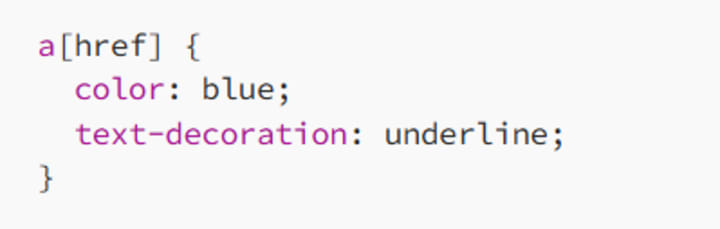
In this case, the selector [href] targets all a (anchor) elements that have an href attribute. The styles within the selector are applied to any link with an href attribute, regardless of its value.
1.2 Why Use Attribute Selectors?
Attribute selectors are incredibly useful for situations where you want to style elements based on specific criteria without adding extra classes or IDs. They are particularly handy for targeting elements that share common attributes, such as form fields, buttons, or links, making your CSS more modular and adaptable.
2. Types of Attribute Selectors
CSS offers several variations of attribute selectors, each providing different levels of precision. Let’s break down these variations and see how they can be applied in real-world scenarios.
2.1 [attribute]: The Existence Selector
The simplest form of attribute selector is the existence selector. This selector targets elements that have a specific attribute, regardless of the attribute’s value. We’ve already seen an example of this with the href attribute on links:
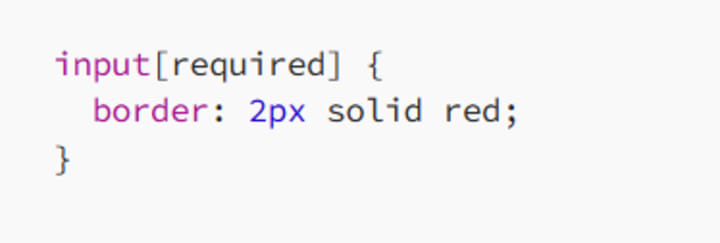
In this example, any input element with the required attribute will have a red border applied to it. This is useful for highlighting mandatory form fields, ensuring that users can easily identify which fields they must fill out.
2.2 [attribute=”value”]: The Exact Match Selector
The exact match selector is more specific. It targets elements with an attribute that matches a given value exactly:

Here, only input elements with a type attribute set to "text" will receive the specified background color. This allows you to style specific input types, such as text fields, differently from other types of inputs, like checkboxes or radio buttons.
2.3 [attribute~=”value”]: The Space-Separated Value Selector
The space-separated value selector is particularly useful when dealing with attributes that contain multiple values separated by spaces, such as the class attribute:
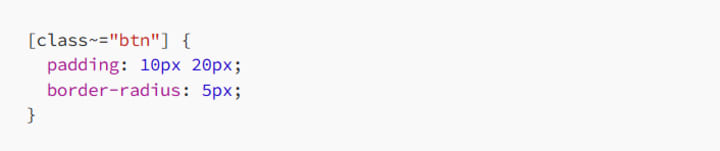
In this example, any element with a class attribute that includes the word "btn" will receive the specified padding and border-radius. This is handy for applying styles to elements that share a common class name, even if they have additional classes applied.
2.4 [attribute|=”value”]: The Hyphenated Prefix Selector
The hyphenated prefix selector targets elements based on a specific attribute value or a value followed by a hyphen:

This selector applies the specified font family to any element with a lang attribute that starts with "en", such as "en", "en-US", or "en-GB". It’s particularly useful for applying styles based on language codes, allowing you to tailor your site’s appearance for different language regions.
2.5 [attribute^=”value”]: The Begins With Selector
The begins with selector targets elements with an attribute value that starts with a specific string:
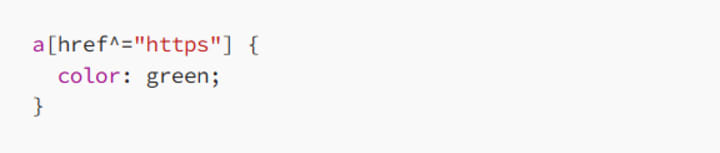
In this example, any link that starts with "https" in its href attribute will be colored green. This is useful for distinguishing secure links (using HTTPS) from other types of links.
2.6 [attribute$=”value”]: The Ends With Selector
The ends with selector is similar to the begins with selector, but it targets elements with an attribute value that ends with a specific string:

This selector applies the red color to any link pointing to a PDF file, as indicated by the .pdf extension at the end of the href value. It’s a great way to visually indicate that a link will open a specific type of document.
2.7 [attribute*=”value”]: The Contains Selector
The contains selector targets elements with an attribute value that contains a specific substring, regardless of its position:

Here, any input element with a name attribute that includes the word "email" will have an orange border. This is useful for applying styles to elements that share a common substring in their attributes, such as form fields for email addresses.
3. Practical Examples of Attribute Selectors
Now that we’ve covered the different types of attribute selectors, let’s explore some practical examples that demonstrate their power and versatility in real-world scenarios.
3.1 Styling Form Fields
Form fields often require specific styling based on their type, whether they are mandatory, or their name attributes. Attribute selectors make this easy:
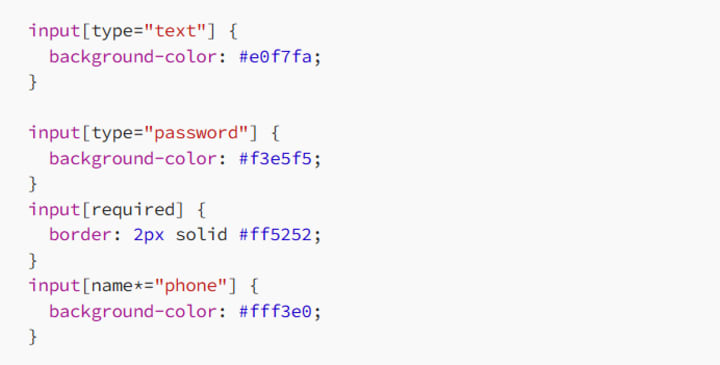
In this example, text fields, password fields, required fields, and fields with "phone" in their name attribute all receive different styles. This approach makes your form more user-friendly by providing visual cues based on the field type and requirements.
3.2 Targeting Links Based on Their Destination
Attribute selectors are particularly useful for styling links based on their destination:
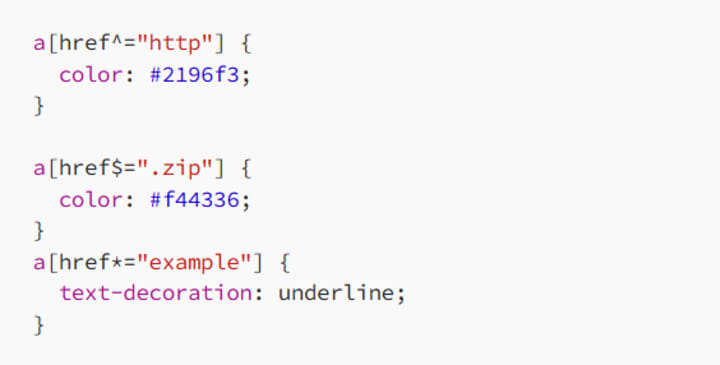
This CSS targets links based on their href attribute. Links that start with "http" are colored blue, links that end with .zip are colored red, and links containing the word "example" are underlined. This approach helps users quickly identify different types of links, such as external websites or downloadable files.
3.3 Language-Specific Styles
Attribute selectors are also invaluable for applying styles based on language settings, enhancing the user experience for different regions:
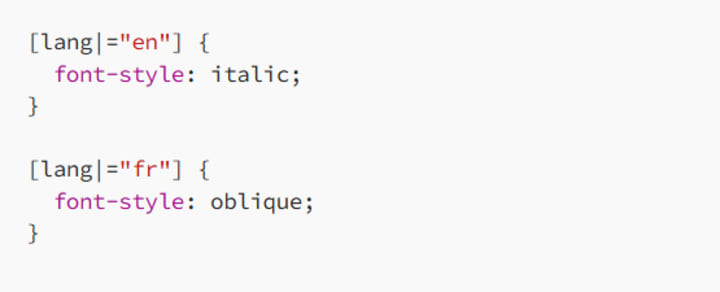
In this example, English content is styled with italic text, while French content is styled with oblique text. This allows you to customize the appearance of your site based on the user’s language, providing a more localized experience.
3.4 Customizing Buttons and Icons
Attribute selectors can also be used to style buttons and icons based on custom attributes or data attributes:
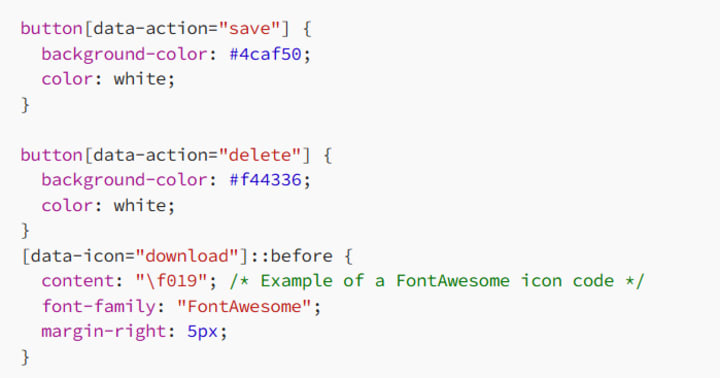
In this example, buttons with a data-action attribute set to "save" or "delete" are styled differently, making it clear to users what each button does. Additionally, any element with a data-icon attribute set to "download" receives a download icon before its content, enhancing usability and visual appeal.
4. Best Practices for Using Attribute Selectors
To make the most of attribute selectors, it’s important to follow best practices that ensure your CSS is efficient, maintainable, and easy to understand.
4.1 Use Attribute Selectors When Necessary
Attribute selectors are powerful, but they should be used judiciously. Overusing them can lead to overly specific CSS that’s hard to maintain. Use attribute selectors when they offer a clear advantage, such as when you need to style elements based on specific attributes that aren’t easily targeted by classes or IDs.
4.2 Keep Your Selectors Simple
Simplicity is key to maintainable CSS. Avoid creating overly complex attribute selectors that are difficult to read or understand. When possible, combine attribute selectors with class selectors for a more balanced approach.
4.3 Optimize for Performance
Attribute selectors can be slower to process than class or ID selectors, especially when applied to large documents. To optimize performance, limit the scope of your attribute selectors by combining them with element selectors:
input[type="email"] {
/* Styles */
}
This ensures that the selector only targets input elements with a type attribute of "email", reducing the number of elements the browser needs to check.
4.4 Test Across Browsers
While attribute selectors are well-supported across modern browsers, it’s always a good idea to test your CSS to ensure consistent rendering. Pay special attention to older browsers or less common ones that might have quirks in how they handle attribute selectors.
This article is part of a free full CSS Course: Beginner to Expert
Conclusion: Harnessing the Power of Attribute Selectors
Attribute selectors are a versatile and powerful tool in your CSS toolkit. They allow you to target elements based on the attributes they carry, giving you more control and precision over your styles without the need for additional classes or IDs.
By understanding the different types of attribute selectors and when to use them, you can create more dynamic, responsive, and maintainable styles. Whether you’re customizing form fields, styling links based on their destinations, or applying language-specific styles, attribute selectors offer a flexible solution that adapts to your design needs.
Remember to use attribute selectors wisely, keep your CSS simple and efficient, and always test your styles across different browsers. With these practices in mind, you’ll be well-equipped to take your CSS skills to the next level, crafting websites that are not only beautiful but also highly functional and user-friendly. Happy coding!
About the Creator
MariosDev
Hi, I’m Marios! I’ve been a developer for over 9 years, crafting cool stuff and solving tricky tech puzzles. I’m a total tech enthusiast and love sharing my thoughts and tips through blogging. Also, in love with my bike!
How Long Does App Development Take in St. Louis 2026
St. Louis has solidified its reputation as a "Silicon Prairie" powerhouse. The city has moved beyond its historical manufacturing roots. It is now a sophisticated tech hub. Activity centers around Cortex and the 39 North innovation district. Entrepreneurs and established enterprises have one pressing question. How long does app development take in St. Louis 2026?
By Del Rosarioa day ago in 01
The Politics of Playing Dress-Up
Well, to start off I'd like to say a happy world book day to all who celebrate. I know I haven't really posted anything on my socials about it but I'm not a jubilant kind of person. I lay low most of the time. Let's start off with a popular anecdote from the vaults...
By Annie Kapur7 days ago in Geeks




Comments
There are no comments for this story
Be the first to respond and start the conversation.