
Adobe Acrobat Freezing while Opening PDF File - How to Fix it?
Fix Adobe Acrobat Freezing Issue

Malfunctioning or freezing of Adobe Acrobat application is a common and annoying situation while editing or viewing PDF files. Adobe Acrobat keeps freezing due to many causes, such as PDF compatibility, outdated software, and corruption in PDF files. Generally, this Adobe Acrobat freezing issue disrupts the workflow and creates inconveniences that directly impact productivity.
However, Adobe Acrobat Reader is a high-powered application to open, create, and manage PDF files. So, keeping an eye on the Adobe Acrobat freezing issue, this write-up will explain the prime reasons and effective solutions to get rid of it. Alternatively, you can also opt for the best Adobe PDF Repair software to ease out your worries regarding data safety and substantial procedures to repair corrupted PDF files.
Why does Adobe Acrobat Keeps Freezing? Prime Reasons
Adobe Acrobat Reader application may freeze or malfunction due to several causes. Some of the primary causes are mentioned below:
- Outdated software: Unavailability of latest version of software lead to bugs and glitches which are main causes for Adobe Acrobat freezing issue.
- Low system resources: Ability to handle crucial/large PDF files also depend on the system processor. Low system resources also freeze the Adobe Acrobat Reader application while opening PDF files.
- Corrupted PDF files: Sometimes, PDF files get corrupted under various circumstances and opening the corrupted PDF files freezes the application.
- Software or extensions conflicts: Some other background applications or faulty extensions also affect the Adobe Acrobat Reader performance.
- Incompatible PDF contents: PDF files may contain some heavy graphics, embedded fonts, or complex formatting that affects the performance and Adobe Acrobat keeps freezing.
How to Fix Adobe Acrobat Freezing Issue? Reliable Methods
To troubleshoot Adobe Acrobat freezing issue, you can try out the below-mentioned workarounds. Go with each method and choose them accordingly:
Method 1. Update the Adobe Acrobat Reader
Updating the Adobe Acrobat is necessary to remove the bugs and glitches because it increases the performance and functionalities. To update the Adobe application, follow the steps below:
Step 1. Open Adobe application in your system. Tap on the Menu button, choose the Help option, and click on Check for Updates.

Step 2. Download the update if available and restart your system. Now, try to open the PDF file and check for the Adobe Acrobat freezing issue.
Method 2. Repair Adobe Acrobat Installation
Issues with installation package of Adobe Acrobat Reader is also culprit for freezing issue. So, repairing installation can also be used as a hit and trial method to repair Adobe Acrobat. Go through the steps below to repair Adobe Acrobat installation:
Step 1. Open Adobe application in your system. Tap on the Menu button, choose the Help option, and click on Repair Installation.

Step 2. Now, click Yes in the pop-up window and follow the further requirement for repairing process.

Wait till the process gets complete. Restart application and check for the issue.
Method 3. Disable Security (Enhanced) Feature
This feature provides advanced security from the risks like cross-domain access, data injection, script execution, etc. But if you're experiencing compatibility and freezing issues, then disable it to maintain your workflow. Go through the steps below to disable Security (Enhanced) feature):
Step 1. Open the Adobe Acrobat Reader application, click the Menu button, and tap on Preferences.

Step 2. Navigate to Security (Enhanced) tab. Under the Enhanced Security section, uncheck the Enable Enhanced Security checkbox .
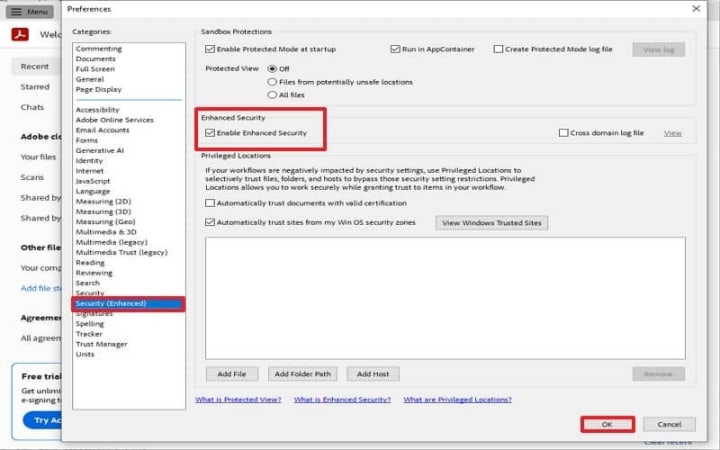
Again, restart the application, try to open PDF file, and check for the persistence of freezing issue.
Important Tips to Fix Adobe Acrobat Freezing Issue
Here are some valuable and effective suggestions that will surely help to troubleshoot Adobe Acrobat freezing issues. These are:
- Upgrade your System Resources: If your system has a low processing configuration, then try to improve that to get uninterrupted performance from Adobe.
- Clear Temporary Files: Remove the temporary files from system on regular basis to prevent overloading and corruption issues in Adobe application.
- Check PDF File Compatibility: Try to open PDF files in different PDF viewers and analyze the harmony of PDF components with the application.
- Disable/Close the Conflicting Extensions and Software: Some applications and extensions run parallel to Adobe Acrobat which decreases performance. So, close/disable them immediately.
- Don't open corrupted/damaged PDF files with Adobe: Make sure that the PDF file is completely healthy when open in Adobe application.
The above tips and tricks can resolve the freezing issue in Adobe application. However, users may still fail to access their PDF file, as Adobe application crashes or freezes. This indicates that you've tried to open damaged/corrupted PDF files.
Corruption issues in PDF files can result in data loss or inaccessibility. You can recover your existing PDF file with the Previous version feature. But this can't be workable when the corruption is severe. To fix corrupted PDF files, relying on professional PDF repair software is the best alternative.
How to Fix Corrupted PDF Files? Authentic Solution
The manual workarounds can only repair minor corruption, and it is no guarantee that your PDF file will become healthy. So, an automated and best Adobe PDF repair tool is required for esteemed and integral outcomes. This solution is a best alternative and automated tool to repair corrupted PDF files in a few steps. Its advanced and powerful algorithms can recover and repair damaged PDF file contents in original quality and layout.
Other highlights of this PDF repair tool:
- It can repair multiple PDFs of any size simultaneously.
- Recovers password protected PDF files.
- Repair corrupted PDF files of any level.
- Easily fix corrupted Adobe PDF files
- The tool is fast and easy to use.
- Recover all PDF data including images, texts, signatures, etc., in their original quality.
Wrapping Up
Hence, with the workaround mentioned above, you can fix Adobe freezing issue effectively. If none of the methods and tips work for you, then try to repair corrupted PDF files. However, repairing PDF files from an unreliable application or source may be hectic and hamper your crucial PDF data. So, use only high-end PDF repair solutions like PDF repair software. It is an advanced, effective, and simple tool which even a non-technical user can use. This tool is compatible with all Windows versions. You can also use its demo version to evaluate its effectiveness
About the Creator
Ben Auther
As a Technical Content Writer at KernelApps, I specialize in transforming complex data recovery and file repair concepts into clear, actionable guides for users worldwide. With 5 years of experience in cybersecurity, software documentation.
Keep reading
More stories from Ben Auther and writers in 01 and other communities.
Best Solution to Convert PDF Bank Statement to Excel
Imagine a situation where you want to manage your finances, but you have the bank statement in a PDF file. Now, you need to convert PDF bank statements to an Excel file accurately to analyze and calculate transactions. It might be annoying, and many people face several issues due to the limitations that come with PDF files. So, the first question that arises in your mind is: Which one is the right solution, and how can you convert PDF to Excel securely?
By Ben Auther10 months ago in 01
What Tampa Startups Learn After Shipping Their First App?
Ryan Matthews remembers the launch day clearly. The app went live. Friends shared the link. Early users signed up. A few congratulatory messages came in from investors and mentors. For a brief moment, it felt like the hardest part was over.
By Mary L. Rodriquez2 days ago in 01
I phone 18 launch expected date, feature.
Apple iPhone 18 is expected to represent a bold shift in smartphone design philosophy, combining elegance with engineering excellence. Rumors suggest Apple may introduce a new titanium-glass fusion body, making the device lighter yet significantly stronger than previous models. The edges could become more seamless, removing visible antenna lines and offering a perfectly smooth finish. This design would not only enhance durability but also provide a premium in-hand feel that defines Apple’s craftsmanship. A thinner profile with improved structural integrity may also allow for better heat management and internal space efficiency. Users may notice refined curves, reduced bezels, and an almost borderless front display that maximizes screen immersion. Apple’s continued focus on environmental responsibility could lead to more recycled materials in the construction. Overall, the iPhone 18 design may blend aesthetics, sustainability, and resilience into one beautifully engineered device.
By USA daily update 2 days ago in 01
Whiskey At Dusk
Guess the whiskey was more important to you in the end, wasn’t it? It was more than the well-being of your friends; more vital than showing up to the places you promised you would and could come to; more critical of a matter than fulfilling your damn responsibilities and getting the press off your back.
By Snarky Lisa4 days ago in Humans




Comments
There are no comments for this story
Be the first to respond and start the conversation.