
4 Best DVD Burning Software in 2025 | Free and Paid Options
Are you looking for the best DVD burning software? This post will discuss the top 4 paid and free DVD burning software to copy and transfer your digital data onto a writable DVD.

DVD burning software is essential for creating, backing up, and storing data on physical discs. Whether preserving memories, creating custom movies, or backing up important files, a reliable DVD burner ensures seamless and high-quality results. With numerous paid and free DVD burning software available, choosing the right one can be overwhelming. In this guide, we'll explore the 4 best DVD burning software, helping you find the perfect solution for your needs.
Let's check the exclusive highlights of each DVD burner software:
- Ashampoo Burning Studio Free — Creates own audio CDs and burn existing movies to Blu-ray
- BurnAware — Recovers data from unreadable discs
- DVDFab DVD Creator — Burn multiple videos of different formats at 50x faster speed with GPU Acceleration
- Power2Go — Burns discs, convert media, and backup data files
Top 2 Free DVD Burning Software
1. Ashampoo Burning Studio Free
Ashampoo Burning Studio Free stands as one of the best free DVD burning software. It offers a simple solution for burning data discs, creating backups, ripping audio CDs, and burning movies. It's easy to use for both beginners and experts.
👍Pros
- Burns CDs and DVDs in high quality
- Rips audio discs with track detection
- Backup files to internal and external storage media, including USB flash drives
- Convert CDs, DVDs, and Blu-rays into images
👎Cons
- The free version does not have a Blu-ray burner and other advanced features
- The download process is quite challenging for beginners
How to Burn a DVD with Ashampoo Burning Studio Free
Step 1: Download and install the Ashampoo Burning Studio Free on your computer.
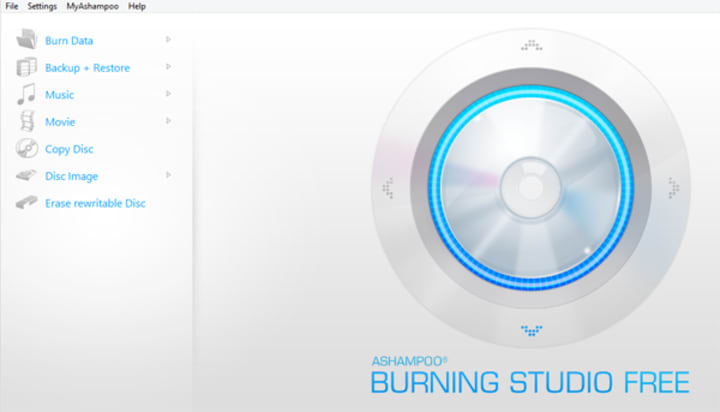
Step 2: On the primary interface, click the Burn Data option in the left sidebar and tap New Disc.
Step 3: Tap Add on the right side to open the dialog and choose your desired files. Subsequently, left-click the file or folder to add and click Add at the bottom of the opened dialog. Follow this process to add multiple files and burn simultaneously. Once done, click Close.
Step 4: Hit Next > at the bottom of the main window to select the disc recorder. Insert a blank DVD disc. Select Write DVD > to begin the disc-burning process.
Step 5: After completing the process, close the confirmation dialog and exit the program.
2. BurnAware
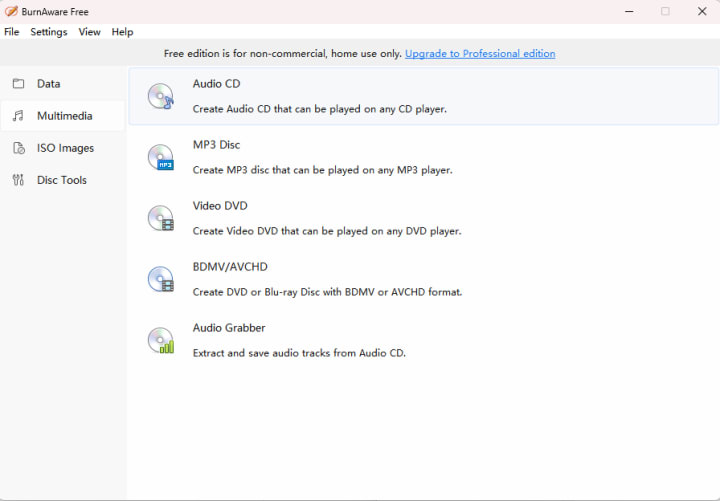
BurnAware is another fully featured free DVD burn software for creating CDs, DVDs, and Blu-ray discs. It offers a friendly interface and features like disc images, spanned backups, bootable discs, and audio extraction, making DVD burning quick and easy for beginners.
👍Pros
- Easy-to-navigate interface and beginner-friendly
- Offers direct copying from disc to disc
- Easily create disc images, backups, and bootable discs quickly
- Simplify DVD audio extraction and disc copying or erasing tasks
👎Cons
- The free version lacks copying CD to CD and DVD to DVD with other advanced features
- The buffering stage takes time to finish
How to Burn a DVD with BurnAware
Step 1: Download and launch the BurnAware software on your device. Run the program and enter the main window to click the DVD-Video icon. A separate window will display the project layout.
Step 2: Choose either Burn VIDEO_TS or Convert and burn options. The VIDEO_TS folder contains VOB, BUP, and IFO files. VOB files must be under 1GB in size. Choose the VIDEO_TS folder and click the Burn button to create your DVD.
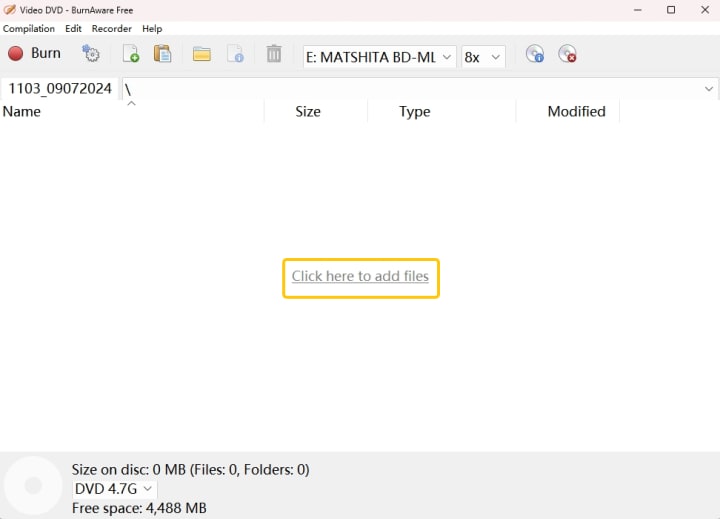
Step 3: Hit the Add Files tab and choose the video files you intend to burn on the disc. Alternatively, you can use the Windows Explorer to drag your desired files. Once you do so, regardless of the chosen format, your file will automatically convert into the DVD-Video format, i.e., .mpg. It will save to a temporary folder and then recorded to the disc.
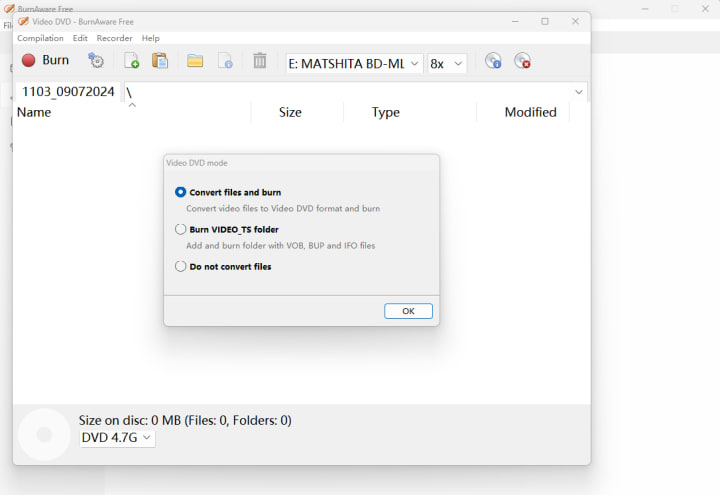
Step 4: Tap the Burn button and initiate the recording process.
Note: If your DVD player doesn't support DVD-RWs, opt for DVD-R discs, as they are more widely compatible.
Top 2 Paid DVD Burning Software
1. DVDFab DVD Creator
DVDFab DVD Creator is the top and one of the best DVD burning software to convert videos into DVD format, creating discs, ISO files, or folders from any popular video format. It features customizable DVD menus with stylish templates, supports multiple disc formats, and ensures high-quality DVD output. You can burn videos to discs or save them as ISO for drive-free playback on devices.
👍Pros
- Burns over 200 popular video formats to a standard blank DVD disc for playback on a standalone home player
- Saves disc videos as ISO image files or folders on your hard disk to watch on drive-free laptops or tablets
- Customize widgets and elements inside the menu templates, including thumbnails, background art, text font color, and size
- Output high-quality disc video and audio for a better cinema-like viewing experience
👎Cons
- Unavailable for Linux users
- The response time is 48 hours
How to Burn a DVD with DVDFab DVD Creator
Step 1: Download the DVDFab 13 and install it on your computer. Double-click the program and select the Creator option from the left sidebar on the main screen.
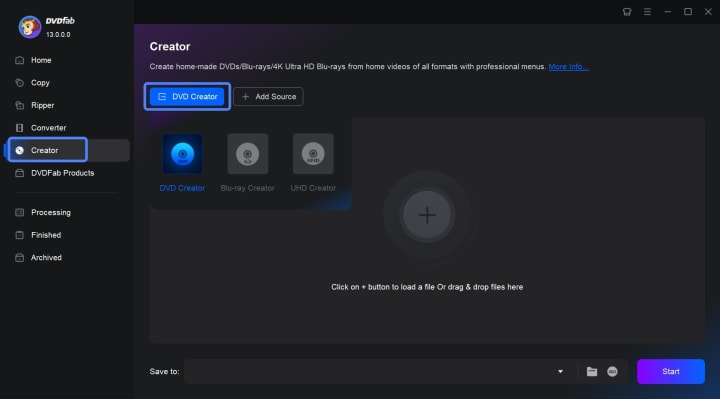
Step 2: Load your preferred video source by tapping the large + button on the interface. You can use the drag-and-drop feature to load your file directly.
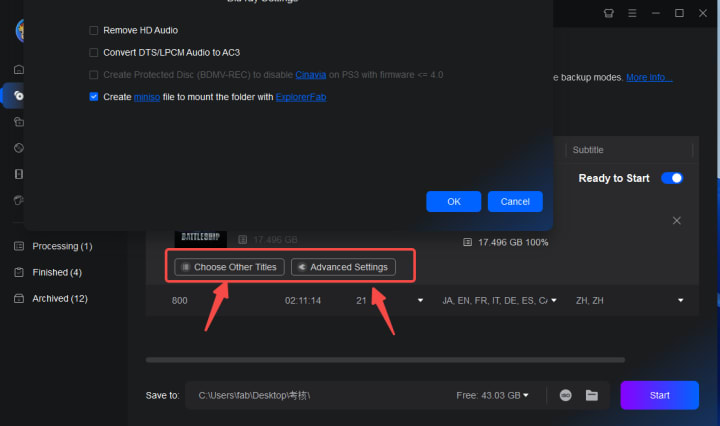
Step 3: As soon as you load your targeted video files, all the input/output information will be displayed. Choose the required audio tracks and subtitles, or simply add external subtitles.
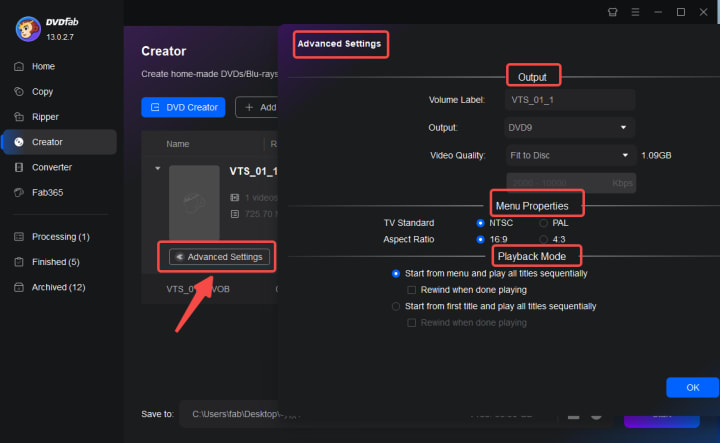
Set advanced output parameters by clicking Advanced Settings.
DVDFab also lets you customize your menu settings. Simply click Menu Settings to choose your desired menu templates and customize them with various settings.
Step 4: Choose the file directory. Press Start to burn your DVD at a rapid speed.
2. Power2Go
Power2Go is a competitive DVD burning software that offers easy DVD burning with drag-and-drop functionality. It supports audio CDs, video DVDs, Blu-ray discs, and system backups. It features smart output settings, military-grade encryption, and customizable DVD menus with music for any occasion.
👍Pros
- Advanced authoring, disc conversion, and backup solution
- User-friendly interface with a drag-and-drop feature
- Various customization options to tailor premium menu templates with background music
- Support different file types and external discs with a built-in video editing tool to trim videos
👎Cons
- It does not support Mac and Linux computers
- Requires advanced authoring tools
How to Burn DVDs with Power2Go
Step 1: Download and install the Power2Go software on your Windows computer.
Step 2: Tap the Video Disc option in the new task window. Choose DVD-Video Disc to enter the Create Disc window. Alternatively, you can click Video CD (VCD) Disc, depending on your needs and requirements.
Step 3: Tap the + icon. Then, browse and choose the video file you intend to transfer on the disc.
Step 4: Preview your imported files using the Play button (an inverted triangle) to confirm. Click the + icon again to import and transfer more video files to the disc if desired.
NOTE: Each imported video has a different title and scene on your final DVD disc.
Step 5: Edit the existing disc menu using the Menu Preferences button. Use the menu navigation controls to see the design of your current menu. Preview all the final settings and click Burn > Start Burning to finish your DVD creation process as you desire.
FAQs
Q.1. Does Windows 10 have a DVD burner software free?
Yes. Windows 10 has a built-in CD/DVD burning feature in the File Explorer. When you insert your blank CD or DVD into the optical drive, it pops up automatically on the screen. Windows Media Player lets you burn audio CDs, data CDs, and data DVDs.
Q.2. How do I burn a DVD in Windows 10?
Windows Media Player helps you burn data DVD on Windows. Here's how.
Step 1: Load a blank disc and launch the Windows Media Player.
Step 2: Tap Burn in the top navigation bar.
Step 3: Drag and drop your required video files and click the Burn options icon's dropdown menu.
Step 4: Tick the Data CD or DVD option and tap Start to process the burning process.
Q.3. What is the best video format to burn on DVD?
MPEG-2 format is usually the best format for burning a video onto a DVD for the best viewing experience. It is compatible with most DVD players, which ensures that your burned DVDs can be played on different devices.
The Final Words
DVD burning software is essential to back up your media files physically. We have listed the 4 best paid and free DVD burning software to copy, burn, and backup your media files. Before choosing any of them, ensure it has the necessary features such as authoring tools, a custom DVD menu, support wide format, encryption and password protection, basic editing tools, customized templates, menu creation, and ease of use to create professional DVDs. Among the listed options, DVDFab DVD Creator can help you easily create high-quality DVDs with a cinematic viewing experience.
About the Creator
Rita
I am a freelancer, specializing in DVD, Blu-ray, and multimedia technologies. With a strong background as a tech editor, I bring a deep passion for the tech industry to my writing, crafting insightful articles.
How to Choose the Best Mobile Application Development Company in 2026
Choosing the right mobile application development company is no longer just a technical decision—it’s a business-critical one. In 2026, mobile apps sit at the intersection of customer experience, brand credibility, and long-term growth. The wrong partner doesn’t just slow development; it can limit scalability, security, and discoverability across modern search and AI-driven platforms.
By alan michael5 days ago in 01
The Art of Slow Travel: How Staying Longer in One Place Creates Deeper Cultural Connections
In a world driven by packed itineraries and bucket list checklists, slow travel offers a refreshing alternative. Instead of racing from landmark to landmark, slow travel invites you to linger. It is about choosing depth over speed and presence over pressure. By staying longer in one place, travelers create space for genuine cultural connections that short visits rarely allow.
By Devon Alexis5 days ago in 01



Comments
There are no comments for this story
Be the first to respond and start the conversation.