
Understanding and Addressing HP Laptop Heating Issues
hp service Nagpur
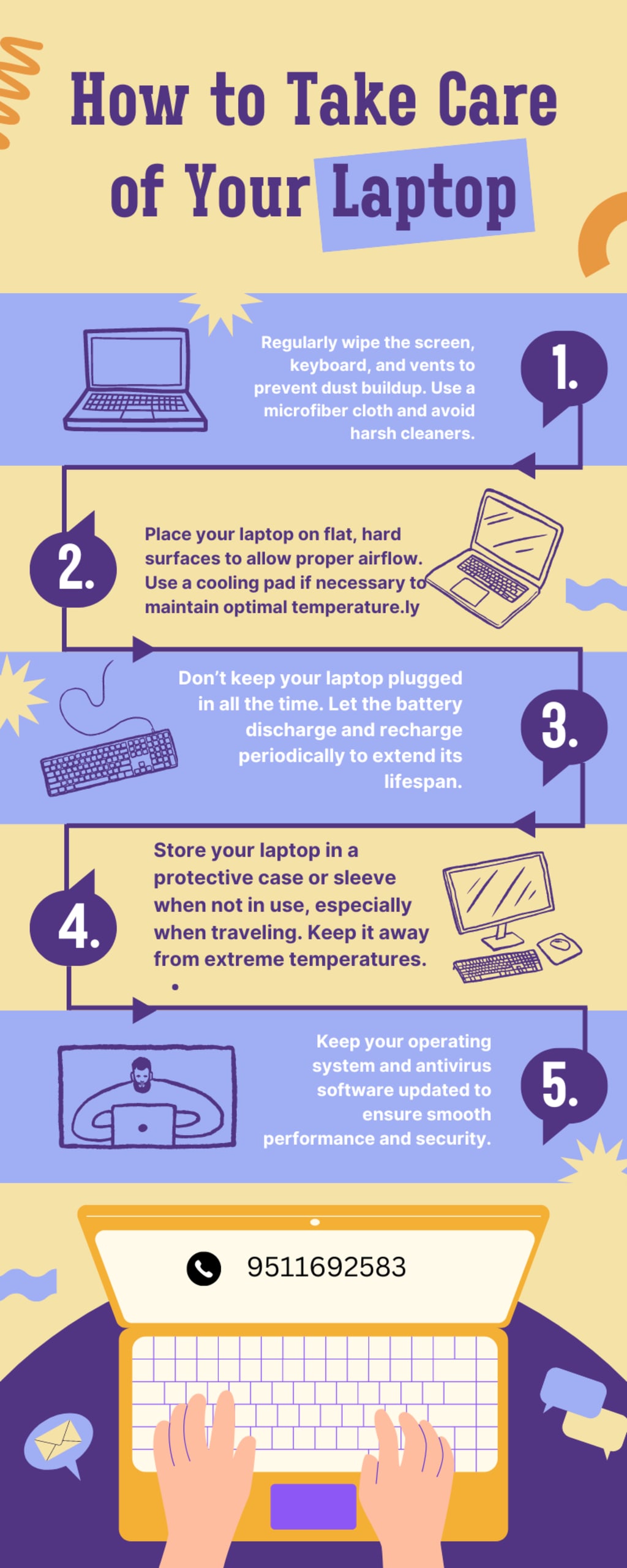
HP laptops, like most modern devices, are designed to offer a blend of performance, portability, and reliability. However, a common issue many users face is overheating, which can negatively impact performance, cause discomfort, or even lead to hardware damage over time. Overheating in laptops, including HP models, is primarily caused by inefficient heat dissipation, hardware overuse, or environmental factors. In this article, we will explore the causes, effects, and solutions to HP laptop heating issues.
Causes of Heating in HP Laptops
Dust Accumulation in Fans and Vents: Dust is one of the most common causes of laptop overheating. Over time, dust particles accumulate inside the laptop's cooling system, particularly in the fans and vents. This buildup obstructs airflow, reducing the laptop's ability to dissipate heat effectively. As a result, the internal temperature of the laptop rises.
High CPU/GPU Usage: Running resource-intensive applications, such as video editing software, games, or other heavy multitasking activities, can cause the CPU and GPU to overwork. HP laptops with advanced processors often experience heat when working at their peak performance for extended periods. Without proper cooling, this excessive usage can push the laptop beyond its thermal limits.
Inadequate Ventilation: Placing a laptop on soft surfaces like beds, couches, or laps can block air vents, preventing proper airflow. HP laptops, like many others, have vents at the bottom or sides, which rely on unobstructed airflow to regulate temperature. Using laptops on soft surfaces traps heat inside the device, exacerbating the heating problem.
Aging Components: Over time, the thermal paste used to dissipate heat from the CPU or GPU can dry out, leading to reduced thermal efficiency. Additionally, older batteries can overheat if they are no longer functioning optimally, contributing to the overall temperature rise in the laptop.
Effects of Overheating
Performance Throttling: One of the first signs of an overheating HP laptop is a noticeable drop in performance. Laptops are designed to throttle (reduce) the CPU or GPU speed to lower the temperature when overheating occurs. This may result in slower application performance, lag, or stuttering during demanding tasks.
Uncomfortable Usage: Overheating can make it uncomfortable to use the laptop, especially if the heat is concentrated in areas where hands or wrists rest. The excessive heat can even lead to burns in extreme cases.
Hardware Damage: Prolonged overheating can cause serious damage to internal components. The motherboard, processor, and battery are particularly vulnerable. If not addressed, this may lead to the premature failure of essential hardware, resulting in costly repairs or even the need to replace the laptop entirely.
Solutions to Prevent Overheating
Clean the Fans and Vents: Regular cleaning of the laptop's cooling system is crucial to ensure proper airflow. You can use compressed air to blow out dust from the fans and vents. In some cases, disassembling the laptop may be required to perform a deep clean, but this should be done carefully or by a professional.
Use a Cooling Pad: A laptop cooling pad is an effective and affordable way to reduce overheating. It provides additional fans to improve airflow and cool the laptop's underside. This is especially useful if you use your HP laptop for gaming or heavy processing tasks.
Optimize Performance Settings: Reduce the strain on the CPU and GPU by closing unnecessary applications and lowering performance settings. Using power-saving modes or adjusting the processor's maximum state in the power options can also reduce heat generation.
Use on Hard Surfaces: Ensure your HP laptop is placed on a flat, hard surface that allows proper ventilation. Avoid using it on beds, blankets, or pillows that can block airflow. Additionally, propping the laptop slightly at an angle can help improve airflow.
Replace Thermal Paste and Check Battery: If your laptop is older and continues to overheat despite other solutions, it may be time to replace the thermal paste. This can improve heat transfer from the CPU/GPU to the cooling system. Additionally, checking the battery health and replacing an aging or damaged battery may solve overheating issues.
Conclusion
HP laptops, like any other electronic device, are susceptible to overheating due to various factors. Regular maintenance, proper usage habits, and implementing cooling solutions can help mitigate these issues. By addressing overheating proactively, users can extend the lifespan of their HP laptops and maintain peak performance over time.
About the Creator
Keep reading
More stories from Gaurav Kale and writers in Writers and other communities.
Essential Laptop Care Tips: Keeping Your HP Device in Top Shape
Laptops have become indispensable tools in our daily lives, whether for work, education, or entertainment. Among the many brands available, HP is known for its reliable performance and innovative features. To ensure your HP laptop continues to function optimally, regular maintenance and proper care are essential. This article will provide valuable tips for laptop care, along with insights on when to visit an HP service center in Nagpur.
By Gaurav Kaleabout a year ago in Writers
It's Winter
Anne Bernays and Pamela Painter — What If? Writing Exercise for Fiction Writers prompts The Exercise —Write a scene involving two characters. Have the point-of-view character presume something entirely different about the situation from what the other character's overt behavior seems to imply. For example, a landlord comes to visit, and the tenant suspects that it isn't a visit but an inspection. Make up several situations in which one character can fantasize or project or suspect or even fear what another character is thinking. The Objective - To show how your characters can use their imaginations to interpret the behavior and dialogue of other characters.
By Denise E Lindquist21 days ago in Writers


Comments
There are no comments for this story
Be the first to respond and start the conversation.