
Narrating my first Audible (Of My Own Novel)
A TUTORIAL FOR WPS SOUND EDITOR


Below is basically a tutorial [WITH PICTURES] about my journey learning t0 use Wavepad Sound Editor to work on creating my very first audible book. If this sounds helpful… If you want to break into the field of audible books - and don’t want to (or can’t afford to) hire a professional narrator - Read on. Otherwise…, just skip over to one of my stories or poems. 😉
************************************************
As a 63 year old lifelong bibliophile, I've always loved the feel, smell, and texture of a real physical book in my hand. A purist. But..., that aside, as an author I have now a number of things available on kindle. Still, never in my writing career have I ever done an audible book. Well guys and gals, I'm finally bowing to pressure - taking the plunge. Yes, I'm diving into a whole new world of creative expansion. I'm creating, and narrating, my very own audible of my 2nd novel to put on audible.com through Amazon. This is a whole new experience for me. So far it's been an interesting ride.
*******************************
Lately I've been listening to a lot of books rather than reading them. This is for various reasons: Long drives are perfect as the mind can concentrate on the story while the eyes watch the road. Also, as my wife likes to watch cooking or competition shows that don't really hold my interest - I can listen to a book via bluetooth while she sits next to me blissfully watching Gordon Ramsey, or Forged in Fire, or whatever. It's handy. TBH, I generally just go to YouTube and listen to books there. YouTube has thousands of audible books in all genres that are completely free. My 'subscribed to' list is definitely expanding.
So... what had happened was ...
I've been going through my stuff on kindle recently - redoing covers, updating blurbs, posting links through various groups on FaceBook... you know, all the heart wrenching crap we writers go through. But, it struck me. While sales on kindle store are fine there's a whole separate and huge market out there I need to capitalize on. Yep, as stated, I need to make an audible book.
Now, you all know that professional narrators aren't exactly lining up at your door to narrate a book for pennies ... especially since pennies aren't even going to be in circulation anymore. So, naturally, as the starving artist I am, I knew I needed to narrate my own novel. Thus began my journey of the past few days.
Checking through amazon, I discovered the link to acx.com. It's located at the very bottom of the home page under ACX: Audiobook publishing made easy. Trust me, it ain't really that easy if you’ve never done it before, but it's not insurmountable. ACX is the site where authors upload their files to create an audible book. There are various parameters discussed there about decibel ranges, quality, sound floor, Root Mean Square (RMS) and all that. There is a dashboard where you upload your files... ONE CHAPTER OR PART AT A TIME. Be aware - no single file can be over 120 minutes in length. Not generally a problem for me as my chapters tend to take between 10 to 20 minutes to listen to individually.
1: CLAIM YOUR TITLE: I input the title of my book - Killing Keys, and laid claim to it. BTW, the book had to be available on kindle already … so, be aware. You need a digital book in the kindle store first. But, that is not the gist of this article. Thankfully, my book is indeed on kindle already. 🤗 It asks you various questions. I told it that the author is myself, the narrator would be yours truly, the publisher - also - ME, and the timeframe wherein I expected to finish creating the work. Also, I had to name the spots where each part or chapter would be uploaded… Chapter 1, Chapter 2, ….

Now, prior to uploading any audio files, I had to create a book cover file that met the acx requirements. NOTE: DO NOT put any information in the lower right corner of the book cover. That is reserved for audible.com to put their stuff. I had to rework my cover after the first success due to their triangle on lower right covering most of the author’s name. I moved author’s name to bottom left from the bottom center and revamped. The file must be at least 2400 by 2400 pixels in a square. It also must be a jpeg or .jpg file.
Using artspace.ai I finally, after a couple hours playing with it made…

This file I then had to convert to .jpg. Fun. Finally, I got that done and uploaded. Note, the black area below the caution tape encompassing the officer’s pant’s leg in my image is basically where you don’t put anything important.
Now: On to actual audio file creations:
First, you need to create a 5 minute promotional sample - which is preferred to be from the beginning of the book (no erotica included here).
Also… Opening credits which include title, author’s name, and narrated by: along the lines of “You are listening to Killing Keys by Andrew C. McDonald, narrated by Andrew C. McDonald.”
Then, you move onto creating the book itself. I included a copyright and a dedication (separate files as well).
There are parameters stating the audible ranges required for acx. There is a range requirement of like 23 to 26 db. There are requirements for peaks which need to be around -3 to -6 db... and so forth. Bottom sound levels… WTF?
I scratched my head. Obviously, the first thing I needed was the proper software. My laptop is a Lenovo running Windows 10 Home. Okay. I can work with that ... but, what software do I use to create a good audible file?
First, I consulted a friend of mine who is more computer savvy than me. He, too, has never narrated an audible book; however, he is dyslexic and has a difficult time reading so he listens to audible.com constantly. Also, he has a boom mike he used for online courses and has some experience there. Joe gathered up his useful tech stuff and came over to my place. Joe recommended Wave Pad Sound Editor - WPS. So, we first tried the free demonstration which enabled me to make audible files of 5 minutes in length. It was ... overwhelming to be honest. But, we dutifully searched and played with all the tools and abilities until we created a file that seemed to work. Then, I took the plunge into my wallet - I paid for and downloaded WPS for $70.00 (on sale from $100). That is the full version. There is a cheaper version with less options but I don't know anything about that as the boss - aka my lovely wife - said I could get the full version. YAY.
So, with my dyslexic, ADHD, techy friend next to me... I set out on a journey.
Joe, as previously stated, had a nice boom microphone. We spent an entire day trying to get my laptop to even realize that existed. A Whole Frustrating, Hair Pulling Day. No such luck. Well, scrap the boom mike. I then tried using the internal microphone system on my laptop. It worked... I even managed to get three chapters that met the acx requirements. I was on a roll. But... I had my 26 year old son listen to a bit. His opinion was that my narrating was okay - good tone, inflection, and all that. Especially for an utter novice. Still, he was concerned about the actual audio quality. He was right.
What I ended up doing was using the headset with microphone that my son has for his gaming. We connected the headset via bluetooth to my laptop and went through the grueling process of redoing the many hours of work I had already done. Dry mouth? Yep. Cramped legs sitting there? Yep. Background noise with dogs barking? Oh yeah.
My wife is kindly keeping the dogs mostly inside and quiet. Joe and I are working in the back bedroom I have converted into a library - with a blanket shoved under the bottom of the door as a sound muffler.
Well, it's taking on average about 2 to 3 hours to record and set a single 15 minute chapter. Just so you know.
Here is a shot of the screen when one opens WPS sound editor:

So… Nuts and bolts:
Hit “Home” then “New”

It says to hit f5 to start recording, but, if you zoom this image you can see the basic controls at the bottom. See the red circle? That is “Record”. So … with headset or mic set for input, you can hit record and start talking.
You can use the square to stop at any point and then resume when ready.
There is a bookmarks tab up top where you can set and go to bookmarks you’ve created. That is helpful for going to particular points in your recording. So… First, I advise you to read out loud several times, in digestible chunks, what you plan to record. Once comfortable with the material and varying inflections and tones are in your head for how people should sound at any given point {angry, excited, normal, querying, sad, …} then… Hit record and start speaking… Hopefully without an ADHD friend next to you constantly going through his magic bag to seek out the next possibly useful thing he wants to show you. Note: “STOP THAT so I can record” is a helpful command. Then talk… See below the squiggly audio recorded lines:
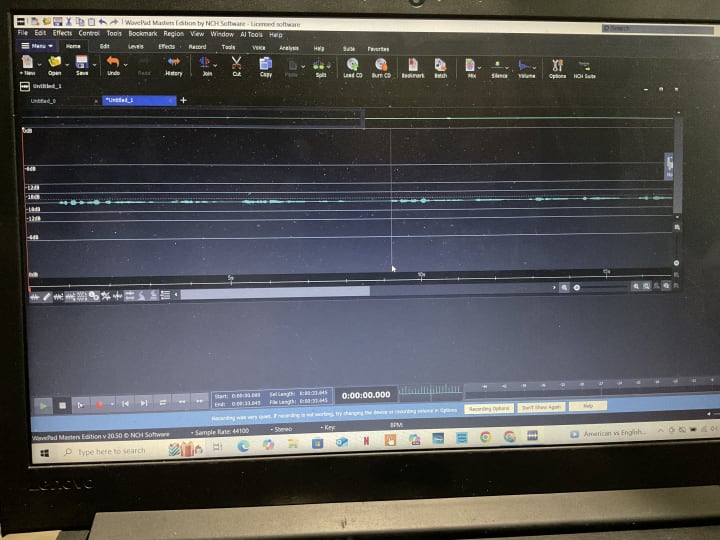
When done with the current part, or if you screw up.. hit Stop. You can use the bottom controls by the record circle to go to end or go to start. Then hit the Play arrow at far left. And… Listen. If you are happy… great. If you have issues you can right click, select all and delete… or you can left click in the file where the issue is at and, with a right click, choose select to end to delete all after a particular point.
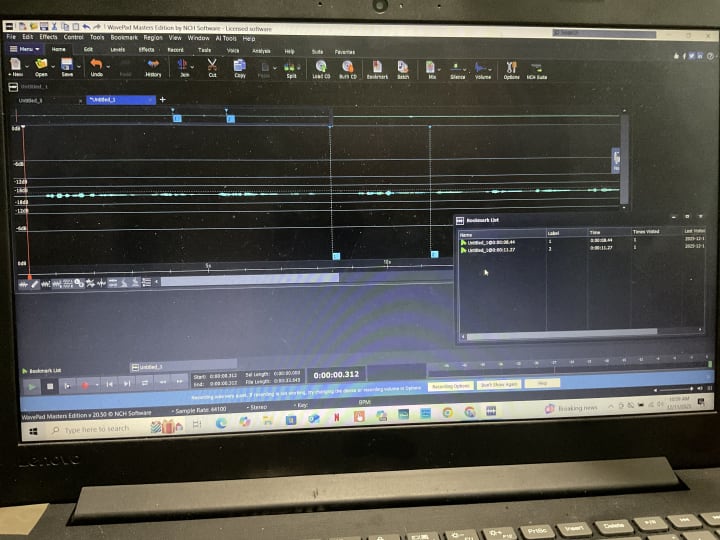
Then… go the end to where you want to start recording again… and, once prepared and in the correct spot of the text from whence you are narrating, once again hit record and start talking. Don’t forget to set bookmarks at places you want to be able to find again easily. You open the bookmarks by clicking the top bookmarks tab.
Below is an image wherein I have set 2 bookmarks. They show as dotted lines with numbered blue boxes. Also showing is the bookmarks list box. When I open that box at the tab, I can click on any created bookmark to automatically go to that spot in the file. Then just use the X on bookmarks list box to close it. The bookmarks themselves will still be showing in your file.
Once you have a full file - an entire chapter or sample or whatever - recorded…. You get to do the FUN stuff - MASTERING.
Click up top on LEVELS…. Then NORMALIZE.
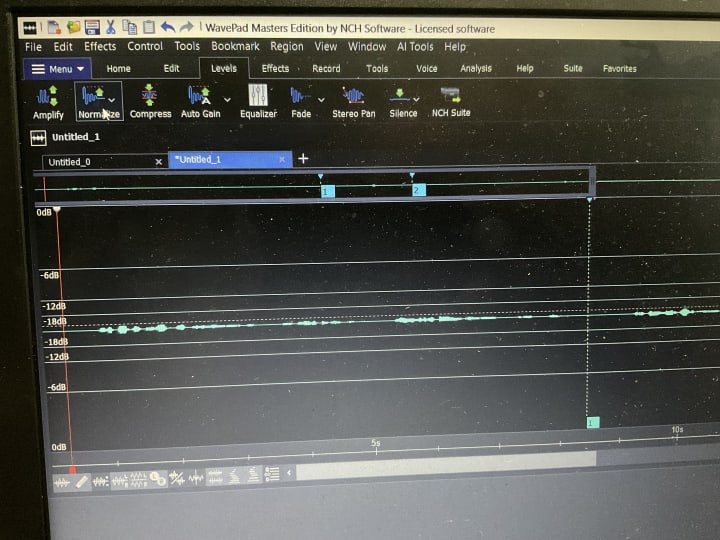
Under Normalize, pick… Normalize….

See the 0 db by the green slider bar? Change the 0 to 23 and then hit Apply.

See how much bigger the amplification is? Now… look at the highs and lows. This range shows a top and bottom of 0 db. You do NOT want any peaks going past the top zero line. This looks fine… but, if you have peaks too high then …. Use COMPRESS which is next to Normalize up top left.

Where the little white hand is in the Dynamic Range Compressor… slide that to show as close to -3db as you can.

Then hit APPLY…. 😂👍🤗 Now your file shouldn’t show any peaks running over that top 0 db line and should be within acx parameters.
Okay, you’re recorded, normalized, and compressed peaks for your first real recording in WPS sound editor. ACID TEST TIME.
SAVE FILE AS… at Home tab under Save… use the little arrow to choose SAVE FILE AS… Choose or create a folder for your save spot, name your file, and ensure you choose MPEG Layer-3(*.mp3) for the type.

Saving takes a minute as it generates a sample PREVIEW of the file within the window at the bottom. Once that is done… you may listen to the preview right there… or just hit SAVE under it.

Once you’ve saved your mp3 audio file… close it in WPS. I tend to just right click in the frequency file on the screen and choose Close File at the bottom. In browser, return to acx.com and CLICK ON AUDIO LAB. Go ahead and click where it says “Check it Out” … Now, in the Audio Lab… click the purple box where it says “Browse Audio Files” Go to where you saved the file you just worked on so painstakingly, and choose it.

The lab will analyze your file and tell you if there are any issues.

As you see, it says the RMS (Root Mean Square) is too low. I need to raise the level 0.5 db. So… back to WPS where we will go to Home and choose OPEN and open up our audio file again.
Top tab… LEVELS… AMPLIFY. I am actually going to use the GAIN to raise this file by 1 db. Then APPLY.
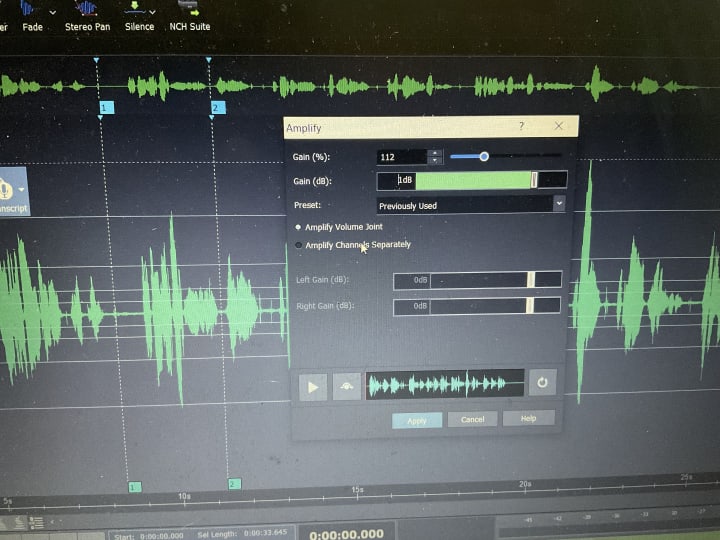
Check again for any peaks passing the top 0 db line …
Save once more. RINSE AND REPEAT. Close file, go to acx to the audio lab and choose ANALYZE ANOTHER FILE. Me personally, I add iterations such as ‘vocal media tutorial test 2’ when I resave so I have the first file and the amped file.

VOILA! NO ISSUES FOUND.
in the tab of Audio Lab on left… go back to My Projects…. Click on In Production where you should have a number showing how many audible projects you have in the works … click on UPLOAD AUDIBLE BOOK which should be to the right of your previously loaded cover art.

Since the initial part of starting the process in acx made you name all your chapters, sample, dedication, and such - the upload sections for each chapter are there… Click on the upload area by the proper part of your production you wish to upload.

Once that uploads you can actually listen to it there also. Regardless, you have successfully created, mastered, and uploaded a file into an ongoing project in acx. You are on the way to making your first book for audible.com.
LATHER, RINSE, REPEAT…. Tear out your hair, play with the tabs and effects…. And make an audible book. 👍😇
**********
Be aware: Per Amazon, just because your files show no issues in the lab, it is still possible for them to be rejected for any issues that audible.com finds that didn’t show in the lab. *Sigh*
I am so far… After 3 days of painstakingly teaching myself how to do this … which came after a day making a book cover … only 3 full chapters in. It’s been a learning curve. So… Fingers crossed my peeps. Hopefully, I’ll let you know if the overall book gets accepted. PRAY FOR ME.
Meanwhile, I sincerely hope this article will help at least one person in their own audible book creation journey. Good luck and keep on recording. 🤗😎
About the Creator
Andrew C McDonald
Andrew McDonald was a 911 dispatcher for 30 yrs with a B.S. in Math (1985). He served as an Army officer 1985 to 1992, honorably exiting a captain.
https://www.amazon.com/Killing-Keys-Andrew-C-McDonald-ebook/dp/B07VM843XL?ref_=ast_author_dp
Keep reading
More stories from Andrew C McDonald and writers in Writers and other communities.
Trials of Submission
This morning I submitted 12 poems to the Bournemouth Writing Competition 2025. The deadline for submissions is 1/15/2025 For 10 British pounds ($12.31 USD) you can submit three poems, maximum of 30 lines each, or a short story up to 3,000 words. There are no limit to the number of entries one can submit but each set of 3 poems or a single story will cost the same. The main prize is 500 British pounds along with the opportunity for various appearances and such. Details can be found on the site via the link above. Naturally, any winning poems or stories will be published in the Bournemouth University anthology of which the winners will receive a copy.
By Andrew C McDonaldabout a year ago in Writers
March 15, 2026
Merriam Webster - Word of the day: Tranche refers to a division or portion of a whole. World Contact Day is commemorated every year on March 15. It is a unique observance held globally to focus on communicating with extraterrestrial life and exploring the possibility that intelligent beings may exist beyond Earth. World Contact Day inspires people to invoke their curiosity and spend time thinking about the universe and the mysteries surrounding it. What is the “Ides of March”? According to the Roman calendar, the Ides are a monthly occurrence. In March and other months with 31 days, the Ides always falls on the 15th; it falls on the 13th in months with 30 days. The Ides traditionally marked the arrival of the new Moon and was cause for celebration. The word “Ides” is derived from Latin, meaning “to divide.” Mothering Sunday in 2026 falls on Sunday, March 15. Mothering Sunday, celebrated in the United Kingdom and Ireland, occurs on the fourth Sunday of Lent, which is exactly three weeks before Easter. Unlike the fixed-date Mother's Day in countries like the United States, Canada, and Australia, Mothering Sunday’s date changes each year according to the Christian liturgical calendar. On March 15, 2026, several notable observances and events are celebrated: Dumbstruck Day: A day to express frustration. Everything You Think is Wrong Day: A day to challenge and celebrate wrong beliefs. International Day Against Police Brutality: A day to raise awareness and advocate against police violence. My look at today, March 15, 2026 below:
By Denise E Lindquistabout 13 hours ago in Writers
Importance of Traceability Documentation in US Military Procurement
Traceability documentation plays a critical role in the procurement processes of the United States military. The defense sector relies on a vast network of suppliers and contractors to deliver the specialized components required for aircraft, naval systems, ground vehicles, communication equipment, and other mission-critical technologies. With such a complex supply chain, maintaining accurate documentation for every component becomes essential to ensure reliability, compliance, and operational readiness.
By Beckett Dowhan4 days ago in Writers


Comments (2)
I'm so glad that Joe and your son were able to help you out. I'm keeping my fingers crossed for your audiobook to get accepted 🤞🏼🤞🏼✨️❤️ Also, hahahahahahahaha you did mention that Joe had a magic bag but I didn't except to see that in his username! 🤣🤣🤣🤣🤣🤣
We set out not knowing much, we nare not experts but I think we know a good deal more now.