
How to Check a PDF for Malware: Scan & Secure Your Files
Learn how to check a PDF for malware using online scanners, antivirus software, and advanced security tools. Protect your system from malicious PDFs with expert tips and safe handling practices.
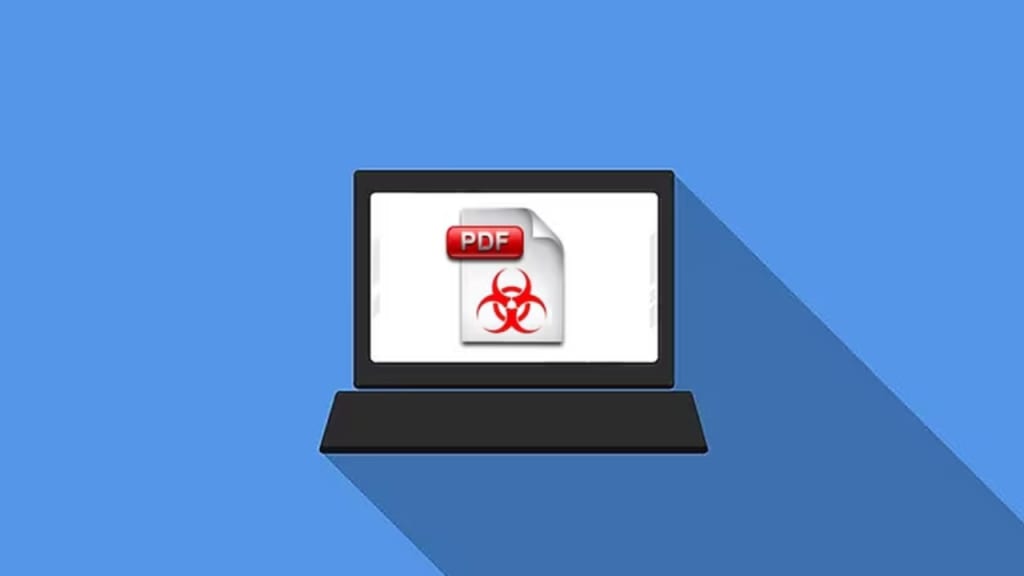
PDF files are a popular document format, but they can also be exploited by cybercriminals to deliver malware. Knowing how to check a PDF for malware is crucial for protecting your system from potential threats. This guide will walk you through the most effective methods to detect malicious PDFs using online scanners, antivirus software, and advanced forensic tools.
Understanding the Risks of Malicious PDFs
Many people assume PDFs are harmless, but attackers frequently use them to distribute malware, steal sensitive data, or exploit software vulnerabilities. A malicious PDF can contain:
- Embedded scripts that automatically execute malware upon opening.
- Phishing links designed to steal login credentials or financial information.
- Encrypted payloads that bypass security filters and install ransomware or trojans.
Outdated PDF readers are common targets for cyber threats. Hackers use vulnerabilities in these programs to deploy spyware, keyloggers, or exploit kits. Therefore, scanning suspicious PDFs is essential before opening them.
Using Online Scanners to Detect PDF Malware
Online malware scanners provide a quick way to check a PDF for threats. One of the most trusted tools is VirusTotal, which scans files using multiple antivirus engines.
Steps to Scan a PDF with VirusTotal:
- Visit VirusTotal.com.
- Click Choose File and upload your PDF.
- Hit Scan and wait for the results.
- Review the report to see if any security engines flagged the file.
While online scanners are convenient, avoid uploading sensitive files, as they may be stored for further analysis. If you need a more private alternative, use local antivirus software.
Scanning PDFs with Antivirus Software
A strong antivirus solution can detect malware within a PDF without exposing it online. Follow these steps:
- Ensure your antivirus software is up to date to detect the latest threats.
- Right-click the suspicious PDF file.
- Select Scan with [Your Antivirus Program].
- Review the scan results to determine if any threats were found.
Recommended antivirus software for PDF malware detection includes:
- Windows Defender
- Norton
- Bitdefender
- Kaspersky
Premium security suites also offer real-time scanning, which prevents malicious PDFs from reaching your system.
Advanced PDF Malware Analysis Tools
For deeper analysis, cybersecurity professionals use specialized tools to detect hidden threats in PDFs.
Advanced Tools for PDF Security Analysis:
- QuickSand – Scans documents for hidden exploits and malware-laced scripts.
- ClamAV – An open-source antivirus that detects embedded threats.
- PDFiD – Identifies suspicious elements in PDFs without executing them.
These tools provide a higher level of PDF file analysis, making them ideal for forensic investigations or enterprise security teams.
Best Practices for Safe PDF Handling
Even with scanning tools, adopting proactive security measures helps minimize risk. Here are some key best practices:
- Disable JavaScript in your PDF reader to prevent script-based exploits.
- Use secure PDF readers like Sumatra PDF, which have fewer security vulnerabilities.
- Avoid opening PDFs from unknown senders and verify sources before downloading attachments.
- Keep your software updated to patch known vulnerabilities in PDF readers and operating systems.
By following these best practices, you can significantly reduce your exposure to PDF-based threats.
Recognizing Signs of a Malicious PDF
Detecting a potentially harmful PDF before opening it can prevent malware infections. Watch for these warning signs:
- Unexpected or unsolicited email attachments.
- Requests to enable macros, JavaScript, or embedded scripts.
- Poor grammar or unusual sender addresses in emails.
- Password-protected PDFs from unknown sources.
If a PDF exhibits any of these red flags, scan it immediately before opening.
What to Do If You Suspect a Malicious PDF
If you believe a PDF is infected, follow these steps:
- Do not open the file to prevent execution of malware.
- Quarantine the document in an isolated folder.
- Scan it with antivirus software for threats.
- Perform a full system scan to detect any hidden malware.
- Delete the file permanently if it is confirmed as malicious.
- Update your security software to prevent future threats.
Taking immediate action can help prevent infections and data loss.
How Digital Forensic Experts Analyze Malicious PDFs
Forensic experts rely on advanced techniques to investigate malicious PDFs. Link analysis in criminal investigation is often used to trace malware distribution networks, while timeline analysis helps establish when a PDF-based attack occurred. Professionals also use email forensic tool solutions to track email-delivered PDF threats.
Final Thoughts
PDFs are widely used in digital communication, but they can also pose significant security risks. By leveraging online scanners, antivirus software, and advanced forensic tools, you can stay ahead of cyber threats. Always verify sources, disable risky features in your PDF reader, and scan suspicious documents before opening them.
If you frequently handle sensitive PDF files, consider using industry-standard security tools to enhance protection and prevent malware infections.
Frequently Asked Questions
Q. Can a PDF file contain malware?
Yes. PDFs can carry malicious scripts, phishing links, and hidden exploits that compromise security.
Q. How do I scan a PDF for malware?
You can use VirusTotal, antivirus software, or advanced malware analysis tools like ClamAV and QuickSand.
Q. Are online PDF scanners safe?
Yes, but they may store uploaded files for further analysis. Avoid using them for confidential documents.
Q. What is the safest way to open a suspicious PDF?
Use a sandboxed environment or an isolated virtual machine to test PDFs safely.
Q. How do I know if my PDF reader is vulnerable?
Check for available security updates and enable safe reading modes. Disabling JavaScript also helps.
Q. Can I get infected just by previewing a PDF in an email?
Yes. Some email clients have built-in PDF previewers that can execute malicious code, making it important to scan attachments before opening.
Q. How do I remove malware from my system?
Run a full system scan with a trusted antivirus program and follow its removal instructions.
Q. Do Mac computers get infected by PDF malware?
Yes. While macOS has better security than Windows, PDF-based malware can still target Mac users.
Q. Can I trust PDFs sent by known contacts?
Even if a PDF comes from someone you know, their email account could be compromised. Always verify unexpected attachments.
Q. What should I do if I accidentally open a malicious PDF?
Disconnect from the internet, run a full malware scan, and monitor your system for suspicious activity.
About the Creator
The Night It Was Read
She was excited. Her hair up in rolos as she slid on the boots her mother had only let her borrow for this special occasion. At fifteen, she had just begun to branch out–making friends, building a life that was all her own. Her best friend, Ruth, had just moved to Oregon, and her absence was a new kind of desperation–one that longed for intimacy and made her reach for new people, new experiences. The phone rang. “Ma! Pick up–pick up! I’m taking off the pinchos! These stupid rolos won’t come off!” She stomped around her room, arms twisted overhead, tugging at her hair in every direction. From the kitchen, her mother shouted, “He’s coming up now. Apúrate and put on your coat. It’s cold and rainy. Llévate la sombrilla–and don’t lose this one. You always lose the nice umbrellas and then-” “Yessss, Ma! Ya–ya! I got it. Can you open the door, please?!” At that moment, a knock traveled through the apartment. Her mother opened the door. From the bedroom, Allie heard the high, bright voice her mother saved for people from church. Finally, her hair came free. She slid on the brown leather jacket her cousin Farrah had given her before moving into her own apartment. She loved it when Farrah gave her things and used them only for special occasions. “Alexandra! ¿Ya?” her mother called from the door. Allie stepped out and walked toward the door. “Ya. I’m ready.” She smiled shyly. “Hola, Rafael. Sorry, I took so long.”
By K.R. Reyna5 days ago in Writers


Comments
There are no comments for this story
Be the first to respond and start the conversation.