
Transform Images and Text into Pixel Art
Transform Images and Text into Pixel Art

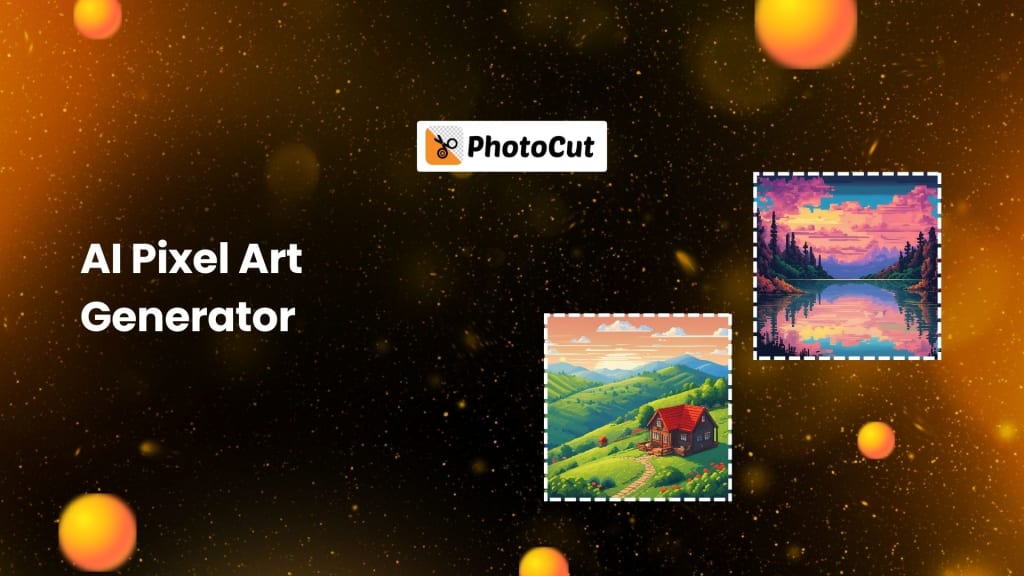
This art form ranges from old to charming computer art. It varies from vintage video games to even more modern, pixel-based graphics and everyone with a particular taste for old art or perhaps an interest in graphics will feel interested in them. However, the process of making pixel art takes a very long time with a few sets of skills. PhotoCut's AI Pixel Art Generator is a very fun and simple way to convert text and images into amazing pixel art. Due to its pixelated look, it is particularly suitable for pixel-based art, such as portraits, anime sprites, and even Minecraft-inspired designs. In this blog, we will demonstrate how PhotoCut's AI Pixel Art Generator can be used to generate pixelated images, edit them to your taste, and give your graphic design projects a little boost.
What is Pixel Art and Why Does it Matter?
Let's start with the definition of what pixel art is and why it's gained so much popularity before discussing how PhotoCut's AI Pixel Art Generator works.
Pixel art is digital art that shows pictures at the pixel level of editing and production, sometimes with a blocky or vintage look. This form of art style was created in early video games, which included 8-bit and 16-bit graphics because it was the most feasible with the hardware at that time. Pixel art, on the other hand, has grown in popularity in pop culture, games, designs, and animations.
Pixel art has regained its appeal as a result of the enormous success of independent games, social networking, and retro-inspired projects. It ranges from simple game sprites to very elaborate portraits created entirely through pixel art. Pixel art has complex patterns even in its most basic forms. Pixel art is an excellent method to express your creativity, regardless of whether you are a graphic designer, animator, or game developer.
Now that you know why pixel art appeals to us so much, let's look at how PhotoCut's AI Pixel Art Generator can make pixel art quickly and simply.
Create an amazing book cover using PhotoCut’s book cover maker.
Features of PhotoCut’s AI Pixel Art Generator
With a vast array of features, creating fantastic pixel art with PhotoCut's AI Pixel Art Generator has never been simpler. You could pixelate pictures or generate art based on any text prompt. With PhotoCut, it will only take a fraction of your time. Its main features include:
1. Convert Images to Pixel Art in One Click
If you want to turn any image into pixel art, all the heavy lifting is taken care of for you by the AI Pixel Art Generator of PhotoCut. Simply upload the picture you want to convert, and this tool will detect and pixelate the subjects for you. Portraits, landscapes, or even complicated designs, can easily be changed into pixel art by PhotoCut's AI.
Any image file including a picture of yourself, artwork, or just some photo pulled off the internet can be uploaded and then speedily transformed by AI into pixelated form. The result is a clear, tacky image fitting right into the aesthetic of pixel art.
Color correct your photos using PhotoCut effortlessly.
2. Generate Pixel Art from Text Prompts
With this application, besides converting images into pixel art, you can create pixel art using a text description. This helps in creating designs from text where there may be no image that one could have used as the basis. For instance, someone can just enter the description of the pixel art they would want to have created, and an AI would do the work, producing an image according to their description.
For instance, you may tell the AI to describe an anime character, the landscape of Minecraft, or a fantasy creature; the AI will create a pixel art drawing based on your text. You can even request how big the pixel art is, such as 8-bit, 16-bit, or 32-bit, to suit your desired look.
3. Customizable Pixel Art Options
Among the best things about PhotoCut's Pixel Art Generator is that it is very flexible. It can be customized in terms of what you prefer on your pixel art. Some things you can control include:
- Aspect Ratio: The size of the generated pixel art is adjustable to meet your needs. It may be creating an avatar or detailed character sprite, so you can adjust the aspect ratio to whatever looks right for your needs.
- Pixel Size: You have multiple options between 8, 16, or 32 bits depending on how detailed you want your artwork to be. The smaller pixel sizes will give you a more classic, blocky look. Larger pixels will enable you to create more designs.
- Quantity: you can also make multiple copies of your creation so you can choose from a few options.
These options ensure that you can fully customize your pixel art, making sure that it will perfectly fit the image you want to create.
4. Online and Easy to Use
Unlike many other design tools, PhotoCut's AI Pixel Art Generator is online, with no need for software or application downloads to create anything. Therefore, it makes the process amazingly easy and hassle-free, in case you would like to switch between different machines or avoid bothering with complicated installation processes.
The interface is simple and easy to use, so you can upload images or input text prompts easily. The AI works in the background to create your pixel art in seconds, and you can download your creations instantly.
Moreover, PhotoCut provides free credits that let you create a limited number of pixel art images free of charge. You can even earn more credits through their reward system, which makes it an excellent choice for those who are on a tight budget.
Pixel Art Styles You Can Create with PhotoCut
It gives you a versatile range of pixel art from the options with the aid of AI, starting from classic art to very weird and fantastic concepts. Below is a list of some popular ones that can easily be made from this software package:
1. Minecraft Pixel Art
If you like Minecraft, then you will certainly love the idea of generating Minecraft-inspired pixel art with PhotoCut. Whether it is a blocky character or landscape or some object in that signature Minecraft style, PhotoCut's AI generator makes it so easy. You can upload your images or enter text descriptions for the Minecraft-themed art you’d like to create. The tool will transform them into blocky, pixelated designs that resemble the iconic style of the game.
2. Pixel Art Characters and Sprites
PhotoCut will even allow you to develop quite individual pixel art characters and sprites for use in video games, animation, or personal projects. Imagine a program that lets you design your game characters or explore sprite animation. Just upload an image of yourself or a character that you have created, and the AI will make it pixelated for you.
Otherwise, you can give the AI a description of your dream character whether he is a fantasy hero, futuristic robot, or a cute animal, and get an AI-generated pixel art sprite according to your description.
3. Anime Pixel Art
For anime fans, the AI Pixel Art Generator in PhotoCut offers an advanced feature for creating pixel art that's similar to anime. This program will be very helpful if you've always wanted to have your favorite anime characters in pixel format. It lets you make a range of anime sprites, characters, and portraits that may be used for social media accounts, fan projects, and game creation.
4. Pixel Art Portraits and Avatars
A popular use for PhotoCut's generator is creating a pixel art avatar. Maybe you want to achieve a unique avatar for social media, or perhaps you are willing to make a pixel version of yourself to upload to that gaming forum. PhotoCut's pixel art generator can help on such matters too. Upload your photo to be transformed into a pixelated portrait, perfect for any avatar or profile picture.
How to Use PhotoCut’s AI Pixel Art Generator
Getting started with PhotoCut's AI Pixel Art Generator is simple. Here's how to go about it in detail:
- Navigate to PhotoCut's website, then find the Pixel Art Generator tool.
- There are two choices for you to make. First, you could upload an image you would want to be pixel art or enter a text prompt to let the tool create pixel art based on that description.
- Customize aspect ratio, pixel size (8-bit, 16-bit, or 32-bit), and how many of them you'd like to produce in pixel art.
- Click to make your pixel art. AI creates a pixelated version of an image or your description within just seconds.
- Then, after creating your masterpiece pixel art, download it directly on your device, or you may share it online on any of your favorite social media websites directly.
Create a cool Instagram profile picture using the best tips and tricks.
Why Choose PhotoCut’s AI Pixel Art Generator?
Here are some compelling reasons why the AI Pixel Art Generator by PhotoCut is considered the best to use for making pixel art:
Fast and High-Quality Generation
PhotoCut generates high-quality pixel art, thanks to deep learning AI, in a few seconds. Either you are transforming an image into pixel art or generating pixel art from text. The process does not take any time and keeps you free from other creative endeavors.
Customizable Options
With PhotoCut, you're in complete control of the style, size, and number of pixel art you want. Make your creations specific to your needs, be it a game sprite, avatar, or complex illustration.
Free and Accessible
PhotoCut provides free credits for starting to make pixel art and can be accessed online without having to download software. Whether you are a beginner or an experienced designer, PhotoCut provides easy and cost-effective ways to create amazing pixel art.
Conclusion
Whether you're a game developer, an artist, or even just someone to have fun drawing pixel art, PhotoCut is the perfect solution for bringing these creations to life. With such an easy user interface, varied options, and fast processing speeds, PhotoCut makes it all so easy and fun for all users to draw some amazing-looking pixelated pieces of art. Get started with PhotoCut AI tools today!
Turn your photos into artwork using PhotoCut’s AI Art Generator.
FAQs
Q1. How can I turn my photo into pixel art?
Ans. Upload your photo in PhotoCut's Pixel Art Generator, and it will do all the processing for converting it into pixel art. Once prepared, you can preview and download your creation.
Q2. What app turns photos into pixel art?
Ans. The app PhotoCut offers the AI Pixel Art Generator to convert photographs into pixel art. It is also easy to use, and there's instant conversion.
Q3. Is there a free AI pixel art maker?
Ans. Yes, PhotoCut offers free credits that allow you to generate up to eight-pixel art images for free. You can also earn more credits through the reward system to make additional creations.
Q4. What is the ideal size of pixel art?
Ans. The ideal size for pixel art depends on the intended use. Common pixel sizes include:
8x8 pixels for small icons.
16x16 pixels for basic sprites.
32x32 pixels for more detailed sprites.
64x64 pixels for larger, more complex sprites.
128x128 pixels and higher for detailed illustrations and backgrounds.
About the Creator
PhotoCut
AI Photo Editing Tool - Remove or Change your Background & Enhance Product Photos
Keep reading
More stories from PhotoCut and writers in Photography and other communities.
Tips & Tricks to Create a Cool Instagram Profile Picture
Instagram is one of the best platforms for both personal and professional contacts, and in the current digital environment, having a strong social media presence is essential. When most people search for you or your company online, they often see your Instagram profile image first. It doubles as a visual introduction to who you are or what your business represents. A good Instagram profile picture will help the user to describe your personality and catch their eye, and at times, compel them to start following you. Whether you want to improve your profile or a company that wants brand recognition, there is a very good chance the perfect profile picture will make it all the way.
By PhotoCut11 months ago in Photography
The Gold Tone (Orotone) Technique
She picked it up from a dusty shelf at an estate sale, thinking it was just an old frame. Then the light caught it. The image glowed, not like a print, not like a painting, but like something that seemed to carry its own inner warmth. That was her first encounter with an Orotone, and she bought it without asking the price.
By CurlsAndCommas4 days ago in Photography
Gold Chrysotype Photography Is Back and the Colours Are Breathtaking
There is a moment when a chrysotype print is lifted from its chemical bath and held up to the light stops people mid-breath. The colours that bloom across the surface — soft dusty pinks fading into deep magenta, rich cyans pooling at the edges, velvety blacks settling into the grain of the paper — look less like a photograph and more like something pulled from a dream.
By CurlsAndCommas4 days ago in Photography


Comments
There are no comments for this story
Be the first to respond and start the conversation.