

WHAT IS WRONG WITH THIS PICTURE?
What isn't wrong with this picture? If you can't tell, it is a hand forged copper cuff, attempting to look cute enough for a customer to buy if they see it on my website, or even more important, for a jury to allow into a coveted art fair. This picture not only won't take the cake, it doesn't know what cake is. Snapseed can help.

This is a bit better, I kept the phone steady, and had fairly good light, but, still this is not how an artist wants to show their work. Professional photographers have elaborate, expensive set ups with lights, drapes, and all kinds of unseen props they use to direct light exactly where they know it should be, they have expensive photo editing software that can clean up any irregularity only they see, but will make a difference in publication.
For our websites, and Instagram, we want good images that show our work, not our ineptness with a camera. Snapseed to the rescue. Snapseed is a free app from Google Play, and can work miracles on your phone. I am not sure what the minimum requirement is, but I have an Apple iphone 7, and it seems to work for me. If you are serious about photography, you would want to do research on what kind of phone to buy, a quick Google search told me that serious photographers actually use Snapseed, and I have found that even though Snapseed is very intuitive, even for a beginner, there is a lot of help on the internet on how to use to its best advantage. All you have to do to learn is take a picture, and try every option, this way, that way, the other way, and if you don't like what just happened, press the x on the bottom left, and it goes back to your last save. To save, just press the check mark on the bottom right. If you made a royal mess of the entire thing, just exit, you will be asked the usual question to save or not, just go on, don't save, and all the playing around you did, is gone, your original picture is still in your phone waiting for you to learn how better to use Snapseed, to do what you do want. You have not wasted time, you have learned what the app can do, for what you need.
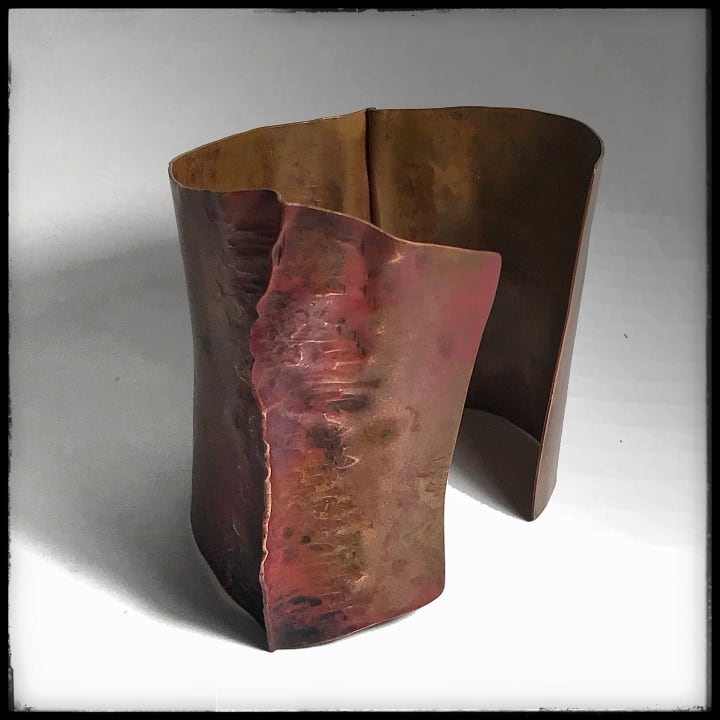
This is my attempt to make the sexy drop shadow that so many seem to like. A professional photographer has lights, and drapes to produce a drop shadow only in the very top behind the product, but, with the magic of Snapseed, you only need your phone. I used the Selective and Tune Image buttons, to change the light and dark on this image.
Remember when I said that there are tutorials on the internet? I noticed that there are little specks that are in the image I wanted to get rid of, but I made the wrong assumption that Snapseed was not sophisticated to do that. Don't assume.
I did a search of how to take out the small specks, and found a tutorial on how to remove moles from a model's face. I already knew what the Healing button did, but, what I didn't know and learned from the tutorial, is to tap on the Healing button, enlarge the image with BOTH fingers, then tap on the pesky little specks that only show up when you think you are all done.
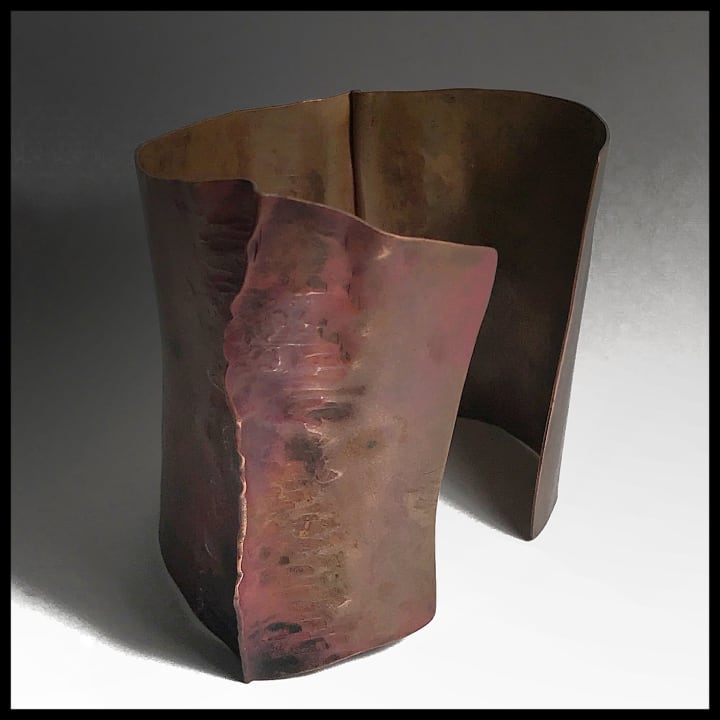
You may notice a small speck that was in the bottom left is gone now, and the background is a bit more even.
I used Selective over and over to whiten up the part I wanted. It is important to do this before you crop, because if there is a way to limit the area the Selective button will lighten, I have not found it yet. The good part is that it is easy to undo if you see you made something light, you wanted to stay the same. I used Selective the same way to darken the top part. I used the Healing button to even things out, and remove specks. I think the more I use this feature, the better I will get at it, and so will you.
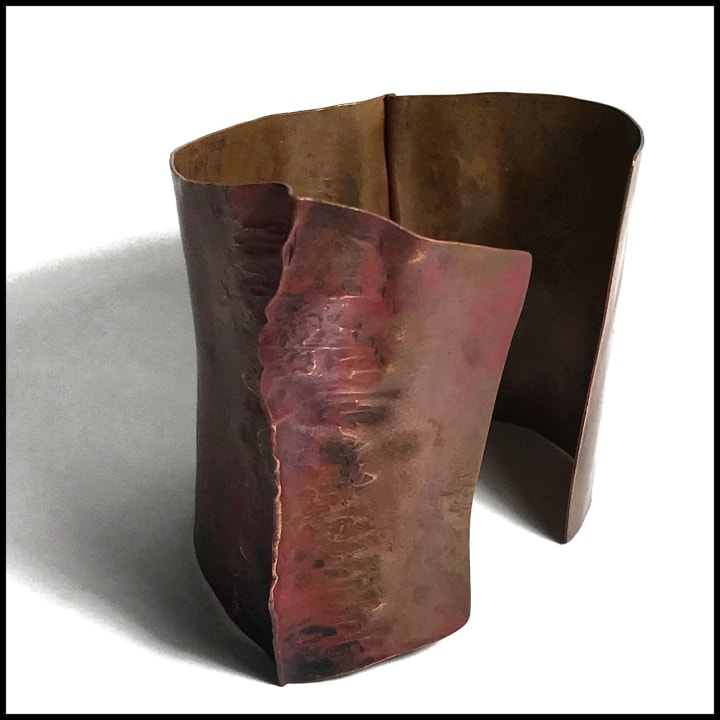
I also used the Details/Sharpen feature in the center of the image to bring out the details of the hammer marks. There are 23 frames to chose from, and a option at the top of the screen to change the width of the frame.
The cuff is sitting on a large sheet of white paper, and lit on two sides with ordinary, (well pretty much ordinary) lights from a large hardware store. Cree Daylight 5000K LED 60W 90+ CRI light. Light appearance cool. It took me a long time to find lightbulbs that gave me the light I wanted, so I am sharing here with you. If you don't have a large sheet of white paper, carefully tape together several sheets of white paper that are as plain as Jane, and then, Snapseed the joint lines away.
I still don't know how to put Bernie on the cover of Rolling Stone, but, I bet Snapseed has a way, and just waiting for me to find out how.
About the Creator
Roxy Lentz
I am retired, a conceptual jewelry metalsmith, a mom, a wife, and occasional writer.
Keep reading
More stories from Roxy Lentz and writers in Photography and other communities.
Where in the World am I?
Ever since Nicéphore Niépce found a way to photograph what he saw, people have used the medium to express art. Professional photographers use the camera to entice people to travel to new places, and have new experiences, and to record important events. No one could sell anything without a great photographer to show their product to its best advantage.
By Roxy Lentz5 years ago in Photography
Leavie Scott
ORDER HERE Chicago – A Radiant Urban Masterpiece by Leavie Scott Arts & Culture Review – Feature Story In his striking new work Chicago, photographer Leavie Scott captures the soul of the Windy City with a level of vibrancy and emotional resonance that is impossible to ignore. The image immerses viewers in a dazzling skyline bathed in mesmerizing tones of purple, pink, and gold—a palette rarely seen in traditional urban photography and one that instantly distinguishes Scott’s artistic voice.
By Organic Products a day ago in Photography
Tatt~Master
— Assembly Line Tatt Machine ~ Impressions to Impress — As I begin to understand more about the Tattoo Phenomenon. I've written silly, yet verbatim, dating site anecdotes in 'Frazzled.' So let me ask you: Would you be More attracted to someone slathered with tattoos, or Less?
By Jay Kantor3 days ago in Humor


Comments
There are no comments for this story
Be the first to respond and start the conversation.