
Simple Tips & Apps to Flip a Photo on iPhone
Simple Tips & Apps to Flip a Photo on iPhone

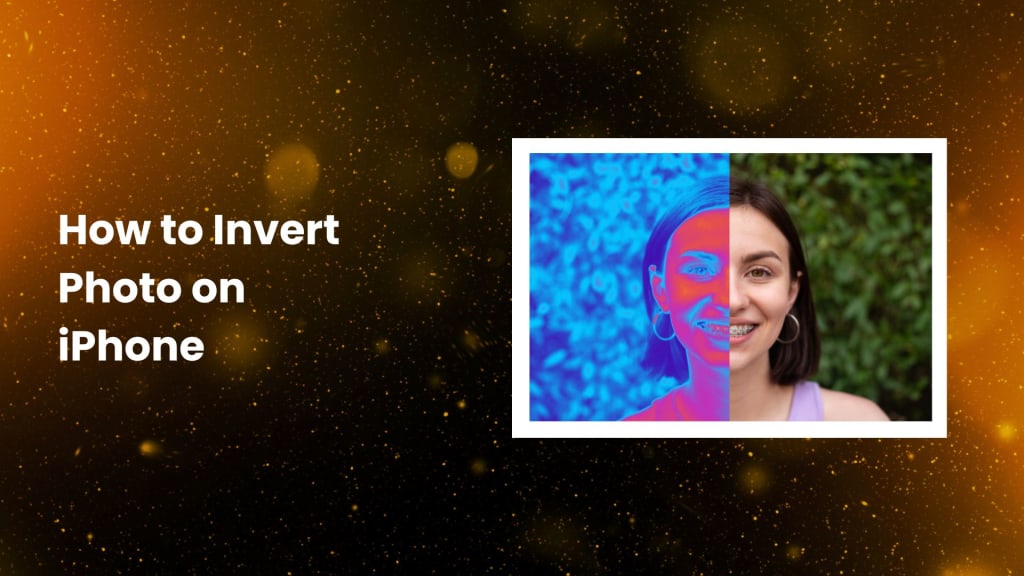
This is a simple and effective way of giving your photos an interesting view. For example, if an image appears to have been taken while looking in a mirror or you need to flip a picture because it came out in reverse, this can be what you need. Some iPhone users may not know that features or applications are available to flip a picture.
This article will walk you through why you may be inclined to flip a photo, how to flip one on your iPhone using both native applications and third-party apps, and provide a few helpful tips for making the process as painless as possible.
Why Flip a Photo?
Flipping a photo isn't only an entertaining method to change the appearance of a photo, but it can be quite useful too. Here are a few reasons why you may want to flip your photos:
1. For Better Accessibility
Flipping photos can be beneficial to visually handicapped people as the flipping might improve the person's ability to visualize things that cannot be well-perceived using those specific colors or details. Color patterns, when flipped, would be seen easily, especially with someone who suffers from color blindness and light sensitivity; it just makes photos appear in a clearer, more understandable manner.
2. For Artistic Expression
Flipping helps capture artistic angles through photographs. Professional photographers as well as many other artists commonly apply flipped effects to create remarkable, one of its kind shots and compositions. Such flipping would deliver new looks in terms of either symmetry or, more basically, the orientation or flow of sight to an image.
Turn your photos into coloring pages using PhotoCut.
3. For Easier Color Correction
Sometimes, flipping a photo can help you spot areas where the lighting or color balance might not be perfect. When you flip the image, you might notice overly bright or dark areas that need adjustment. This trick can assist in creating a more balanced image by giving you a fresh perspective on how the colors and shadows play out.
How to Flip a Photo on an iPhone?
Several methods exist for flipping your iPhone photo. On your iPhone, the Photos app is pre-installed and simplifies the procedure, albeit it isn't as sophisticated as other third-party programs.
Discover eye-catching YouTube thumbnail design ideas to grab more attention.
Using the Built-in Photos App
The iPhone doesn’t have a direct “flip” feature for photos like some photo editing apps. However, you can still flip your photos with a simple workaround in the Photos app. Here’s how:
- First, unlock your iPhone, open the Photos app, find the picture that you want to flip, and click on it.
- On opening the image, tap on the "Edit" button appearing at the right top corner of the screen. This will access the editing option.
- At the bottom of the screen, you will see several icons; tap on the Crop icon, resembling a square surrounded by arrows.
- At the upper-left side of your photo, there's an icon for flipping which appears to be a triangle and its arrow goes toward the right direction; simply tap this to flip the picture sideways
- Then hit the bottom right with the text written on "Done," where all changes would be saved.
This will horizontally flip the picture, moving whatever was on the left to the right and what was on the right to the left. That's perfect when you need your photo mirrored or flipped, just like when flipping a selfie over to make you look like how you appear in the mirror.
Using iPhone Settings to Flip Colors
It is not possible to flip a picture directly within the Photos application. However, using your iPhone settings you can flip the colors in an image and get something like the flipping effect. It comes in very handy for individuals who want to view the picture differently or people who have impaired eyesight.
To invert the colors on your iPhone:
- Open your Settings app.
- Scroll down and tap “Accessibility.”
- Under the Accessibility menu, click on “Display and Text Size.”
- Toggle on the “Invert Colors” option. This will reverse all the colors on your phone, including your pictures, so that they show as their color's opposite, so white would appear black, blue orange, and so forth.
This can be helpful for people with light sensitivity or people who require a high contrast to see better. But it's not a tool to flip photographs per se but to change the display of all colors.
How to Change the Color of a Photo on an iPhone?
If you want to alter the color effect of your image, you can do that in the Photos application as well. Unfortunately, there's no direct "flip" command for the color palette, but you can certainly apply color filters and adjust image saturation, warmth, and the like to affect the overall effect of the color. Here is how:
- Locate the photo that you want to edit.
- Tap the "Edit" button on the top screen.
- Tap the "Filter" button, and you will see several filters that can be applied to your photo. Filters change the tone and mood of the image.
- To have an effect like this, scroll down and tap the "Invert." It would flip the colors of the picture.
- Once you are happy with the edits, tap "Done" to save the edited photo.
For deeper color changes, you can use third-party apps such as Photoshop Express and Lightroom. These third-party apps allow for more elaborate features of color correction in photos.
Using Third-Party Apps to Flip a Photo on iPhone
For more control of your photo, third-party apps are the best way to do it. A lot of applications offer photo flipping with other high-tech features. Of the most famous applications for the task, you can use Photoshop Express and Lightroom. This is how to do it through each of the two applications.
Create amazing photo backgrounds using PhotoCut’s AI Background Generator.
Photoshop Express
You may flip your photographs with ease with Photoshop Express, an intuitive program. This is the method you use:
- After downloading it from the App Store, launch Photoshop Express.
- To flip a photo, tap the "Photos" icon and choose the desired image.
- After selecting "Basic," tap "Looks," and then select "Invert" to flip the picture.
- Tap “Done” to save your flipped photo. You can now share it or save it to your photo library.
Lightroom
Lightroom is another excellent app for professional-level photo editing. It gives you more control over the effects, including flipping and color adjustments. Here’s how to use it:
- Install Lightroom from the App Store and open the app.
- Select the photo you want to edit from your library.
- Tap on “All Photos” and select your image. Then, go to the “Light” section and tap “Curve.” Adjust the points on the curve to flip the photo and fine-tune the effect.
- After making any additional adjustments, tap “Done” to save your edited image.
Conclusion
Flipping a photograph on your iPhone to improve it is a simple and imaginative way to do it. Changing the hue or flipping photographs horizontally is simple by using the photograph app or third-party tools like Photoshop Express or Lightroom. Flipping your images can help you achieve the ideal image for accessibility, creative expression, or even color correction.
Create a customized vision board using PhotoCut’s vision board maker for free.
FAQs
Q1. What does it mean to "flip" a photo?
Ans. Turning a picture upside down, or flipping the horizontal viewpoint such that the left is now the right, is known as flipping. This creates the opposite image.
Q2. Why would I want to flip a photo?
Ans. You may flip a photo to rectify text that is printed in reverse, balance the composition better, or alter the view of the image.
Q3. Can I flip a video on my iPhone?
Ans. Videos can be flipped using third-party programs like iMovie or InShot, however, the Photos app does not offer this feature by default.
Q4. How do I flip a photo on my iPhone using the Photos app?
Ans. In the Photos app, how do you reverse a photo? Select the picture, tap 'Edit,' then select the Crop icon, then turn the Flip icon.
Q5. Are there apps for advanced photo-flipping options?
Ans. Yes, there are apps like Snapseed, PicsArt, Lightroom, and Photoshop Express that have advanced flipping and editing tools.
About the Creator
PhotoCut
AI Photo Editing Tool - Remove or Change your Background & Enhance Product Photos
Keep reading
More stories from PhotoCut and writers in Photography and other communities.
Turn Your Photos into Fun and Creative Coloring Pages
You can try making personalized coloring pages from your photos. It's fun and easy to infuse a little bit of creativity into your pictures. With PhotoCut's online tool, you can turn your images into beautiful coloring pages in a couple of clicks! This tool uses the most advanced AI technology possible to transform any photo into a sketch-like outline, giving you a unique black-and-white version of your image that's perfect for coloring!
By PhotoCut11 months ago in Photography
Why Printed Photographs Still Matter: The Art and Value of Preserving Memories in Print
In a world where most photographs live on phones, laptops, and cloud storage, it is easy to assume that printing pictures is a thing of the past. Yet something meaningful gets lost when memories stay locked inside a device. A photograph printed on high quality paper carries a weight and warmth that no screen can fully replicate. It can be held, shared, framed, and passed down through generations.
By The Iconabout 3 hours ago in Photography
The Gold Tone (Orotone) Technique
She picked it up from a dusty shelf at an estate sale, thinking it was just an old frame. Then the light caught it. The image glowed, not like a print, not like a painting, but like something that seemed to carry its own inner warmth. That was her first encounter with an Orotone, and she bought it without asking the price.
By CurlsAndCommas4 days ago in Photography



Comments
There are no comments for this story
Be the first to respond and start the conversation.