
Recolor Your Images Online with PhotoCut
Recolor Your Images Online with PhotoCut

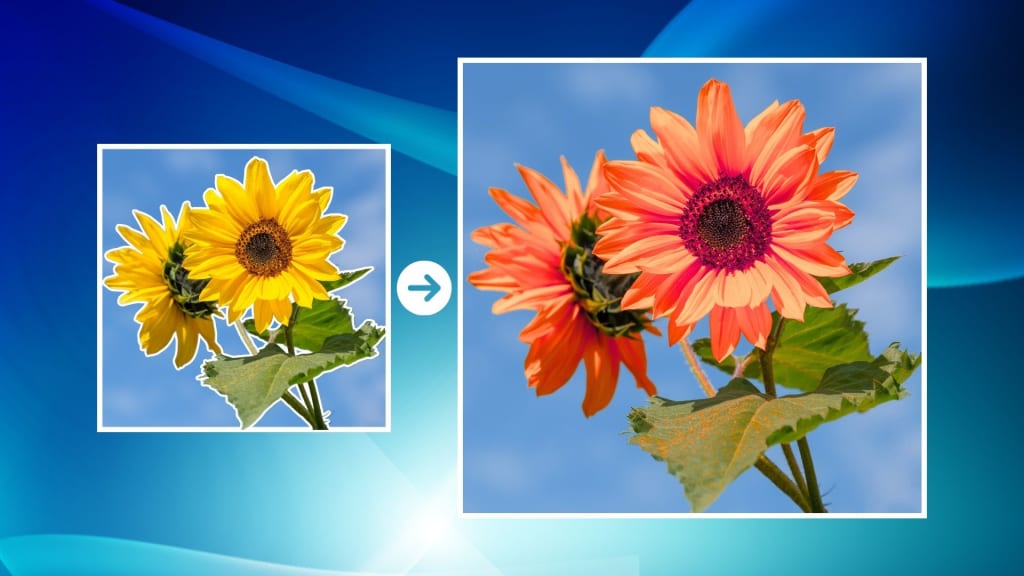
Recoloring images gives life to your pictures, enhancing the beauty of images or completely transforming their appearance. If you need your photos to be vivid, you may change the color of elements or shift hues to set up a particular mood. All of this can easily be achieved through PhotoCut, which features a simple, AI-powered color changer.
It's suitable for beginners who want to test the color-changing effect in images, as well as professionals in artistic or commercial usage. Below is a guide on how to use PhotoCut’s AI color changer and how to re-color specific parts, along with other creative opportunities.
What is PhotoCut?
With PhotoCut, users can edit images in various ways using the online image editor. Its most interesting feature is the AI color changer, which lets you change the color of your images in no time by either choosing certain areas or making the entire image color changes. The features of PhotoCut, when compared to standard photo editing software, provide professional quality outcomes much quicker for work such as product photography, portraits, or creative photography. You can even create digital paintings using PhotoCut’s AI Painter.
How to Recolor Your Image with PhotoCut
Using PhotoCut’s color changer is incredibly easy and doesn’t require any advanced technical knowledge. Here’s how you can recolor your image using the platform:
Step 1: Upload Your Image
First, go to the PhotoCut website and use the image recolor tool. To upload your photo, click the "Open Image" option or just drag & drop it into the editing area. PhotoCut is compatible with all file types, including PNG, JPG, and JPEG. In seconds, your image will be prepared for modification.
Step 2: Select the Area to Recolor
You upload your picture and may decide to color the whole image or only some portions of it. PhotoCut gives you several tools for selections so that you precisely target particular areas. You may use a brush tool and paint over that portion of the image that you want to change or a lasso tool, which helps draw around objects requiring new color. The AI-powered tool allows for the automatic detection of edges and objects, so you can highlight which area you'd like to adjust.
Step 3: Choose the New Color
Choosing a new color is the next step after deciding the region you want to recolor. You may select any hue from the color palette in PhotoCut. It also offers Hue, Saturation, and Lightness options to change the color. For example, you could change the hue of an image so that it makes it appear more warm or more cold.
Step 4: Adjust the Color Settings
To have more control over the colors, PhotoCut allows you to play with the intensity of the color. You may adjust the saturation to make it brighter or less bright. Additionally, you may experiment with the color's brightness by making it look darker or lighter.
Step 5: Preview and Save Your Image
Once you're happy with the changes, preview your recolored image. If everything is good, then hit the "Download" button to save your image. PhotoCut provides an option to download the final image in any of the mentioned file formats, such as JPG or PNG, according to your requirements. Your newly recolored image is ready to go, whether it's content for social media, business, or personal projects. After downloading, you can make your photos glitchy using PhotoCut.
AI-Powered Features
PhotoCut’s AI technology makes recoloring even simpler by automating many aspects of the editing process. Some of the key AI-driven features that make recoloring easier include:
AI Color Replacer
One of the most useful applications of AI-powered PhotoCut is changing image colors rapidly. It automatically recolors on areas selected, based on your preference. This tool helps change images without much effort, especially when dealing with big or complex images. Adjusting each pixel isn't required; PhotoCut’s AI does that for you and you enjoy the professionally recolored image in seconds.
Hair Color Changer
Need to change the hair color of someone? With PhotoCut, you can use its Hair Color Changer tool for recoloring hair in portrait or group photography. So if you like the natural appearance or want something more funky such as purple or blue, the hair color changer does the task accurately. You can also get a virtual makeover using PhotoCut’s Bangs Filter.
Eye Color Changer
An important feature is the ability to have changeable eye colors, which almost all users admire, especially on fantasy or artistic portraits, where you switch eye colors as you want by any shade preferred within natural tones of the eyes toward more dramatic effects like bright green or violet.
Background Color Changer
Do you want to change the background of an image? Background Color Changer is an easy tool used to modify the backdrop of your pictures, making it appear that you've captured the photo in a different location. You may also use this tool for vibrant or moody backgrounds depending on your vision.
Why Use PhotoCut for Recoloring Your Images?
1. Easy and Fast
Recoloring with PhotoCut is incredibly quick and straightforward. The procedure takes only a few minutes, regardless of whether you want to alter a single feature or a whole image. Many of the processes are automated by AI-powered tools, allowing even novices to deliver excellent outcomes without a significant learning curve.
2. Professional Results
PhotoCut’s recoloring tools deliver professional results without the need for advanced software or complicated techniques. You have total control over the final result thanks to the fine-tuning tools and the AI's assurance that colors are applied smoothly. To create stunning images, you don't have to be a graphic designer.
3. Free to Use
PhotoCut offers free access to its recoloring features, making it an excellent option for anyone on a budget. While there are premium options for advanced features, the core recoloring functionality is available to everyone without any cost. This makes it accessible for personal projects, social media content, and small businesses alike.
4. No Software Download Required
PhotoCut's web-based functionality is one of its advantages. This implies that software installation and download are not required. Because it can be accessed from any internet-enabled device, it's ideal for mobile work.
Conclusion
PhotoCut makes it easy to recolor your images. One of the greatest tools for putting your creative ideas into practice is PhotoCut, whether you want to quickly edit your product photos, alter the color of a particular aspect, or experiment with other color schemes. Anyone wishing to recolor photos online should utilize PhotoCut because of its AI-driven features, quickness, and high-quality output.
You can even create unique emojis according to your needs using PhotoCut’s Emoji Maker.
FAQs
Q1. What is PhotoCut, and how does it help with recoloring images?
Ans. PhotoCut is an online picture editing tool where users can recolor pictures very easily. This tool uses AI to automatically find areas in a picture that could be recolored, thereby saving time and effort. This platform offers some of the most powerful tools to recolor particular parts of a picture or even the whole picture, which enables you to produce professional results quite quickly.
Q2. Do I need to download any software to use PhotoCut for recoloring?
Ans. No, PhotoCut is a web application. All that is required is to have access to the internet so that you may use the software and begin re-coloring the images.
Q3. Can I recolor just part of an image?
Ans. You may select the areas of an image that you wish to recolor with PhotoCut, yes. You may quickly apply new colors and isolate regions you want to modify using a brush or lasso tool.
Q4. What file formats can I use with PhotoCut?
Ans. JPG, JPEG, and PNG are among the common picture formats that PhotoCut supports. The most up-to-date details on the file formats that are supported may always be found on the website.
Q5. Is PhotoCut free?
Ans. Yes, PhotoCut offers a free version with basic recoloring features. There may be premium features available for advanced editing or higher usage limits, but the core recoloring tools are free to use.
About the Creator
PhotoCut
AI Photo Editing Tool - Remove or Change your Background & Enhance Product Photos
Keep reading
More stories from PhotoCut and writers in Photography and other communities.
Create Your Icons Online for Free with PhotoCut
If you ever need an icon for your website, social media profiles, or app, you know the importance of something that stands out. However, creating a unique and professional icon might seem tough, especially when you don't have design skills. Fortunately, PhotoCut's icon maker enables you to create your icons easily and free of charge. Make an icon representing your brand, company, or project without requiring complex software and experience. Learn in the article below how PhotoCut’s icon maker works, so you can create your custom icon today.
By PhotoCut10 months ago in Photography
My Year, in Prattling and Photos
It's been a year since... last year. Ironically, it seems I've found myself a new tradition of getting sick during the New Year holidays. At least, this year (that is, this inter-year period remarkable for its shiny decorations in the streets and houses, and closed supermarkets and pretty much everything), I'm doubtlessly doing better: I've managed to come visit my friends in Germany for Christmas (which I failed to do last year) and—after having some good quality time eating machanka, playing Munchkin and swinging machetes (the last one obviously crept into this checklist only for the sake of the phonological form)—I came back home via proverbial Deutche Bahn and probably less known Schweizerische Bundesbahnen, my body hosting a family of viruses, virions and who knows what other tiny critters somewhere inside my chest.
By Andrei Z.18 days ago in Photography




Comments
There are no comments for this story
Be the first to respond and start the conversation.