
How to Create Box Mockup in Photoshop
How to Create Box Mockup in Photoshop
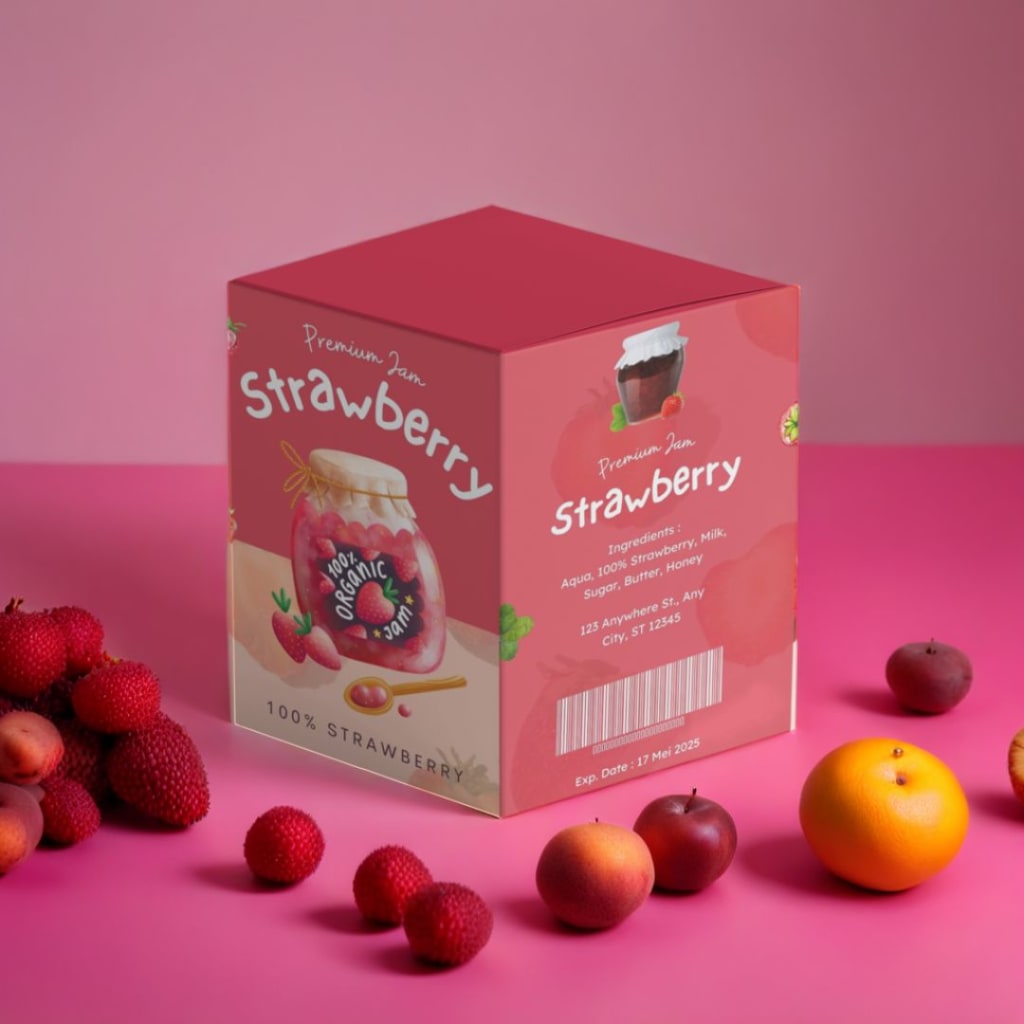
Creating a box mockup in Photoshop is an essential skill for designers, marketers, and business owners who want to visualize their packaging designs. A box mockup gives your designs a realistic and professional look, making it easier to present your ideas or showcase products online. With tools like Photoshop and mockup generators, you can effortlessly create stunning box designs that grab attention.
In this guide, we’ll walk you through the step-by-step process of creating a box mockup in Photoshop using simple language. Let’s dive in!
Why Use Box Mockups?
Box mockups serve multiple purposes:
Professional Presentation: They help visualize your designs in real-life settings.
Marketing Material: You can use box mockups for e-commerce listings or promotional content.
Quick Customization: Mockup generators let you tweak designs instantly without starting from scratch.
Tools Needed to Create Box Mockups
To create a box mockup in Photoshop, you’ll need:
Adobe Photoshop: The primary software for editing.
Mockup Generators: To access pre-designed templates or assist in starting your project.
High-Resolution Images: For realistic designs.
If you don’t have design experience or want a quicker solution, you can also use mockup generators like Mockey.ai, Placeit, and Mediamodifier to create box mockups online.
Step-by-Step Guide to Creating a Box Mockup in Photoshop
1. Prepare Your Resources
Before diving into Photoshop, gather the following:
Your box design or artwork in high resolution.
A box mockup template (download from mockup generators like Mockey.ai or Freepik).
Fonts and color codes that match your brand.
2. Open Your Box Mockup Template in Photoshop
Most mockup templates come in PSD format with organized layers.
Download a free box mockup template from platforms like Mockey.ai or Mediamodifier.
Open the PSD file in Photoshop.
You’ll see layers like Background, Design Placeholder, and Shadows in the Layers panel.
3. Locate the Smart Object Layers
Smart Objects allow you to easily edit and replace designs in mockups.
In the Layers panel, find the layer labeled as a Smart Object (usually named "Your Design Here" or "Replace Design").
Double-click the Smart Object to open it.
4. Insert Your Design
Once the Smart Object opens:
Drag and drop your box design into the new tab.
Resize the design to fit the template perfectly. Use the Transform Tool (Ctrl + T on Windows or Command + T on Mac) for adjustments.
Save and close the Smart Object tab.
Your design will automatically update on the main mockup file.
5. Customize the Mockup
Photoshop lets you adjust various elements of the mockup for a unique look:
Background Color: Change the background color by selecting the Background layer and using the Paint Bucket Tool.
Shadows and Highlights: Adjust the opacity of shadow layers for a realistic effect.
Box Orientation: Rotate or move the box design to fit your preferred angle.
6. Add Branding Elements
To make the mockup more personalized:
Include your logo on the box design.
Add product details like text, barcodes, or patterns.
Use layer masks to blend designs seamlessly.
7. Enhance Realism with Effects
For a polished look, apply these Photoshop effects:
Drop Shadow: Adds depth to the box.
Go to Layer > Layer Style > Drop Shadow.
Lighting Effects: Simulate studio lighting by creating gradient overlays.
Texture: Add textures like matte or glossy effects to the box for a realistic feel.
8. Export Your Mockup
Once you’re satisfied with your mockup:
Go to File > Export > Export As or Save for Web.
Choose a format like PNG or JPEG for high-quality output.
Tips for Creating Professional Box Mockups
Start with High-Quality Templates: Use platforms like Mockey.ai for pre-made templates that save

time and effort.
Keep It Simple: Avoid overcrowding your design with unnecessary elements.
Check Alignment: Ensure your design is properly aligned on the box surfaces.
Experiment with Angles: Showcase your mockup from different perspectives for versatility.
Alternatives: Using Mockup Generators for Box Mockups
If Photoshop feels too complex or time-consuming, mockup generators are a fantastic alternative. These tools let you create professional box mockups without any design expertise. Here are some top options:
1. Mockey.ai
Mockey.ai is one of the best mockup generators for box designs. It offers free and premium templates with easy customization. You can upload your artwork, adjust colors, and preview your box mockup instantly.
2. Freepik
Freepik provides thousands of PSD templates for various mockups, including boxes. You can download templates, edit them in Photoshop, or use Freepik’s online editor for basic adjustments.
3. Mediamodifier
Mediamodifier features a wide range of mockup templates for branding and packaging. It’s user-friendly and perfect for beginners looking to create professional box designs online.
4. Canva
Although Canva is more general-purpose, it offers customizable box templates that can be exported and further edited in Photoshop.
Why Choose Mockup Generators?
Mockup generators are a game-changer for designers because they:
Save Time: No need to create designs from scratch.
Offer Realistic Previews: Generate high-quality visuals instantly.
Are User-Friendly: Suitable for all skill levels.
Conclusion
Creating a box mockup in Photoshop might seem overwhelming at first, but with practice and the right resources, you can achieve stunning results. By following the steps outlined in this guide, you can showcase your packaging designs professionally and impress clients or customers.
If Photoshop feels too advanced, don’t hesitate to explore mockup generators like Mockey.ai or Mediamodifier for quick and hassle-free solutions. Start experimenting today, and take your box designs to the next level!
About the Creator
Keep reading
More stories from Backlink Wizard and writers in Photography and other communities.
What is a Billboard Mockup?
A billboard mockup is a digital representation or prototype of how an advertisement or design will look when displayed on a large billboard. It allows designers, advertisers, and businesses to visualize their artwork in a real-world context before committing to printing or installation. By using a billboard mockup, you can ensure that the design is visually appealing, properly aligned, and effective in conveying the message to the target audience.
By Backlink Wizardabout a year ago in Photography
Leavie Scott
ORDER HERE Chicago – A Radiant Urban Masterpiece by Leavie Scott Arts & Culture Review – Feature Story In his striking new work Chicago, photographer Leavie Scott captures the soul of the Windy City with a level of vibrancy and emotional resonance that is impossible to ignore. The image immerses viewers in a dazzling skyline bathed in mesmerizing tones of purple, pink, and gold—a palette rarely seen in traditional urban photography and one that instantly distinguishes Scott’s artistic voice.
By Organic Products 5 days ago in Photography
Curious Photography Tips Every Beginner Should Try
Have you ever wondered why two people using the same camera can produce completely different photos? The answer often lies in how well the photographer understands the camera itself. For beginners, cameras can seem filled with confusing buttons, dials, and settings. But what if those settings are actually the key to better photos?
By Craig Spiesman3 days ago in Photography



Comments
There are no comments for this story
Be the first to respond and start the conversation.