
How to Blur Video in Canva: 5 Super Easy Steps
A Comprehensive Guide to Effortlessly Concealing Sensitive Details in Your Videos with Canva's User-Friendly Tools

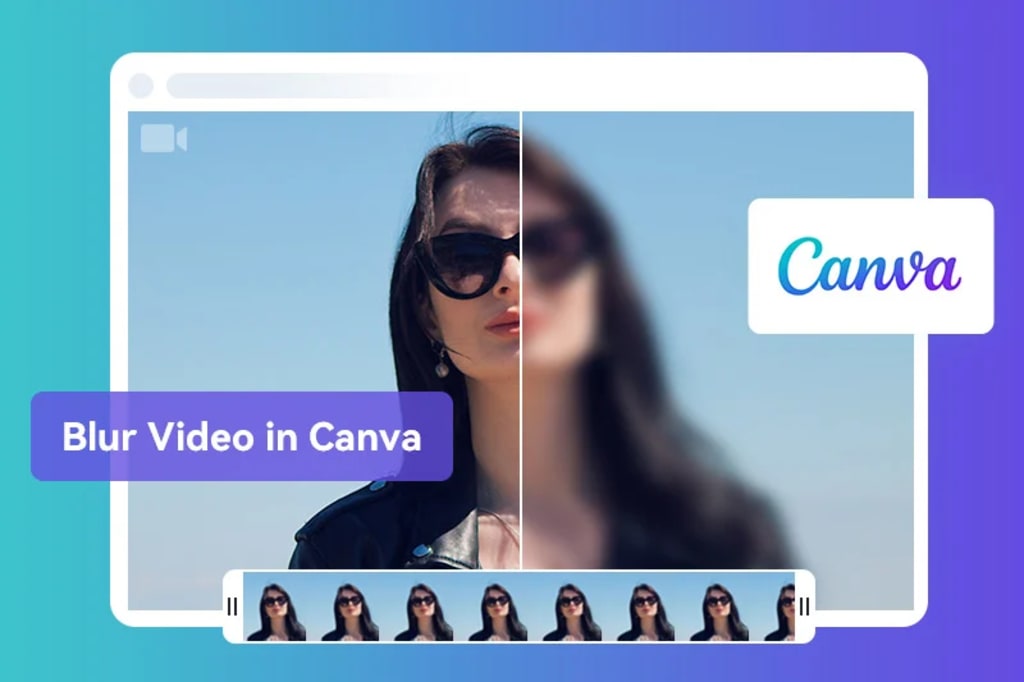
Blurring videos is a common technique for hiding sensitive information, protecting privacy, or creating special effects. However, not all video editing tools can blur videos easily and quickly. In this article, we’ll introduce Canva, a free online tool that allows you to blur your videos in a few simple steps. We also compare Canva to other online and desktop tools for blurring videos, so you can choose the one that works best for you.
Part 1: Why Choose Canva to Blur Videos?
Canva stands out for several reasons. Its user-friendly interface makes video editing accessible to beginners and experts alike. Being a web-based platform ensures that users can seamlessly edit videos from any device with an internet connection. The diverse range of features, collaborative capabilities, and an active user community further contribute to Canva's appeal. Additionally, its affordability makes it an attractive choice compared to some high-end video editing software.

Features:
- Work on any browser and device, so users do not need to download or install any software to use it.
- Process videos for free without adding any watermark or logo to blurry videos.
- No time limits will be placed on your videos.
- Customize the blur effect, freely adjust the size and shape of the blur area, etc.
- User-friendly interface to easily blur videos.
- Support multiple video formats including MP4, MOV, AVI, etc.
Part 2: A Step-by-Step Tutorial on Blurring Videos in Canva
Step 1: Sign in Account
Go to the Canva website and sign up for a free account. You can also log in with your Google or Facebook account.

Step 2: Upload Video into Canva
Click on the "Video" button and choose the "Mobile Video" or "Video" option from the menu.
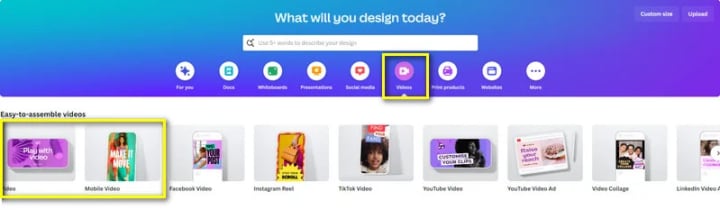
Upload your video from your computer. You can also import your video from Google Drive, Dropbox, or YouTube.

Step 3: Add the Blur Effect
After clicking on the Element option, go to the search bar and type blur effect. Choose the blur shape and color you want. After confirmation, you can freely adjust the position, size of the blur effect in the main panel.


Step 4: Adjust Blur Duration
To adjust the blur settings, first click on the blur effect on the template, then click on the three dots to open the effect's additional settings options. Select the Show timing option. You will get a timeline of the blur effect and you can freely adjust the duration of the blur effect here.

Step 5: Export Blurred Video
If you are satisfied with your blurred video, click on the "Share" button and select "Download" to save it to your computer. You can also click on the "Share on social" button to share your blurred video on social media platforms, such as Facebook, Twitter, or Instagram.

Part 3: Top 3 Online Alternatives to Canva for Blurring Videos
While Canva is a well-known name in video editing, there are numerous other valuable online tools that deserve attention, and you might discover that they align better with your preferences than Canva. In this segment, we will delve into the top three online alternatives to Canva for blurring videos, examining their advantages and drawbacks, ultimately assisting you in identifying the product that aligns best with your requirements and financial considerations.
1. Kapwing
Kapwing is a versatile and user-friendly online video editing platform designed for individuals with minimal experience in video editing or graphic design. When it comes to blurring videos, the process is straightforward—simply upload the video and choose the blur effect. Kapwing offers considerable autonomy, allowing users to fine-tune blur intensity and incorporate additional elements like text, filters, and music. It's worth noting that Kapwing isn't a specialized tool for advanced video blurring, particularly dynamic blur tracking. While the platform is free, certain features have limitations. Free accounts, for instance, are restricted to uploading files of up to 250MB and exporting videos with a maximum duration of 7 minutes.
Read more: avclabs.com
About the Creator
Keep reading
More stories from Madeline and writers in Photography and other communities.
Top 3 AI Video Boosters for 2024: Choices for Free and Paid Upgrades
As the desire for enhanced video quality intensifies, there is a significant drive towards tools capable of further improving video aesthetics. AI video upscaling software acts as a transformative force in the realm of video editing, enabling the enhancement of video sharpness and clarity. This article presents an in-depth review of the top three online AI video enhancement platforms for 2024, offering a mix of complimentary and premium services. Additionally, it explores a noteworthy open-source alternative. Furthermore, it acknowledges the value of a distinguished desktop application for individuals who prefer offline video processing.
By Madeline2 years ago in Photography
Leavie Scott
ORDER HERE Chicago – A Radiant Urban Masterpiece by Leavie Scott Arts & Culture Review – Feature Story In his striking new work Chicago, photographer Leavie Scott captures the soul of the Windy City with a level of vibrancy and emotional resonance that is impossible to ignore. The image immerses viewers in a dazzling skyline bathed in mesmerizing tones of purple, pink, and gold—a palette rarely seen in traditional urban photography and one that instantly distinguishes Scott’s artistic voice.
By Organic Products 5 days ago in Photography
Curious Photography Tips Every Beginner Should Try
Have you ever wondered why two people using the same camera can produce completely different photos? The answer often lies in how well the photographer understands the camera itself. For beginners, cameras can seem filled with confusing buttons, dials, and settings. But what if those settings are actually the key to better photos?
By Craig Spiesman3 days ago in Photography
Review of 'Man on the Run'
My wife and I saw Man on the Run, a nearly 2-hour documentary on Amazon Prime, about Wings, Paul McCartney's group that flew around the world from shortly after The Beatles broke up in early 1970 to shortly after John Lennon was murdered at the end of 1980, making a Beatles reunion forever impossible.
By Paul Levinson7 days ago in Beat


Comments
There are no comments for this story
Be the first to respond and start the conversation.