
Best Apps to Remove People or Objects from Photos on iPhone
Best Apps to Remove People or Objects from Photos on iPhone

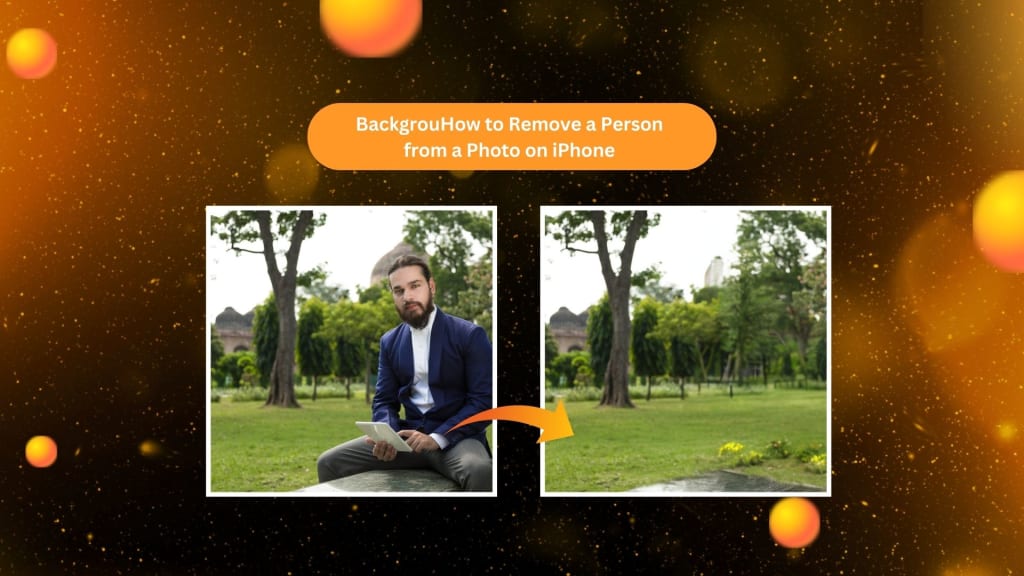
Ever had one of those great shots where there happened to be some person or whatever it is you're trying to get out of the frame? Very common thing and fortunately for most, rather amazingly, apps for iPhones about to remove a lot of distracting features easily will become available. In this article, we will dive into three of the best apps for removing either people or things from photos: PhotoCut, Snapseed, and TouchRetouch. These applications are very user-friendly and will make the picture flawless with no extra stuff on it.
1. PhotoCut
You can remove unwanted people or things from your pictures using PhotoCut by following a few simple steps. It is one of the most effective applications in this regard as it uses AI technology to automatically detect and remove distractions. PhotoCut can help you eliminate unnecessary objects or people from the backdrop.
Create amazing YouTube Banners for your videos using PhotoCut’s YouTube Banner Maker.
Key Features of PhotoCut
- User-Friendly Interface: PhotoCut is incredibly easy to use. Anyone without any sophisticated editing abilities may use it with ease and obtain nice results.
- AI-Powered Object Removal: The application allows an artificial source to automatically detect and remove unwanted items or people in photos.
- Batch Editing: PhotoCut now enables you to edit multiple photos and save time.
- Cross-Platform Compatibility: With PhotoCut, you can work across iPhones and computers and enjoy your edits.
- Supports Various File Formats: PhotoCut works with many file types and can scan assorted images.
How to Remove a Person Using PhotoCut
- First, download the PhotoCut from the App Store and open it on your iPhone.
- Tap on the photo that you want to edit to access it from the library.
- Touch the AI object remover tool; the app automatically detects and draws a red frame around the person or object to be removed.
- Once the object or person is highlighted, PhotoCut will erase it and fill in the background seamlessly.
- Preview the photo to make sure you’re satisfied with the result. If it looks good, save the photo to your gallery.
With PhotoCut, removing people or objects from your photos has never been easier!
2. Snapseed
Snapseed is another fantastic photo editing app by Google that brings along various tools for editing pictures, and its best feature for erasing unwanted objects. Using Snapseed, one can remove little objects, people, or other imperfections on a photo instantly. It's ideal for someone who needs total control over an edit, and it's perfect for both newbies and experienced ones.
Create fun mugshots of yourself and your friends with PhotoCut’s Mugshot Maker.
Key Features of Snapseed
- Professional Editing Tools: Snapseed offers all of the tools to make any editing, from the most basic adjustments to the more complex features like curves and selective adjustments.
- Heal Tool: This tool is specifically designed for removing small objects or people from your photos. It’s easy to use and delivers smooth results.
- Perspective and Crop Tools: Adjust the perspective of your images, crop them, and then put them to perfect size.
- Save and Reuse Edits: Snapseed can save your edits and reuse them across different images, saving a lot of time if you have a series of images.
- Social Media Integration: Share it on social media or save the edited photo right to your phone.
How to Remove a Person Using Snapseed
- Download the Snapseed from the App Store if you do not have one.
- Open up the app, and upload a photo you wish to edit
- Tap on "Tools" at the bottom left corner of your screen and tap the "Heal tool".
- You use your finger to choose the area you want to delete, for example, an unwanted person in a photo. Snapseed automatically removes the object and fills in the space with the surrounding background.
- When satisfied, save the photo to your gallery or share it on social media.
For the little tweaks, use the Heal tool from Snapseed; it's pretty user-friendly even if this is your first time working on photos.
3. TouchRetouch
One of the most downloaded applications to delete unwanted objects or people from images is TouchRetouch. With various powerful tools, you can accurately make the right edit. From eliminating lines, and people from the background, or correcting imperfections, TouchRetouch has them all. With its use, one can get rid of any street sign in an image to something as large as removing a person entirely.
Learn more about different photo sizes to use them according to your needs.
Key Features of TouchRetouch
- Object Removal: The app allows you to remove any object or person from your photo quickly and efficiently.
- Quick Fix Tool: This tool lets you clone and fill areas with similar textures, making it perfect for filling in the background after removing an object.
- Line Removal: TouchRetouch lets you remove any unwanted lines or shapes from your picture in just a swipe.
- Clone Stamp: With the help of the clone stamp tool, you can copy photo sections and blend the background such that it appears seamless.
- Smart Brush: It lets you pick and delete complex objects that are tricky to manually edit.
How to Remove a Person Using TouchRetouch
- If you haven't already, download the app through the App Store and open the app on your iPhone.
- Pick a photo with someone you would like to eliminate from the background.
- Using either of these tools is optional, although the lasso does have an element of free-handing a draw around the selected individual, but it can get messy. In most cases, people prefer the brush tool; simply paint out the area over which you would like to select an area and click.
- Tap Start after you have selected the area. TouchRetouch will automatically remove the person and fill in the background.
- After looking at the result, save your edited image into your gallery.
TouchRetouch is a good app when you need finer control over an image.
Conclusion
Eradicating people or other unwanted objects in your photos is no longer an arduous task. All you need are PhotoCut, Snapseed, and TouchRetouch to perfectly edit your images. Whether you're a starter or an expert, these apps make it possible to apply various tools easily and very effectively for the best photo editing.
- PhotoCut is very good for the removal of unwanted objects using AI, so the process is pretty fast and straightforward.
- Snapseed has several tools; one of which is the Heal tool, which is good for smaller edits.
- TouchRetouch is powerful with advanced tools like the Clone Stamp and Quick Fix, good for more complicated edits.
Try PhotoCut’s Braces Filter to see how you’d look in braces.
FAQs
Q1. What are the best types of apps for removing people or objects from photos on my iPhone?
Ans. There are two kinds of apps. One is an AI-powered app like PhotoCut, which takes out objects quickly and seamlessly by using artificial intelligence. The other kind is the manual editing app, where you have to pick out the objects that you want to remove yourself with TouchRetouch or Snapseed.
Q2. Can you recommend some specific apps for removing people and objects on iPhones?
Ans. Here are some popular options:
- AI-Powered Apps: PhotoCut, Pixelmator Photo, Retouch (by ADVA Soft), Snapseed, Photoshop Fix (by Adobe).
- Manual Editing Apps: TouchRetouch, Photoshop Express, Lightroom Mobile (by Adobe).
Q3. Are these apps free to use?
Ans. It varies. Some apps, like Snapseed, are free to use with limited features, while others, like TouchRetouch and PhotoCut, may require a one-time purchase or offer premium features through in-app purchases.
Q4. Which app is easiest to learn and use for beginners?
Ans. Snapseed and Retouch are generally considered the easiest to use, with simple interfaces and straightforward tools for removing objects.
Q5. Which app gives the most natural and seamless results?
Ans. AI-based apps such as Pixelmator Photo and PhotoCut are renowned for their seamless, natural object removal due to their superior algorithms.
Q6. Can these apps remove very large objects or people from a photo?
Ans. Yes, but the results can vary depending on the complexity of the background. AI-powered apps are generally better at larger removals, while manual editing apps like TouchRetouch may require more time and precision for complex backgrounds.
Q7. Will these apps be capable of removing blemishes or imperfections from photographs?
Ans. Indeed, most of these apps can also have the attributes of removing imperfections such as blemishes, wrinkles, etc. from photographs so that they are more versatile too.
About the Creator
PhotoCut
AI Photo Editing Tool - Remove or Change your Background & Enhance Product Photos
Keep reading
More stories from PhotoCut and writers in Photography and other communities.
Creating Awesome YouTube Banners Made Easy
The most important component of a successful YouTube channel is an eye-catching YouTube banner. When someone initially visits your channel, they will see your banner. It gives a visual identity to your content and brand. You may be a gamer, fitness coach, musician, or travel vlogger. Your channel is going to feel entirely different once you personalize its banner, giving a long-term impression to the viewers.
By PhotoCut12 months ago in Photography
The Gold Tone (Orotone) Technique
She picked it up from a dusty shelf at an estate sale, thinking it was just an old frame. Then the light caught it. The image glowed, not like a print, not like a painting, but like something that seemed to carry its own inner warmth. That was her first encounter with an Orotone, and she bought it without asking the price.
By CurlsAndCommas4 days ago in Photography
Gold Chrysotype Photography Is Back and the Colours Are Breathtaking
There is a moment when a chrysotype print is lifted from its chemical bath and held up to the light stops people mid-breath. The colours that bloom across the surface — soft dusty pinks fading into deep magenta, rich cyans pooling at the edges, velvety blacks settling into the grain of the paper — look less like a photograph and more like something pulled from a dream.
By CurlsAndCommas4 days ago in Photography
Pandora’s Burden
“My brother warned me to not accept gifts from the one who commissioned you,” said Epimetheus to the woman clad in silvery raiments standing at the entrance to the temple. Her silver tiara and the silver rings on her fingers and toes glinted in the firelight cast by torches set on either side of the doorway. Lingering in the shadows, beyond the reach of the flames as she was, he could not tell what she held in her hands. At first what appeared to be a box was perhaps a funerary urn, or maybe merely an apple.
By J. Otis Haas2 days ago in Fiction



Comments
There are no comments for this story
Be the first to respond and start the conversation.