
4 Easiest Ways for Beginners to Blur a Photo Part
4 Easiest Ways for Beginners to Blur a Photo Part

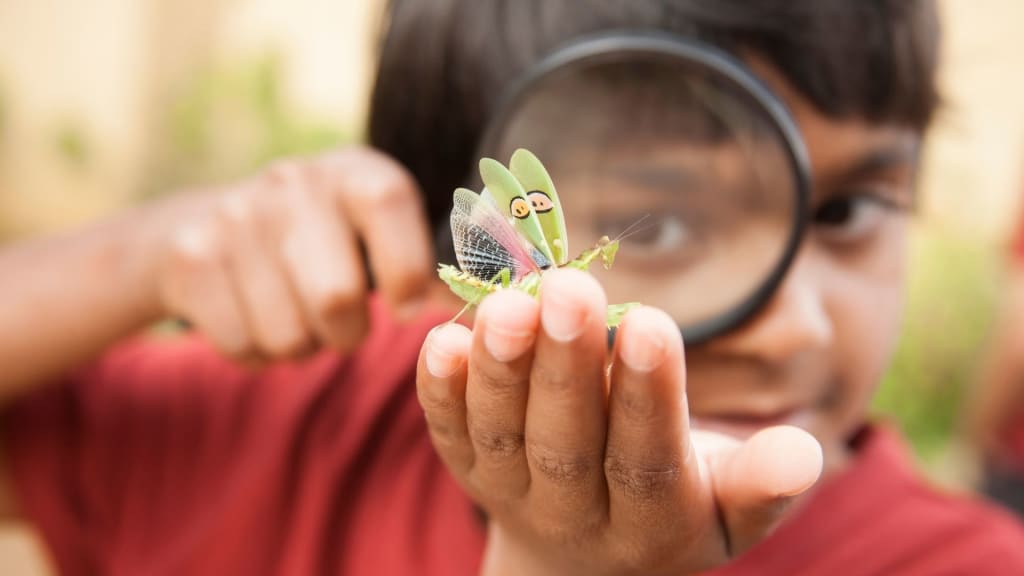
Blurring parts of a photo can be very handy in improving many aspects of an image. Perhaps you are drawing attention to the right part of a photo or hiding distractions within it. Either way, by blurring areas of your picture, you gain a great tool in photography and editing. We shall guide you on the easiest methods to blur part of a picture. There are so many methods in this article that are easy enough for beginners to follow.
Why Would You Want to Blur a Part of a Photo?
A partial blur of an image has multiple reasons and the understanding of when and why will help upgrade your photo editing skills. A few common purposes to blur a part of the image are given as follows:
- Focus Attention: Blurring a background in your photo will, in turn, cause the attention to be focused on the subject. For example, if someone is taking their portrait, the portrait will stand more when the person's background is blurred.
- Depth of Field Effect: The blurring of parts of the photo may also create a "depth of field" effect as if cameras are focusing on some part of the photo. It adds a more professional look to your photos, even though they may have been shot using a very basic camera.
- Hide Distractions: Sometimes, some elements appear in a photo, such as messy backgrounds or distant people. These things can be blurred to ensure attention is given to the subject while the picture will look cleaner.
- Create Privacy: Another way privacy is protected is through blurring the faces or license plates in pictures.
- Add Artistic Effects: Some photographers and editors use blur effects to create dreamy, surreal, or abstract visions in their photographs.
Remove blemishes from your portraits using PhotoCut’s Blemish Remover.
4 Easiest Ways to Blur a Part of a Photo
Whether it's a computer, online tools, or a mobile phone, here are four very easy ways of blurring part of a picture. Let's discuss four easy techniques for beginners:
1. Blurring with PowerPoint
If you do not have Photoshop, you do not have to worry. Believe it or not, even PowerPoint can be handy for little photo manipulation. You can blur parts of your images directly within PowerPoint with these simple steps:
- Open PowerPoint and insert the image you want to edit.
- Click on "Insert" and select "Shapes". Draw a shape (like a rectangle or circle) over the area you want to blur.
- Once the shape is drawn, fill it with a color that blends with the background. This helps mask the area you want to blur.
- Go to the "Format" tab and click on "Shape Effects". Select "Soften Edges" from the list.
- Adjust the softness level until you get the desired blur effect.
- Group the shape and image together, and you can use this edited photo in your presentation.
This method is simple, and while it’s not as precise as some other tools, it works well for general blurring in a pinch!
You can get the best calligraphy fonts using PhotoCut.
2. Blurring with Photoshop
When it comes to picture editing software, Photoshop is the pro's gold. It offers several effective methods for blurring portions of any photograph. Here's how to begin using it:
- Open your photo with Photoshop.
- Select the "Lasso Tool" from the top toolbar. Use this tool to select the area around which you'd like to blur manually.
- From the selected region, go up to the Menu and click "Filter". Proceed to select "Blur" from the menu; then, hover over "Gaussian Blur".
- A new window will pop up where you can adjust the blur radius. Increase or decrease the radius until you get the blur effect you like.
- Press "OK" to apply the blur.
- Save your edited photo.
Photoshop is a terrific tool for intricate picture editing since it gives you more control over the blur and form. However, new users may find Photoshop daunting. It would be advisable to take a few hours to learn its interface.
3. Blurring with PhotoCut
You may use the web tool PhotoCut to blur portions of your photo if you don't want to download any software. Blurring parts of an image is one of those simple operations that PhotoCut-which is a free AI-based editor-will make easier for you. Here's how you do it:
- To edit a photo go to PhotoCut’s website or download the app.
- Once your photo is uploaded, choose the “Object Blurry Tool” option.
- Select the blur tool that suits your needs. You can choose between the Circular Blur Tool (for areas like faces) or the Linear Blur Tool (for backgrounds or horizontal areas).
- Adjust the area that you want to blur. The online version has an option for increasing or reducing the strength of blur.
- Once you are satisfied with the result, click "Download" to download the image.
Since it is quite easy to work with and requires no special knowledge to achieve the expected effect, PhotoCut is among the best tools for beginners. You can also flip your images using PhotoCut’s Image Flipper.
4. Blurring with YouCam Perfect
YouCam Perfect is one such app that may make blurring pictures on your phone a snap. Here's how you can do it using YouCam Perfect:
- Download YouCam Perfect from the App Store\Play Store.
- Load the picture you want to edit from within the app.
- Tools menu > Blur.
- Apply the blur effect to the region of your choice after selecting its form, size, and effect.
- Once the image has been altered to your liking, save it.
They are on-the-go perfect edit apps. Also, their simple, intuitive interface makes it so easy to understand for first-timers.
Conclusion
Now with the help of blurring particular parts of your photo, blurring is becoming a very famous and helpful feature in photo editing that enhances and improves the compositing of your images, and this, of course, can be achieved within a desktop-based application such as PowerPoint or an online tool using PhotoCut as well as utilizing a mobile version like YouCam Perfect.
From hiding distractions to creating depth and focus, blurring can tailor your images into works of art. Use these tools and steps in the following article and soon you'll find yourself to be a whiz at making portions of photographs look blurred regardless of your experience. Have fun, and show me what creativity lies within.
Learn about the black color and how to use it in your designs.
FAQs
Q1. Why would I want to blur part of a photo?
Ans. Blurring may make it possible to focus the audience's attention on the center image, make professional depth of field, eliminate any distracting details or elements that one might want not to have a part in a picture, secure privacy or, as you prefer, bring up some artistic atmosphere in your photograph.
Q2. What are the different types of blur?
Ans. Common blur types include:
Gaussian Blur: A smooth, general blur used for softening images.
Motion Blur: Simulates the effect of movement.
Radial Blur: Creates a circular or spiraling blur, often for dynamic effects.
Lens Blur (Bokeh): Mimics the natural blur seen with camera lenses.
Q3. How can I blur just specific areas of a photo?
Ans. Use brush tools, selection tools, or masks to create a selective blur of parts you wish.
Q4. Do I need to be a professional photo editor to blur parts of a photo?
Ans. No! Several apps and tools, like PhotoCut and YouCam Perfect, will allow even novices to easily blur part of a picture with just a few steps.
About the Creator
PhotoCut
AI Photo Editing Tool - Remove or Change your Background & Enhance Product Photos
Keep reading
More stories from PhotoCut and writers in Photography and other communities.
10 Amazing AI Websites You Should Explore
Artificial Intelligence is changing the tech world in incredible ways. It makes the daily tasks that we perform very easy and exciting. From content creation to making photos look even better, AI-powered websites are revolutionizing the way we interact with technology. Here we will introduce you to ten amazing AI websites you must try. You may want a helpful assistant, creative tools, or some new ways to improve your photos-these AI tools will make life better.
By PhotoCut12 months ago in Photography
Why Printed Photographs Still Matter: The Art and Value of Preserving Memories in Print
In a world where most photographs live on phones, laptops, and cloud storage, it is easy to assume that printing pictures is a thing of the past. Yet something meaningful gets lost when memories stay locked inside a device. A photograph printed on high quality paper carries a weight and warmth that no screen can fully replicate. It can be held, shared, framed, and passed down through generations.
By The Iconabout 2 hours ago in Photography
The Gold Tone (Orotone) Technique
She picked it up from a dusty shelf at an estate sale, thinking it was just an old frame. Then the light caught it. The image glowed, not like a print, not like a painting, but like something that seemed to carry its own inner warmth. That was her first encounter with an Orotone, and she bought it without asking the price.
By CurlsAndCommas4 days ago in Photography
A Transparent Look at Vocal Challenges and Top Stories
Almost three years ago, we shared a resource article that served as a place for people to suggest new challenge prompts. We thought it would be a good idea to refresh that thread, and take the opportunity to answer a few common questions about top stories, how challenges are judged and how submissions are reviewed.
By Vocal Curation Team4 days ago in Resources



Comments (1)
Blurring photo parts sounds fun. What a great activity!