
4 Best Solutions to Burn Tidal Music to CDs
Follow here to learn 4 best solutions for burning Tidal music to a CD. After that, you can listen to Tidal music via a CD anytime.

Tidal sets itself apart from other streaming music services by prioritizing high-quality audio and implementing a unique business model for its artists. Its extensive collection of millions of songs, podcasts, music videos, live concert recordings, and carefully curated playlists, some of which are exclusive, further enhances its appeal.
Tidal is accessible on a variety of devices, including computers, smartphones, tablets, and smart speakers. However, some may wonder if it is possible to burn Tidal music to a CD for listening on a CD player or in the car. Fortunately, the process of burning Tidal music to a CD is explained in this post.
✅ Part 1: Can I Burn Tidal Music to CDs Directly?
✅ Part 2: Download Tidal Music to Local Computer
✅ Part 3: 4 Solutions to Burn Tidal Music to a CD
✅ Part 1: Can I Burn Tidal Music to CDs Directly?
There is no straightforward method to burn Tidal music to a CD. Tidal offers two subscription tiers: Tidal HiFi ($9.99/month) and Tidal HiFi Plus ($19.99/month). Only Tidal subscribers are permitted to download Tidal music for offline listening. However, all downloaded Tidal songs are safeguarded by DRM encryption and can only be accessed via the Tidal mobile app.
To burn Tidal music to a CD, the only solution is to remove the Tidal DRM and convert the Tidal songs to CD-compatible formats such as MP3 or WAV. By doing so, you can transfer Tidal songs to a CD and burn them onto the disc for listening pleasure.
In the subsequent sections, we will outline all the prerequisites necessary for burning Tidal to a CD and demonstrate how to convert Tidal music to MP3, WAV, or other common formats before using CD burning software to burn Tidal songs onto a CD.
✅ Part 2: Download Tidal Music to Local Computer
Ever since its release, TuneCable Tidal Music Downloader has been recognized as a dependable music converter. It allows for ripping music from Tidal in popular formats, including MP3, AAC, FLAC, WAV, AIFF, and ALAC. You have the freedom to customize the output format, bit rate, and sample rate to suit your needs and import the Tidal Music files to different programs.
With TuneCable, you will not lose access to the Tidal Music library or any downloaded tracks, even after canceling your Tidal subscription.
This program can perform batch conversion while preserving the full ID3 tags. Additionally, it has a rapid conversion speed and does not compromise audio quality, even when extracting songs in master quality.
Let's take a look at the comprehensive guide on how to convert Tidal Music tracks, albums, and playlists to unencrypted local files in common MP3, WAV, or other formats and then burn the converted Tidal songs to a CD without limitations.
Key Features of TuneCable Tidal Music Converter:
1. Download Tidal songs, albums, and playlists in lossless audio quality (up to master quality).
2. Download ad-free Tidal files offline with Tidal Free/Tidal HiFi/Tidal HiFi Plus.
3. Convert Tidal music to common MP3/AAC/WAV/FLAC/AIFF/ALAC format.
4. Faster speed to batch convert several Tidal playlists.
5. Permanent playback of the Tidal music after the conversion.
6. Use the Tidal songs with various programs after the conversion.
7. The downloaded Tidal songs can be transferred to a phone, SD card, USB flash drive, portable player, wearing gadget, DJ software, etc.
Step 1: Initiate TuneCable Tidal Music Converter on PC
To begin using TuneCable Tidal Music Converter, you need to first install it and then launch the software. Once launched, the pre-installed Tidal Music app will be automatically opened. However, if the Tidal Music app is not already installed on your desktop computer, you should download it from Tidal's official website before proceeding with TuneCable Tidal Music Converter. Once you have downloaded and installed the Tidal Music app, you can return to the TuneCable Tidal Music Converter and proceed with the next step.
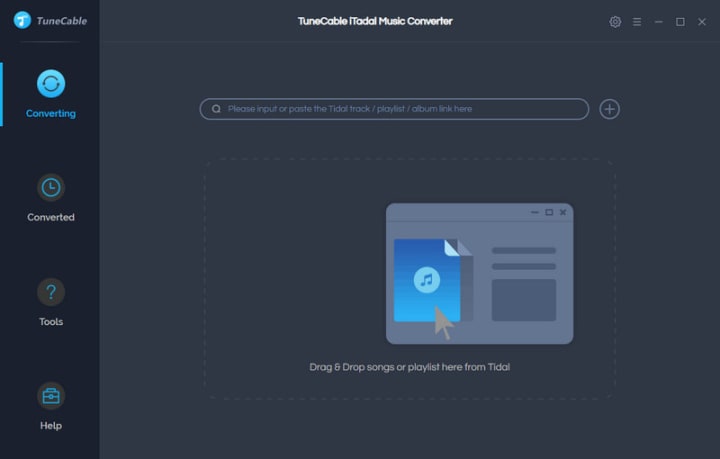
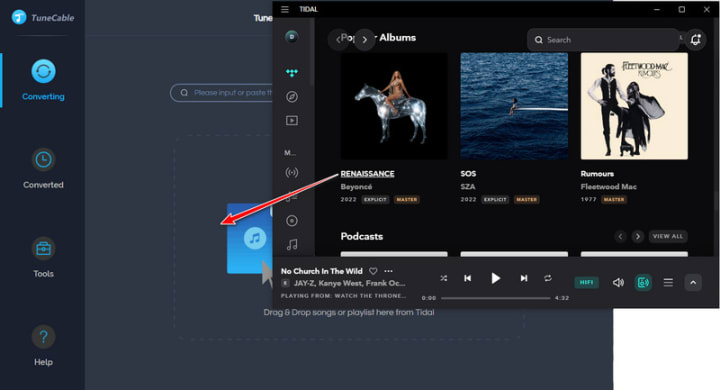
Step 2: Add the Wanted Tidal Tracks to TuneCable
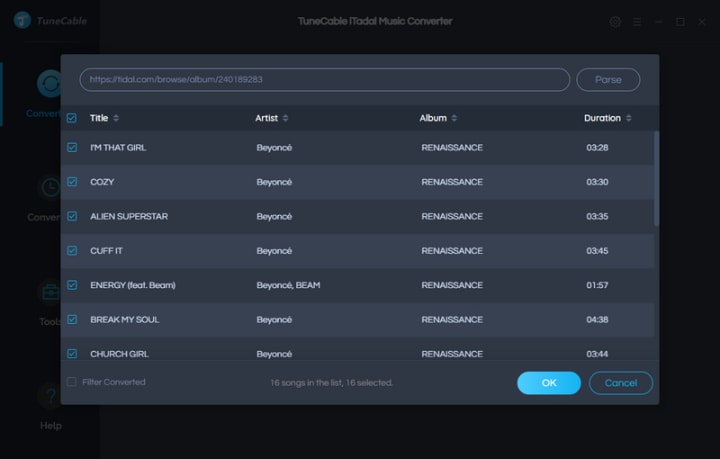
Once you have logged in to your Tidal Music account, you can select your preferred song, album, or playlist and simply click and hold the title to drag it into TuneCable Tidal Music Converter for parsing.
Or you can click the "three dots" next to the Tidal song, album, or playlist, then choose "Share", then copy its URL and paste the link into TuneCable for parsing. TuneCable will then immediately load the selected song(s). You can then deselect any tracks that you do not want to download and click "OK" to proceed with the conversion process.
Step 3: Alter the Output Parameters Accordingly
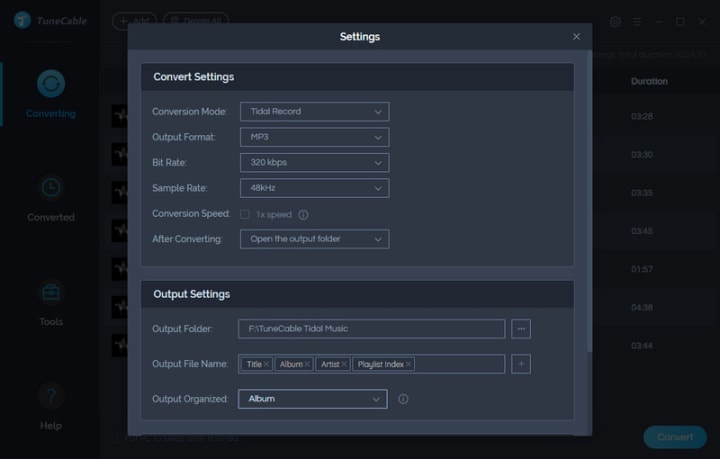
Before converting your selected Tidal music, it is recommended to adjust the output parameters to your preferences. To do this, simply click on the "Settings" button located in the upper-right corner of the TuneCable Tidal Music Converter. This will open a settings window where you can make any necessary adjustments.
Step 4: Download Tidal Music to Local Files in MP3/WAV Formats
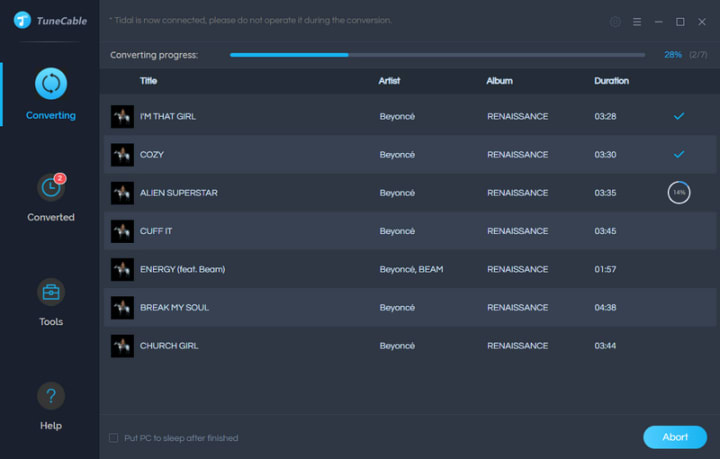
Once you have followed all the aforementioned steps, you can start the conversion process by simply clicking on the "Convert" button in TuneCable Tidal Music Converter. TuneCable will quickly and efficiently convert the selected Tidal songs for you.
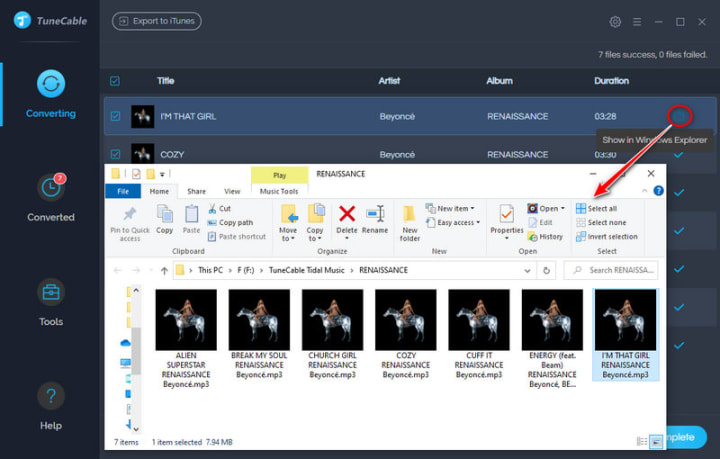
After the conversion process is complete and the Tidal songs have been successfully downloaded, you can find the download record under the "Converted" column within the software. Alternatively, you can navigate to the designated output folder on your computer to locate the downloaded Tidal music files.
It is worth noting that if you have followed our instructions, the Tidal songs will be converted into unencrypted MP3 or WAV files. This means that you can now enjoy the unrestricted playback of your Tidal music on any compatible device. Moreover, you can use them freely, such as burning them to a CD anytime.
✅ Part 3: 4 Solutions to Burn Tidal Music to a CD
About the Creator
Keep reading
More stories from Ayaa and writers in Motivation and other communities.
Downgrade Spotify App and Disable Its Automatic Updates
In this guide, we will demonstrate the steps to downgrade Spotify and turn off its automatic updates on Android, Windows, and Mac. Spotify is undoubtedly the biggest player in the music streaming market, with a range of useful features. Nonetheless, it is not immune to issues despite all the benefits it offers.
By Ayaa3 years ago in Motivation
The Last Voice Message
It was a quiet Sunday evening when Daniel’s phone vibrated on the kitchen table. He had just returned home after a long day at work, the kind of day that left your mind empty and your body tired. Outside, the sky was fading into deep shades of blue, and the city lights were slowly flickering on. Daniel poured himself a cup of coffee and glanced at his phone. 1 New Voice Message. The notification made him pause. He frowned slightly when he saw the sender's name. Lucas. Daniel’s heart skipped. Lucas had been his best friend since childhood. They had grown up together, shared secrets, dreams, and countless late-night conversations. But Lucas had died three days ago. A car accident on a rainy highway. The kind of sudden tragedy that leaves people staring at the floor during funerals, unsure what words could possibly make sense. Daniel had stood there at the funeral home, staring at the closed casket, trying to convince himself it wasn’t real. And now… A voice message from Lucas. Daniel stared at the screen, his coffee forgotten. Maybe it was an old message delayed by the network. Maybe Lucas had sent it earlier and it only just arrived. That had to be it. Still, his hands felt strangely cold as he pressed play. For a moment, there was only static. Then a familiar voice spoke. “Hey, Daniel… if you're hearing this, something probably went wrong.” Daniel froze. Lucas’s voice sounded calm, but there was something unusual in it. A strange heaviness. “I’m recording this because… well, I have a feeling something bad might happen tonight.” Daniel felt his chest tighten. Lucas continued. “You know how I always trust my gut. And right now it’s screaming at me.” A quiet laugh followed. “But you’ll probably call me dramatic.” Daniel remembered saying exactly that many times. Lucas had always been the intuitive one. The message continued. “I’m driving back from the lake house right now. It’s raining pretty hard, and the roads are terrible.” Daniel’s grip on the phone tightened. The accident had happened on that same road. Lucas paused for a few seconds before speaking again. “I didn’t want to call because I’d probably just sound paranoid. But there are things I’ve been meaning to say for a long time.” The rain could be heard faintly in the background of the recording. “First… thank you.” Daniel blinked, confused. “For sticking by me all these years. You’re more than a friend, man. You’re family.” Daniel swallowed hard. Lucas’s voice softened. “I know I don’t say stuff like this often, but you deserve to hear it.” Daniel suddenly felt a deep ache in his chest. The kind of ache that only comes from words that arrive too late. Lucas continued. “And there’s something else…” The sound of a windshield wiper swept across the background. “If anything ever happens to me… don’t let Mom stay alone in that house. She pretends she’s strong, but she’s not as tough as she acts.” Daniel closed his eyes. Lucas always worried about his mother. “Visit her sometimes. Even if she says she’s fine.” The message went quiet for a moment. Then Lucas spoke again, slower this time. “And Daniel… there’s one more thing.” A faint rumble of thunder echoed through the recording. “You keep putting your life on pause.” Daniel frowned slightly. “You always say you’ll chase your dreams later. Later when you have more money. Later when things are safer.” Lucas sighed. “Stop waiting.” The rain in the recording grew louder. “You wanted to write stories. You wanted to travel. You wanted to start that podcast we talked about.” Daniel’s throat tightened. “Life doesn’t wait for the perfect moment.” Lucas chuckled softly. “And clearly… neither does fate.” Daniel felt a chill run down his spine. “I guess what I’m trying to say is… don’t waste time the way I did.” The car engine could be heard revving slightly. “If you’re hearing this, it probably means I never made it home.” Daniel’s eyes filled with tears. There was a long pause in the recording. Then Lucas spoke one last time. “But I’m not scared.” Daniel leaned closer to the phone. “I’ve had a good life.” The rain softened slightly in the background. “And I had a great friend.” Daniel wiped his eyes. “Take care of yourself, okay?” A faint smile crept into Lucas’s voice. “And hey… if there’s Wi-Fi in the afterlife, maybe I’ll send you another message someday.” Then the recording ended. Silence filled the kitchen. Daniel sat there, staring at the screen long after the message had finished. Outside, the wind rustled softly through the trees. For the first time since the funeral, Daniel let the tears fall freely. But mixed within the sadness was something unexpected. Clarity. Lucas had known something might happen, and instead of fear, he had chosen to leave behind words that mattered. Daniel slowly stood up and looked out the window at the city lights stretching into the distance. For years he had postponed his dreams. Waiting. Delaying. Convincing himself there would always be more time. But Lucas’s final message echoed in his mind. Life doesn’t wait for the perfect moment. Daniel picked up his phone again. Not to replay the message. But to open a blank document. At the top of the page, he typed the title of his first story. “The Last Voice Message.” And for the first time in a long while, Daniel began to write.
By Sahir E Shafqat5 days ago in Motivation
TUS NUA - ch 53
TUS NUA – ch 53 New Beginnings – Mia and Midnight (*)(*)(*) Finola knew Ali’s brother-in-law needed to put his mind at rest. She fed her arm through his and led him outside. “We’ll sit here. If you like, I can put a block around us so our conversation will be private.”
By Margaret Brennan6 days ago in Fiction


Comments
There are no comments for this story
Be the first to respond and start the conversation.