
What Is BitLocker and How Can You Use It on Mac
Encrypt Drives with BitLocker on Mac


Encryption of storage devices is a huge deal when it comes to storage devices and computer devices in general. Although there exist numerous encryption types, BitLocker by Microsoft is a go-to encryption program that is widely in use.
BitLocker is a simple-to-use encryption program from Microsoft. This proprietary encryption program provides the channel to encrypt the whole drive on Windows devices. It is also useful in protecting against changes to the system firmware level. This is especially useful to guard against malware and malicious programs.
For users using the Ultimate and Enterprise editions of Windows Vista and Windows 7, the Pro and Enterprise editions of Windows 8 and 8.1, the Pro, Enterprise, and Education editions of Windows 10, and Windows Server 2008 and later, BitLocker is available for their use. However, for Mac users, using BitLocker on Mac is a conditional offering that is not yet natively available. Thus, there comes the article, which explains how to enable BitLocker encryption on Mac laptops using a third-party program named iBoysoft BitLocker for Mac.
About iBoysoft BitLocker for Mac
Mac users can access BitLocker drives or use BitLocker encryption on Mac all thanks to third-party software like iBoysoft BitLocker for Mac. This software is a powerful and effective BitLocker for Mac tool useful for Mac users to read and write BitLocker encrypted drives as well as encrypt drives with the BitLocker encryption method on Mac.
This BitLocker for Mac software provides full read-write access to Mac users to perform their operations on BitLocker encrypted drives. It also allows the encryption of external drives with the BitLocker encryption solution. Most especially, iBoysoft BitLocker for Mac is compatible with the latest macOS 13 Ventura, Monterey, M1, M1 Pro, M1 Max, and M2 Macs.
How to Encrypt Drives Using BitLocker Drive Encryption Offered by iBoysoft BitLocker for Mac on Mac?
To encrypt your drive with BitLocker on your Mac, you need to take help from iBoysoft BitLocker for Mac. This program enables encrypting external devices that are formatted with NTFS, FAT, FAT32, or exFAT file systems. After encryption, these drives can be accessed on Windows devices that support BitLocker properly. Here is the step-by-step guide on how to encrypt drives using BitLocker on macOS.
Step 1 To start the encryption process, you need to free download this BitLocker for Mac software from its official site first and then click the installation file to install it on your Mac.
Step 2 Insert an external drive, such as a USB flash drive into your Mac device and launch iBoysoft BitLocker for Mac.
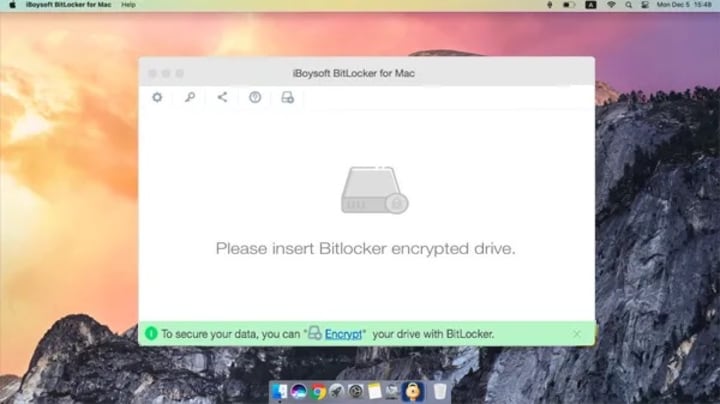
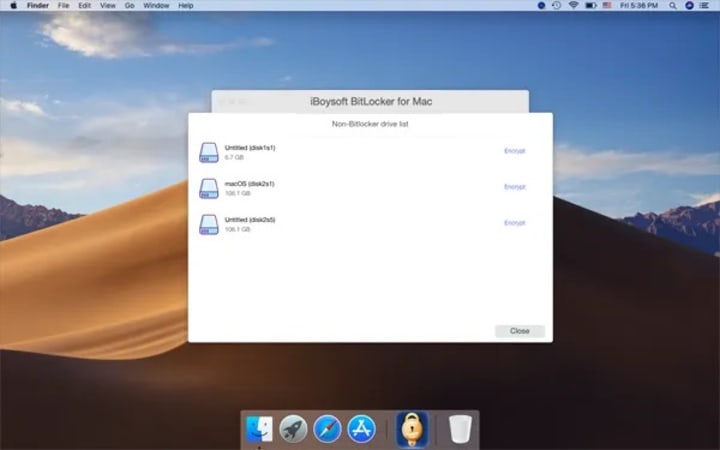
Step 3 Click the Encrypt button from the top toolbar, locate and select the drive you wish to encrypt, and click Encrypt.
Step 4 Set up your BitLocker password when you get the prompt to enter a password.
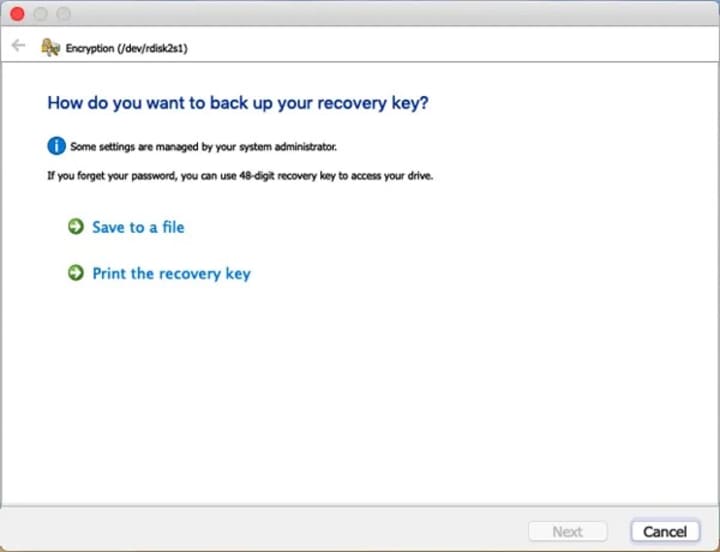
Step 5 Select the option to either ‘Save to a file’ or ‘Print the recovery key’ to save the 48-digit recovery key and click Next when you have made a selection.
Step 6 Click Start Encryption to commence the encryption process.
That’s all for encrypting drives using BitLocker on macOS. Before proceeding with drive encryption, you need to prepare a drive that had been formatted with exFAT, FAT, FAT32, and NTFS file systems. Apart from this, you need to make sure that your Mac machine is running macOS 10.13 or higher versions.
Final Words
Although BitLocker is not compatible with macOS by default, it can also be used for drive encryption on Mac computers with the help of iBoysoft BitLocker for Mac. If you are in need of accessing BitLocker encrypted drives on macOS or just want to encrypt drives with BitLocker on Mac, iBoysoft BitLocker for Mac is a solution deserving trying.
About the Creator
Mikya Elyna
I am a tech enthusiast interested in everything related to tech, including macOS, Windows, software, and tech gadgets, to name a few. As a photographic lover, I also like to take photos to record some good moments during my spare time.
Keep reading
More stories from Mikya Elyna and writers in Lifehack and other communities.
The Last Train from Nowhere
At exactly 2:17 a.m., the abandoned Platform 13 was never supposed to be used. In a forgotten corner of a London underground station, behind a rusted metal gate and a faded “Out of Service” sign, there was a platform that didn’t appear on any public map. Commuters from the UK, USA, and Australia had passed through this station thousands of times, never realizing that if you stood near the far wall at precisely the right moment, the wall would… breathe.
By Iazaz hussain2 days ago in Lifehack
The Surprising Way Positive Thinking Can Change Your Life
Let me tell you the story of how I almost didn't win a car. Yup. You've heard it right. A car. But we almost didn't enter the raffles, thinking "Well, out of the thousands that applied, it's impossible to win".
By Anie the Candid Writer Abroad4 days ago in Lifehack




Comments
There are no comments for this story
Be the first to respond and start the conversation.