
Troubleshoot a Wi-Fi connection to an HP Printer
Troubleshoot a Wi-Fi connection to an HP Printer
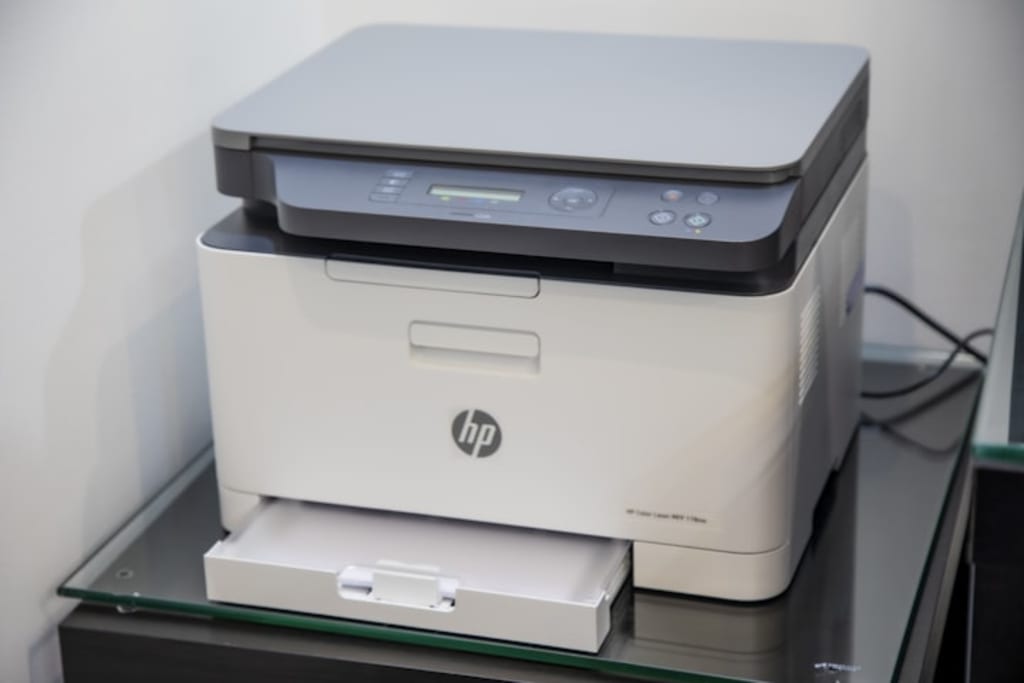
# Troubleshooting Wi-Fi Connection Issues with HP Printers
Having a reliable Wi-Fi connection is key to printing smoothly from your HP printer. Sometimes, though, you might run into issues like network setup problems, old software, or signal issues. Here's a straightforward guide to help you fix Wi-Fi connection problems with your HP printer.
## Common HP Printer Wi-Fi Connection Issues
Before we jump into the fixes, let’s pinpoint what the problem might be:
- Printer won't connect to Wi-Fi
- Printer keeps disconnecting
- Can't print wirelessly
- Printer shows Offline
- Weak or no Wi-Fi signal
## Step-by-Step Troubleshooting Guide
1. Check Basic Requirements
First things first, make sure:
- The printer is close enough to the Wi-Fi router.
- The Wi-Fi network is working (test with another device).
- You’ve entered the right Wi-Fi password, if needed.
- Both the printer and router are turned on.
2. Restart Devices
Sometimes, a quick restart works wonders:
1. Turn off the printer and unplug it for 30 seconds.
2. Restart your Wi-Fi router.
3. Turn the printer back on and try to connect again.
3. Verify Wi-Fi Network Settings
Check if your printer is linked to the right network:
1. On the printer, go to **Settings > Wireless > Network Configuration**.
2. Make sure the correct SSID (Wi-Fi name) is showing.
3. Reconnect if necessary by entering your Wi-Fi password once more.
4. Use HP Smart App for Troubleshooting
The **HP Smart App** (for Windows, macOS, iOS, and Android) can help you troubleshoot:
1. Open the app.
2. Select your printer.
3. Follow the prompts to resolve connection issues.
5. Run Wireless Network Test on the Printer
Most HP printers have a built-in test function:
1. Go to **Settings > Tools > Print Reports > Wireless Test Report**.
2. Print it to check for errors.
3. Follow any suggested fixes in the report.
6. Update Printer Firmware
Old firmware can mess up connections:
1. If Wi-Fi is not stable, connect the printer with a USB.
2. Open **HP Support Assistant** (Windows) or visit **HP Software & Drivers** (Mac).
3. Download and install the latest firmware.
4. Restart the printer.
7. Reset Network Settings on the Printer
If the connection is still problematic:
1. Navigate to **Settings > Restore Defaults > Reset Network Settings**.
2. Manually reconnect to Wi-Fi.
8. Check for IP Address Conflicts
If multiple devices have the same IP, it can cause trouble:
1. Print a **Network Configuration Page**.
2. See if the printer has a valid IP (like 192.168.x.x).
3. If it shows 0.0.0.0, restart the router or assign a static IP.
9. Move the Printer Closer to the Router
Weak signals can drop connections:
- Place the printer about **10-15 feet** from the router.
- Keep it away from walls or electronic devices that might interfere.
10. Change Wi-Fi Band (2.4 GHz vs. 5 GHz)
- Many HP printers only work with **2.4 GHz** (not 5 GHz).
- If your router has both bands, make sure the printer connects to **2.4 GHz**.
11. Temporarily Disable Firewall/Antivirus
Sometimes, security software blocks the printer:
1. Turn off the firewall/antivirus for a bit.
2. Try printing again.
3. If it works, adjust your firewall settings to allow the printer.
12. Reinstall Printer Software
If the drivers are acting up:
1. Uninstall the printer from **Control Panel > Devices & Printers**.
2. Download the latest driver from **[HP Support]
3. Reinstall it and reconnect.
### 13. Use WPS (Wi-Fi Protected Setup)
If your router has WPS:
1. Press the **WPS button** on the router.
2. Within 2 minutes, press the **Wireless button** on the printer.
3. Wait for the connection to be confirmed.
14. Factory Reset the Printer
If all else fails:
1. Go to **Settings > Restore Defaults > Factory Reset**.
2. Set the printer up from scratch.
## Frequently Asked Questions (FAQ)
Q1. Why won’t my HP printer connect to Wi-Fi?
- Wrong Wi-Fi password
- Weak signal
- Old firmware
- IP conflict
Q2. How do I reconnect my HP printer to Wi-Fi?
- Use the **HP Smart App** or do it manually through the printer settings.
Q3. Why does my HP printer keep disconnecting from Wi-Fi?
- Signal interference
- Router issues
- Power-saving mode activated
Q4. Can I connect my HP printer to a 5 GHz network?
- Most HP printers only support **2.4 GHz**. Check your printer's manual for details.
Q5. How do I find my printer’s IP address?
- Print a **Network Configuration Page** from the settings.
Q6. What should I do if my printer says Offline?
- Restart the printer and your computer.
- Make sure it’s on the right Wi-Fi network.
Q7. How do I update my HP printer’s firmware?
- Either use the **HP Smart App** or download it from **[HP Support]**.
Q8. Why is my HP printer not found on the network?
- Possible misconfiguration of network settings
- Firewall might be blocking it
Q9. Can I use USB if Wi-Fi isn’t working?
- Yes, connect via USB and install the drivers manually.
Q10. How do I reset my HP printer’s network settings?
- Go to **Settings > Restore Defaults > Reset Network Settings**.
## Conclusion
Wi-Fi problems with HP printers are usually fixable by checking settings, updating firmware, or restarting devices. If issues keep cropping up, reach out to **[HP Support] for more help.
With this guide, you should be on your way to getting your wireless printing back up and running. Happy printing! 🖨️🔧
About the Creator
Printer | Feel free to call us anytime you need support +1_844_565_0279
Printer | Feel free to call us anytime you need support +1_844_565_0279
Printer | Feel free to call us anytime you need support +1_844_565_0279Printer | Feel free to call us anytime you need support +1_844_565_0279
Keep reading
More stories from writers in Lifehack and other communities.




Comments
There are no comments for this story
Be the first to respond and start the conversation.