
MacBook Pro M6 Pro vs M6 Max
What to Expect and How to Choose


What to Expect and How to Choose
Creators, developers, and power users don’t buy a MacBook Pro for email. They buy it for the weeks when deadlines stack up, fans get loud, and a slow export can ruin your day. The idea of a MacBook Pro (M6 Pro / M6 Max) matters because Apple’s Pro and Max chips usually target those pain points: sustained speed, strong battery life under real work, and fewer slowdowns when apps pile up.
late 2026 to early 2027, Apple has not announced an M6 MacBook Pro. This guide is still useful because the Pro vs Max choice tends to follow the same logic each generation. You’ll learn what changes actually show up in day-to-day work, which chip tier fits your workload, and a simple checklist to buy a config that won’t feel cramped in two years.
MacBook Pro M6 Pro vs M6 Max what’s new and what it means day to day
When Apple updates a MacBook Pro chip, the upgrade usually isn’t about one headline number. It’s about removing small delays you hit all day.
Think of the chip as four parts that affect how the laptop feels:
1,, CPU (processor cores): Drives general speed, compile times, and app response. A stronger CPU helps when you’re doing many “normal” tasks at once, like building a project while syncing files and running a browser full of tabs.
2,,GPU (graphics cores): Handles video effects, 3D, motion graphics, and some pro app filters. More GPU headroom tends to mean smoother timelines and fewer dropped frames during playback.
3,, Neural Engine (AI hardware): Speeds up machine learning tasks that apps can run locally, like image cleanup, speech-to-text, or smart selection tools.
4,,Memory bandwidth (how fast the chip can move data to unified memory): Shows up when files are huge, like multi-layer 8K timelines, big Photoshop documents, large sample libraries, or heavy 3D scenes.
In plain terms, a typical “Pro” chip aims for a balanced machine that stays fast on mixed work while keeping battery life strong. A “Max” chip usually pushes GPU and memory throughput higher, so it can chew through graphics-heavy tasks without feeling like it’s waiting on data.
Day to day, the best kind of upgrade is the one you stop noticing. Exports finish sooner, apps don’t hitch when you switch windows, and fans stay quieter because the chip can complete work faster at lower stress. If you use external monitors, Pro and Max tiers also tend to differ in display support, which matters when you’re running a laptop like a small desktop.
Performance upgrades you’ll actually notice (apps, multitasking, and heavy files)
If your workload looks like this, you’ll notice a jump when CPU, GPU, and memory throughput improve:
1,, Video: 4K or 8K exports, complex color grades, and heavy effects stacks
2,, Photo: large Lightroom imports, big batch exports, multi-layer Photoshop files
3,, Dev: Xcode builds, running simulators, Docker containers, parallel test runs
4,, Office at scale: giant Excel sheets, huge PDFs, lots of Slack and browser tabs
Unified memory matters because the CPU and GPU share the same pool. When that pool is too small, macOS swaps to storage. Even with fast SSDs, swapping feels like pushing a loaded cart through gravel. It works, but it’s slower and can add stutter under pressure.
Fast storage helps with app launches and file loads. It won’t fix a GPU-bound render, and it won’t save you if you’re constantly out of memory.
AI features in macOS on M6: what runs on-device and why it matters
“On-device” means an AI task runs on your Mac, not on a server. When apps support it, on-device work can feel snappier and can keep more of your data local.
In real use, that can show up as:
quicker photo cleanup or object removal tools
better speech-to-text while taking notes
smarter search inside your own files and mail
real-time helpers in creative apps that don’t pause to upload data
Privacy is a big part of the appeal. If a task stays on your Mac, less content leaves your machine. That said, some features still use server AI (either Apple’s or a third party’s), especially for large models or tasks that need fresh web context. Before you buy hardware for “AI,” check whether your key apps (Final Cut Pro, Adobe apps, Xcode tools, note apps) run the feature locally or in the cloud.
Which one should you buy: M6 Pro or M6 Max (simple picks by job and budget)
Most buyers don’t need the top chip. They need the right chip for the work they do every week.
The main trade-offs between the “Pro” and “Max” tiers usually look like this:
Price: Max models tend to jump quickly in cost once you add memory and storage.
Battery under GPU load: Heavy GPU work drains faster than CPU-heavy work.
Heat and fan noise: More GPU throughput can mean more sustained heat in long renders.
Ceiling for big projects: Max-class chips are built for the days when your project is too large to fake it.
Screen size matters too. A 14-inch MacBook Pro is easier to carry and still powerful. A 16-inch model is nicer for long editing sessions, with more room for timelines and side-by-side windows. If it’s your main machine, the bigger screen often pays off in comfort.
Choose M6 Pro if you want the best mix of speed, battery life, and price
M6 Pro class machines (based on how Apple has positioned Pro chips so far) tend to fit most serious workflows:
Best fit: students in pro programs, software devs, photographers, and light-to-medium video editors. It’s also the safer pick if you travel a lot and care about battery.
Example configs that usually age well:
18 to 24GB memory, 512GB storage: strong baseline if you use external drives
24GB memory, 1TB storage: better for photo libraries and mixed pro work
36GB memory, 1TB storage: for heavier multitasking or larger video projects
For many people, spending on memory first gives a bigger real gain than chasing the max tier.
Choose M6 Max if you do GPU-heavy work every week
M6 Max class models are for workloads that stay GPU-bound for long stretches:
Best fit: 3D artists, motion graphics editors, heavy color grading, multi-stream 8K editing, and some local ML work (like running larger models or training small jobs).
More GPU cores and higher memory bandwidth help when your scene, timeline, or model won’t fit comfortably in a smaller setup. The payoff is fewer playback drops, faster renders, and more headroom when you stack effects.
Two warnings are consistent across generations: battery life can fall faster during sustained GPU work, and the cost jump is real once you add higher memory tiers.
Buying checklist: the best M6 MacBook Pro configuration for the next 3 to 5 years
If you want a MacBook Pro that stays comfortable for years, buy it for your “busy week,” not your average day. This checklist keeps the decision simple.
RAM and storage picks that won’t age badly
Unified memory is shared RAM for CPU and GPU in one pool.
Rules of thumb:
18 to 24GB: most people with pro apps, coding, and moderate photo or video work
36 to 48GB: heavy creators, big timelines, lots of Adobe apps open at once
64GB+: special cases (large 3D scenes, large local ML models, huge comps)
Storage guidance:
512GB minimum: light users, cloud-first workflows
1TB: better for creators who keep active projects local
2TB: if you keep large libraries on the internal drive (video, samples, catalogs)
Common mistake: buying a big CPU/GPU tier but skimping on memory. If memory runs out, even the fastest chip can feel slow. For long-term value, upgrade RAM first, then storage. Use external SSDs for backups and archives.
Ports, displays, and accessories to plan for
MacBook Pro buyers often connect the same gear every day: SD cards, HDMI, Thunderbolt docks, audio interfaces, and external monitors.
Quick checks before you buy:
External displays: decide if you need one or two.
Then confirm your monitor’s refresh rate and the cable type (USB-C, HDMI, Thunderbolt).
Docks and hubs: if you use many peripherals,
Plan for a quality USB-C or Thunderbolt dock to reduce cable hassle.
Smart add-ons: external SSD for scratch and backups,
a protective sleeve, and AppleCare+ if you travel often or work on-site.
Conclusion
A future MacBook Pro with M6 Pro should suit most people who code, edit photos, or cut video without living in GPU-heavy timelines. An M6 Max class machine makes sense when 3D, motion graphics, heavy grading, or large local models are part of your weekly routine. If you only upgrade one thing, put money into memory, then storage.
Pick your main apps, your screen size, and your budget, then choose the chip tier that matches your busiest week, not your best-case day.
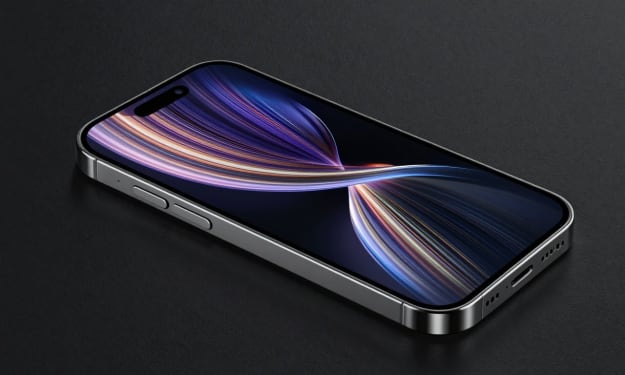
A conceptual visual comparison illustrating balanced performance versus maximum power in professional laptops.
About the Creator
abualyaanart
I write thoughtful, experience-driven stories about technology, digital life, and how modern tools quietly shape the way we think, work, and live.
I believe good technology should support life
Abualyaanart
Keep reading
More stories from abualyaanart and writers in Lifehack and other communities.
The Definitive Guide to the iPhone
The Definitive Guide to the iPhone In 2007, the first iPhone entered shops and altered everything. Before it, phones had small keyboards and rudimentary displays. People texted using T9 or flicked open smartphones for calls. The iPhone introduced a large touchscreen and convenient applications. It transformed phones into tools for work, leisure, and life.
By abualyaanart19 days ago in Lifehack
How to Survive as a Broke Student
There are times as a student when you check your account balance, see nothing there, and suddenly even the smallest bills feel overwhelming. In those moments, it can feel like your life is about to fall apart. The feeling of helplessness can be suffocating, as if no matter what you do, there’s no way forward.
By Millicent Chisomabout 10 hours ago in Lifehack
From Thread and Needle to Wall Art: 5 Fun Craft Projects to Brighten Your Time
Are you craving a creative escape? Whether you’re a seasoned maker or just beginning your crafting journey, transforming basic materials like thread and needle into stunning art pieces is one of the most joyful ways to spend your time. From easy DIY sewing projects to stylish wall art made with yarn and thread, this article dives into 5 fun, engaging craft tutorials that anyone can try at home.
By Ahmed aldeabella5 days ago in Lifehack
📢 Raise Your Voice Thread: 01/08/2026
Our “Raise Your Voice Threads” are hosted most alternating Thursdays at 12PM ET to offer creators more avenues to uncover exceptional stories on Vocal. As we are continuously searching for fresh creators and inspiring stories, this thread provides an opportunity to exchange and discuss the stories that have moved and motivated us on Vocal.
By Raise Your Voice by Vocal7 days ago in Resources


Comments
There are no comments for this story
Be the first to respond and start the conversation.