
MacBook Pro Fan Troubleshooting: How to Keep Your Laptop Cool and Quiet
Troubleshoot a noisy MacBook Pro fan with tips on causes, diagnostics, fixes, and prevention to keep your laptop cool and performing at its best.
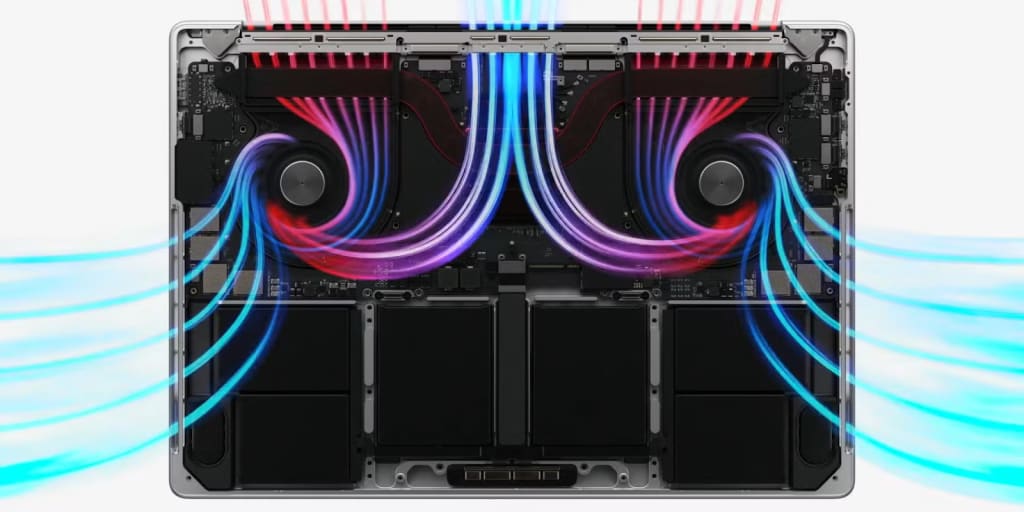
A noisy MacBook Pro fan is a common issue that many users face. Beyond being an annoyance, the loud humming often indicates potential cooling system problems. Maintaining optimal temperature is crucial for the laptop’s long-term performance and reliability.
This article examines the causes of excessive fan noise, diagnostic methods, solutions, and preventive measures to avoid MacBook Pro overheating.
Common Causes of Fan Noise
Several factors can contribute to MacBook Pro fan noise. Understanding these factors is essential for effective problem-solving.
Key causes include:
- High CPU and GPU load;
- Dust and debris accumulation in the cooling system;
- Faulty fan or thermal sensor operation;
- Software-related issues.
Intensive processor or graphics chip usage leads to temperature increases, forcing the fan to operate at maximum speed. This frequently occurs when running resource-intensive applications or games.
Dust and debris collecting inside the case impede proper air circulation. This reduces cooling system efficiency, resulting in higher temperatures and increased fan speeds.
Malfunctions in the fan or thermal sensors can cause irregular cooling system operation. Fan noise may result from worn bearings or damaged blades.
Diagnostic Steps
Before attempting any repairs, it’s essential to conduct thorough diagnostics. This helps identify the exact cause of increased fan noise and determine the most effective solution.
Begin by checking your MacBook Pro’s component temperatures. This can be done using built-in macOS tools or third-party applications like iStat Menus or Macs Fan Control. The normal processor temperature at idle should be around 30-40 °C (86-104 °F), while under load, it may reach 80-90 °C (176-194 °F).
Next, analyze processor and resource usage through the built-in Activity Monitor application. Pay attention to processes consuming significant CPU or GPU resources.
Conduct a visual inspection of your MacBook Pro’s ventilation ports. Blocked vents can significantly reduce cooling efficiency.
For more detailed diagnostics, use specialized utilities:
- Apple Diagnostics (2013 models and newer).
- Apple Hardware Test (earlier models).
- Geekbench for performance assessment.
These tools help identify potential hardware issues.
Software Solutions
After completing diagnostics, start with software-based solutions. These methods don’t require physical intervention and can often be performed independently.
Begin by closing resource-intensive applications and processes. Use Activity Monitor to identify programs consuming significant resources and close them. This frequently results in immediate system load reduction and decreased fan noise.
Operating system and driver updates are another crucial step. Apple regularly releases updates that may include power management and thermal control optimizations.
To update macOS:
Open System Settings.
Select Software Update.
Click Update Now if updates are available.
Resetting the SMC (System Management Controller) can help with power management or thermal control issues. The reset procedure varies by MacBook Pro model.
For MacBook Pro models with non-removable batteries:
- Shut down the computer.
- Connect the power adapter.
- Press Shift + Control + Option on the left-side keyboard and the power button simultaneously.
- Hold for 10 seconds, then release.
- Start your MacBook Pro.
Specialized fan control applications like Macs Fan Control or smcFanControl allow for custom cooling curves. However, use these tools cautiously to avoid compromising the cooling system.
Hardware Solutions
If software solutions prove ineffective, consider hardware interventions. These methods require greater care and sometimes specialized tools.
Cleaning ventilation ports and internal components is the first step in physical maintenance. Use compressed air canisters or soft brushes. Exercise caution during cleaning to avoid component damage.
Step-by-step cleaning process:
- Power down your MacBook Pro and disconnect all cables.
- Locate ventilation ports.
- Carefully blow compressed air through the ports.
- Use a soft brush for stubborn debris if necessary.
- Repeat for all ventilation areas.
Thermal paste replacement on the processor and graphics chip can significantly improve heat dissipation. However, this requires laptop disassembly and technical expertise. Consider professional service if unsure about performing this task.
Fan inspection and replacement may be necessary. A worn or damaged fan can cause excessive noise. Fan replacement also requires disassembly and is best performed by professionals.
When to Seek Professional Help
While many MacBook Pro fan issues can be resolved independently, certain situations warrant professional attention. Understanding when to seek expert help is crucial.
Signs indicating professional service is needed:
- Persistent fan noise during low system load;
- Unexpected shutdowns or restarts;
- Screen artifacts or display issues;
- Unusual odors from the device;
- Unexplained performance degradation.
Professional service offers several advantages. Technicians possess the necessary tools and expertise for accurate diagnosis and repair. They can identify hidden issues that might be missed during self-diagnosis.
Additionally, Apple Authorized Service Providers guarantee genuine parts and adherence to manufacturer specifications. This is particularly important for devices under warranty.
Note that DIY repair attempts may void your warranty. If your MacBook Pro is still under warranty coverage, always opt for official service center assistance.
When in doubt, consulting a professional is recommended. Expert diagnosis helps determine the exact issue and optimal solution, potentially saving time and money eventually.
About the Creator
Keep reading
More stories from Susan Scava and writers in Lifehack and other communities.
Car Rentals for Embassies, Foundations, and Business Visits to Ukraine
Car Rentals for Embassies, Foundations, and Business Visits to Ukraine In the challenging environment of modern Ukraine, efficient and reliable transportation is a critical need for embassies, international foundations, organizations, and professionals on work or business visits. At Car-Rent.ua, we specialize in meeting these unique needs with tailored services designed for diplomats, corporate clients, and NGO representatives operating in Ukraine.
By Susan Scavaabout a year ago in Lifehack
Phoenix, Arizona: The City That Learned to Grow With the Desert
When people first arrive in Phoenix, Arizona, the landscape can feel almost surreal. The vast Sonoran Desert stretches outward with towering saguaro cacti, rugged mountains, and wide skies that shift colors dramatically at sunset. At first glance, it seems like an unlikely place for a major metropolitan area.
By House Doctor6 days ago in Lifehack




Comments (1)
Hello, just wanna let you know that if we use AI, then we have to choose the AI-Generated tag before publishing 😊