
How to Split an MKV TV Episode or Movie into Segments
Automatically and Manually

There are several circumstances where you want an MKV splitter to help you split an MKV video into clips.
You probably have an MKV video that was ripped from a DVD, which is a big file containing all 6 or 7 episodes. You just wonder a program that can help split by chapter.
You downloaded TV episodes or movies into MKV from source sharing platforms, and you want to delete the ads and unwanted parts from them.
An MKV file is generally larger, making it inconvenient to edit in the video editing software, so you need an MKV splitter to split the large MKV into small segments.
When you edit an MKV video, you may want the specific parts to contain the original audio track or subtitles, but some parts do not. In this case, splitting MKV into slices can meet your specific and customized editing needs.
The trim tool of Any Video Converter can not only trim MKV video to delete the unnecessary parts, including trimming MKV into clips by timestamp, but also automatically split MKV video into slices by analyzing the transitions and chapter information.
In this tutorial, we will show you two ways to split an MKV into segments, with automatic and manual methods.
Method 1: Automatically Split an MKV Video into Segments
Step 1: Add an MKV Video
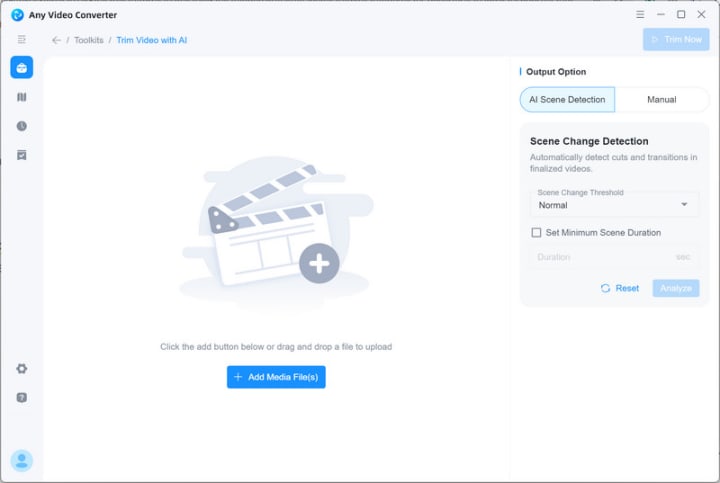
Open Any Video Converter and choose the "Trim Video with AI" tool from the tool list. Click the "Add Media File(s)" to import your MKV file.
Step 2: Start Analyzing the Scene of an MKV Video
Under the Output Option, click "AI Scene Detection" and choose the "Scene Change Threshold" as "Extremely sensitive", "Sensitive", "Normal", "Insensitive", or "Extremely insensitive".
You can also set the minimum scene duration.
Once the settings are done, click the "Analyze" button to start the segments analysis. The AI algorithm will detect and analyze the scenes into several segments.

Step 3: Save the AI Split Segments
Click the "Trim Now" button to save the split MKV segments.
Method 2: Manually Split an MKV Video into Clips by Timestamp
Step 1: Upload an MKV Video
Launch Any Video Converter and choose the "Trim Video with AI" tool from the tool list.
Then, click the "Add Media File(s)" to add an MKV video.
Step 2: Cut/Trim MKV Video
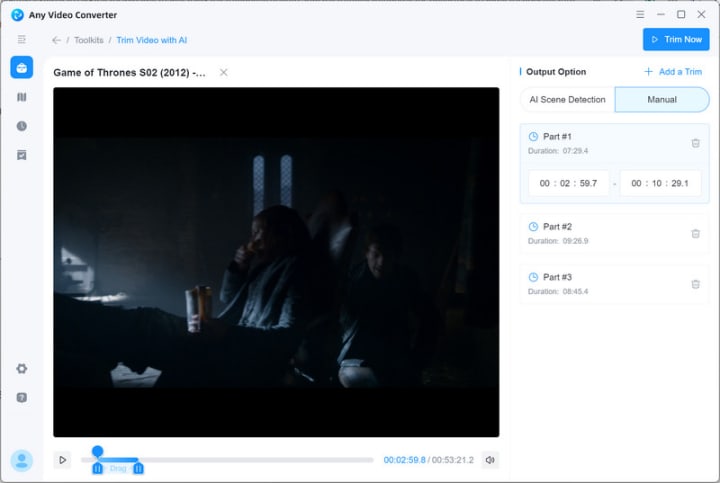
Use the timeline to drag the start and end points of the video.
Click "Add a Trim“ to create a new segment to repeat the operation above.
Step 3: Export the Trimmed Video
Click the "Trim Now" button at the top right corner to start exporting the trimmed MKV video clips.
That's all the MKV splitting methods you can refer to split your MKV videos at ease. You can also refer to this blog to check more useful MKV splitters.
Further Reading: More Tips Before Editing MKV Videos
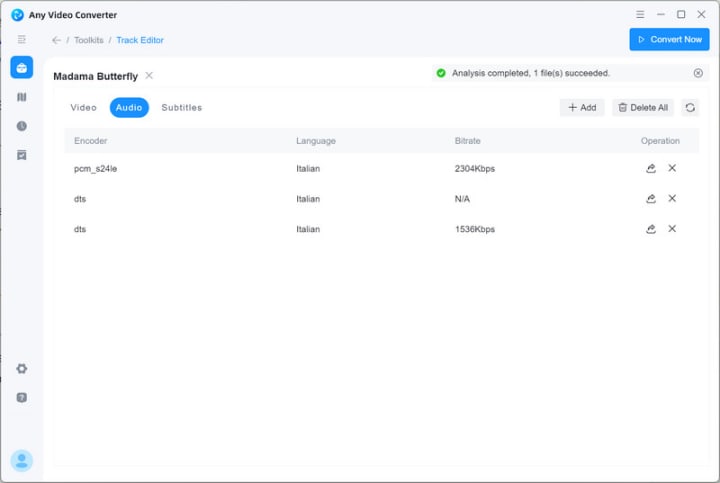
1. Extract or delete the video and audio tracks and subtitles from an MKV video. Any Video Converter supports the individual Track Editor tool for users to export the tracks and subtitles to the local drive or delete unwanted tracks and subtitles directly.
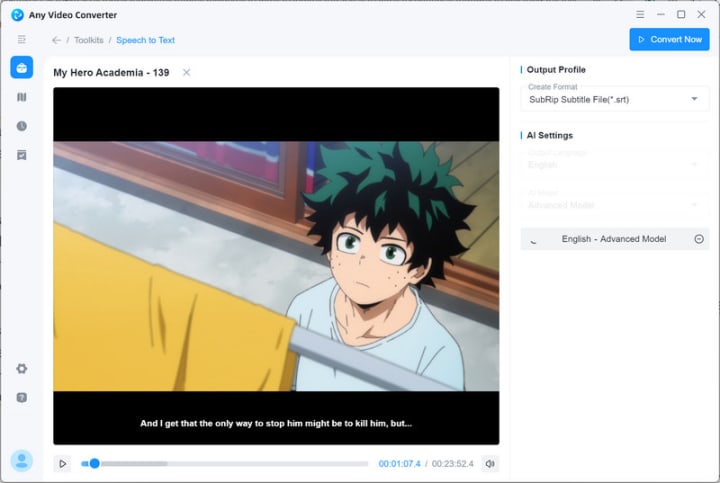
2. Transcribe MKV to text. If you want to add external subtitles to your MKV video, you can use the Speech to Text tool of Any Video Converter to transcribe the audio into text and export it as .srt, so that you can add it to the MKV video. Don't worry about the accuracy.
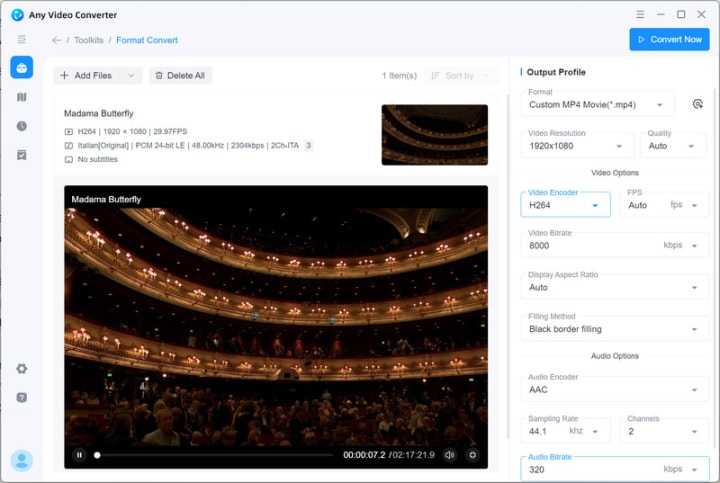
3. Convert MKV to reduce the file size. If your source MKV is too large to edit in the video editing software, you can use the video converter tool to convert MKV to MP4, with H.264 or HEVC video codec, to reduce the file size and improve the compatibility.
About the Creator
Joker Young
An editor from a software indusrty.
Keep reading
More stories from Joker Young and writers in Lifehack and other communities.
How to Enhance Video Quality with Topaz Video AI
When it comes to enhancing video quality, you may find yourself pondering two fundamental questions: What is the best way to enhance video quality? And which video quality enhancer stands out from the rest? Among the available options, Topaz Video AI is one of the best video quality enhancers, favored by numerous users encountering the situations outlined below:
By Joker Young2 years ago in Lifehack
What Your Grandmother Knew about Gold that Wall Street Forgot
My grandmother kept her gold bangles in a faded velvet pouch at the back of her wardrobe. Not in a safe, not in a bank vault, just tucked between old shawls and photographs. When I asked her once why she bothered keeping them, she looked at me like I'd asked why the sky was blue.
By Marcus Briggs5 days ago in Lifehack
Center Stage with Paul Stewart
*** I'm keen to republish the interviews I did for my series with Vocal creators. It's been a few years and I thought it might be nice to revisit these wonderful conversations. I'll be releasing them one at a time for a few weeks/months.
By Heather Hubler3 days ago in Interview


Comments
There are no comments for this story
Be the first to respond and start the conversation.