
How to Secure Your Wifi Network? Wi-Fi Security Guide
Securing your wifi network is essential, but it isn’t difficult.
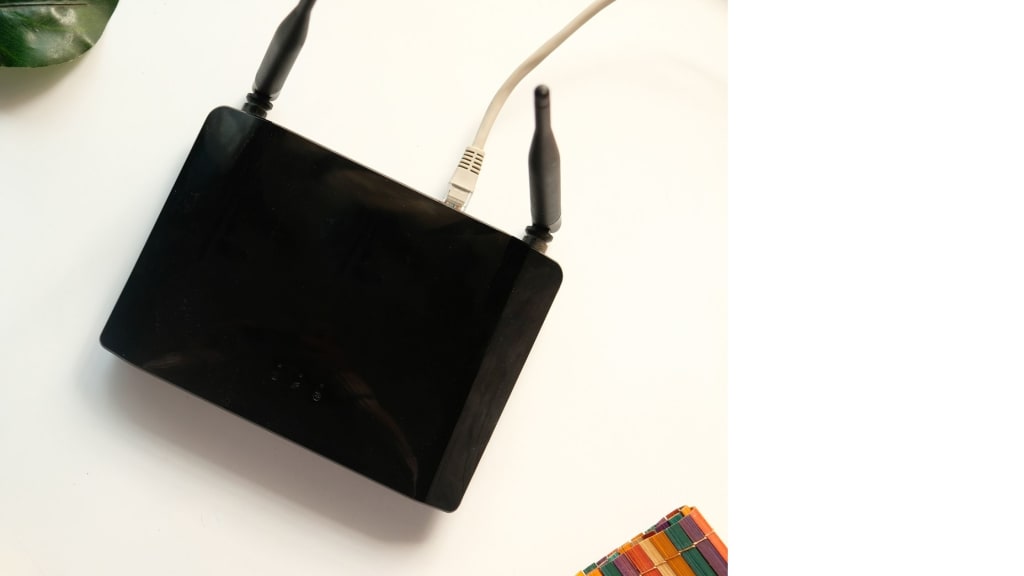
Securing your wifi network is essential, but it isn’t difficult. Even if you are not the best friends with technology, you’d be surprised how insecure your home network is and how vulnerable you are on an open WiFi. If somebody gets into your home network, they could potentially collect your private information or send death threats to the President of the United States from your IP address. If you connect to a hostile network, your phone could be controlled by hackers forever, and you wouldn’t notice until you lose access to all your accounts and end up facing insane credit card debt. And if you somehow think that cybersecurity doesn’t concern you, by 2025, the global cost of cybercrime will reach $8 trillion.
This wifi network security Guide will be easy. The goal is to help as many people as possible secure their networks because the security of computers also has something equivalent to herd immunity. If everybody around you has a secure network, each individual network is that much more difficult to target.
Find Wifi Security Settings in Your Router
The first step you need to make is to make sure your home network is encrypted and all default passwords are changed. This is a very easy step and the most effective one. If you only do this, you’re already way ahead in your security. The easiest way to access your router settings is to log into your router’s web interface.
This is usually the IP address of your router. You can find it displayed on your router or in the documentation that arrived with it in the original packaging. If you can’t find it, you can also use your PC or phone to get your router’s IP address. On Mac, Linux, and mobile devices, you can find your router’s default gateway in the network settings of your connections. On Windows, Select Start and type CMD.
Hit Enter and the Windows command prompt should pop up. In the command prompt, type in IP Config and press Enter. If you are connected to your WiFi router wirelessly, or through an Ethernet cable, your router’s IP address will be displayed as the default gateway. Type this IP address into your browser URL bar, where you normally type websites. It will ask you for an admin name and password.
This should be the default password that is displayed on your router or on a sticker that has your WiFi’s name and password to use to connect to your WiFi network. Beware that the admin password is not the same as the password you use to log into your WiFi. Hard gigs are that your router’s admin name and password will be admin. Every router firmware will look slightly different, so it cannot follow any particular device that would suit all the same principles and settings, however, apply equally to all firmware interfaces. When you log into your router’s web interface.
Secure Your Wifi Network
Encrypt Your Wifi Network With Strong Passphrase
The first thing to do is to go to wifi security settings. Choose the strongest encryption available. This should be WPA or WPA Two. If your router doesn’t support this encryption, I recommend you buy a more modern router. This is absolutely essential, as the older standard Weep encryption has been broken years ago, and opting for no encryption leaves our network open for anyone to connect to, spy on, and exploit.
Encryption, however, only works with a strong password. Chances are high that you never changed the default password or you made it something easily guessable. Make a passphrase that is at least 16 characters long and easily memorable. The longer the passphrase, the better. When you change your passphrase, you’ll need to enter it on all your devices in order to reconnect them to your WiFi network.
You should also change your WiFi’s name to something that doesn’t reveal your router’s model or manufacturer and doesn’t identify with your household. So not your pet’s name or street name with house number B. Generic is a Marvel movie. This can be done by changing your wifi SSID. Changing your SSID is not bulletproof, but it does make it harder for hackers to guess what router you use and search for vulnerabilities in it to exploit it.
Don’t leave your wifi router’s interface yet. You also need to change the default admin name and password so that hackers cannot get access to your router’s settings and change them. To get access to your network again, use something that doesn’t identify you and for your password, use a strong password. Make sure it is different from your wifi network passwords. If you want, you can easily write down these passwords and names and store them somewhere safe in your home.
If you lose your passwords, you can easily factory reset your router to its default settings. There is usually a button for this somewhere on your router that you can press with a pen or a needle.
Update your Wifi Router’s Firmware
You should also update your firmware. This should be possible to do from the router’s web interface. wifi Router firmware doesn’t usually come with many updates, so you don’t have to check this option too often. But if you haven’t checked for updates since you bought your router, it is time to do it now. If your router is supported.
Enable Firewall Firewall
Enable Firewall Firewall is a crucial part of secure networking for all connected devices. You shouldn’t use any device without a firewall. On Windows, Search for firewall settings and make sure your firewall is always on for all types of networks. Set all the WiFi networks you connect to that are outside of your home to public networks.
Read Full Article Here
https://techembounce.com/how-to-secure-your-wifi-network-wi-fi-security-guide/
About the Creator
faizan ali
I'm a professional writer and blogger
Keep reading
More stories from writers in Lifehack and other communities.
Forgotten Packing Items That Make Port A Rentals Guest-Friendly
Stepping into a vacation rental should feel like a home away from home, with a clean space, cozy beds, and, perhaps, a great view to unwind. But sometimes, even the best-planned trips can be disrupted by an unexpected challenge when guests forget to pack a few essentials.
By The Mayan Princess3 days ago in Lifehack
Cooking Up Connection: Romantic Recipes to Enjoy as a Couple
Turning your kitchen into a romantic space doesn’t require extravagant effort. Start with lighting—switch off the overhead lights and let candles or warm lamps create a cozy atmosphere. Add soft music that you both enjoy and clear the counters to give yourselves space to move freely. These thoughtful touches can transform even a modest kitchen into a place of intimacy and fun.
By Micah Love-Allotey2 days ago in Lifehack




Comments
There are no comments for this story
Be the first to respond and start the conversation.