
How to Open a PST File on Windows 10/11 System?
Open a PST File on Windows 10/11 System
When a new email account is created in Outlook (using POP), a local copy (PST file) of the mailbox data is created on the device. PST file is used to store the Outlook mailbox data, such as contacts, emails, calendars, tasks, and more. The location of PST files depends on the version of Windows and Outlook. The default path of the PST file on Windows 10/11 is: drive:\Users\<username>\AppData\Local\Microsoft\Outlook.
PST files are also used to backup Outlook data or to transfer data from one Outlook account to another. So, if you’ve a backup PST file or a PST file from another Outlook account, then you can easily open it on your Windows 10 or 11 system. In this article, we’ll discuss different ways to open PST file on a Window 10/11 system.
How to Open PST File on Windows 10/11 System?
The PST file can be opened in many ways on Windows system. It can be opened with or without the Outlook application. Here are some of the best ways to open PST files on Windows 10/11 system.
Method 1: Open PST File with Outlook
If you need to access the PST file with Outlook, you can simply follow the below steps:
• Open Microsoft Outlook and click File.
• Select Open & Export and then click Open Outlook Data File.
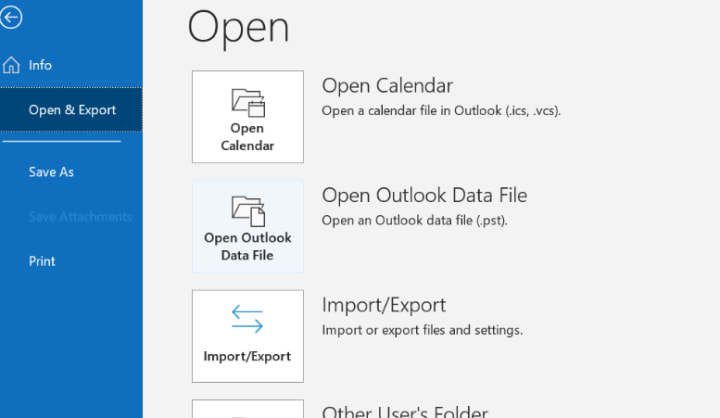
• Browse the required PST file and click Open.
• The PST file will appear in your folder name as Outlook Data File.
Note: If the PST file is corrupted or damaged, then you’re not able to open it in Outlook. In such a case, you need to first repair it. For quick and easy repair process, you can use a professional PST repair tool.
Method 2: Open PST File without Outlook
If you want to transfer your emails to someone who does not have Outlook, then you can convert them into TXT or HTML format. Here are the steps to convert Outlook (PST file) emails into TXT or HTML format:
• Open Microsoft Outlook.
• Select the appropriate email you need to convert into TXT or HTML.
• Select File on top of the screen.
• Choose Save as and select the TXT or HTML option according to your requirement.
• Save the file at your preferred location.
Method 3: Open PST File in Microsoft 365
To open PST file in Microsoft 365, Outlook and Microsoft 365 should be installed on your system and configured with IMAP. If you are not aware of the installation procedure, open the application, go to the File tab, add an account, and provide the login credentials for Microsoft 365. Then, follow the below-mentioned steps to open the PST file in your Microsoft 365 account:
• Go to Control Panel and select Mail.
• Click Show Profiles and select Always use this profile in the Mail Setup dialog box.
• Select Outlook and click OK.
• Open Microsoft Outlook and click on the File tab.
• Click Open & Export and then select the Import/Export option.
• Select Export from the Import and Export wizard and click Next.
• Choose the PST file and click Next.
• You can choose to export the complete PST file or a single mailbox folder in the Export Outlook Data File dialog box.
• Choose a location of the PST file by clicking the Browse option and save the file by clicking OK.
• Click Finish and close Microsoft Outlook.
• To add to Microsoft 365, click Open & Export and then select the Import/Export option.
• Choose Import from another software in the Import and Export wizard and click Next.
• Select the Outlook Data File (.pst) from the Import a File dialog box.
• Click Browse to choose the PST file and click Open.
• Select the Do not insert duplicates option and click Next.
Conclusion
Above, we have discussed different ways to open PST file in Windows 10/11 with or without Outlook. However, if the PST file is corrupted, you cannot open it. In such a case, you need to repair the file. To do so, you can use a professional PST repair tool, like Stellar Repair for Outlook. This tool can repair PST file and recover all its data in just a few steps.




Comments
There are no comments for this story
Be the first to respond and start the conversation.