
How to Make Your Number Private on Android
This article walks you through a few different ways to make your number private, so that when you call someone your phone number isn't displayed on their caller ID.


Important- There are some calls that you can't hide your number from. Toll free services, and 911 emergency services will always be able to see your number, whatever you do. There are also some third-party applications that can allow someone to get around any number obfuscation you put in place, so none of these methods are guaranteed.
A Quick No Caller ID Trick: *67
One of the quickest and easiest ways to hide your number from the person you're calling is to use the *67 trick when you're dialing. That will make your number register as 'Private' to the person you call. You'll have to do it for every call you want to make with a hidden number, but if you only need to hide your number now and then, this is a good option for keeping your number private.
Use the Hide Number No Caller ID Trick
Almost all Android devices on most mobile carriers offer the option of hiding your number by default, making it unnecessary to input *67 every time you call. Here's how to block your cell phone number using your phone's built in Hide Number feature.
NOTE-if you don't have the option to Hide Number after following the steps below, it's possible your carrier or device doesn't support it.
- Select the Phone (or Telephone) icon in your app menu or at the bottom of your device's home screen.
- Select the three-dot menu icon in the top-right of the window.
- Select Settings.

- Select Calls.
- Select Additional settings.

- When it's finished loading, select Caller ID.
- Select Hide Number from the pop-up menu.
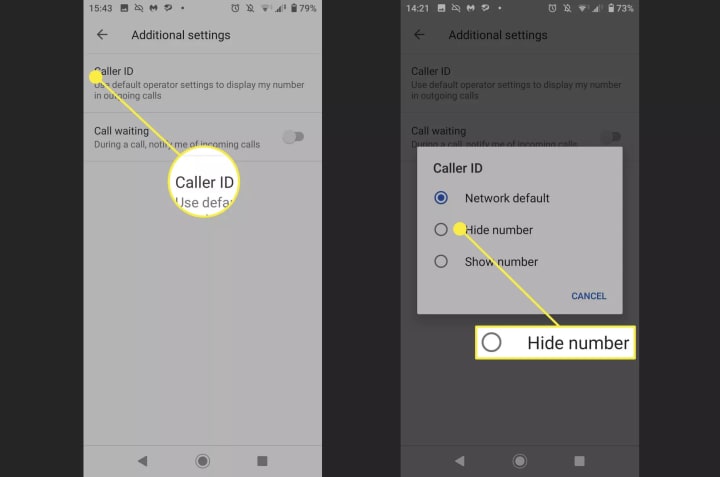
This no caller ID trick will make it so that your number never shows up when you ring someone, instead displaying as Blocked, Private, or No Caller ID. If you want your number to display again temporarily, you can preface the number you're calling with *82. Alternatively, if you want to turn off your number block, simple repeat the steps above and at the last one, select Network Default or Show
Number.
ASK YOUR CARRIER TO BLOCK YOUR NUMBER DIRECTLY
If your device doesn't have the option to block your number directly, then you mad need to ask your carrier to do it for you. Sometimes this can be completed with the official application.
Verizon App: Instructions for how to block your cell phone number on Verizon.
AT&T App: Details on how to make your number unknown on AT&T.
Sprint App: A guide on how to call someone without showing your number on Sprint.
T-Mobile App: Information on how to call someone anonymously on T-Mobile.
If you don't find that your device is supported by the above call blocking services within the official apps, try contacting your carrier directly. They can usually block your ID for you.
USE A BURNER NUMBER
If none of the above no caller ID tricks work, then you can buy for a prepaid phone, often referred to as a burner or disposable number. There are many paid-for services that let you route your calls, texts, and picture messages through a temporary number so that it displays to who you're calling instead of your real one.
Block your number by default on iOS and Android
If you own an iPhone or Android device, automatically block your number by adjusting one simple setting. Your number will appear private for every call you make.
To block your number on iPhone:
1. Go to Settings, Tap Phone
2. Press Show My Caller ID
3. Use the toggle switch to show or hide your number
Note: Verizon Wireless does not allow this feature, but I’ll show you what you can do about that in the next step.
To block your number on Android:
1. Open the Phone app, and open the Menu
2. Select Settings, then Call settings
3. Click on Additional settings, then Caller ID
4. Choose “Hide number” and your number will be hidden
To reverse this feature on Android, choose “Show number” or “Network default”
You can also use *82 to unblock your number in case your call gets rejected temporarily. Some providers and users will automatically block private numbers, so using this code will help you bypass this filter.
Blocking your number can go a long way in stopping annoying robocalls. Did you notice less in the last month? Tap or click to see why robocalls are going to ramp back up very soon.
About the Creator
Keep reading
More stories from Student Matters and writers in Lifehack and other communities.
5 Places to Get Free eBooks and Audiobooks
when Oprah chose two Charles Dickens novels (A Tale of Two Cities and Great Expectations) as her book club selections – perhaps her final book club selections at that – the matter became a national priority. Luckily, it’s easy to find these books and millions more to read on your computer, smartphone, ebook reader or tablet at no charge. You may even be able to have someone read the books aloud for you, equally free.
By Student Matters5 years ago in Lifehack
Federated AI Discovery Engine
The Federated AI Discovery Engine is a computational framework designed to support biomarker discovery, evaluation, and validation in distributed data settings, where patient-level data are housed across multiple Trusted Research Environments (TREs) and cannot be centralised. The system enables consistent analytical workflows to be executed across institutions and geographies while preserving local data governance, security, and regulatory constraints.
By James @ Kode4 days ago in Lifehack
A Historic Declaration
We the People of the Husbands of the United States of America, in Order to form a more perfect Union, and I mean you...with me...establish Justice, insure domestic Tranquility, provide for the common defence, promote the general Welfare, and secure the Blessings of Liberty to ourselves, after Puberty, do ordain and establish this Declaration of Co-Dependence.
By Gerard DiLeo4 days ago in Humans



Comments
There are no comments for this story
Be the first to respond and start the conversation.