
How to Hide Apps on Your iPhone: 4 Best Methods
Secrets Revealed: The Ultimate Guide to Hiding Apps on Your iPhone!

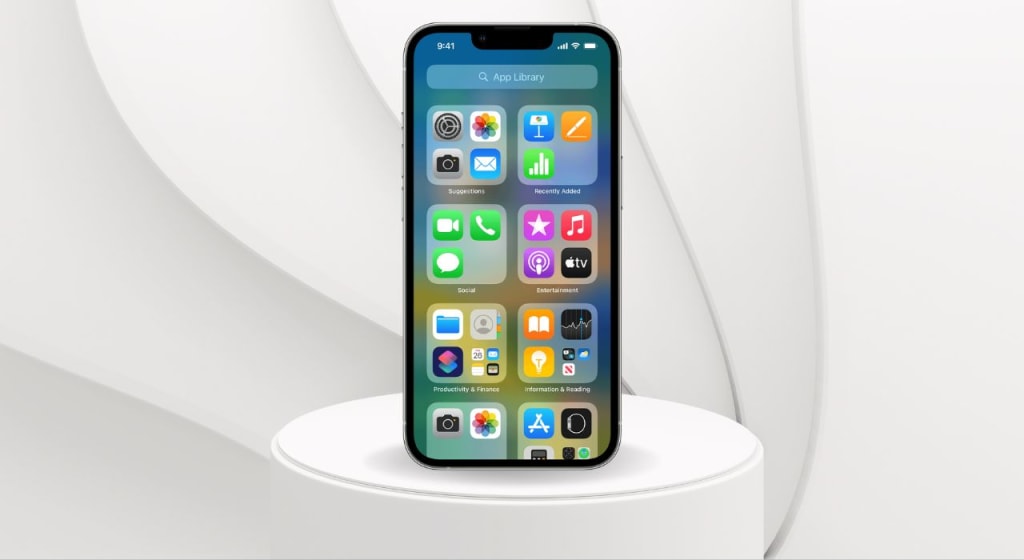
As mobile devices have become increasingly important in our daily lives, the need for privacy and security has become more pressing. iPhones, like many smartphones, store sensitive information in the form of apps. There may be times when you wish to hide certain apps on your iPhone for privacy or organizational purposes. In this article, we will provide a comprehensive guide on how to hide apps on your iPhone, step by step.
Method 1: Use the App Library
One of the newest features of iOS 14 is the App Library, which is an automatically generated folder that stores all of your apps. To hide an app from the Home screen, you can move it to the App Library. Here's how:
- Long-press on the app icon you wish to hide until the menu appears.
- Select "Remove App."
- Choose "Move to App Library."
The app will now be hidden from your Home screen but can be found in the App Library by swiping right from your last home screen.
Method 2: Create a Folder
Another way to hide apps on your iPhone is to create a folder and place the app inside. Here's how:
- Long-press on an app icon to enter "Jiggle mode."
- Drag the app icon on top of another app icon to create a folder.
- Rename the folder to something generic, such as "Utilities" or "Tools."
- Drag the app you wish to hide into the folder.
The app will now be hidden within the folder you just created. To find the app, you will need to open the folder.
Method 3: Use Restrictions
If you want to take app hiding to the next level, you can use Restrictions. Restrictions are a feature in iOS that allows you to restrict access to certain apps and features. Here's how to use Restrictions to hide an app:
- Go to "Settings" and select "Screen Time."
- Tap "Content & Privacy Restrictions."
- Enable restrictions if you haven't already.
- Tap "Allowed Apps."
- Disable the app you wish to hide.
The app will now be hidden from your Home screen and cannot be opened unless you go back into "Allowed Apps" and re-enable it.
Method 4: Use a Third-Party App
If you want to hide multiple apps or have more control over how your apps are hidden, you can use a third-party app. Some popular options include App Hider and PrivateMe. These apps allow you to create a secure folder where you can store all of your hidden apps.
Why you Need to Hide Apps on iPhone
There are several reasons why you may want to hide apps on your iPhone:
- Privacy: Privacy is becoming increasingly important in our digital age, especially when it comes to mobile devices. Many apps collect and store a variety of data, such as personal information, location, and browsing history, which can be accessed by third parties. By hiding apps that contain sensitive information, you can help protect your privacy and ensure that your personal data remains secure.
- Security: Some apps may pose a security risk, either due to their content or the potential for unauthorized access. For example, if you have a banking app on your phone, it is important to ensure that it is not easily accessible to anyone who may use your phone. Hiding the app can help to prevent unauthorized access and ensure that your financial information remains secure.
- Organization: Hiding apps can help to improve organization on your phone. If you have a large number of apps, it can be difficult to keep your home screen tidy and easy to navigate. By hiding apps that you don't use frequently, you can help to streamline your home screen and make it easier to find the apps that you need.
Overall, there are many good reasons to hide apps on your iPhone, including privacy, security, and organization. Whether you want to protect your personal information, prevent unauthorized access, or simply keep your home screen tidy, hiding apps can be an effective way to achieve your goals.
Conclusion
In conclusion, there are several ways to hide apps on your iPhone, ranging from simple to advanced. Whether you use the App Library, create a folder, use Restrictions, or a third-party app, you can be sure that your private information is safe from prying eyes.
Check Out: How to Hide Apps on Your iPad
About the Creator
Tech Talk Guy
TechTalkGuy is a tech-focused website dedicated to delivering the latest news, reviews, and expert analysis on the most cutting-edge technology and gadgets.
Keep reading
More stories from writers in Lifehack and other communities.
The Camera Revolution Nobody Saw Coming
I was at a car boot sale last summer when I noticed something odd. A teenager was haggling over a battered Pentax K1000 from 1976. The camera looked ancient, all metal and manual dials, the kind of thing most people would assume belonged in a museum.
By Marcus Briggs5 days ago in Lifehack
The Path to Salvation
The late autumn evening air filled the monk's lungs, but it wasn't the season that chilled his bones. The heavy-handed presence of evil he had sensed upon entering the woods surrounding this mountain village had not bothered to conceal itself from him.
By Made in DNA4 days ago in Fiction


Comments
There are no comments for this story
Be the first to respond and start the conversation.