
How to Download the Amazon Prime Video App for Your Smart TV
Learn how to easily download the Amazon Prime Video app on your Smart TV. Enjoy seamless streaming of your favorite shows and movies.

Amazon Prime Video is wonderful when it comes to streaming your favorite shows and movies, especially if you're using a smart TV. The beauty of watching on a bigger screen just adds to the experience! You may know how to get Amazon Prime video on your computer, But you may have confusion about how to get the Amazon Prime app onto your smart TV. Don’t worry, it’s easier than you might think.
In this guide, we’ll walk you through the steps to download Amazon Prime Video on different smart TVs and give you a little extra info on how to enhance your offline viewing.
Is the Amazon App on a Smart TV?
First things first—Is the Amazon app on a smart TV?
Good news: if you’ve bought a smart TV within the last few years, there’s a solid chance the Amazon Prime Video app is already available or ready for download. Whether it’s Samsung, LG, or Sony, most smart TVs come with popular streaming apps like Amazon Prime Video either pre-installed or available in their app stores.
If your TV is a bit older, don’t worry, we’ve got that covered too. You’ll just need to do a quick check to see if the app’s there or download it from your TV’s app store.
How Do I Download Amazon Prime on My Smart TV?
The downloading process varies depending on your TV brand, but it’s pretty straightforward across the board. We’ll take you through the most popular smart TVs.
Downloading Amazon Prime Video on Samsung Smart TV
1. Turn on your Samsung TV and make sure it's connected to the internet.
2. Head to the Apps section on the Home screen.

3. Use the search bar and type Prime Video.
4. Once it pops up, select it, and click Download or Install.
5. After it installs, open the app and sign in with your Amazon credentials.
Now you have downloaded and installed the Amazon Prime Video app on your smart TV.
Downloading Amazon Prime Video on LG Smart TV
For LG users, here’s how to get the app:
1. Power up your LG TV and make sure your Wi-Fi is on.
2. Go to the LG Content Store (LG’s version of an app store).
3. Type Amazon Prime Video in the search bar.
4. When you find the app, hit Install or Update (If you have already installed it on your TV).

5. Once installed, open the app and sign in with your Amazon account.
Now you’re set to watch your favorite shows in no time!
Downloading Amazon Prime Video on Sony Android TV
Got a Sony Android TV? No worries—it’s just as easy.
1. Turn on your Sony TV and make sure you’re connected to the internet.
2. Go to the Google Play Store (this is where you’ll find apps for Android TVs).
3. Search for Amazon Prime Video.

4. When you find it, click Install.
5. Open the app after installation and log in with your Amazon details.
And just like that, you’re all set!
Downloading Amazon Prime Video on Other Smart TVs
If you’ve got another smart TV brand like Panasonic, Hisense, or Vizio, the process is similar. Head to the app store on your TV, search for Amazon Prime Video, and hit Install. And if your TV doesn’t have the app or the app store you need, don’t sweat it—you can have a better solution: Using MovPilot Amazon Prime Video Downloader as your movie helper.
MovPilot Amazon Prime Video Downloader: The Best Solution for Offline Viewing
Let’s say your smart TV doesn’t support Amazon Prime Video, or maybe you just want the flexibility to watch your favorite shows and movies offline, without worrying about streaming quality or internet connection. That’s where MovPilot Amazon Prime Video Downloader stands out. With this handy tool, you can download Amazon Prime content directly to your computer and transfer it to any device—like your smart TV, phone, or tablet.
Why Choose MovPilot Over the Amazon Prime App?
- No App Restrictions: When you download content from the Amazon Prime app, you're tied to that app—you can’t transfer the files to other devices. With MovPilot, you can move your downloaded videos to any device.
- No Expiration: Amazon Prime downloads expire after a certain time, but with MovPilot, your downloaded content is yours to keep forever. Even if your subscription expires, you can still watch the content you’ve already downloaded—no strings attached!
- Higher Quality: MovPilot lets you download content in 1080p HD, so you’re not sacrificing quality when watching offline.
- No Regional Restrictions: MovPilot bypasses geo-blocks, so you can download shows and movies regardless of regional restrictions.
Here’s a quick and easy guide to downloading Amazon Prime videos using MovPilot Amazon Prime Video Downloader:
1. Download and install MovPilot on your computer.
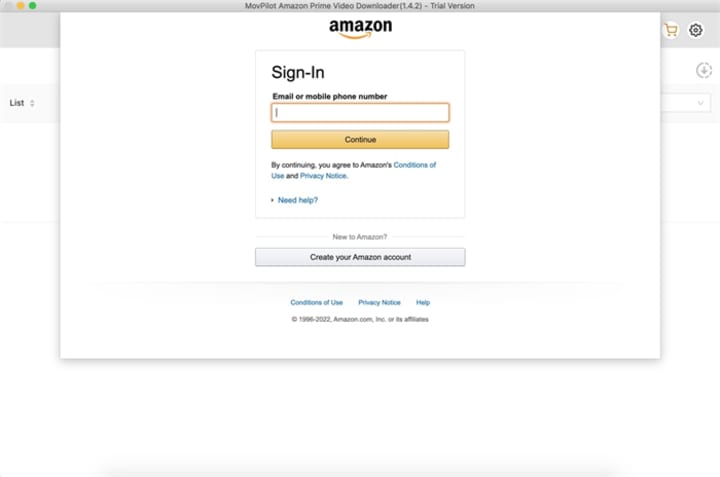
2. Log in to your Amazon Prime account within the MovPilot app.
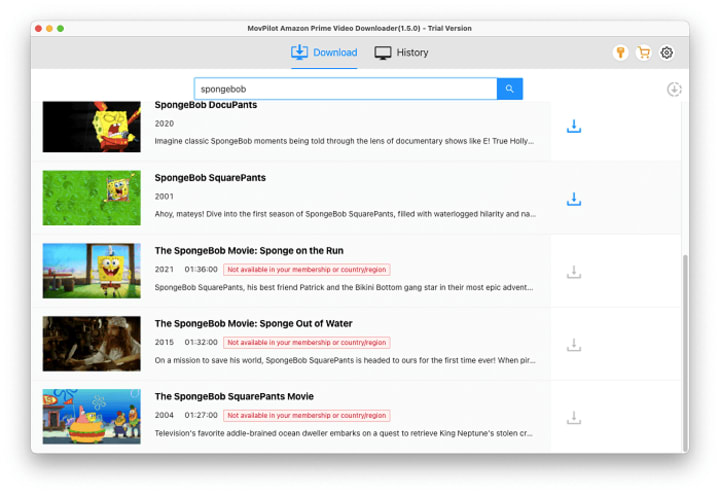
3. Search for the movie or show you want to download.
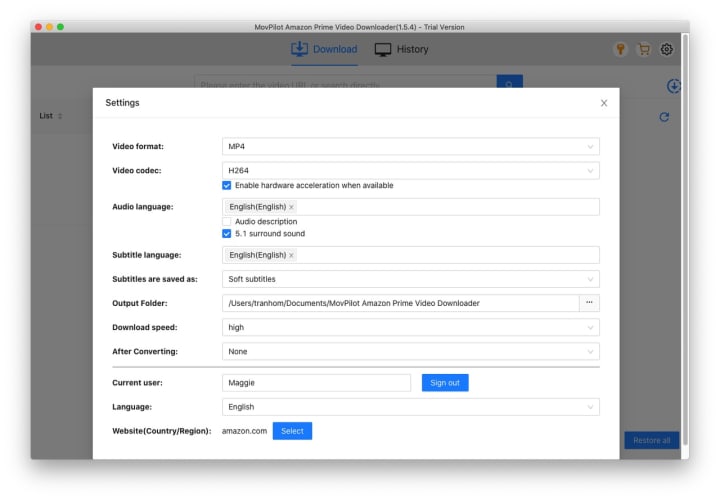
4. Choose your preferred video quality/output format.
5. Hit the Download button, and MovPilot will save the file to your output folder.
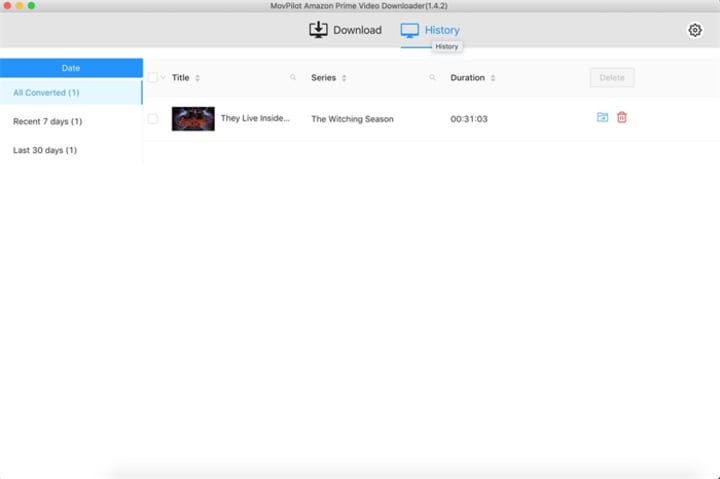
6. Transfer the file to your smart TV using a USB driver or stream it from your computer.
Now you’ve got offline access to your favorite Amazon Prime content, without needing the Amazon app or worrying about expiration dates!
Conclusion
Downloading Amazon Prime Video on your smart TV is easy with our guide, plus with MovPilot Amazon Prime Video Downloader, whether your TV supports the app directly or not, you can enjoy your favorite content without the usual streaming limitations. You have the freedom to watch what you want, when you want, even after your subscription expires. Why not give MovPilot a try? And take your Amazon Prime streaming to the next level!
About the Creator
NancyChiu_
A guy who likes to share
Keep reading
More stories from NancyChiu_ and writers in Lifehack and other communities.
How to Seamlessly Sync Your iPod Classic with Apple Music
Apple Music’s amazing library has captivated music lovers everywhere! However, if you’re still attached to your reliable iPod Classic, you might think you’re missing out. Sadly, Apple Music’s DRM restrictions make it impossible to sync directly with the iPod Classic. But don’t fret; we’re here to guide you on how to sync your iPod Classic with Apple Music. You’ll be enjoying your playlists on your Classic before you know it!
By NancyChiu_about a year ago in 01



Comments
There are no comments for this story
Be the first to respond and start the conversation.