
How do I print from an Android phone to a Canon printer via USB?
Steps to connect the printer to any device and take your printouts

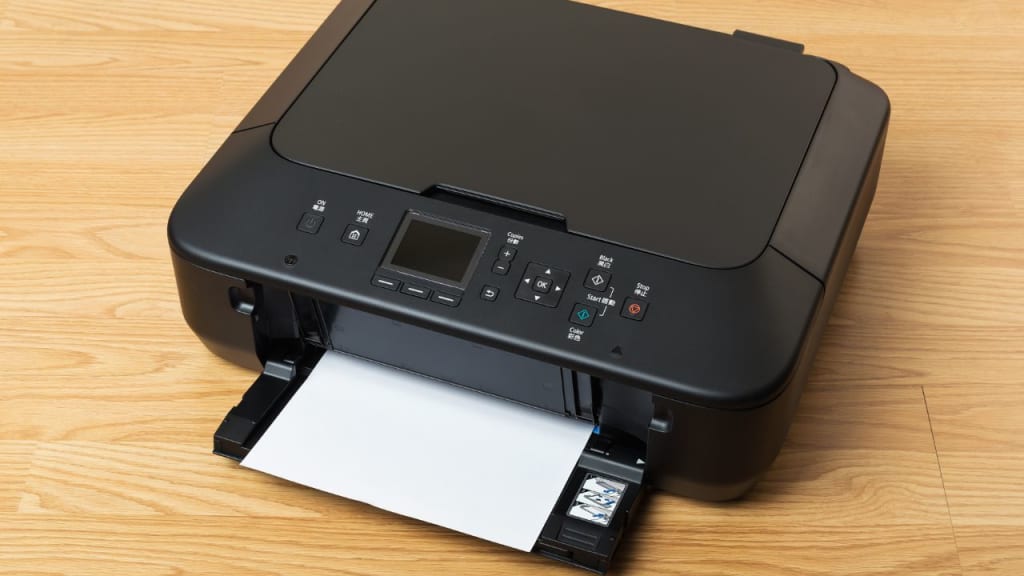
Canon is a popular printing brand and is famous for its speed and quality. You can take a lot of printouts at a very good speed with a Canon device. New Canon printer models are multi-functional. You can easily take printouts and scan documents using a single device. Some devices also offer fax services. These devices are very easy to use as they have a simple interface. You can connect the printer to any device and take your printouts.
Connecting Android phone to Canon printer via cable
You can connect the Android phone to your Canon printer and take the printouts easily. Using this connection, you don’t have to transfer the files to another device for taking printouts. You can take pictures from your phone and get the printout immediately. You can connect the printer to the phone using a cable or wirelessly. To connect the phone to the printer via cable; get an adapter.
Every printer provides a USB cable with it. But you can only use that cable on PCs. If you want to connect the phone to a PC then purchase an adaptor. Connect the phone to the adaptor and then connect it to the printer’s USB port. Your phone will show connected status.
Steps to print from an Android device
- Go to the page or file you want to print
- Tap on the More (three dots) button
- Select Print option
- You will see available devices
- Select your printer
- To make any changes; tap on the down arrow
- After changing print settings, hit on the Print button
Your Canon printer will start printing the document or image.
Connecting Android phone to Canon printer wirelessly
Canon printers offer good wireless printing services. If you want to print a file directly from the phone then use a wireless connection. You can add the Canon printer to the network and then take printouts from the phone easily
Adding Canon printer to the network
- Go to your Canon printer and enable the Wi-Fi button
- The printer Wi-Fi will start blinking
- Go to the printer screen and check for available networks
- Select your Canon printer from the list
- Hit on Connect button and your Canon printer will be connected to the network
Connecting Android phone to Canon printer on Wi-Fi
After connecting the Canon printer to the network; add your phone to the same network. You can only take printouts from your Canon device if both devices are on the same network. After connecting the phone to the same network, take your printouts.
- Go to your Android phone
- Open the image you need to print
- Go to the More option and select the Share option
- Tap on the Print button
- You will see available printers
- Select your Canon printer
- Hit on the Print button
Your Canon printer will provide you with the print out immediately.
Why is the Canon printer not working with Android devices?
New Canon devices offer easy connection for PC as well as for phone devices. You can easily connect the phone to the Canon device and take the printouts. But sometimes, users can get connection issues with the printer.
Reset your Canon printer
Your printer can show errors when you have made some invalid changes to the settings. Some users reported that they are getting errors after changing the printer settings. To fix the Canon error, revert the recent changes. But users often forget the default settings. To fix the error, go for a factory reset Canon printer.
Steps for Canon printer factory reset:
- Go to your Canon printer and hit on the Setup button
- Use the arrow key and select Device settings
- Hit on OK button
- Use a navigation key and tap on Reset settings
- Tap on the OK button
- Use the arrow key and select Reset All
Hit the OK button and your Canon printer will reset to factory settings. After resetting the Canon printer; you have to reconfigure it to your Android device. Now open the document and give a print command.
Check for Canon printer device
Whether you are taking printouts from a PC or phone; you need a printer driver. This driver is like a connection bridge. Without the driver, your Canon printer won’t receive any print commands from your phone. Check for the available printer driver for your phone. Go to the Play Store and install the driver. After installing the driver, reconnect the printer to the phone and now try to take your printouts.
Check for the connection
If you are connecting the printer to the phone using cable then check for any damage. Eject the adapter from both devices and inspect for cuts or kinks. If the adapter seems loose then get a new one. You can also get this error when you are using a low-speed cable. Purchase a high-speed cable for your Canon printer connection. For wireless printing, keep your phone nearby to the printer for better connection.
About the Creator
Emilee Boone
Fix Brother wireless printer keeps going offline, unpack your printer from the package. Connect the necessary cables. Turn the Printer ON and access the control panel to choose the network settings.
Keep reading
More stories from Emilee Boone and writers in Lifehack and other communities.
How to Troubleshoot The Error Code 0xf1 on Epson Printer?
Epson is a popular Japanese multinational industry famous for manufacturing electronics goods. This company also manufactures a wide range of printer devices. These devices offer a simple interface and allow you to connect them with any device. New Epson printers are multifunctional; you need a single device to take print out, scan or copy the document. These devices are very reliable and simple to use. But many users still face error code 0xf1 while using Epson printers.
By Emilee Boone3 years ago in Lifehack
How a Travel Companion Can Reduce Stress and Improve Mobility
Navigating unfamiliar routes, managing schedules, and maintaining safety can turn a simple trip into a challenge. This is where a travel companion makes a real difference. For seniors, having a travel companion elderly ensures that travel is not only enjoyable but also safe, comfortable, and stress-free.
By Lola Gold Finchabout 21 hours ago in Lifehack
How to Choose the Right Moving Company in Boise, Idaho
Moving in Boise, Idaho, has become increasingly common as the city continues to grow and attract new residents. While Boise offers a balanced lifestyle and accessible neighborhoods, relocating within or into the area still requires thoughtful planning. Choosing the right moving company and understanding local conditions can make a significant difference between a smooth transition and a stressful experience.
By House Doctora day ago in Lifehack


Comments
There are no comments for this story
Be the first to respond and start the conversation.