
Google Brings Photo Support in AI Mode
What Is It and How to Use It

Google Brings Photo Support in AI Mode: What Is It and How to Use It
Google has recently made significant progress toward personalizing and practicalizing artificial intelligence. With its latest update, Google is rolling out photo support in AI Mode, allowing users to interact with images just as seamlessly as they do with text. That means something, and here's how you can take advantage of it:
What Is Photo Support in AI Mode?
Photo support in AI Mode is a new feature that gives users access to Google's AI-powered tools, such as Gemini (formerly Bard), Google Lens, and other AI-enabled Google services, for uploading and analyzing photos. It basically lets you ask questions about pictures, get context, or even make new content from what's in a picture. Think of it like this: instead of typing out a question like "What kind of flower is this?"—you can now just upload the photo, and Google’s AI will identify it for you. It's a game-changer for how we use AI on a daily basis and a visual-first interaction.
Key Features
• Image Recognition: Identify things like products, animals, landmarks, and objects quickly.
o Text Extraction: Pull text from an image (like a document or menu) using OCR (optical character recognition).
o Contextual Insights: Based on the image, ask follow-up questions about the image, such as what the history of a landmark is or how to make recipes from a food photo.
o Use the photo as a prompt to create imaginative captions, stories, or social media posts.
How to Use It
Using photo support in AI Mode is simple and integrated into several Google products. Here’s a quick guide:
Through Google Gemini (AI Assistant)
• Launch the Gemini app or use the Google app to get there.
• Tap the image icon that is located next to the input bar.
• Take a picture or upload it.
• Ask a question about the image, such as, "What's going on here?" or "Can you tell me more about this artwork?").
Using Google Lens
• Open the Google Lens app or access it via Google Photos or Google Search.
• Either pick a picture or take a new one.
• Lens will analyze it and provide relevant info, links, and suggestions.
• You can tap “Ask Gemini” for deeper analysis using AI.
Google Photos Integration
• When browsing your photos, tap on the new “Ask AI” or “Insights” button.
• Ask questions about that image—like dates, objects in it, or request a description.
Why It Matters
Multimodal AI—AI that can comprehend and generate both text and images—is reflected in this upgrade. Photo support is more than just a novelty because it is supported by Google's vast data and deep learning models. It's a tool that makes using technology feel more natural and human. For students, travelers, creators, and everyday users, the ability to simply "show" instead of "tell" opens up new possibilities in how we search, learn, and create.
Final Thoughts
Google’s AI Mode with photo support marks an exciting evolution in how we use artificial intelligence. It is quicker, more visual, and more in tune with how we communicate in real life. You now have a powerful visual assistant in your pocket, allowing you to identify a rare bird in your backyard or translate a street sign in a foreign country. Expect even more capabilities that bridge the gap between images and understanding as this feature continues to roll out and improves, bringing us closer to AI that sees the world in the same way we do.
This approach allows AI mode to access a broader and deeper range of information compared tp traditional text-based searches, resulting in more nuanced and contextually relevant answers.
About the Creator
Keep reading
More stories from Avishek Das and writers in Lifehack and other communities.
'BLACKMAIL'
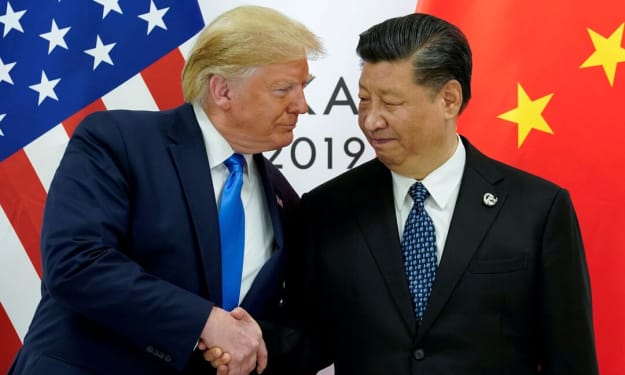
How China Plans to Fight Trump’s 50% Tariff ThreatPrevious U.S. President Donald Trump has once again made headlines with a bold economic proposal. In recent statements, Trump suggested that if he returns to office in 2025, he may place tariffs of up to 50% on goods imported from China. This could have a big impact on global trade, the U.S. economy, and especially on China. China, on the other hand, is not content to remain silent; it is already planning its response. In this article, we’ll look at:
By Avishek Das10 months ago in Journal
Numerology Leads to Success
Success means different things to different people. For some, it’s financial freedom. For others, it’s fulfilling relationships, creative expression, or a sense of purpose. No matter how you define it, most of us share the same question: How do I align my efforts with what I’m truly meant to do? This is where numerology comes in.
By Anthony Bahamonde2 days ago in Lifehack
Why South Korea Data Center Market Are Quietly Driving the Digital Future
Why South Korea’s Data Center Landscape Is Getting More Attention Than Ever When people talk about South Korea’s technology strengths, they usually mention semiconductors, smartphones, high-speed internet, and innovation. What often goes unnoticed is the invisible infrastructure that makes all of this possible — data centers.
By Kim Soo hyunabout 2 hours ago in Lifehack


Comments
There are no comments for this story
Be the first to respond and start the conversation.