
AI Tools For Generating iOS App UI Designs
Design stunning iOS UIs in seconds, not hours

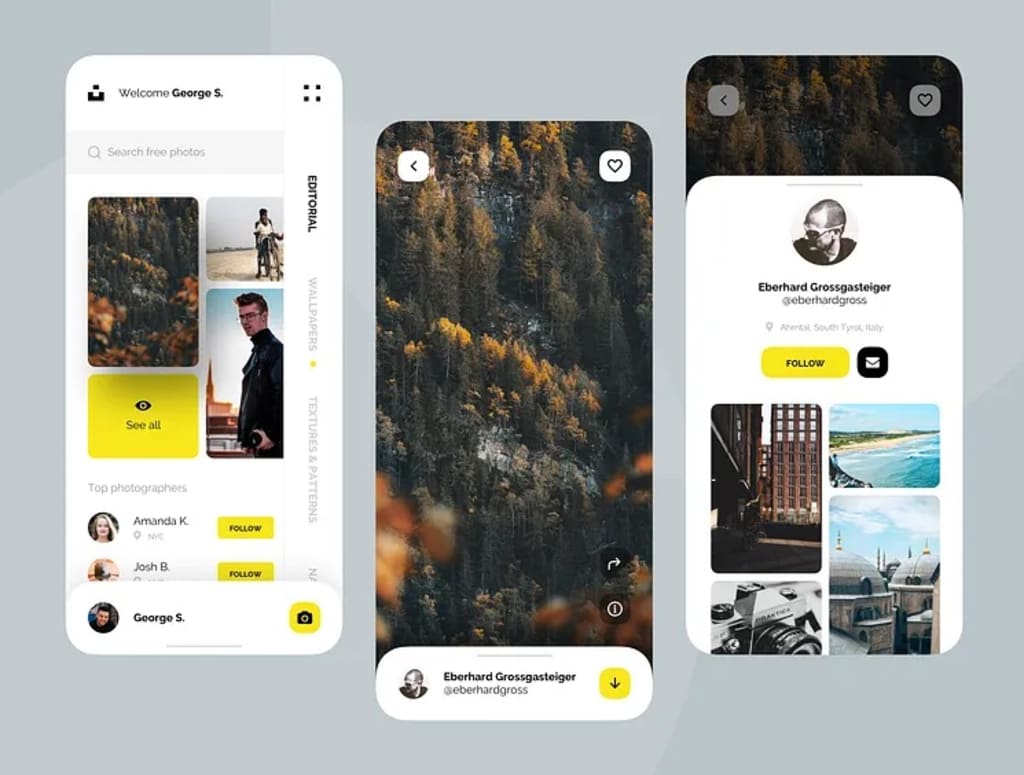
Step-by-step guide to using AI tools for generating iOS app UI designs, along with recommendations, workflows, and best practices to ensure your designs align with Apple’s Human Interface Guidelines:
1. Top AI Tools for iOS App UI Design
Here are the best AI-powered tools tailored for iOS app design:
A. Uizard (Beginner-Friendly)
Features:
Generates UI mockups from text prompts (e.g., “Create a fitness app home screen for iOS”).
Drag-and-drop editor with pre-built iOS components (tab bars, navigation bars).
Auto-design mode for instant theme customization.
Best For: Rapid prototyping, non-designers.
Pricing: Free tier available; Pro starts at $12/month.
Link: Uizard.io
B. Galileo AI (Advanced)
Features:
Creates high-fidelity iOS UI designs from text descriptions.
Generates copy, icons, and images aligned with iOS aesthetics.
Supports dark/light mode variants.
Best For: Developers and designers needing polished, ready-to-code interfaces.
Pricing: Waitlist access (beta phase).
Link: Galileo AI
C. Figma + AI Plugins
Features:
Use AI plugins like Genius or Magician to auto-generate iOS layouts, icons, and buttons.
Built-in Apple Design Resources (SF Symbols, iOS UI kits).
Best For: Teams already using Figma for collaborative design.
Pricing: Free for starters; Professional plans from $12/editor/month.
Link: Figma AI Plugins
D. Adobe Firefly (Integration with XD)
Features:
AI-powered asset generation (icons, gradients) for iOS apps.
Text-to-vector graphics compatible with Adobe XD.
Best For: Users in the Adobe ecosystem.
Pricing: Included in Creative Cloud ($54.99/month).
Link: Adobe Firefly
2. Step-by-Step Workflow to Design iOS UI with AI
Follow this process to create iOS-friendly designs:
Step 1: Define Your App’s Purpose
Write a clear prompt for the AI tool (e.g., “Travel app with a clean iOS-style home screen featuring a search bar, cards for destinations, and a bottom tab bar”).
Step 2: Generate the Initial Design
Input your prompt into Uizard or Galileo AI to auto-generate a layout.
Example Uizard output:
iOS UI mockup (Include a placeholder for visual reference)
Step 3: Refine for iOS Guidelines
Ensure compliance with Apple’s Human Interface Guidelines:
Use SF Pro fonts (Apple’s system font).
Maintain a 44x44pt tappable area for buttons.
Add iOS-specific components (e.g., segmented controls, pickers).
Tools like Figma’s iOS UI Kit can help here.
Step 4: Customize with AI Assistants
Use AI plugins in Figma to:
Auto-generate icons (e.g., “Generate a Settings icon in SF Symbols style”).
Apply consistent spacing (8px grid system).
Optimize for iPhone screen sizes (e.g., 390x844pt for iPhone 15).
Step 5: Export for Development
Export assets in @1x, @2x, @3x resolutions.
Share specs with developers via Figma Dev Mode or Zeplin.
3. Best Practices for iOS AI-Generated Designs
Stay On-Brand: Use AI to align with Apple’s minimalist, fluid design language.
Test Responsiveness: Use Previewed or Xcode Simulator to check layouts on all iPhone models.
Avoid Overcrowding: AI tools may add too many elements—simplify for clarity.
Add Micro-Interactions: Use tools like Rive or Lottie for iOS-like animations.
4. Limitations of AI Tools
Lack of Customization: AI may not handle highly unique interactions.
Accessibility Gaps: Always manually check contrast ratios and VoiceOver compatibility.
Template Dependency: Outputs can feel generic without tweaking.
5. Recommended Resources
Apple’s HIG: Human Interface Guidelines
iOS UI Kits:
Figma iOS UI Kit
Adobe XD iOS Toolkit
Tutorials:
“Designing iOS Apps with Uizard” (YouTube)
“Figma Auto Layout for iOS” (Udemy course)
6. Final Checklist Before Handoff
✅ Test on Xcode Simulator.
✅ Validate against Apple’s HIG.
✅ Ensure @3x assets are exported.
✅ Add motion prototypes for complex transitions.
By combining AI tools with Apple’s design principles, you can rapidly create polished, user-friendly iOS app interfaces. Start with Uizard for quick drafts, refine in Figma, and always validate with real device testing! 🚀
About the Creator
Jacky Kapadia
Driven by a passion for digital innovation, I am a social media influencer & digital marketer with a talent for simplifying the complexities of the digital world. Let’s connect & explore the future together—follow me on LinkedIn And Medium
Keep reading
More stories from Jacky Kapadia and writers in Lifehack and other communities.
Powering the Planet: The Latest Innovations in Green Energy
How Humanity is Harnessing Clean Energy to Combat Climate Change 🌍 With climate change accelerating, the global shift toward green energy has never been more urgent. From solar farms in deserts to offshore wind turbines, innovators are redefining how we power our world. This article explores the latest breakthroughs, practical applications, and future potential of green energy, answering why it matters, how it works, where it’s thriving, and what benefits it delivers.
By Jacky Kapadia10 months ago in Lifehack
Rustic Country Farmhouse Cottage Bedroom Furniture Guide
When it comes to charm and comfort, rustic country farmhouse cottage furniture isn't just restricted to living rooms; it is an excellent option for many people looking to achieve a relaxed and homely feel in their bedrooms, too. Wood is at the centre of this unique design trend as it allows you to achieve a natural and earthy finish that is welcoming and universal.
By Picture Perfect Home6 days ago in Lifehack




Comments
There are no comments for this story
Be the first to respond and start the conversation.