
Why Am I Not Receiving My Emails On My iPhone?
Troubleshooting guide to fix not receiving emails

Is your email not working on your phone? This can be incredibly frustrating, especially if you rely on email for work or personal communication. Fortunately, there are several common issues that could be preventing your email from syncing or loading. In this article, we'll show you step-by-step solutions to fix the problem and get your email back up and running on your phone.
Why Is My Email Not Working on My Phone?
Check Your Internet Connection
The first thing to check when you're not receiving emails on your phone is your internet connection. A stable internet connection is crucial for receiving emails in real-time.
1. How to Check Your Internet Connection
- Ensure Wi-Fi or mobile data is turned on.
- Try opening a webpage to see if your internet is working.
- Restart your router if you’re using Wi-Fi.
- Toggle airplane mode on and off to reset connections.
2. Review Your Email Settings
Incorrect settings in your email app can also lead to issues with receiving emails. Make sure your account settings are configured correctly.
- Key Email Settings to Verify
- Email address and password are entered correctly.
- Incoming server settings (IMAP/POP) are configured properly.
- Sync settings are enabled for your email account.
3. Check Storage Space on Your Device
If your phone is running low on storage space, it may prevent new emails from being downloaded. Checking your device’s storage can help resolve this issue.
- How to Free Up Storage Space
- Delete unused apps and files.
- Clear cache for your email app.
- Transfer photos and videos to cloud storage.
4. Check Your Spam or Junk Folder
Sometimes, legitimate emails can end up in your spam or junk folder due to email filters. Always check these folders to ensure you’re not missing important messages.
5. How to Check Spam or Junk Folders
- Open your email app and navigate to the spam or junk folder.
- Look for any emails that should not have been filtered.
- Mark them as "Not Spam" to ensure future emails are delivered to your inbox.
6. Update Your Email App
Using an outdated email app can lead to various issues, including problems with receiving emails. Ensure that your email application is updated to the latest version.
- Steps to Update Your Email App
- Go to your app store (Google Play Store or Apple App Store).
- Search for your email app.
- If an update is available, tap “Update.”
7. Contact Your Email Service Provider
If you’ve tried all the previous steps and still can’t receive emails, it may be time to reach out to your email service provider. They can help identify server-side issues or outages affecting email delivery.
How to Contact Your Email Service Provider
- Visit the official website of your email provider.
- Look for support or contact options.
- Provide them with details about your issue for assistance.
Final Thoughts
In conclusion, not receiving emails on your phone can be a frustrating experience, but it’s often solvable with a few troubleshooting steps. By checking your internet connection, verifying your email settings, ensuring adequate storage space, and keeping your email app updated, you can resolve most issues. If all else fails, don’t hesitate to contact your email provider for further assistance.
____________________________________________________
### FAQ: **Email Not Working on iPhone? Common Troubleshooting Tips**
1. Why is my email not syncing on my iPhone?**
**Answer**: There are several reasons why your email might not sync on your iPhone, including poor internet connectivity, server issues, or incorrect email settings. First, check your Wi-Fi or mobile data connection, ensure your email settings are correct, and verify that your email account is set to sync properly in your iPhone’s settings.
2. How do I fix email not working on my iPhone?**
**Answer**: If your email isn’t working on your iPhone, try the following steps:
1. **Check your internet connection**: Ensure your iPhone is connected to Wi-Fi or cellular data.
2. **Restart your iPhone**: A simple restart may resolve syncing issues.
3. **Update the Mail app**: Make sure you're using the latest version of the Mail app and iOS.
4. **Check your account settings**: Go to Settings > Mail > Accounts, and ensure your email account is set up correctly.
5. **Remove and re-add your email account**: If all else fails, remove your account from Settings > Mail > Accounts, then add it back.
3. How can I fix "Cannot Get Mail" on my iPhone?**
**Answer**: If you see the "Cannot Get Mail" error on your iPhone, it could be due to incorrect email settings or an issue with your email provider. To resolve this:
1. **Check your email settings**: Verify that your incoming (IMAP/POP) and outgoing (SMTP) server settings are correct.
2. **Reconnect to the internet**: Ensure that your phone has a stable internet connection.
3. **Check your email provider's status**: Sometimes the issue is on the provider's end (e.g., Gmail, Outlook), so check their support page for any outages.
4. **Reset email account**: Remove and re-add the email account in Settings > Mail > Accounts.
4. Why is my email not sending on my iPhone?**
**Answer**: If your email isn't sending from your iPhone, it may be due to server issues, a full outbox, or incorrect SMTP settings. Try these fixes:
1. **Check your internet connection**: Make sure you have a stable Wi-Fi or cellular data connection.
2. **Check SMTP settings**: Ensure your outgoing mail server settings are correct in Settings > Mail > Accounts > [Your Email Account] > SMTP.
3. **Check your email app**: Restart the Mail app or force close it and reopen it to see if the issue resolves.
4. **Check the Outbox**: If there’s an email stuck in your Outbox, try to resend or delete it.
5. How do I fix email not updating on my iPhone?**
**Answer**: If your email isn’t updating or syncing properly, follow these steps:
1. **Check your sync settings**: Go to Settings > Mail > Accounts > Fetch New Data. Make sure the "Push" option is enabled for your email account, or set it to "Fetch" if you want emails to update periodically.
2. **Restart your iPhone**: A simple restart can often resolve syncing issues.
3. **Re-add your email account**: Remove and re-add your account in Settings > Mail > Accounts.
6. Why can't I add my email account to my iPhone?**
**Answer**: If you're unable to add an email account to your iPhone, the issue could be with your internet connection or the email provider's settings. Try these steps:
1. **Check your internet connection**: Ensure you have a working internet connection, either Wi-Fi or cellular data.
2. **Check email provider settings**: Make sure you're using the correct server settings (IMAP/POP for incoming mail and SMTP for outgoing).
3. **Update iOS**: Ensure your iPhone is running the latest iOS version by going to Settings > General > Software Update.
7. How do I reset email settings on my iPhone?**
**Answer**: To reset your email settings on your iPhone:
1. Go to **Settings** > **Mail** > **Accounts**.
2. Select the email account you want to reset.
3. Tap **Delete Account** and then confirm.
4. Re-add the email account by going to **Settings** > **Mail** > **Accounts** > **Add Account**.
This can fix issues related to incorrect settings or corrupted configurations8. How do I troubleshoot email issues with specific providers (Gmail, Outlook, etc.)?**
**Answer**: If your email provider (like Gmail or Outlook) isn’t working properly on your iPhone, check the following:
1. **Ensure your login credentials are correct**.
2. **Check the provider's status page** for service outages.
3. **Verify settings**: Make sure your email provider's IMAP/POP and SMTP settings are properly configured.
4. **Enable two-factor authentication (if applicable)**: Some providers require two-factor authentication (2FA) to access email on mobile devices, so make sure it’s set up correctly.
9. Why is my email app crashing on my iPhone?**
**Answer**: If the Mail app keeps crashing, it may be caused by a bug, outdated software, or a large volume of emails. Try these solutions:
1. **Update iOS**: Ensure you are running the latest version of iOS.
2. **Close and reopen the app**: Double-tap the Home button (or swipe up from the bottom on iPhone X or later) and swipe away the Mail app to close it.
3. **Clear email cache**: Try removing and re-adding your email account.
4. **Free up space**: If your iPhone storage is full, try deleting unnecessary files to free up space.
10. How can I manage multiple email accounts on my iPhone?**
**Answer**: To manage multiple email accounts:
1. Go to **Settings** > **Mail** > **Accounts**.
2. Tap **Add Account** and follow the instructions to add more accounts.
3. You can switch between accounts in the Mail app by tapping the "Mailboxes" button and selecting the inbox for the account you want to view.
Why does my iPhone Mail app keep asking for my password?**
**Answer**: If your iPhone repeatedly asks for your email password, it could be due to incorrect login credentials or a connection issue. Here’s how to fix it:
1. **Check your login details**: Ensure that your email address and password are correct.
2. **Re-enter your password**: Go to **Settings** > **Mail** > **Accounts** > [Your Account] > **Re-enter your password**.
3. **Verify your email settings**: Ensure your email’s IMAP/POP and SMTP settings are correct.
4. **Check for two-factor authentication**: If you’ve enabled two-factor authentication, make sure your email provider allows app-specific passwords or use an app like Gmail’s to reauthenticate.
12. How can I fix email not downloading attachments on my iPhone?**
**Answer**: If email attachments aren’t downloading:
1. **Check your internet connection**: Ensure you're connected to Wi-Fi or have mobile data enabled.
2. **Check iPhone storage**: If your device is low on storage, it may prevent attachments from downloading.
3. **Try a different email app**: Sometimes the default Mail app has trouble downloading certain attachments. Try using your provider’s app (e.g., Gmail, Outlook) to download attachments.
About the Creator
Keep reading
More stories from Support-team | for assistance 1-85O-923-O38O and writers in Journal and other communities.
How do I fix email not working on my iPhone
Is your email not working on your phone? This can be incredibly frustrating, especially if you rely on email for work or personal communication. Fortunately, there are several common issues that could be preventing your email from syncing or loading. In this article, we'll show you step-by-step solutions to fix the problem and get your email back up and running on your phone.
By Support-team | for assistance 1-85O-923-O38Oabout a year ago in Journal
Author’s Advice
If you would’ve asked me 20 years ago did I know I’d become a writer and an author, I would’ve said “nope, ain’t happening”. As fate would have it I did become an author and I can honestly say I’m loving it so far. It really does feel good to be a writer. I’ve learned a lot on this journey and I feel like with even me being as new to this world as I am, there’s some wisdom I need to share with every other aspiring author.
By Joe Patterson4 days ago in Journal
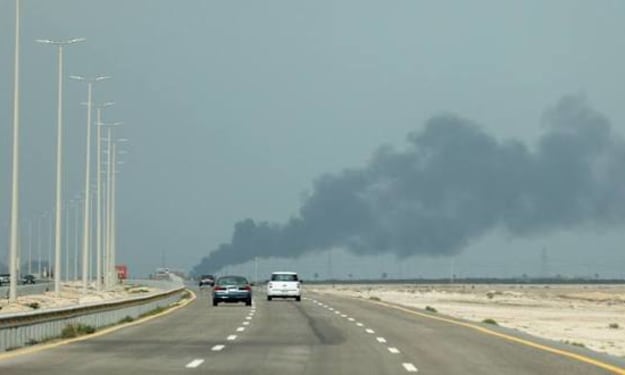
Gulf states lose $15bn in energy revenues since start of war
Gulf states have lost an estimated $15 billion in energy revenues since the start of the ongoing war in the region, according to analysts tracking the impact on the global oil and gas markets. The losses have been driven by a combination of disrupted production, damaged infrastructure, and reduced demand from international buyers, highlighting the economic vulnerability of nations heavily reliant on hydrocarbon exports. The conflict, which erupted earlier this year, has affected key energy-producing countries in the Gulf, including Saudi Arabia, United Arab Emirates, and Kuwait. Analysts report that output reductions, combined with logistical challenges in transporting oil and gas, have led to significant shortfalls in state revenues that fund public services, infrastructure projects, and social programs. “Energy exports are the lifeblood of the Gulf economies,” said an energy market expert. “Any prolonged disruption, particularly in the context of war, has immediate and severe consequences for government budgets and the broader economy.” In Saudi Arabia, one of the world’s largest oil producers, some key export facilities were temporarily suspended due to security threats near shipping routes in the Gulf. While production has gradually resumed, analysts estimate that the country has lost several billion dollars in expected revenues. Similar challenges have affected the UAE and Kuwait, where ports and pipelines have faced intermittent closures and heightened security alerts. The war has also affected global energy markets, contributing to volatility in oil and gas prices. While higher prices could offset some revenue losses for producers, the ongoing instability has discouraged long-term contracts and international investment, reducing the financial resilience of Gulf states. Shipping insurance premiums have surged, and some international buyers have delayed purchases due to fears of supply disruption. For nations heavily dependent on oil revenues, the losses are particularly concerning. Gulf states allocate a significant portion of their budgets to public welfare, infrastructure, and economic diversification initiatives. The sudden drop in income has forced governments to reassess spending priorities and consider measures such as tapping sovereign wealth funds, issuing bonds, or delaying capital projects. Some analysts warn that prolonged conflict could deepen economic strain. If the war continues for several months or expands geographically, the losses in energy revenue could rise sharply, potentially exceeding $20 billion. “The longer the conflict persists, the greater the economic damage will be,” said one regional economist. “Even minor disruptions to production or export routes can cascade into substantial fiscal shortfalls.” The economic impact is compounded by other global pressures, including fluctuating demand from major energy consumers and competition from alternative suppliers. European and Asian buyers have been seeking diversified sources of oil and gas, and sanctions or logistical hurdles have sometimes forced Gulf exporters to redirect shipments or renegotiate contracts at lower prices. In response, Gulf governments have ramped up security measures around energy infrastructure, including pipelines, refineries, and shipping lanes. Military patrols and aerial surveillance have been increased to safeguard exports, but analysts note that these measures add to operational costs and do not eliminate the risk of further revenue losses. Some states have also accelerated efforts to diversify their economies to reduce dependence on hydrocarbons. Projects in renewable energy, technology, tourism, and finance are being prioritized to create alternative sources of revenue. However, analysts caution that such diversification efforts are long-term solutions and cannot immediately offset the financial losses caused by the war. The International Energy Agency (IEA) has highlighted the broader implications of the Gulf revenue losses, noting that disruptions in the region can ripple through global markets. Reduced supply from major Gulf producers can drive up prices elsewhere, affect energy security for dependent nations, and influence inflationary pressures worldwide. While Gulf states continue to manage immediate fiscal challenges, officials are closely monitoring the situation. Contingency plans for energy exports, emergency budget measures, and diplomatic efforts to contain the conflict are all being considered. Experts emphasize that a resolution to the war, or at least a stabilization of key export routes, will be critical to restoring financial stability and ensuring the long-term viability of government programs. The $15 billion revenue loss is a stark reminder of the fragility of oil-dependent economies in the face of geopolitical conflict. As the Gulf navigates this challenging period, governments must balance short-term fiscal needs with longer-term strategic planning, ensuring that both immediate and future economic stability are safeguarded. The coming months will be pivotal, with analysts predicting that energy revenues, market confidence, and regional stability are all tightly intertwined, and the trajectory of the war will determine the scale of financial losses for Gulf states in 2026 and beyond.
By Fiaz Ahmed 2 days ago in Journal



Comments