
People are just realising their Sky TV remote has four hidden button tricks that save you loads of time
YOUR Sky remote has loads of hidden features that make life easier.
YOUR Sky remote has loads of hidden features that make life easier.
The buttons often do a lot more than you think.
Get around the TV guide much faster with secret buttons
For example, did you know the fast forward button does much more than skip through content?
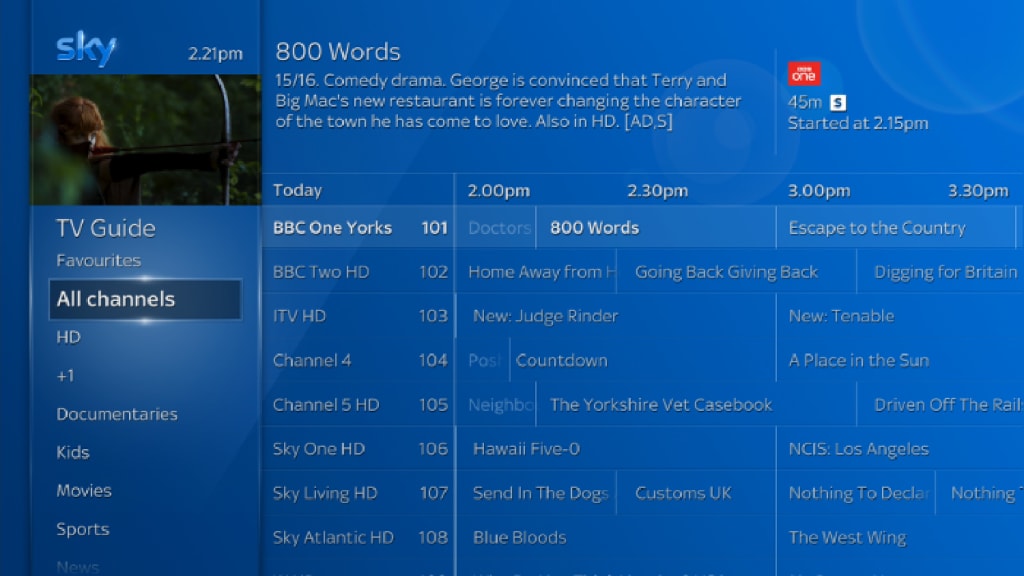
One of the best places these buttons come in handy is in the Sky TV guide.
It’ll make trawling through a lot faster.
Firstly, the fast forward button on a Sky Q remote will zap you forward 24 hours ahead on the guide – so no need to endlessly tap the arrow button.
And conversely, if you hit the rewind button you are instantly pushed back 24 hours.
It’s also worth knowing that the play button takes you to right now – perfect if you get too deep into the guide.
This could shave minutes off your daily browsing, if you remember to use the shortcuts.
Away from the TV guide, there is one other button many viewers tend not to realise is there.
It serves a very helpful purpose: bringing up your recorded TV shows and movies.
The secret button in question is none other than the Sky logo itself.
It saves you trawling through your box’s various menus to find the content you’ve saved for later.
Press it to bring up your recordings, which is anything that you have chosen to download and save for later.
It’s a simple trick but one that many people don’t know – even if they’ve had Sky Q for years.
If you have a Sky Q box tucked under your TV then you might want to grab the remote and try out some secret tips and tricks. The satellite firm's latest channel changer includes a whole swathe of hidden features and there's even a secret button which can launch a popular on-screen function without ploughing through endless menus.
Here are all the best tips and tricks for getting the most out of your Sky Q remote.
SWITCH CHANNELS MORE EASILY
Trying to keep an eye on two channels at the same time? There's a very easy way to flick between content without scrolling through a massive list of programmes.
If you want to quickly switch between two of your favourites then you simply need to press the right button on the control panel arrows and a menu will appear on the screen showing the last channel you were watching.
As long as you've been tuned in for over a minute you can then skip between the two with ease.
FIND YOUR REMOTE
It's an issue that's been plaguing us all since TVs with remotes were invented. You want to watch a midnight movie but can't find the channel changer.
Luckily Sky has a very nifty trick to track it down.
If you've mislaid the remote down the side of the sofa simply head to the Sky Q set-top box and press the Q logo that glows on its front.
Your missing accessory should then start loudly bleeping so you can track it down. This neat trick should end those family rows about who had the remote last.
JUMP TO RECORDINGS
Want to catch up on some recordings? There's a much faster way than tapping on endless menus.
Just punch the Sky logo at the top of the remote and the box will immediately load the Recordings page. Based on the reaction of some Sky Q viewers on social media, it seems most assumed the logo on the remote was purely decorative and are pretty chuffed with this time-saving new trick.
"I’ve had Sky Q in my house for nearly 2 yrs and literally just realised the Sky logo at the top of the remote is actually a button," Twitter user Marc exclaimed.
"I just realised the Sky logo on the top of the Sky Q remote is actually a button. I nearly feel as stupid as when I finally realised the PS2 controller was wireless," tweeted Sky customer Stodge.
Along with that Sky logo trick, you can also tap the blue voice button and say "Go to recordings", "My recordings", "Take me to recordings", or "Open my recordings".
Read more - Firenewsfeed
About the Creator
Keep reading
More stories from Firenews Feed and writers in Journal and other communities.
Manchester United hold ‘detailed’ talks over Rasmus Hojland
Manchester United have held ‘detailed’ discussions over the signing of Atalanta forward Rasmus Hojland. Erik ten Hag has made the signing of a centre-forward the club’s leading focus for the summer transfer window and internal discussions have centred around potential targets.
By Firenews Feed3 years ago in Journal
Author’s Advice
If you would’ve asked me 20 years ago did I know I’d become a writer and an author, I would’ve said “nope, ain’t happening”. As fate would have it I did become an author and I can honestly say I’m loving it so far. It really does feel good to be a writer. I’ve learned a lot on this journey and I feel like with even me being as new to this world as I am, there’s some wisdom I need to share with every other aspiring author.
By Joe Patterson5 days ago in Journal




Comments
There are no comments for this story
Be the first to respond and start the conversation.