
Office 365 Cloud Backup Checklist: Step by Step Guide
A Practical Step-by-Step Checklist for protecting Microsoft 365 data
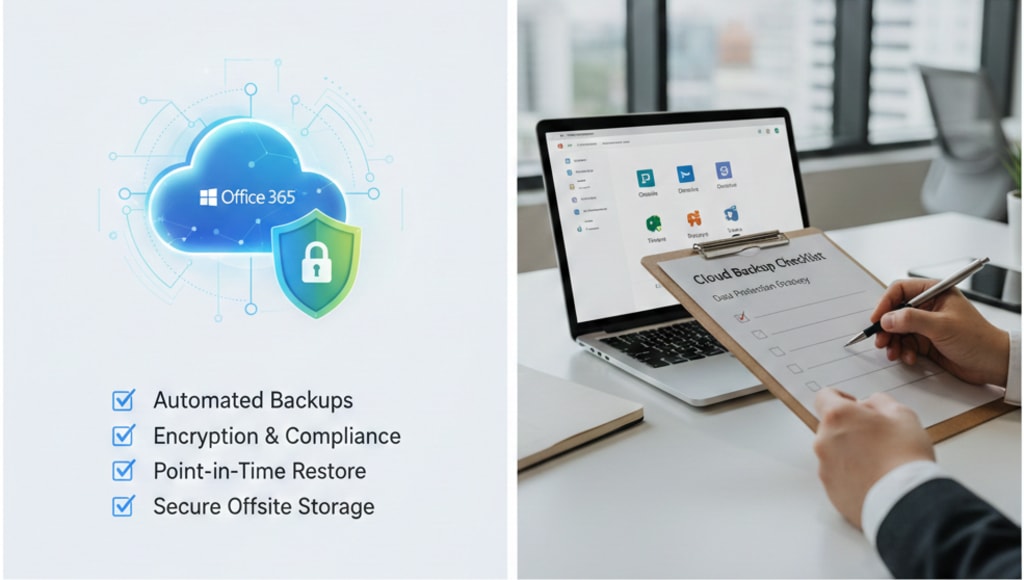
Microsoft 365 is one of the most renowned SaaS (Software as a Service) platforms that provides cloud-based access to collaborative and productivity applications. Integrated with many features, it now includes AI capabilities to help SMEs and individual users boost their workflow.
Microsoft 365 is the essence of many organisations, with all their critical data. Losing that data might be more devastating for them, and the protection is a significant responsibility for everyone. Unfortunately, Microsoft doesn't provide any enterprise-grade Office 365 backup solution, so a reliable approach is necessary. In this guide, we will understand some important Office 365 cloud backup checklists in simple terms.
Office 365 Cloud Backup Checklist
Here are some important checklists that should be considered when Office 365 backup for data protection:
Understand Microsoft Shared Responsibility Model
Microsoft protects the Office 365 platforms, not individual/business data. If emails are permanently deleted (not under retention period) or files are overwritten, the recovery is not guaranteed. Native retention and recycle bins do have a limited scope that helps users in recovery. Beyond that, an automated Office 365 backup solution is needed.
Identify all Office 365 Data to Protect
Many businesses back up only Exchange Online and ignore other services. Office 365 also includes OneDrive files, SharePoint online sites, MS Teams, etc. A dedicated O365 cloud backup solution/suite protects all these services and data together, so that the files, chats, and other data remain safe.
Look for Automated and Frequently Updates
Office 365 data changes constantly throughout the day. Manual backup might be inefficient. Make sure that the Office 365 backup runs automatically at a regular interval. So look for the backup/method that backs up all data without manual effort.
Selective Backup Capabilities
Microsoft 365 stores bulk data. Beyond those, some data is crucial for business needs, but some is just not needed. So make sure that you back up only the required Office 365 data. Doing this enables users hassle-free data management during recovery.
Maintain Backup Security
Office 365 contains sensitive business data. It must be protected in the same way as your live data. Make sure that role-based access, control and emails are included in the backup. Follow the 3-2-1 rule, which specifies that you keep 3 copies of data, one for production and the other for backup. Moreover, store other copies in local as well as cloud backup storage for better data protection.
Test Backup and Restore Often
Don’t trust any backup if it hasn't been tested via restoring. Regular restoration process confirms that the Office 365 data is recoverable and intact. So, try to restore reliability and make your backup efficient to deal with inappropriate situations.
Monitor Backup Report and Logs
Office 365 cloud to cloud backup is critical, but should be transparent. Make sure that the backup system provides clear reports showing backup success, failure, and live activity. These reports often help with audits, compliance reviews, and internal verification. Monitoring Office 365 backup process allows you to know the live status of your data.
Review and Update Backup Strategy
Office 365 cloud backup strategy should not be uniform. Changes in workforce size, compliance rules, and Microsoft features can impact the data security needs. So, review your Office 365 backup regularly. Make sure that the O365 cloud backup still meets security, compliance, legal needs, and other business requirements.
Summing Up
Microsoft 365 is powerful, but power without protection is dangerous. Accidental deletions, ransomware attacks, cybersecurity issues, and many other issues are the real threats that put businesses at risk. The above Office 365 backup checklist helps you to understand the reality over assumptions.
About the Creator
Claire Bowen
Tech-savvy and detail-driven, Claire shares insights on Microsoft 365, email migrations, and smart tools. Loves streamlining workflows as much as she loves coffee and a well-organized workspace.
Keep reading
More stories from Claire Bowen and writers in Journal and other communities.
Office 365 Tenant to Tenant Migration Best Practices
The Office 365 tenant-to-tenant migration task is more than just your mere Office 365 data relocation but it is more about your business and protection of data integrity. When organizations expand, merge, or integrate multiple Office 365 tenants into one, they need to migrate their Office 365 tenant data to another Office 365 tenant. This process is called Office 365 tenant-to-tenant migration.
By Claire Bowenabout a month ago in Journal
The goals I did not achieve
Every writing goal I made for the year is a wash. It has been this way for a while, but I think it's important to be open about my failures and the reality of how life can get in the way. This is especially true considering the several times I have posted on Vocal about my writing goals, how I was changing my approach, and where I was hoping to be for the upcoming year. I will probably do that again in a couple months, but for now, it is time to acknowledge where I am today.
By Kay Husnick20 days ago in Journal
Why do catholics worship, Mary?
One of the questions that often comes up for people learning about the Catholic faith is why Catholics honor Mary, the mother of Jesus. It is a common misconception that Catholics worship Mary. In fact, the Church teaches that worship is due to God alone. Catholics do not pray to Mary as if she were God, nor do they believe she has divine power independent of God. Instead, Mary is honored because of her unique role in salvation history and her close relationship with her son, Jesus Christ.
By Sound and Spirita day ago in Journal


Comments
There are no comments for this story
Be the first to respond and start the conversation.