
Join Multiple Outlook PST files Without Duplicate Items
Join Multiple Outlook PST files
Outlook produces a PST file that stores all the mailbox data when you set up a POP3 email account. Outlook users who have several email accounts also have multiple PST files. Multiple PST file management might be challenging. You can combine the PST files into a single PST file to effectively handle these files.
The PST files must also be combined in a number of additional circumstances, including:
If you must transfer all the data (in several PST files) from PST files made with previous versions of Outlook into a more recent version of Outlook.
When it's necessary to merge two or more legacy accounts.
• If you need to create a mail data backup,
• If you wish to combine your social media and work accounts.
• This article will provide you with free assistance in merging numerous PST files into a single PST file.
Techniques To Combine multiple Outlook PST files into One PST file
The methods listed below can be used to combine several PST files into a single PST file.
1- Free Techniques to Merge Multiple PST files in Outlook
Using Outlook's settings, you can freely merge numerous PST files. In general, there are two steps.
Step 1- Create a New Blank PST File
• You must first generate a blank PST file. To do this, take these actions:
• Open up Outlook on your computer.
• Click New Items > More Items > Outlook Data File under the Home tab.
• Give the new blank PST file a name and choose a location to save it.
• Select OK.
Step 2- Merge PST Files into a Blank PST File
Following the procedures listed below, import PST files into the newly formed blank PST file.
• Click File > Open & Export > Import in Outlook.
• The Wizard for Import and Export will now display. To import a file or application, click Import.
• Select the Next option.
• Select Outlook Data File (.pst) in the Import a file box and then click Next.
• To choose the file you wish to import, click Browse.
• You will see a dialog with three choices: Do not Import Duplicates, Allow Duplicates to be Created, and Replace Duplicates with Item Imported. Select a solution from the list.
• Select the Next option.
• Select the folder or folders you want to import.
• Next, click, and then browse the way of the file
• Choose Next.
• Choose Import files into the exact same folder and Add subfolders.
• To finish, click.
To import more PST files into the new PST file, simply repeat the aforementioned procedures.
2- Join Multiple Outlook PST files Without Duplicate Items - PST Merge Tool
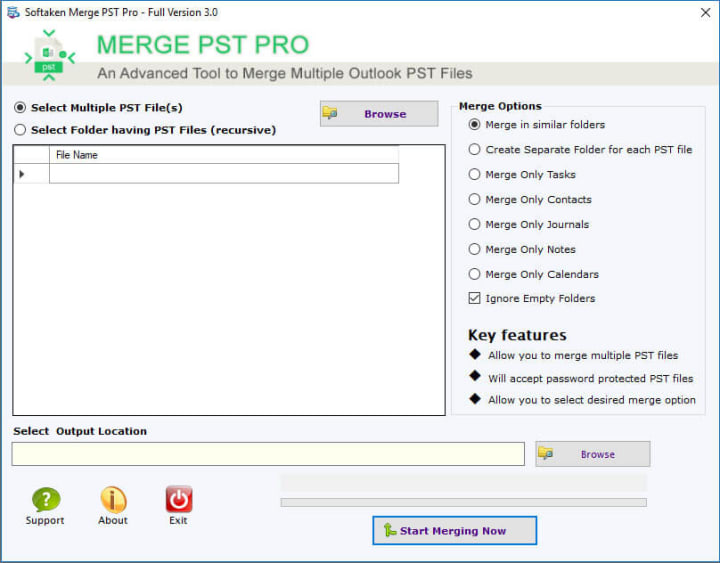
The manual procedure described above takes a lot of time because it calls for you to combine one PST file at a time and entails multiple stages. Use a dependable Softaken Outlook PST Merge Tool, such as merging Mailbox for Outlook, to Join Multiple Outlook PST files Without Duplicate Items simultaneously. Multiple Outlook PST files may be quickly and simply combined into a single file with this safe and effective solution. The PST files' whole contents are combined by the utility without altering the original structure. Additionally, it offers a variety of choices for saving the combined or linked PST files.
It enables the PST files to be saved in either a new or existing PST file. Additionally, the merging of password-protected Outlook PST files is supported by the program. Outlook versions 2021, 2019, 2016, 2013, and previous PST files are supported.
Conclusion:-
Use the techniques described in this article to combine several Outlook PST files. The manual process takes a lot of time and might not get the results you want. As an alternative, you can join several PST files with perfect integrity using a professional PST file merge application, like Merge Mailbox for Outlook. Outlook 2021, 2019, 2016, 2013, 2010, and earlier versions are supported by the tool.
About the Creator
Keep reading
More stories from Della Taylor and writers in Journal and other communities.
Resolved "Outlook OST has reached the maximum size" Problem
Introduction Outlook is a widely used e-mail client, known for its strong features and efficient email management. However, like several software, it has its share of troubles, certainly one of that's the "Outlook OST has reached the maximum size" hassle. This issue may be irritating for users, as it can limit their capability to send and acquire emails. In this text, we can explore the causes of this problem and offer practical answers to resolve it.
By Della Taylor2 years ago in Journal
The goals I did not achieve
Every writing goal I made for the year is a wash. It has been this way for a while, but I think it's important to be open about my failures and the reality of how life can get in the way. This is especially true considering the several times I have posted on Vocal about my writing goals, how I was changing my approach, and where I was hoping to be for the upcoming year. I will probably do that again in a couple months, but for now, it is time to acknowledge where I am today.
By Kay Husnick19 days ago in Journal
Why Catholics Pray to Saints and What That Really Means
One of the most common misunderstandings about Catholicism is the belief that Catholics worship saints. This misconception often leads to confusion and criticism, especially from those unfamiliar with Catholic theology. In reality, prayer to saints has nothing to do with worship. It is rooted in how Catholics understand prayer, community, and the belief that life in Christ does not end at death.
By Sound and Spiritabout 17 hours ago in Journal


Comments (2)
Combining multiple PST files into one is simple using the PST Merger program. For managing the merging process, the program is excellent. With its robust features, you may select and merge PST files containing contacts, schedules, tasks, emails, journals, and notes. Additionally, it maintains the folder structure and data integrity during the merging process. It allows you to delete pointless emails and is compatible with all Windows versions. ANSI and UNICODE PST files can be joined with this utility. The software's trial version is available for free. Read more: https://www.softakensoftware.com/merge-outlook-pst.html
Users can simply join multiple Outlook PST files without duplicate files with the help of the DataVare Outlook Merge PST Expert Tool that has a simple graphical user interface that makes it simple to use with basic technical skills. Users can install this tool on Mac or Windows OS. Read More: https://www.datavare.com/software/outlook-pst-merge-expert.html