
How to Play Deezer Music on Discord
Detailed steps are shown
Discord, founded in 2015, is a VoIP, instant messaging, and digital distribution platform. Users communicate with each other via video calls, texts, voice calls, via different media like words, video, and music in Discord. People in Discord use "servers", which are chat rooms and voice chat channels, to exchange ideas. Discord is open to everyone. It supports Windows, macOS, iOS, Android, and Linux. Now, Discord has more than 140 million users and provides 28 kinds of languages to enable more people around the world to join Discord.
Can I share the Deezer Music playlist on Discord? Unfortunately, the answer is no. Till now, Discord hasn't added Deezer Music as an integration. It seems that they have ignored this BUMP for a long time. But that's not the end of our story, to stream your Deezer playlist on Discord, we still have a feasible method stated below.
How to convert Deezer Music to Discord
As Deezer Music is not integrated with Discord, we could seek other methods to get them to work. Discord supports Spotify. Thus, here we could get Deezer Music to Spotify. And then you could enjoy Deezer Music on Discord via Spotify. But to get Deezer Music tracks to Spotify, we need to download Deezer songs to local computers first with a tool named - DeeKeep Deezer Music Converter.
DeeKeep is a professional Deezer music downloader that helps you download Deezer songs, albums, and playlists to MP3, AAC, FLAC, WAV, AIFF, and ALAC at 10X fast conversion speed, keeping original audio quality and ID3 tags after conversion.
Steps to Download Deezer Music
Step 1. Free Download and Install DeeKeep Deezer Music Converter
The first step is to download the DeeKeep Deezer Music converter on your computer, both windows and mac versions are available to choose from. Start DeeKeep, you can see the user guide video on the main interface. Spend a minute to watch if you need some help with this program.
Step 2. Login to Deezer Web Player
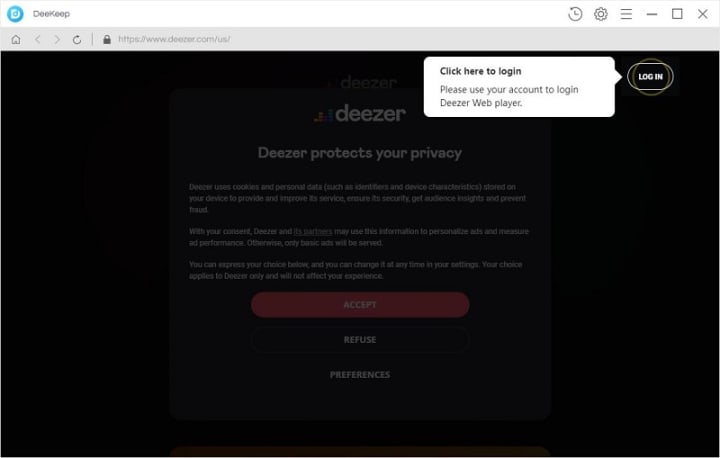
Click the "Open Deezer Music Web Player" button to enter Deezer Web Player. Just log into your Deezer account here. DeeKeep supports downloading songs with Deezer Premium and Hifi account. (Free Deezer account is currently not supported)
Step 3. Customize the Output Settings
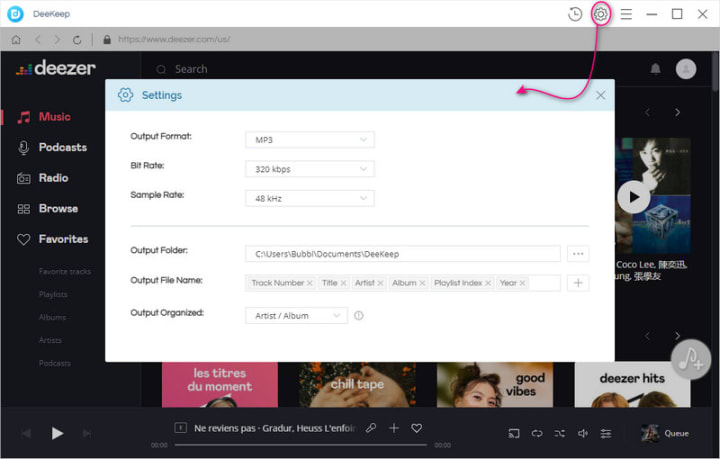
Please choose the output format and quality before you start downloading. Just click on the Setting button in the upper right corner. DeeKeep allows you to download and convert Deezer Music into MP3, AAC, FLAC, WAV, AIFF, or ALAC format. Here we take MP3 as an example.
However, if you prefer better audio quality, you can also choose the AUTO option which means downloading in original format and quality (up to HIFI quality). What's more, you can also rename the output file and change the Output Folder according to your requirements.
Step 4. Choose Music and Playlists to Download
Now you are free to browse and choose the songs, albums, or podcasts, click the "Add" Add icon button to add songs to the download list.
Step 5. Start to Download Spotify Music
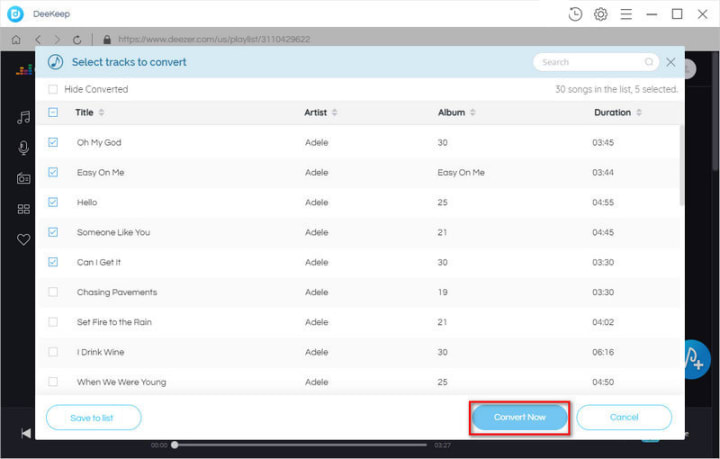
DeeKeep will load the whole album or playlist you choose, select songs from the list and click on the "Convert" button to start downloading Deezer music. Wait patiently until it is finished. DeeKeep also has a "Put system to sleep" option under "After converting" settings which you can see on the left corner of the downloading windows.
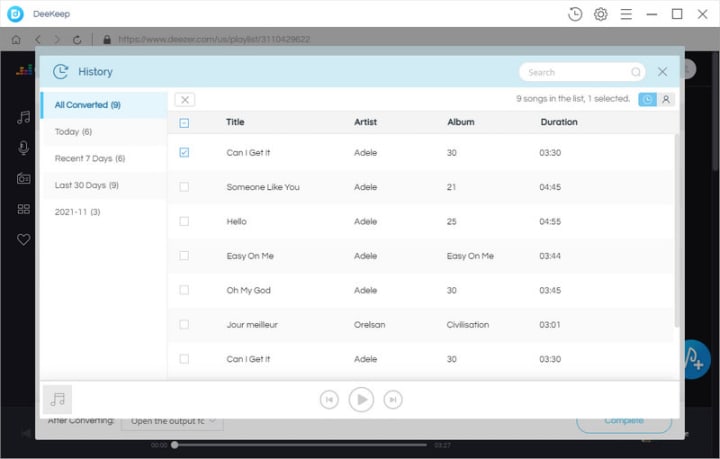
After the conversion is completed, you can click on the History icon to find the downloaded Deezer songs. And now you can easily add the Deezer songs to Discord for offline listening.
How to Share Deezer Music on Discord
Now, you had downloaded Deezer Music as a local file on your computer. Here you can see how to connect Deezer Music to Discord in detail.
1. Go to the Spotify app. Then go to 'Menu' > 'Edit' > 'Preferences'.
2. Turn on the 'Local Files' button. Then use the 'ADD A SOURCE' option to locate the converted Deezer Music files.
3. Touch on the 'OK' button to sync Deezer Music tracks to Spotify.
4. Open the Discord program on your computer.
5. Touch on the 'User Settings' button and the 'Connections' button.
6. Select the 'Spotify' logo and confirm your connection.
Now, you can play Deezer Music on Discord and share the songs with your friends.
Summary
Although Discord hasn't got access to Deezer Music, you still can find a way that is good enough to show Deezer Music on Discord. Just convert Deezer Music songs with DeeKeep Deezer Music Converter and play them on Discord via the Spotify app.
About the Creator
Keep reading
More stories from Izzy Warren and writers in Journal and other communities.
How to Download Deezer Song/Playlist to MP3
With more than 90 million tracks under its umbrella, Deezer’s vast catalogue means you won’t be missing out on your favorite artists if you decide to make the switch from Spotify. Offering a simple interface, the French streaming service is an excellent value for money alternative to Spotify if you’re looking for higher-quality streams, but don’t want the expense of a Tidal HiFi subscription.
By Izzy Warren3 years ago in Journal


Comments
There are no comments for this story
Be the first to respond and start the conversation.