
How to Make Google Maps Talk on Android & iPhone Platforms?
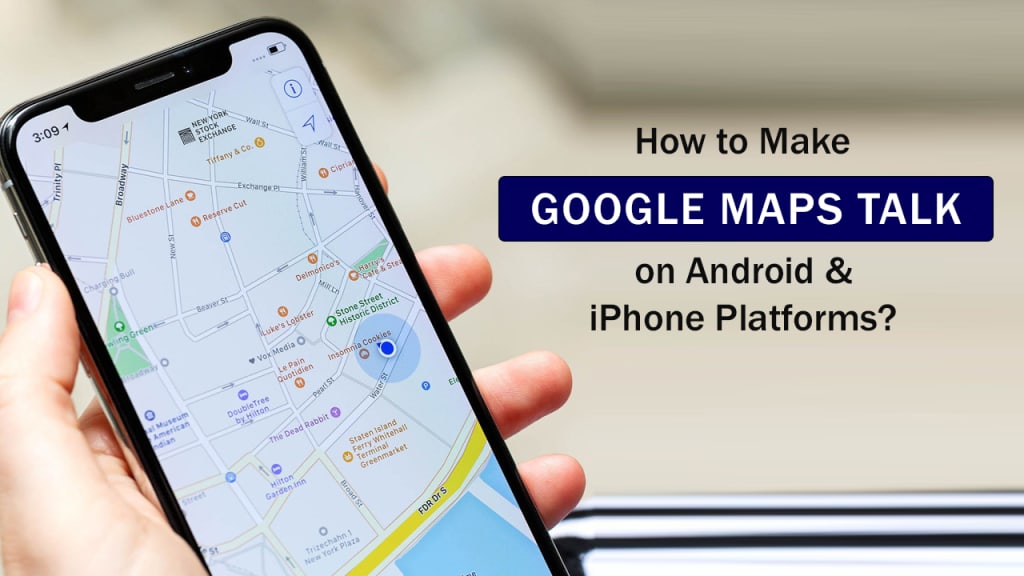
Google Maps Talk on android and iOS Platforms

Introduction
Navigation apps have become one essential thing in today’s hefty traffic world. Gone are the days when people ask, “Sir can you tell me where this address is?”. Nowadays, people are smartly using GPS navigation apps like Google Maps or Maps to find their places in less than a minute. You can easily navigate to your preferred location, and the map will show the best route to go to the location.

Isn’t it great that a simple navigation app can help you reach your destination without complications; however, it requires an internet connection, but hey! who doesn’t have access to the internet in today’s modern world? Moreover, you can always use a voice navigation system in the maps to experience hands-free navigation.
Also Read: Metaverse Game Development
What happened? Are you in trouble? Are you not able to use the voice navigation system?
Okay, I have a perfect solution for that. To solve the Google maps voice navigation not working issue, you have to read this article. This article contains a step-by-step guide to fix your google maps not talking issue on Android and iPhone platforms.
What Is Voice Navigation In Google Maps?
With voice navigation, you can hear traffic alerts on where to turn, which lane to use, and whether there is a better route. Important: Navigation and information about which lane to use are unavailable in all countries, regions, and languages. Large or emergency vehicles are not the intended users of the navigation. You can also download offline maps to use them without an internet connection.
Now let’s solve the problem that you came here for.
How to Fix Google Maps Talk Issue on Android and iPhone?
In this section, we’ll go through step by step so that you can understand how to fix the voice navigation issue in your Android and iOS platforms. Firstly, we will solve this problem for the Android platform.

Google Maps Voice Navigation Fix for Android & iPhone
Please follow these steps to fix the problem quickly.
Fix 1. Turn on Your Voice Device’s Volume
Your problem may not be so big; your volume may be too low, so you could not hear the google map navigation voice. Worry not; ensure your phone’s volume is on, not muted. After turning on the google map voice navigation, turn up the volume.
To turn up your volume, press the volume up button on the phone to see if it works for you. If not working, then the next step will.
Fix 2. Make Sure Voice Turned On the Google Map App
This step can fix your google maps voice navigation problem. To turn on google voice on Google Maps, you need to open the Google Maps app and search for the “Start navigation’ option.
At the top right corner of your mobile screen, you will see Sound. If you don’t see the Sound option, tap the Mute option and then > Sound. Now google map voice navigation should start working again.
Fix 3. Turn Up the Google Maps Talk Volume In the App
Open the Google Map app on your Android phone and tap on your profile section or picture > Now go to Settings > and search for the Navigation setting option > then select Voice level and choose the option to Louder. Now check if your google map is talking again or not.
Fix 4. Choose Which Speakers to Use
Your device may have connected with Bluetooth devices, such as your car or other headsets. If this is the case, you will not hear voice navigation on your phone. You need to disable the Bluetooth device paired with another device. To disable the Bluetooth connection, go to your smartphone, select the Bluetooth option, and disable any Bluetooth-paired device. This should fix your problem.
However, if you want to use the Google Maps voice navigation in your car speaker, and then follow this step:
Read Also: Andar Bahar Game Development
Open your Android phone and turn on the Bluetooth option. Now pair your phone Bluetooth to your car and set the source of your car audio system to Bluetooth.
Now go to your Google map app, click on the profile option > Settings >, and go to Navigation Settings.
Now choose an option:
To hear the Google maps voice navigation command in your car speakers, turn on play voice over Bluetooth. And to hear the voice navigation command from your Android phone speaker, turn off the play voice over Bluetooth option.
Fix 5. Download Voice Directions
The final fix is here; if you still face the Google maps talk issue on your Android platform, you might not have downloaded the Google Voice Directions. Google will not give you any direction-related voice navigation without voice direction. So to download the voice directions on your phone, you must be connected to the internet. The voice directions will automatically download when the Google map app is open and connected to the internet.
Also Read: Card Game Development Company
Now, by following these steps, you can instantly fix your Google Maps app voice navigation problem. However, if it is still not working, updating your phone to the latest get software, clearing the Google map cache, and restarting it might solve the problem.

Similarly, you can follow these steps to solve the iPhone platform's Google maps voice navigation issue. Just find the options and follow this guide; the problem will be fixed.
A simple GPS mobile app can help you navigate to your destination instantly, thanks to GPS navigation app development companies. So many navigation apps like Google Maps offer similar features and functionalities.
Final Words
GPS navigation apps are convenient and helpful when searching for the best traffic-less routes or allowing google maps to navigate the routes by voice navigation option. With one simple click, Google will tell you when to turn and on which lane to drive.
Through this guide, you will fix the google maps voice navigation system quickly on your Android and iPhone platforms. If you have any queries about this topic, comment in the comment section. We will surely help you!
About the Creator
DC Kumawat
Being Managing Director and Co-founder of Orion InfoSolutions, a Software Development Company. I started my career in Information and Technology 12 years back as a new-age entrepreneur in emerging digital India.
Keep reading
More stories from DC Kumawat and writers in Journal and other communities.
How To Develop a Drone Control Application?
Introduction Developing a drone control application can seem like a daunting task, but with the right tools and approach, it can be done efficiently and effectively. In this article, we will provide a comprehensive guide to developing a drone control application that can help you to stand out and outrank your competition in the drone app market.
By DC Kumawat3 years ago in Journal
Advanced Primary Care Management Services: Strengthening Value-Based Primary Care
Primary care practices are facing growing pressure to manage chronic diseases, improve preventive care outcomes, and meet value-based reimbursement requirements. Traditional visit-based care models often leave gaps in follow-up, coordination, and patient engagement. Advanced Primary Care Management Services offer a comprehensive solution by combining structured care coordination, technology integration, and compliance-focused workflows.
By Tracee Jones6 days ago in Journal



Comments