
How to Export Online Archive Mailbox to PST Format?
Simplify Your Data Backup: A Step-by-Step Guide to Exporting Your Online Archive to a PST File

Microsoft 365 is a powerful and reliable platform that many people use and recommend for managing daily emails, storing files, and regular cloud work. When your inbox gets full, Office 365 gives you extra space called an Online Archive Mailbox to store older emails in a separate mailbox. But sometimes, you want to save those emails on your computer or move them to another place. That’s when you need to export Archive Mailbox to PST format.
In this post, you’ll learn what the archive mailbox is, why exporting it is important, and how to backup online archive Office 365 mailboxes effectively. So, let's understand Online Archive Mailbox without much delay!!!
What is an Online Archive Mailbox?
An Online Archive Mailbox is a secondary mailbox in Microsoft 365. It's also called an In-Place Archive. While you don’t see it by default, IT admins enable it to give you extra space for storing older emails.
Instead of deleting emails, you can move them to this archive. It works like a regular mailbox but appears separately in Outlook and OWA. However, the archive mailbox grows over time, so you may need to export the Archive Mailbox to PST to keep your data safe and organized.
Besides, a PST is a file format used by Microsoft Outlook. It stores emails, contacts, calendars, and other mailbox items. You can open PST files in Outlook anytime, even without internet access.
Exporting archive data to PST makes it easy to store backups offline, move emails to another computer, transfer archived emails to a new account, and keep a record for compliance purposes.
Why Export Archive Mailbox to PST Is Needed?
There could be many reasons to compel you to export archive mailbox. Here are some of them:
- Keep a copy of important emails.
- To free up space or organize data differently.
- Transfer mailbox data to a new account or device.
- For maintaining compliance and record-keeping.
Whatever the reason may be, knowing how to backup online archive Office 365 is necessary.
100% Working Method to Export Archive Mailbox to PST
Here is a manual step-by-step method that you need to understand and execute if you wish to backup an archive mailbox to PST. To export archive mailbox to PST, you need to use the Microsoft Purview eDiscovery tool.
First, log in to your Office 365 account and go to the Exchange Admin Center. After that, follow the steps below to complete the backup process:
- Configure the permissions
- Create a new Microsoft Purview
- Save archive mailbox in PST format
Step 1. Configure the permissions.
Microsoft permits users to backup Microsoft 365 data. So, add yourself and ensure that you are a member of the eDiscovery Manager role group. Here are the steps to follow:
- Log in to your Microsoft 365 account and go to the Admin Center.
- Go to the Security & Compliance Permissions tab, click on the eDiscovery Manager option, and assign your role and give necessary permissions.
Step 2. Create a new Microsoft Purview.
Microsoft Purview allows users to make searches and find specific data/content. To create a new content search. Log in to the Microsoft Purview compliance portal and follow the steps below to create a new content search:
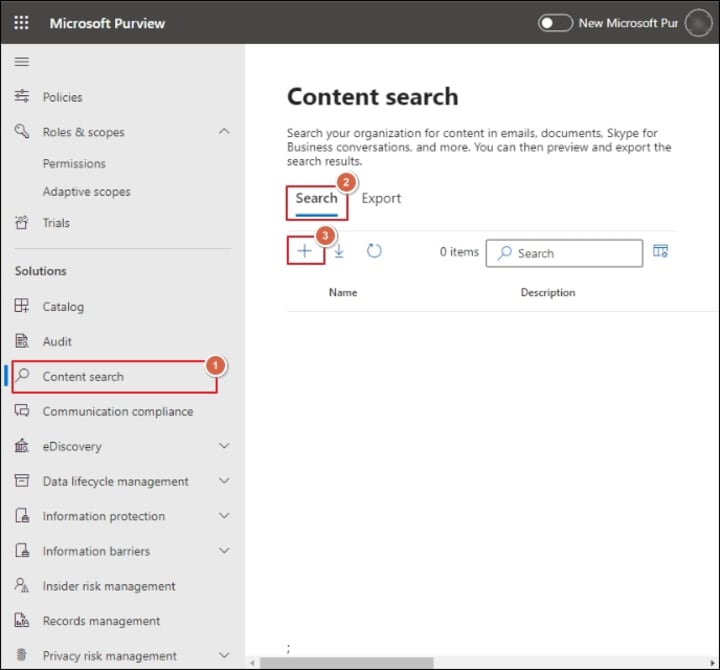
1. Go to the Content Search section, click on the Search tab, and tap on the + button.
2. Input Name & Description. Click the Next option.
3. Provide the specific location, choose the Include In-Place Archive option, and click Next.
4. Apply filters like date range, keywords, or folder names. Click Save & Run.
A new Microsoft Purview (content search) has been created successfully.
Step 3. Save Archive Mailbox in PST format
You’ve successfully created Microsoft Purview and chosen Microsoft 365 content. Now, follow the steps below to export archive mailbox in PST:
1. Go to the eDiscovery Tool, click on Standard options, and tap on Created Search.

2. Tap Actions and click on the Export Results button to export the search results.
3. Customize the export results with the available options and click the Export button.
4. Wait for a while. Click on the Download Results. Copy the unique Export Key.
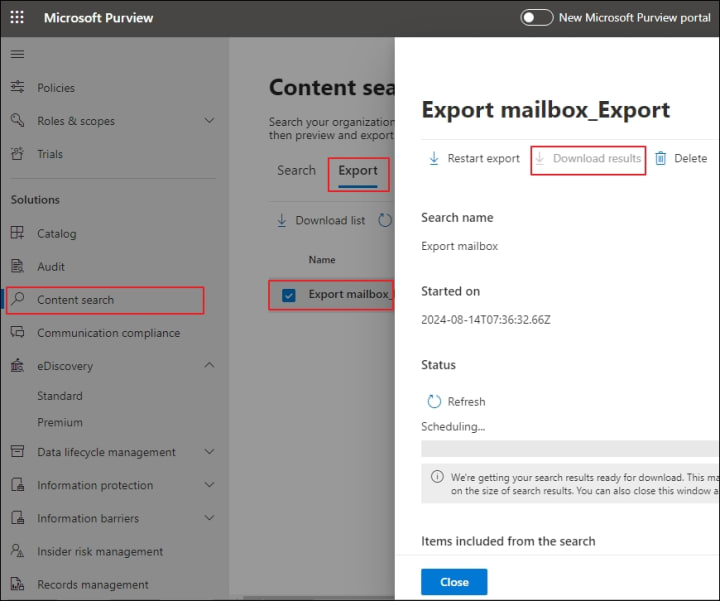
5. Paste the Export Key in the eDiscovery tool to connect with the source. Browse the place where you want to save the archive mailbox. Click on the Start button.
The export tool will begin downloading your archive mailbox as a PST file. Once saving is complete, you can check your archive mailbox data in the PST file.
Important Things to Know Before Exporting Archive Mailbox
Here are a few points that you need to consider before starting to export an archive mailbox to PST for successful and effective results:
- Keep the eDiscovery Export tool up to date to avoid errors.
- PST files might be large, so make sure you have enough space on your computer.
- You need admin permissions to perform this process. Regular users can't do it on their own.
- Always double-check that you selected the Archive Mailbox during the content search.
Final Thoughts
Exporting your Office 365 Archive Mailbox to PST is a common way to create a local backup, archive mailbox data, or meet compliance needs. While the process may seem complex, bulky, and time-consuming, it’s easy to follow with the correct permissions and steps. By following the official manual method above, you can safely export the Archive Mailbox to PST.
Alternatively, you can use a trustworthy and reliable third-party Office 365 backup tool to export the archive mailbox to a PST file for quick and safe results. For more clarification, you can use the free trial version of the tool!!!
Frequently Asked Questions (FAQs)
Q1. Does Outlook Import/Export support archive mailbox backup?
No. The Import/Export feature in Outlook does not support Online Archive Mailbox export. Use the eDiscovery method instead.
Q2. How do I backup an Online Archive Office 365 mailbox without third-party tools?
You can use Microsoft 365’s built-in Content Search and eDiscovery Export Tool to backup archive mailbox in PST format.
Q3. Can I filter specific emails while exporting to PST?
Yes. Microsoft’s Content Search tool lets you apply filters like date, subject, or sender before exporting.
About the Creator
Claire Bowen
Tech-savvy and detail-driven, Claire shares insights on Microsoft 365, email migrations, and smart tools. Loves streamlining workflows as much as she loves coffee and a well-organized workspace.
Keep reading
More stories from Claire Bowen and writers in Journal and other communities.
Cross-Forest Exchange to Exchange Migration: Step-by-Step Guide
Email systems are piling up exponentially. Companies do mergers and acquisition, organizations/teams split, or infrastructure decision changes over time. One common result is multiple Microsoft Exchange environments running in different Active Directory forests.
By Claire Bowen23 days ago in Journal
The goals I did not achieve
Every writing goal I made for the year is a wash. It has been this way for a while, but I think it's important to be open about my failures and the reality of how life can get in the way. This is especially true considering the several times I have posted on Vocal about my writing goals, how I was changing my approach, and where I was hoping to be for the upcoming year. I will probably do that again in a couple months, but for now, it is time to acknowledge where I am today.
By Kay Husnick20 days ago in Journal



Comments
There are no comments for this story
Be the first to respond and start the conversation.