
How to Create a Professional Looking Lead Magnet for Free
The best way to build an email list is with a high-converting lead magnet

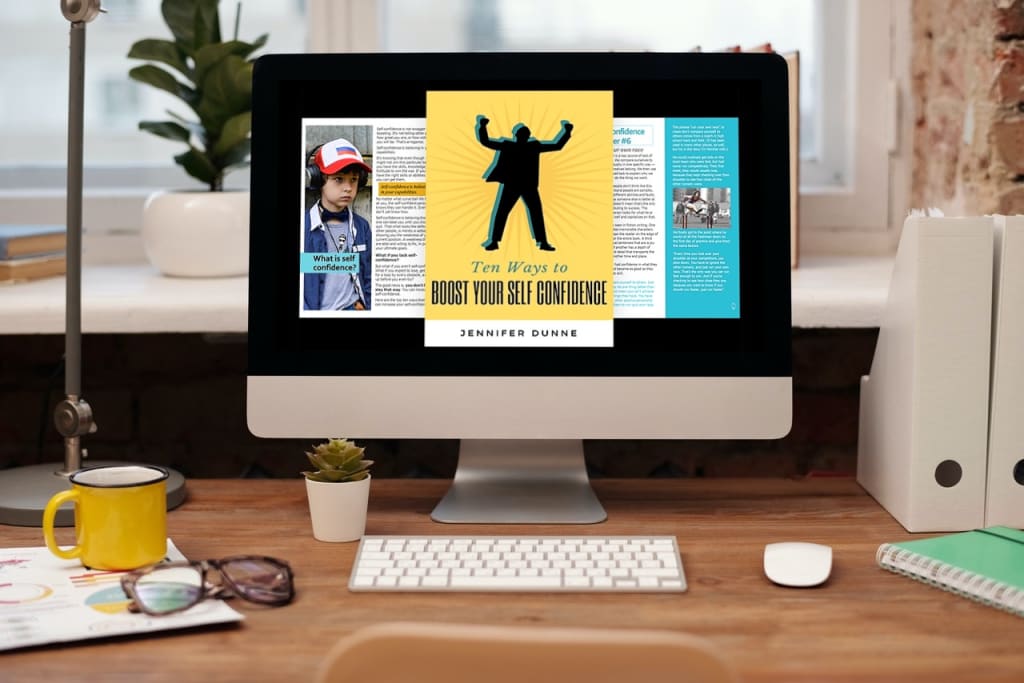
“Lead magnets are a surefire way to build your mailing lists, strengthen customer connections, and — ultimately — drive sales.” — Jennifer Lyons, Constant Contact
The best way to build an email list is with a high-converting lead magnet.
Internet marketing experts routinely say, “The money is in the list.” People buy from people they know and trust, and they grow to know and trust you by receiving your emails.
Even if you are not directly selling to your list, your success depends upon it. Your ability to have a solid pipeline of clients and projects depends on your ability to remain top of mind. And the easiest way to do that is with an email list.
To build your list, you need a lead magnet. And not just any lead magnet. A great one.
What makes a great lead magnet?
According to Constant Contact, great lead magnets have four primary criteria:
✅ They offer something of value to the customer
✅ They offer instant gratification
✅ They are easy to consume
✅ They position you as an expert
Some common examples are free consultations, ebooks, checklists, worksheets, or cheat sheets. You can also offer quizzes or surveys that produce customized responses for people. Other options are courses, free trials, software tools, or discounts.
These lead magnets are not all equal.
Free consultations do not offer instant gratification. The person must schedule an appointment to get the value.
Lengthy ebooks, courses, trials, or tools may not be easy to consume.
Thus, the lead magnets that most often tick all four boxes of great lead magnets are free downloads. Cheatsheets, guides, templates, or worksheets are all great lead magnet possibilities.
Creating professional-looking lead magnets is easy
Don’t simply copy an article you’ve written as a download.
There are so many good-looking freebies available, your offer must look good, too. Otherwise, your potential customer might feel you didn’t deliver something of value. Or, they might feel you’re not as much of an authority as someone with a better-looking freebie.
Fortunately, you can create professional-looking lead magnets easily, for free.
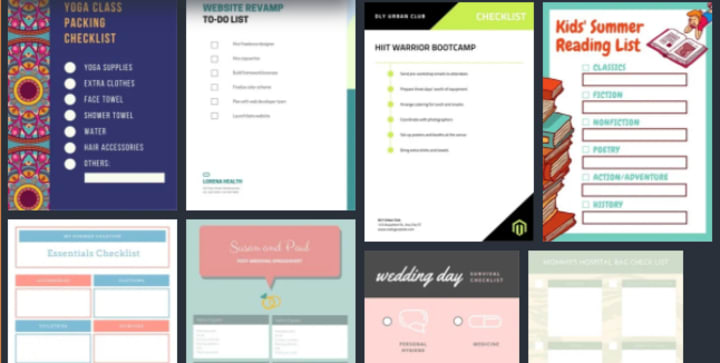
If you want to create a cheat sheet, checklist, or worksheet, you can use Canva. They offer a wide range of professionally designed templates that you can customize. For example, here are just a few of the many checklist templates they offer.
What about a guide or short ebook?
You may have thought that if you wanted to create a professional looking guide or short ebook, you had to hire help. After all, many designers on services such as Fiverr have very reasonable prices.
Free is an even better price.
The surprising ebook creation tool that you probably already have on your computer? PowerPoint. That’s right. The business tool to create slide decks.
However, that’s not all PowerPoint is good for. You can also use it to create guides and ebooks.
From the PowerPoint main screen, select a New presentation. Search all themes for “magazine”. You should get something like this as your results:

Select one of the magazine layout choices and click Create.
Now comes the secret sauce, to turn your layout into something that looks like a book!
Click on Design, then Slide Size. Select Custom Slide Size. Fill out the size for a standard 8.5"x11" piece of paper. (People outside of the US can specify the size of standard paper where you are.)
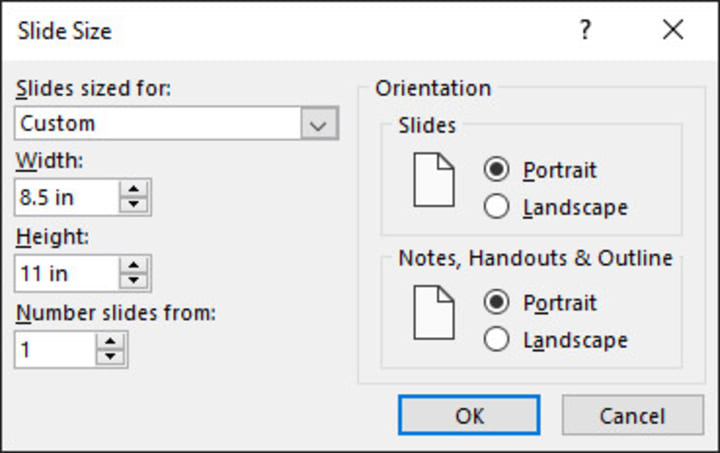
It will then ask if you want to Maximize the design (cut some off) or Ensure Fit (leave extra white space). Click Ensure Fit.
This will produce beautiful, professionally formatted pages.

All you need to do is copy the text of your existing content into the template, and add fresh pictures. Resize the text and change the columns to make it easier to read on screen, if you like.
You can customize the fonts and colors to match your existing brand.
On the page designed to list the editorial staff, include your copyright information. That’s also a great place to include the photo credits.
Since this is a guide or ebook, not a magazine, you’ll probably want to use a book cover image. Canva offers an amazing variety of customizable book covers, too. (Select the More option, then select Book Cover.)
Some good categories are Inspirational, Creative, Notebook, and Non Fiction. Customize the cover and download it. Then add the image to a blank page at the beginning of your PowerPoint presentation. Delete any pages you didn’t use.
Save the PowerPoint presentation as a PDF. Give it a name and file location that will help you to find it easily in the future.
Boom! Your professional looking ebook or guide is ready to go.
Conclusion
The best way to create an email list to increase your business is with a lead magnet.
The above steps will transform your existing content using professionally designed templates. You’ll create a professional-looking downloadable lead magnet.
It looks valuable, offers instant gratification, is easily consumed, and establishes your authority.
In other words, it’s a great lead magnet.
And best of all, it was free.
Ready to have a better tomorrow?
I’ve created a guide to help you increase your confidence and improve your life. If you follow these tips, you will level up your life very quickly!
About the Creator
Jennifer Dunne
Novelist turned blogger, sharing stories of hope, self-improvement, and productivity, as well as a bit of fantasy and whimsy. Visit me at: http://grftnd.jennifermdunne.com
Keep reading
More stories from Jennifer Dunne and writers in Journal and other communities.


Comments
There are no comments for this story
Be the first to respond and start the conversation.