
How to Create a Can Mockup
How to Create a Can Mockup: A Simple Step-by-Step Guide
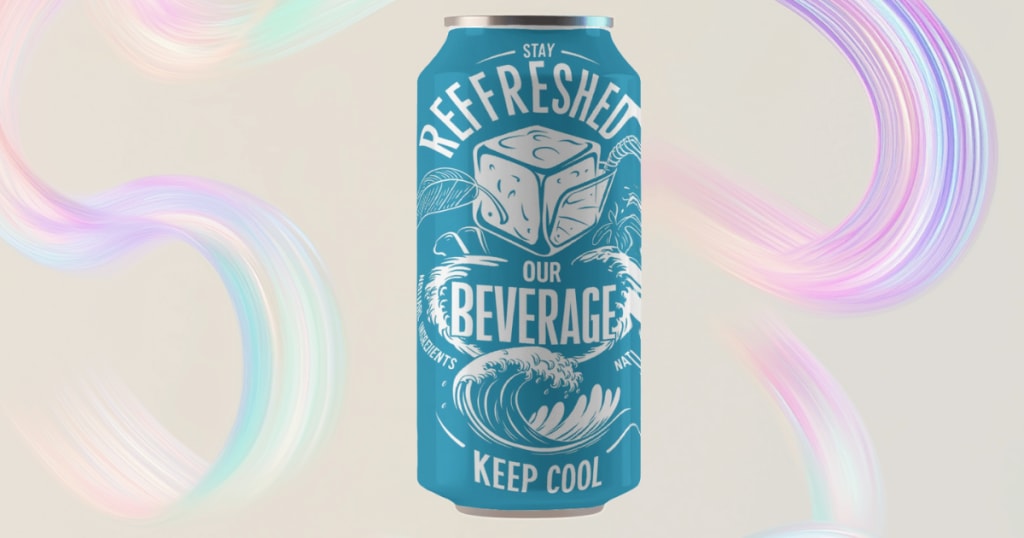
Whether you're designing a new drink or launching a personal project, a great-looking can mockup can make your product stand out. It helps you show off your design in a real-world setting without spending money on printing or photoshoots. The best part? You don’t need to be a graphic designer to create one.
Thanks to tools like Mockey.ai, making a can mockup is now easier than ever. In this guide, we’ll walk you through the whole process step-by-step—from choosing a template to downloading your final image. No technical skills needed, just your design and a few clicks. Let’s get started!
What You Need Before You Start
Before you begin, here’s what you’ll need:
- ✅ A label or design file (usually in PNG or JPG format).
- ✅ A clear idea of your product—what kind of can you want to present.
- ✅ A device with a browser and internet connection.
- ✅ A little bit of time (just 5 minutes is enough!).
That’s it. No software. No design experience. No sign-up.
Getting Started with Mockey.ai
First, open your browser and go to www.mockey.ai. This is a free online mockup generator that offers dozens of templates for different product categories. The interface is clean, simple, and beginner-friendly.
Once you're on the homepage, scroll through or use the search bar to find “Can Mockup”. Click on it, and you’ll be taken to a collection of can mockup templates.
What makes Mockey.ai special is that it's completely free. You can create, customize, and download your mockup without signing up or paying anything. No hidden fees, no watermarks—just smooth design.
Choosing the Right Can Template
There are different types of cans depending on the kind of product you’re working on. Are you designing for:
- A soft drink? Try the standard short can template.
- An energy drink? Go with the sleek tall can.
- A sparkling water or juice? Try the slim, modern templates.
Mockey.ai gives you several realistic mockup options like:
- Single standing cans
- Tilted or angled cans
- Groups of cans
- Cans with dynamic shadows
Each option offers a professional look. Choose the one that best fits your branding style. Once you click on your preferred template, you’re ready to move on.
Uploading Your Design

After selecting a can mockup, you’ll be asked to upload your design. Here’s how to do it:
- Click on the “Upload Design” or “Upload Image” button.
- Select your label file from your computer.
- Use the controls to adjust size, rotate, or move your label to fit the mockup perfectly.
- Make sure your design stays within the safe zone shown on the mockup.
The interface will instantly apply your label to the can, letting you preview how it looks in real-time. If something looks off, you can fix it on the spot—no need to restart.
Customizing the Can
Once your design is in place, it’s time to customize your can:
🎨 Can Color: Change the base color of the can to match your brand.
💡 Lighting: Mockey adds subtle lighting effects automatically, but you can adjust contrast or brightness to improve visibility.
🖼️ Background: Choose from different preset backgrounds or upload your own. You can go for:
- Clean white studio
- Concrete tabletop
- Kitchen environment
- Outdoor picnic scene
- Abstract gradients
For a minimal and premium look, a plain white or grey background works really well. Want something more fun? Try colorful or lifestyle themes.
Review and Final Touches
- Before downloading, take a moment to review everything:
- Is the label correctly aligned?
- Are the edges smooth and sharp?
- Does the background support your product’s vibe?
- Is everything clear and not blurry?
Use the zoom feature to take a closer look. If needed, make small changes to improve overall polish. It’s your last chance before exporting!
Downloading Your Can Mockup
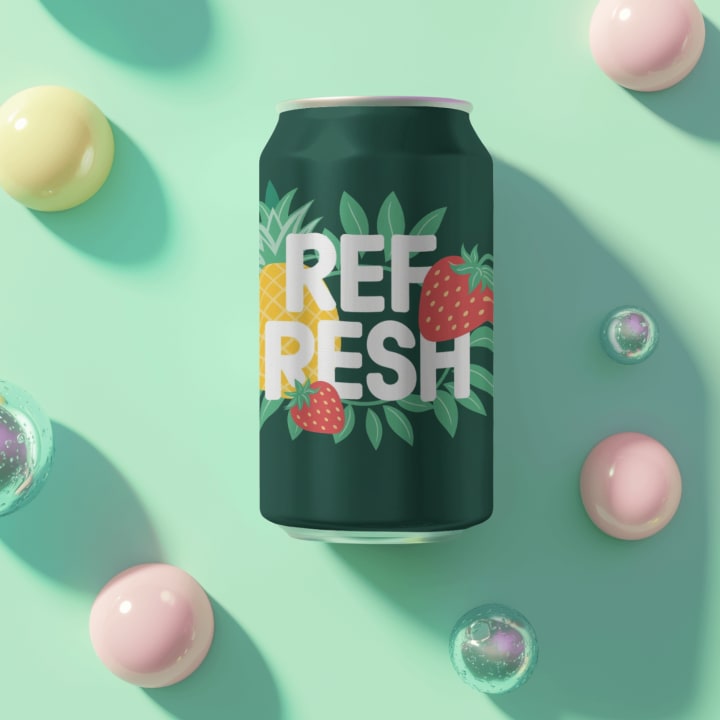
Once satisfied, click the “Download” button. Mockey will generate a high-resolution image (usually in PNG format). It’s ready for use on:
- eCommerce product listings
- Client presentations
- Social media posts
- Portfolio websites
- Advertising mockups
And the best part? No watermark. You get a clean, professional mockup that you can use anywhere.
Bonus Tips for Better Mockups
Want to make your mockups even better? Here are a few extra tips:
- Try Variations: Use different backgrounds to show how your product fits into different lifestyles or settings.
- Use Minimal Designs: Sometimes less is more. A clean label and simple color can look more premium than a busy design.
- Create Angled Views: Export multiple angles of your product to showcase every side.
- Use Grid Layouts: When presenting on a website or Instagram, try placing your mockups in a neat grid.
- Add Natural Backgrounds: Use wood textures, marble surfaces, or leafy outdoor scenes for extra style.
Conclusion
Creating a can mockup doesn’t have to be hard. With Mockey.ai, it’s actually fun and quick. Whether you’re building a brand or just testing ideas, this tool gives you everything you need to visualize your product in a professional way.
You don’t need Photoshop, fancy software, or hours of editing. Just upload your label, customize your can, and download the final image—all in a matter of minutes.
So why wait? Head over to Mockey.ai today and create your first can mockup. It’s free, fast, and made for everyone—even beginners.
About the Creator
Keep reading
More stories from Backlink Wizard and writers in Journal and other communities.
Best Laptop Mockups
Whether you're a designer, developer, marketer, or content creator, showing your work professionally can make a big difference. That’s where laptop mockups come in. They allow you to present your website, app, or UI design in a clean, realistic, and attractive way. If you're looking for the best laptop mockup templates, you’ve landed in the right place.
By Backlink Wizard9 months ago in Journal
No Word Comes Near Enough
The English language has its limits. I learned this when I became a student of the Bible and looked up the Greek and Hebrew definitions behind the Scriptures I loved. Some languages have so much more depth and power than the one I use to convey my thoughts. But, even so, I don't think any word could ever come close to describing this void and pain I am journeying through. I don't know how to swim through its murky waters.
By Shirley Belk5 days ago in Poets



Comments
There are no comments for this story
Be the first to respond and start the conversation.