
Advanced Selenium C# Guide: Leveraging Custom Waits and Dynamic Element Handling
Advanced Selenium C# guide on creating custom waits and handling dynamic elements, improving test reliability for AJAX, animations, and dynamic content.


In today’s fast-paced software development, delivering quality applications requires strong testing tools. Selenium is a widely used tool for automating web applications and ensuring they work well. While basic Selenium tasks are helpful, more complex tests need advanced techniques, especially with C#.
This blog will explore important advanced topics in Selenium with C#. We’ll cover handling dynamic elements, creating custom waits, running tests in parallel, and cross-browser testing. We’ll also look at optimizing test performance and integrating Selenium with CI/CD pipelines. These advanced methods will help improve your test efficiency and software quality.
Handling Dynamic Elements in Selenium C#
Handling dynamic elements in Selenium C# is an essential skill for automating modern web applications, as many websites today include dynamic content that loads or changes after the page initially renders. Dynamic elements can be tricky to automate because they might not be available immediately or their properties (like ID or class) can change frequently. To ensure that your automation tests remain stable and reliable, you need to use specific strategies and tools to interact with these elements effectively.
Identifying Dynamic Elements
Dynamic elements on a webpage can appear due to JavaScript actions that occur at various times or in response to user actions, such as clicking a button or scrolling. For instance, a section of the page might only become visible after you scroll or click. The challenge is that the specifics of these elements, such as their ID, name, or XPath, can change every time the page loads, making it difficult for Selenium to locate and interact with them.
Strategies for Handling Dynamic Elements
Here are some methods to manage and interact with dynamic elements using Selenium C#:
1️⃣Using Explicit Waits
Explicit waits are crucial when dealing with dynamic elements. Instead of using implicit waits (which pause for a fixed time), explicit waits pause execution until a specific condition is met. This condition could be the element’s presence, visibility, or clickability.
For Click Action

Usage of Click method

The UntilElementClickable() method waits for a web element to become clickable before interacting with it. It takes a locator (e.g., By.Id) and an optional wait time (default is 15 seconds). The method uses WebDriverWait to keep checking if the element is both visible and enabled for interaction. Once the element is clickable, it returns the element, allowing you to perform actions like .Click(). This approach ensures the element is ready, reducing test failures caused by trying to interact with elements too soon.
2️⃣Locating Elements with Dynamic Selectors
You can create more flexible XPaths that rely on partial matching, like using contains() or starts-with() functions.
Example of dynamic Xpath using ‘contains’

Example Code
Here’s how you can handle dynamic web elements in Selenium C# using an explicit wait and dynamic XPath:

Usage of Dynamic locator

3️⃣Handling AJAX Elements
AJAX-driven content loads asynchronously, meaning that the page does not reload, but the element may appear later. Using explicit waits or polling mechanisms ensures that the element has fully loaded before interacting with it.
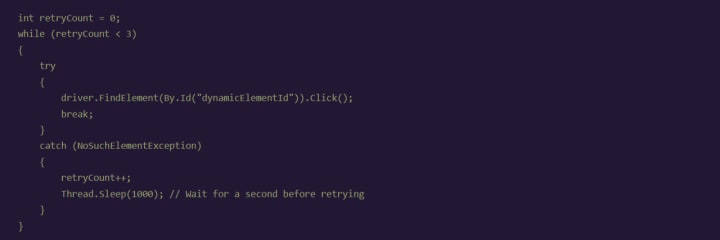
4️⃣Retry Mechanism
Sometimes, despite using waits, a dynamic element may still fail to load due to network latency or other issues. A retry mechanism can help by attempting the interaction a few times before marking the test as failed.

5️⃣JavaScript Executor
In some cases, Selenium might not be able to interact with the dynamic element directly, especially if it’s not yet visible on the UI. You can use JavaScript to interact with such elements.

Custom Waits and Conditions
What Are Custom Waits?
Custom waits are explicitly written methods that go beyond predefined waits like implicitWait or WebDriverWait. They are designed to handle more specific scenarios where default waits might not suffice. With custom waits, you can wait for conditions such as elements being visible, clickable, having specific attributes, or any other requirement based on your testing needs.
Why Do You Need Custom Waits?
While implicit waits and explicit waits in Selenium cover a lot of ground, there are scenarios where they might not be enough:
- Dynamic web elements that appear or change state during test execution.
- Performance variations where load time changes based on server speed or internet connectivity.
- Conditional checks that require more than just visibility or clickability of an element.
In such cases, custom waits allow more granular control over how and when elements are interacted with in your automation test suite.
Click on this link to read more about it:
https://jignect.tech/advanced-selenium-c-guide-leveraging-custom-waits-and-dynamic-element-handling/
About the Creator
Jignect Technologies
At JigNect Technologies, we believe that software testing is an art, a science, and a passion. Our team of experts combines years of experience, cutting-edge technology.
Keep reading
More stories from Jignect Technologies and writers in Journal and other communities.
Maximizing Test Efficiency with Cypress: Best Practices for Fast, Reliable Results
Efficient test automation is key to ensuring smooth software testing, and Cypress provides a range of powerful features to help. This blog will explore best practices that enhance the performance and maintainability of your test automation efforts. We’ll look at organizing test suites for better structure, using Cypress fixtures to manage test data, and leveraging custom commands to boost reusability. You’ll also learn how to handle timing issues using Cypress’s retry mechanism and incorporate API testing to expand your test coverage.
By Jignect Technologiesabout a year ago in Journal
The Blue Ridge Stalker
Tom had left the Ford down the way, its spark plugs finally exhausted and no mechanics for a dozen miles back through the foothills to Strossburg. No matter, he had worn his boots—almost as if he planned for this to happen. The puzzle he sought to solve emanated from the woods clinging to the slopes above; the valley behind held no mysteries.
By Stephen A. Roddewig5 days ago in Fiction



Comments
There are no comments for this story
Be the first to respond and start the conversation.