

Jupyter Notebook is one of the most popular integrated development environments (IDEs) for almost all Python programming tasks, such as data science, machine learning, scientific computing, and more.
Its interactive coding capabilities make it a preferred tool not only for beginners but also for experts.
However, despite its widespread use, many users do not fully leverage its potential.
As a result, they often stick to Jupyter’s default interface and functionality, which, in my opinion, can be significantly enhanced to provide a richer experience.
In this article, I will introduce 5 cool Jupyter tips that you might not even know exist.
These tips will empower you to achieve new levels of productivity and creativity with this powerful tool.
Let’s get started!
1. Stop Previewing Raw DataFrames
Typically, when we load a DataFrame in Jupyter, we preview it by printing it. For example:


However, this provides almost no information about the content of the data.
As a result, users often have to analyze it to gain deeper insights, which involves writing simple but repetitive code.
Instead, use Jupyter-DataTables. You can install it using the following steps:

To use it, run the following code in Jupyter:

It enhances the default preview of the DataFrame with many useful features.
Therefore, whenever you print a DataFrame, it will display more elegantly, as shown below.
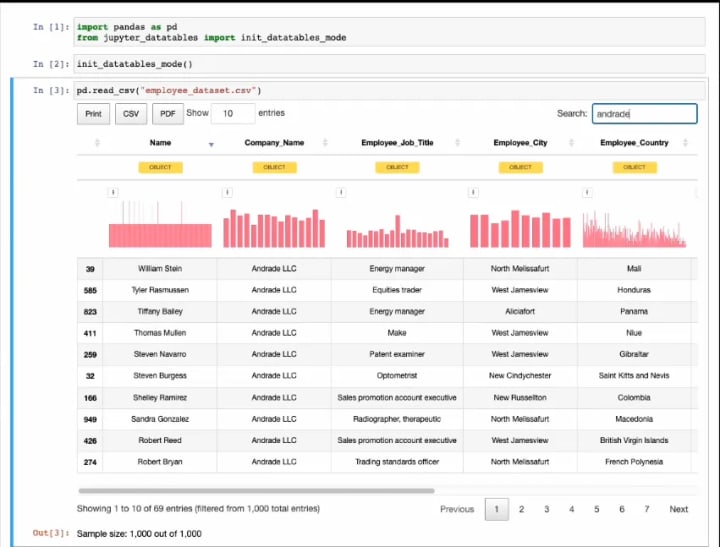
This richer preview provides sorting, filtering, exporting, and pagination operations, as well as column distribution and data types.
2. Labeling data by clicking a button
Not all data is pre-labeled when acquired.
Therefore, when working with unlabeled data, you may often need to spend some time annotating/labeling it.
Unlike previewing files externally and marking them or building complex annotation pipelines, you can annotate in just a few lines of code using 𝐢𝐩𝐲𝐚𝐧𝐧𝐨𝐭𝐚𝐭𝐞.
It provides Jupyter widgets specifically designed for data annotation.
Run the following command to install:

Data annotation becomes easier by clicking a button. Therefore, ipyannotate allows you to attach data labels to buttons.
Suppose we have some images of cats and dogs (unlabeled). We can create an annotation pipeline as shown below:

As shown above, you can annotate your data by simply clicking the corresponding button.
Additionally, you can retrieve the labels and use them as needed in your data pipeline.
3. Viewing Documentation in Jupyter
When working in Jupyter, it’s common to forget function parameters and refer to official documentation (or StackOverflow).
However, you can view the documentation directly within the notebook.
Press Shift-Tab to open the documentation panel. This is very useful and time-saving because you don’t have to open the official documentation every time.
Here’s a demonstration:

This feature also applies to your custom functions.
4. Receiving Notifications After Executing a Jupyter Cell
After running some code in a Jupyter cell, we typically switch to other tasks.
Here, people often have to keep switching back to the Jupyter tab to check if the cell has executed.
To avoid this, you can use the %%notify magic command from the jupyternotify extension.
As the name suggests, it notifies the user via a browser notification when the Jupyter cell completes (success or failure).
To install it, run the following command:

Next, load the extension:

All set!
Now, whenever you want to receive notifications, simply enter the following magic command at the top of the cell:

You will receive the following notification whenever the cell finishes executing:

Clicking the notification will take you back to the Jupyter tab.
5. Clearing Cell Output While Running in Jupyter Notebook
When using Jupyter, we often print many details to track the progress of the code.
However, this can be frustrating when the output panel accumulates a lot of details, and we’re only interested in the latest output.
Additionally, having to scroll to the bottom of the output every time can be annoying.
To clear the output of a cell, you can use the clear_output method from the IPython package.
IPython is pre-installed with Python, so no installation is needed.
You can import the method as shown below:

When called, it will remove the current output of the cell, allowing you to print the latest details afterward.
Here’s a demonstration:

As demonstrated above, we only see the latest output in the cell. The previous output has been erased.
Summary
Today, I shared some incredible Jupyter tips. I believe these tips will enhance your Python programming efficiency.
Thank you for reading.
About the Creator
Ben Hui
Graduated with Mathematics major
Business Intelligence Analyst
Keep reading
More stories from writers in Interview and other communities.
Center Stage with Paul Stewart
*** I'm keen to republish the interviews I did for my series with Vocal creators. It's been a few years and I thought it might be nice to revisit these wonderful conversations. I'll be releasing them one at a time for a few weeks/months.
By Heather Hublerabout 2 hours ago in Interview
Fumfer Physics 36: Proto-Thoughts, Context, and Memory Hooks
Scott Douglas Jacobsen asks whether it is naïve to look for a discrete “unit” of thought, given that thoughts vary in informational content and rarely arrive as neat sentences. Rick Rosner argues that language captures only a thin slice of cognition: perception, background knowledge, self-critique, and half-formed associations run in parallel as “proto-thoughts.” He uses the example of viewing a painting to show how sensory input and contextual inference accompany any sentence-like notion. Most thoughts, he adds, pass without leaving retrieval “hooks,” much like dreams. Without deliberate encoding—or a later contextual trigger—mental material vanishes, because recall depends on activating the right associative patterns.
By Scott Douglas Jacobsen8 days ago in Interview




Comments
There are no comments for this story
Be the first to respond and start the conversation.