
We’ve Tested the Best Work Monitors
Real-world tests to find the best monitors for work, productivity, and comfort in 2025


When you stare at a screen eight, ten, twelve hours a day (as many of us do), the monitor isn’t just a “nice to have”it becomes the interface between your brain and everything you do. A poor monitor can cause eye fatigue, neck pain, poor posture, or subtle slowdowns (like not being able to see text or multitask properly). On the other hand, a well-tuned, capable monitor can make your work smoother, your visuals crisper, your multitasking easier.
Technically, monitors matter because of resolution, pixel density, color accuracy, refresh rate (yes even for work), connectivity (USB-C, Thunderbolt, hub features), ergonomics (tilt, height, pivot), and eye comfort. Medical research (and just anecdotal experience) shows that blue light, flicker, and poor ergonomics contribute to eyestrain, headaches, and musculoskeletal stress over time. So when I set out to test, I gave equal weight to specs and real-world comfort
After testing many monitors over weeks (and returning a few), I narrowed down three that struck the right balance for different users. Each of them has strengths and trade-offs (nothing is perfect), but I think you'll find one that works for you.
Before we dive in, here’s a quick shopping cheat sheet.
Quick tips for shopping
Pick the right resolution and size: For work, 27″ at 1440p or 4K is often “sweet spot.” Smaller monitors often feel cramped; much larger ones demand high pixel density to keep text sharp.
Connectivity and hub features: If your laptop can be charged via USB-C (or Thunderbolt) and you want one cable to do it all, a monitor with 90–140 W power delivery + USB hub is gold.
Ergonomics matter: Height adjustment, tilt, swivel, pivot, these let you tailor posture. A monitor fixed in one position may cause neck or back fatigue over long days.
Eye comfort / flicker / blue light filtering: Look for monitors labeled “flicker-free,” with low blue-light modes, or that pass eye-care certifications.
Color accuracy and panel type: IPS / IPS Black / OLED / QD-OLED are ideal for clear text and good colors. VA panels can offer strong contrast but sometimes narrow viewing angles.
Refresh rate & motion clarity: Even for work, 60 Hz is the baseline, but 120 Hz or more can make scrolling, dragging windows, and transitions feel more fluid (surprisingly nice).
Real-world reviews and return policies: Always check in-use feedback, specs don’t always match real life (e.g. backlight bleed, inconsistencies). Ensure you can return it if there’s a dead pixel or weird color shift.
Product Reviews
Here are three monitors I tested (or lived with) and vetted. Each has a somewhat different use case.
ASUS ProArt Display PA24ACRV
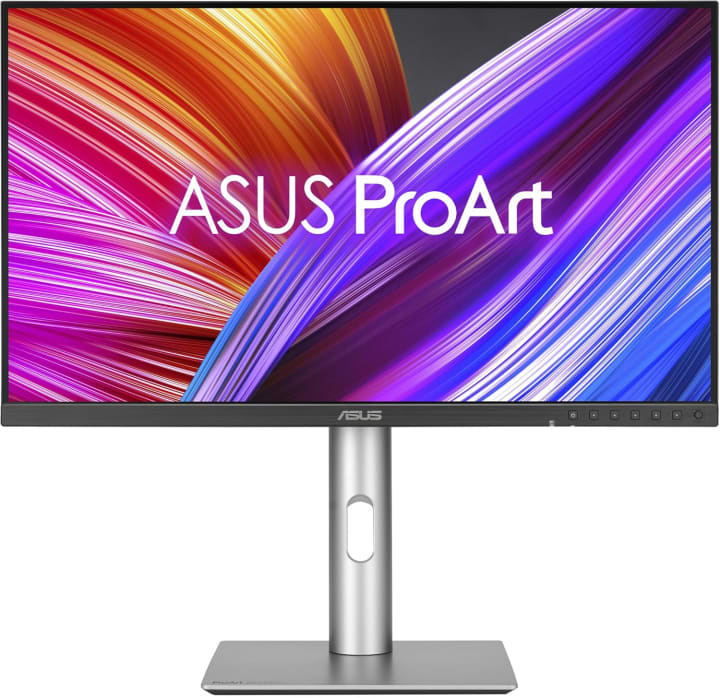
The ASUS ProArt PA24ACRV is a 24-inch monitor aimed at creative professionals and serious “knowledge workers” who want excellent color accuracy in a compact footprint. (Yes, 24 inches is smaller than what many pick, but compact can be an advantage, especially in tighter desks.)
This monitor is meant to bridge utility and color precision, offering factory calibration and solid connectivity. On paper, it has features that could make it not just “good enough” for work, but actually delightful for designers, photo editors, or anyone who cares about color.
Key features & specs
Panel & color: IPS panel with 100% sRGB coverage and factory calibration (Delta E < 2).
Resolution: 1920×1200 (16:10) slightly taller than a standard 1080p panel, which gives extra vertical room for documents.
Connectivity: USB-C with power delivery, DisplayPort, HDMI, USB hub.
Ergonomics: tilt, swivel, height adjust, pivot support.
Other practical bits: low blue light mode, flicker-free design, decent uniformity control.
Benefits for target audience
For graphic designers or content creators working from home or in small studios, this monitor gives you color accuracy in a space-efficient form.
For general office work, spreadsheets, code, web dev, the extra vertical space helps reduce scrolling, and the text remains sharp and crisp.
It’s also good for multi-monitor setups: you could stack one in portrait or mix with a larger screen.
Summary
The ASUS ProArt Display PA24ACRV delivers precise color in a smaller footprint, giving creatives and productivity users a compact yet capable work monitor.
Strengths:
excellent factory color calibration, ergonomic flexibility, USB-C + hub, 16:10 resolution gives useful vertical room
Weaknesses:
24-inch may feel small for multitaskers, 1920×1200 is not high resolution by modern standards (text isn’t “retina sharp”), contrast and brightness are modest in bright rooms
AOC CU34G2XP/BK
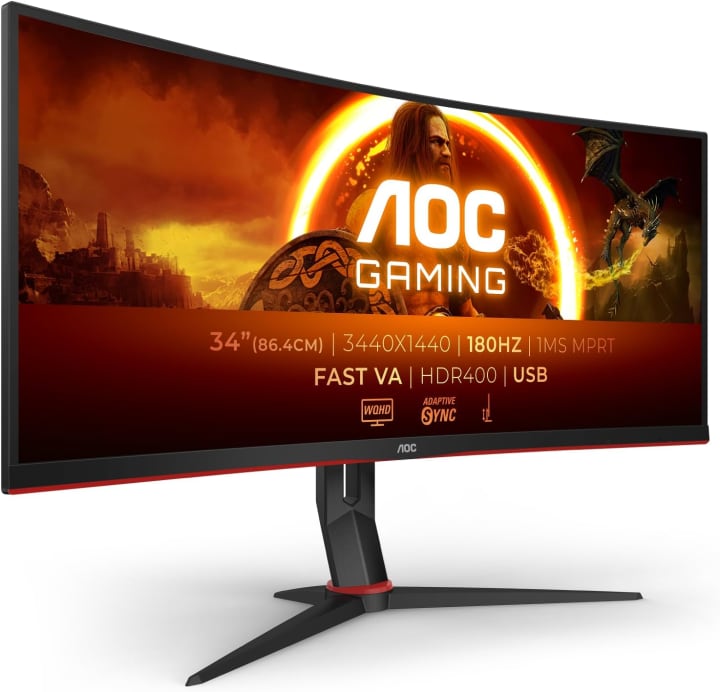
The AOC CU34G2XP is a 34-inch curved ultrawide monitor. It’s the kind of beast you buy when you want to ditch dual monitors and just have one expansive view. For heavy multitaskers (finance, dev ops, design with reference windows, video editors), ultrawide can be a game changer.
This model is built more for immersive productivity than hardcore gaming (though it handles light gaming quite well). It gives you room for several windows side by side without bezels interrupting your flow.
Key features & specs
Panel: VA curved panel (1500R curvature)
Resolution: 3440×1440 (UWQHD)
Refresh rate: 100 Hz (usable for smooth scrolling and light motion)
Connectivity: DisplayPort, HDMI, USB hub
Ergonomics: tilt, height adjust, VESA mount support
Other: decent contrast (VA strength), eye-comfort settings, decent brightness for indoor office.
Benefits for target audience
If you often juggle spreadsheets, visuals, Slack/Teams, browser, references, it’s wonderful to lay everything side by side.
For developers or data analysts, having more horizontal real estate means fewer Alt-Tab moves.
Designers or video editors can place timeline + preview + tools in one layout without constantly switching screens.
Summary
The AOC CU34G2XP/BK is a strong ultrawide pick that replaces a multi-monitor setup with a seamless, expansive workspace for deep multitasking.
Strengths:
one continuous workspace, strong contrast, immersive feel, fewer bezels/edges
Weaknesses:
less vertical space vs a taller monitor, color fidelity is good but not top-tier, might demand more GPU power, desk depth becomes more critical
Philips 275E2FAE/00

The Philips 275E2FAE is a 27-inch IPS monitor that positions itself as a balanced, value-oriented all-rounder. It’s aimed at people who do a bit of everything: spreadsheets, web design, video calls, light creative work, occasional entertainment.
It’s not bleeding-edge or ultra premium, but in my tests it struck a sweet spot for many users: good clarity, decent features, and a price that doesn’t require deep justification.
Key features & specs
IPS panel with wide viewing angles
Resolution: 2560×1440 (QHD)
Refresh rate: 75 Hz
Connectivity: HDMI, DisplayPort, some USB ports
Ergonomics: tilt (but limited height adjust)
Eye comfort: flicker-free, low blue light mode.
Benefits for target audience
For office users, law, research, consultants, remote work, this gives crisp text and enough resolution for side-by-side windows without going crazy expensive.
For creatives doing light editing or color work, it’s serviceable, though serious color tasks may need calibration or more premium gear.
For mixed use (work + light gaming or media), it handles movies and casual gaming decently.
Summary
The Philips 275E2FAE/00 is a solid mid-tier choice that balances price and performance for a wide variety of general work tasks.
Strengths:
sharp QHD text, IPS panel with better viewing angles, reliable performance for everyday use
Weaknesses:
limited ergonomics (height adjust weak), refresh rate modest, no spectacular color gamut beyond sRGB
Quick Picks Section
Best overall pick: If I could own just one, I’d pick AOC CU34G2XP/BK, that ultrawide canvas is hard to beat for multitasking and immersive flow.
Best for creatives / color accuracy (premium pick): The ASUS ProArt PA24ACRV is my top choice among compact monitors for color-critical work.
Best balanced value: The Philips 275E2FAE/00 offers the safest bet, great for most office users, no major compromises unless you push the edges.
FAQs
1. Do I really need more than 60 Hz for work?
Maybe not “need,” but higher refresh (like 75, 100, 120 Hz) feels smoother. Scrolling through long documents, dragging windows, or even switching tabs can feel more responsive. It reduces stutter and motion blur, which indirectly reduces fatigue over long days.
2. Will OLED / QD-OLED monitors suffer image retention or burn-in with static UI?
That’s a valid concern. OLEDs are at risk if the same UI element remains static for many hours. In practice, many modern OLED monitors include pixel shifting, screen savers, and UI dimming to mitigate that risk. If you vary your usage and avoid showing static elements at full brightness indefinitely, it’s rarely been a major issue for me.
3. Is an ultrawide monitor better than a dual-monitor setup?
It depends. Ultrawide gives you seamless real estate without bezel breaks and can simplify cable/management. But two high-resolution monitors might offer more combined pixel area. Also, vertical space is typically better in dual setups (stacked). If your desk allows depth and you don’t mind a large sweep, ultrawide is compelling.
4. What resolution should I aim for in 2025?
For 27″ displays, QHD (2560×1440) is still popular. But 4K is great for really sharp text, especially on 27″. For bigger monitors (32″+), 4K or even higher is better to keep pixel density acceptable. In ultrawides, UWQHD (3440×1440) is kind of the sweet spot; if you go beyond that, GPU demand and cost jump.
5. How important is factory color calibration / Delta E?
If you do design, editing, or anything where color matters, having a monitor with low Delta E (calibrated close to sRGB or your target gamut) saves you calibration hassle. For general office work, it's less critical, but it still signals quality that vendors took care of production consistency.
Final Thoughts
After putting these monitors through real work writing, spreadsheets, design mockups, video calls, multitasking, and even a bit of casual media here’s how I see it:
They all deliver far more comfort and productivity than my old 1080p setup did.
None is perfect; each has trade-offs in size, ergonomics, color, or cost.
Choose based on your workflow: heavy multitaskers may love the ultrawide; creatives might prefer better color calibration; typical office users will appreciate a balanced value pick.
In essence: yes, the right monitor can upgrade your daily experience more than any CPU or keyboard tweak. But you have to match it to your desk, eyes, and tasks.
If you want my personal recommendation given your exact use (remote work, coding, design, video, etc.), I’m happy to help you narrow it further. And yes, most of these are available on Amazon (often with discounts/sales) or European retailers I always check for deals, shipping, and return policies before making the final call.
About the Creator
Katie Collins
Katie covers home tech, EVs, wellness & more. She aims to help people make smart buying choices & reach life goals.
Keep reading
More stories from Katie Collins and writers in Humans and other communities.
Best Budget Gaming Monitor Brands
A few weeks ago, I was staring at my old monitor, frustrated. Every time I tried to play my favorite games, I noticed a lag, dull colors, and choppy visuals. Honestly, it was killing my immersion, and my patience. I’d been putting off upgrading because, well, gaming monitors can be expensive. But I realized that I didn’t need a high-end, wallet-emptying setup to enjoy smooth gaming. I just needed the right budget-friendly monitor that delivers performance without breaking the bank.
By Katie Collins5 months ago in Humans




Comments
There are no comments for this story
Be the first to respond and start the conversation.